A smartwatch can make a timer, a calendar reminder, or a message from home easier to see. That can help a student who needs a quick cue to leave for the bus or start a study session. It can also mean another screen that asks for attention. The value of the watch depends on which tasks it will handle, how the student sets it up, and where the school allows it.
Before looking at models, pick one or two jobs you want a smartwatch to do. A university student who wants a silent reminder between classes has different needs from a family arranging after-school pickups. Write those jobs down and check whether the watch can do them with the phone, account, and connectivity you already have.
School, privacy, and safety note: Check the school’s wearable policy and the rules for each exam. Discuss location and health data settings with the student before enabling them. Features depend on the model, software, country, and plan. For health symptoms or emergencies, follow your care or emergency plan and use the appropriate services.
When Smartwatches for Students Can Help
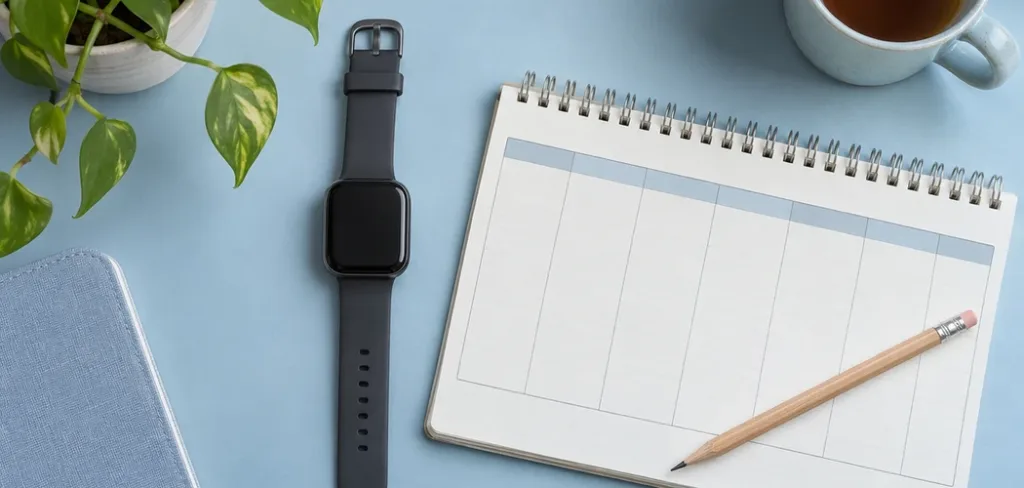
A watch works well as a reminder for a task the student already plans to do. Set a quiet alert before leaving home, a timer for a study break, or a calendar reminder before a tutoring session. If the student already checks a planner before bed, they can add a few important reminders at that time. That way the watch supports a habit they already have.
Students who use public transport may want a vibration before their usual stop. A college student moving between buildings might want a calendar reminder with the room number. A teenager who practises a sport after school may use a timer when the activity permits wearing a watch. Test whether the alert is easy to notice and whether it comes at a time when the student can act on it.
A watch has a small display. Use a phone, computer, or paper planner for tasks that need more space, such as comparing assignment instructions or mapping a week of deadlines. When a watch shows a message that needs a longer response, the student can leave it for their next scheduled check-in. This keeps a quick glance from turning into a conversation during class. For more on using technology in lessons, see our guide to digital tools and student engagement.
| Main goal | Feature to check | Another way to do it |
|---|---|---|
| Keep track of transitions | Quiet alarms, vibration strength, and recurring reminders | A simple watch with an alarm |
| See the next class or activity | Calendar compatibility and reliable syncing | Printed timetable or a planner |
| Coordinate a pickup | Approved contact options and connectivity away from the phone | A pickup routine agreed with the school |
| Record activity during sports | Activity timer, fit, and the sport’s wearable rules | Basic activity tracker or stopwatch |
| Track study sessions | Easy-to-start timer and controls for notifications | Desktop timer or a small physical timer |
Check School and Exam Rules Before Buying
Schools may handle wearables differently during lessons, breaks, sports, and tests. Read the policy or ask the school office whether the device can be worn, whether it must be switched off, and where students should put it when it is prohibited. Ask how parents can contact a student during lessons. A watch works best when the family and school agree on that communication process.
Exam rules can be stricter than everyday classroom rules. For instance, College Board lists smartwatches among prohibited devices for the SAT and describes an exception for approved accommodations. Check the rules for each exam the student will take and follow instructions from the testing centre. If a learner uses a wearable for an accessibility or health need, ask the school or exam provider in advance how to request and document the appropriate accommodation.
School modes can limit alerts or app use. Apple, for example, documents a Schooltime feature for compatible Apple Watch setups that limits notifications and access to apps during scheduled periods. Check what a mode actually blocks and how the student or parent can change it. Permission to use a watch still comes from the school’s rules.
Set Notifications Around the School Day
Start with a short list of important notifications. Calendar events and messages from agreed contacts may belong on that list. Social feeds, promotional alerts, and busy group chats can wait until the student checks their phone. Review watch notification permissions after installing a new phone app, since some devices can mirror alerts by default.
Try the settings for a week. Ask which reminders the student used and which interruptions they remember. If the watch keeps interrupting a quiet study session, check the schedule and the apps allowed through it. If the student misses a useful reminder, test the vibration or the timing. A cue five minutes before a class ends may be more distracting than a cue at the transition itself.
Check what happens when the watch and phone are apart. Basic timers often work on the watch, while a calendar update, new message, or call may depend on the model and connection. Test those features away from the paired phone before relying on them on the way to school. A watch with a cellular radio may still need an eligible carrier plan and coverage. A watch sold for one market can have different network or service support elsewhere.
Discuss Location Sharing and Wellness Data
A location-sharing feature may help if a family needs to coordinate a pickup at a new spot. Agree on who can see the student’s location, when they will check, and how to turn sharing off. With older students, include them in the decision and review the settings together. Location data can be delayed or imprecise, especially when a device has limited connectivity or cannot obtain a good fix. Keep a pickup plan for times when the watch is offline.
Check the account that receives the data. Some setups let family members see a child’s watch through a managed account. Others store location or wellness information with a device maker or a separate app. Review permissions when connecting a new app or sharing access with another person. When you replace or sell a watch, follow the maker’s instructions to unpair it, remove the account, and erase the device.
Activity reminders or workout timers may be useful to someone who wants to move more during a long study day. Health-related features may have minimum ages, country restrictions, and other eligibility rules. Check the specific feature with the manufacturer. Wearable readings can miss problems or produce alerts that need interpretation. If the student has symptoms or a diagnosed condition, ask their clinician which measurements, if any, are worth using and what action to take.
Compare the Features You Will Use
Phone and account requirements
Confirm that the watch works with the student’s phone model and operating system. Some watches need a compatible phone for initial setup, updates, or account recovery even when they can do certain tasks on their own. A parent setting up a watch for a child should check whether a managed family account is supported and whether the relevant service is available locally.
If calendar reminders are the main reason for buying, test the calendar service you actually use. A school-managed account may restrict syncing to personal devices. Confirm whether the watch shows a changed appointment and how long that update takes. The same applies to class platform messages. Check whether the watch mirrors a notification, opens a watch app, or requires the phone for any meaningful action.
Battery and fit
Read the conditions behind the battery estimate. Frequent notifications, cellular use, GPS workouts, and an always-on screen can change how long a charge lasts. Decide where charging fits into the student’s day. If they want sleep tracking as well as daytime reminders, find a time when they can take the watch off and charge it.
Try the fit with a backpack and everyday clothing. Check that the watch stays in place and that the student can start a timer without hunting through menus. If swimming is part of the plan, read the manufacturer’s activity-specific water-resistance instructions. The rating and the manufacturer’s usage guidance matter more than a generic claim that a watch is waterproof.
Total cost and support
Include a cellular plan, replacement strap, charger, and likely repair costs when comparing prices. For a used model, check the battery condition, remaining software support, and whether the seller has removed any account or activation lock. Review return terms so the student can check fit and compatibility with the devices they already use.
Try the Routine Before Spending More
Start with the tools you have. Test one school-week routine using a basic watch alarm, the phone’s focus settings, or a written planner. Note what still takes more effort than it should. If the student keeps missing a transition because the phone stays in their bag, a quiet wrist alert may address that problem. If the issue is a crowded schedule, spending time organising the calendar may help more.
If you do buy a smartwatch, set up only the tools you planned to use and review the results after a week. Check whether the device is allowed where the student needs it, whether it stays charged through the day, and whether the reminders reduce missed tasks. That gives you a practical basis to decide what to keep enabled.