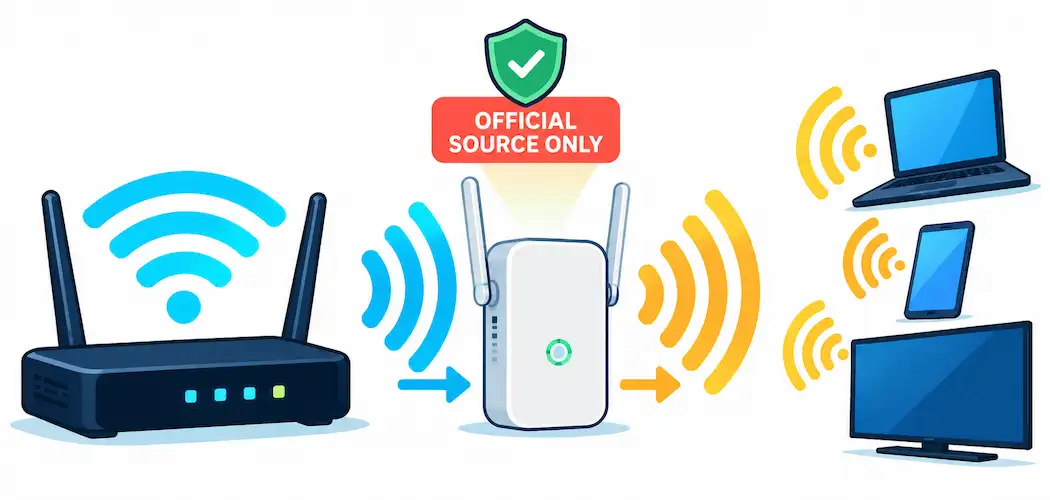
A Wi-Fi repeater (also called a range extender) solves a specific problem: your router’s signal is strong near the router itself, but weak or nonexistent in a back bedroom, garage, or upper floor. AVM’s FRITZ!Repeater line is a solid, widely used option for this, but getting it set up correctly — and safely — matters more than the marketing copy usually lets on. Here’s an accurate walkthrough, along with a real security point worth taking seriously: where you go to find setup information actually matters. (If you’re comparing repeater options more broadly, our guide to setting up a D-Link extender covers similar ground with a different brand, including the extender-vs-mesh decision.)
What a Repeater Actually Does (and Doesn’t)
A repeater doesn’t connect to the internet on its own. It joins your existing router’s Wi-Fi network as a client, then rebroadcasts that same network under an extended or identical name, effectively pushing the signal further into your home. Your internet connection still comes entirely from your router and your ISP — the repeater is purely extending the existing wireless signal, not adding a second internet connection. Understanding this matters for troubleshooting: if your main router loses internet access, every device connected through the repeater loses it too, since the repeater has no independent connection of its own.
A Security Point Worth Taking Seriously First
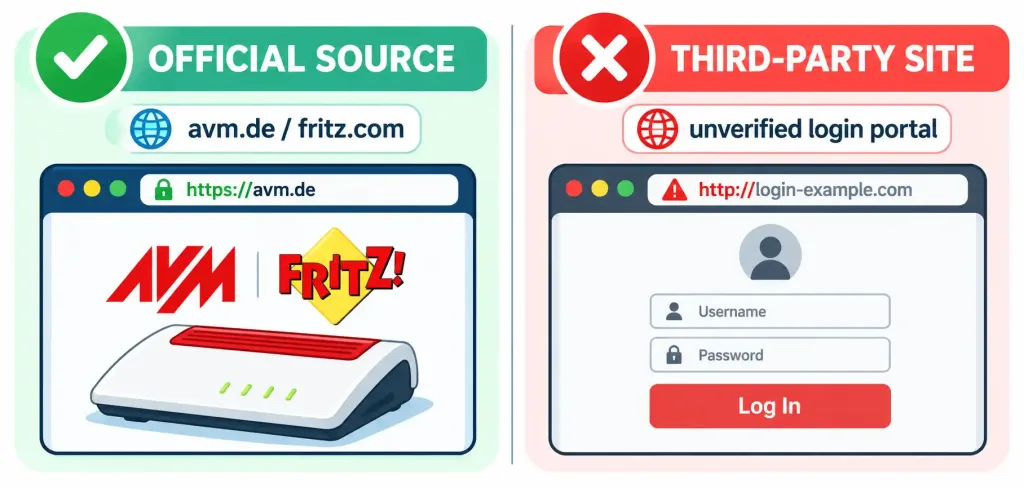
Before getting into setup steps: only use AVM’s official resources — their own website (avm.de or fritz.com) or the printed documentation and label that came with your specific repeater — for login addresses, default passwords, and setup instructions.
Several unofficial third-party websites exist that claim to host “default password” lists and login portals for FRITZ! devices, and typing router credentials into a page that isn’t the manufacturer’s own site is a real risk, not a theoretical one — you have no way to verify what an unofficial site actually does with information you enter there. Your specific repeater’s default login details are printed on a label on the device itself and in the included documentation; that’s the trustworthy source, not a third-party search result.
Setting Up Your FRITZ!Repeater
Exact steps vary somewhat by model generation — older FRITZ!Repeaters use physical buttons with LED indicators, while newer models have a touch display — so always cross-check against your specific model’s manual from AVM’s official site. The general process looks like this:
Method 1: WPS (the simpler method, if your router supports it)
- Plug in the repeater near your router for initial setup.
- Press the WPS button on your router.
- Within the time window your router allows (check your router’s manual — this varies), press the WPS button on the repeater.
- The devices pair automatically, and the repeater’s status light will indicate a successful connection (check your specific model’s manual for what that indicator looks like, since this varies by generation).
- Once paired, you can relocate the repeater to the area needing better coverage — a spot roughly halfway between your router and the weak-signal area typically works best.
Method 2: Web browser setup (more control, works even if WPS isn’t available)
- Connect a device to the repeater’s initial setup network (the network name and any default access details are on the label on the device itself).
- Open a browser and navigate to the address specified in your repeater’s documentation.
- Follow the on-screen setup wizard, which will have you select your existing home network and enter its Wi-Fi password.
- Complete the setup and relocate the repeater as needed.
Resetting a FRITZ!Repeater
The exact reset procedure depends on your model — some older models use a physical reset button (typically held for a specific duration until an indicator light changes), while newer touch-display models use an on-screen reset sequence. Check your specific model’s documentation on AVM’s official site before resetting, since the procedure varies by generation and getting it wrong on some models can require additional steps to recover. What’s consistent across models: a factory reset erases all your custom settings, including your Wi-Fi network configuration, so you’ll need to go through setup again afterward — only reset when you actually mean to start over, such as troubleshooting a persistent connection issue or preparing to give the device to someone else.
Positioning Your Repeater for Best Results
Where you place the repeater matters as much as the setup itself. A repeater placed too close to the router doesn’t extend coverage meaningfully, and one placed too far away (already outside the router’s usable signal range) won’t have a strong enough connection to rebroadcast effectively. The best spot is typically where you can still get a solid connection to the router while meaningfully improving coverage in the weak area — often roughly halfway between the two, though walls, floors, and interference from other electronics can shift that in practice. Many repeaters have a signal-strength indicator you can use to find a good spot by trial and error.
The Bottom Line
A FRITZ!Repeater is a straightforward, effective way to extend Wi-Fi coverage once you understand what it’s actually doing — rebroadcasting your existing network, not creating a new internet connection. The setup itself (via WPS or browser) is genuinely simple on most models. The one thing worth being deliberate about is where you get your setup information: AVM’s own site and the documentation that came with your device, not a third-party site claiming to host login portals or default passwords.
Frequently Asked Questions
Does a Wi-Fi repeater need its own internet connection?
No. A repeater joins your existing router’s network as a client and rebroadcasts that same signal — it has no independent internet connection of its own. If your router loses internet access, devices connected through the repeater lose it too.
Where should I find the default login and password for my FRITZ!Repeater?
On the label on the device itself, in the included documentation, or on AVM’s official website (avm.de or fritz.com). Avoid third-party sites claiming to list default passwords or host login portals for these devices — there’s no way to verify what they do with information you enter.
Which setup method is easier, WPS or web browser?
WPS is generally simpler if your router supports it — it’s a quick button-press pairing process. The web browser method gives you more control and works even when WPS isn’t available or convenient.
Where’s the best place to position a Wi-Fi repeater?
Generally somewhere between your router and the area with weak coverage — close enough to maintain a solid connection to the router, far enough to meaningfully extend coverage. Many repeaters have a signal-strength indicator to help you fine-tune the exact spot.