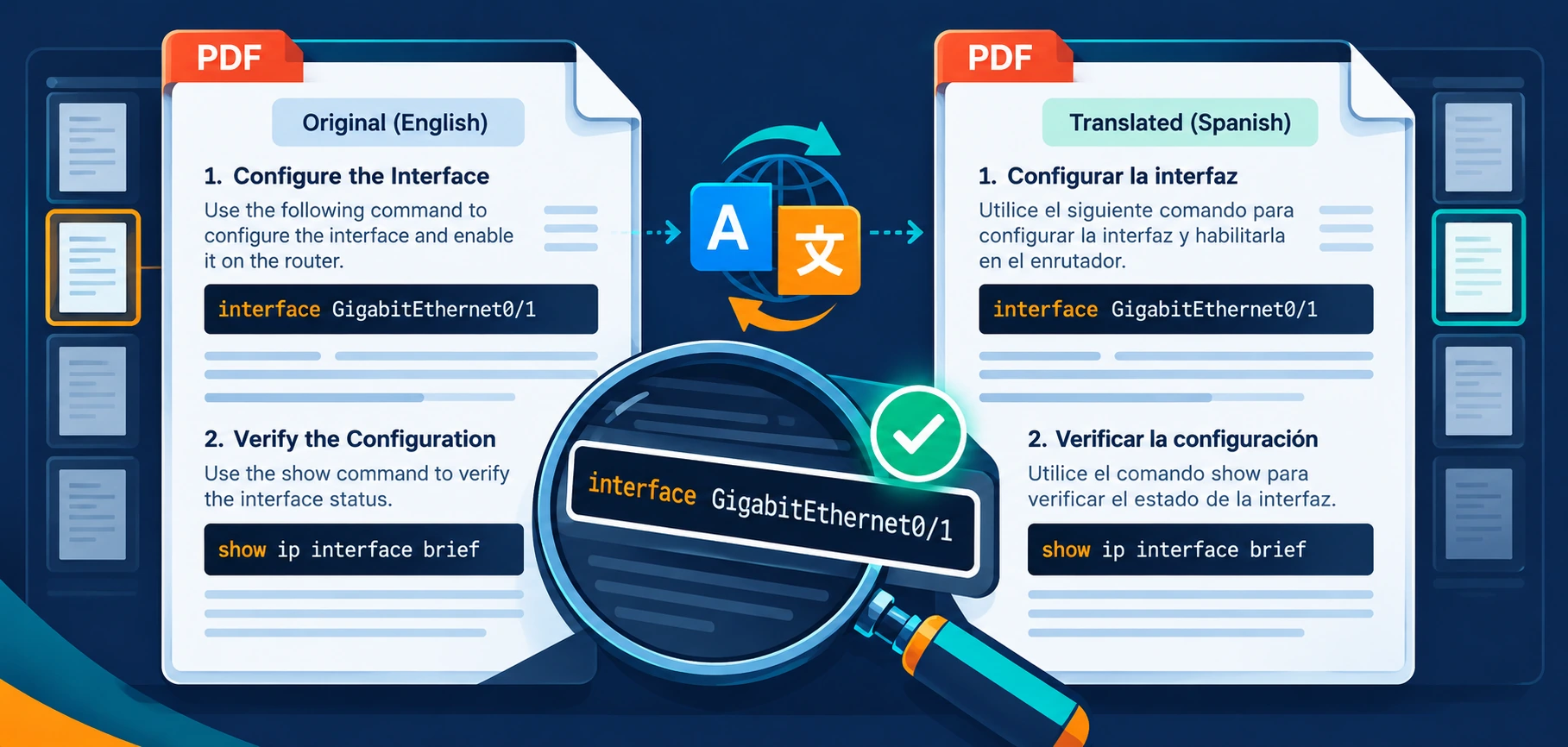
Technical teams regularly receive equipment manuals, configuration guides, security reports and vendor documentation in unfamiliar languages. Translating the words is only part of the job. The translated document must also preserve enough structure for readers to connect warnings, diagrams, tables and numbered procedures with the correct text.
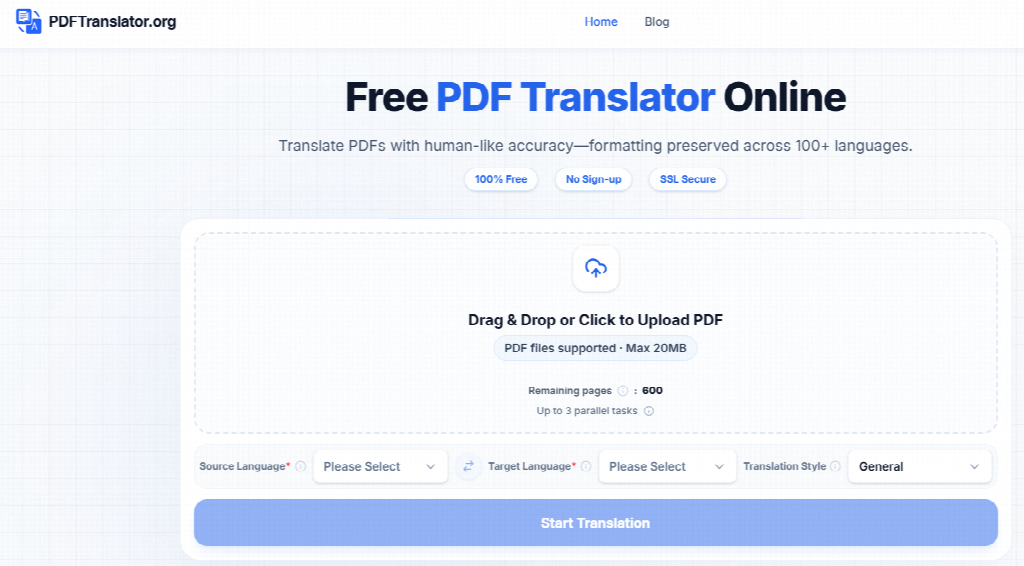
An AI PDF translator can shorten the first stage of this process. PDFTranslator.org runs in a browser, supports more than 100 languages and accepts PDF files up to 20MB. It also attempts to retain the document’s layout, reducing the manual copying and reformatting often required when technical content is moved into a general-purpose translation interface.
Reliable results still depend on preparation and review. Commands, addresses, model numbers and safety instructions require different treatment from ordinary prose. A structured workflow helps teams use automated translation efficiently while keeping technical decisions under human control.
Why Technical PDFs Require a Careful Translation Process
A technical PDF may contain several types of information on the same page:
- Explanatory paragraphs
- Numbered procedures
- Command-line instructions
- Tables and specification sheets
- Diagram labels
- Safety warnings
- Interface screenshots
- Headers, footers and revision numbers
The meaning of these elements often depends on their position. If a warning moves away from the step it concerns, or a translated table loses its column alignment, the document can become difficult to use even when individual sentences are understandable.
Technical vocabulary creates another challenge. The same term may have a general meaning and a specialised meaning within networking, cybersecurity or engineering. “Port,” “node,” “gateway,” “token” and “certificate” are familiar examples. Translators and reviewers need to interpret them according to the document’s subject and surrounding instructions.
Prepare the File Before Translation
A few checks before uploading can prevent avoidable errors later.
Identify the Document Version
Confirm the title, publication date, revision number and applicable product model. Translating an outdated manual may introduce greater risk than leaving the document untranslated.
Save the original file with a clear name. A simple naming convention might include the vendor, document title, language, revision and date:
Vendor_Product_AdminGuide_EN_Rev3_2026-09.pdf
The translated copy can follow the same pattern with the target-language code added. This makes it easier to trace every translation back to its source.
Determine Whether the PDF Contains Selectable Text
Try selecting and copying a sentence from the PDF. If the text cannot be selected, the document may consist of scanned page images.
Scanned pages require optical character recognition before their content can be translated. OCR results can be affected by blur, skewed pages, handwriting, unusual fonts and low contrast. Tables, mathematical notation and text placed over diagrams are particularly vulnerable to recognition errors.
Review the Information Sensitivity
Check whether the file contains internal network details, credentials, personal data, unpublished vulnerabilities, confidential contracts or customer information.
An online service may be suitable for public manuals and approved vendor documents. Sensitive material should follow the organisation’s security policy, data-classification rules and approved software list. Remove unnecessary confidential information in the source file or another authorised PDF editor before uploading when policy permits.
Translate the PDF in a Controlled Workflow
A repeatable process makes results easier to review and document.
Step 1: Choose the Source and Target Languages
Identify the document’s source language and select it manually in PDFTranslator.org before starting the translation. Then confirm the required target language and any relevant regional terminology with the intended readers.
For example, a Spanish document for Mexico may use different terminology from one prepared for Spain. The same consideration applies to Portuguese, French, Chinese and other languages with significant regional variation.
Step 2: Select the Appropriate Translation Style
PDFTranslator.org provides translation styles for different document types. Choose a specialised field when it matches the source material. A network installation guide, academic paper and commercial contract have different terminology requirements.
The selected style provides context for the automated system, but it does not create a verified terminology standard. Teams that translate documents regularly should maintain a glossary containing approved product names, interface labels and technical terms.
Step 3: Process and Download the File
To translate a PDF online, upload the file, select the languages and translation style, start the task, and download or preview the completed result.
PDFTranslator.org does not require account registration for this workflow. Its website states that source files, completed translations and files associated with cancelled or failed tasks are automatically deleted within 24 hours. Teams should still evaluate this handling against their own security and retention requirements before uploading organisational documents.
Step 4: Compare the Source and Translation Side by Side
Keep both documents open during review. Page numbers, headings and tables should remain easy to match.
Begin with pages that carry the highest operational risk:
- Safety instructions
- Installation procedures
- Access-control settings
- Firewall and routing rules
- Recovery steps
- Warranty conditions
- Compliance statements
Visual similarity can make a translation look finished before its meaning has been checked. Reviewers should treat layout preservation and translation accuracy as separate quality controls.
Technical Details That Require Human Review
Some content should remain unchanged or be validated character by character.
Commands, Paths and Configuration Values
Command-line instructions, registry paths, file names, API endpoints and configuration keys should usually remain exactly as written unless the product provides localised equivalents.
A reviewer should compare items such as:
- IP addresses and subnet masks
- Port numbers
- URLs and domain names
- File-system paths
- Environment variables
- Usernames and role names
- Code samples
- Hashes, keys and identifiers
Even a minor punctuation change can prevent a command from working.
Product Names and Interface Labels
Product names, firmware versions and hardware models should match the vendor’s official wording. Interface labels deserve special attention because users need to find the same button, menu or field in the software.
If the application itself has not been localised, retaining the original interface label alongside the translation may be clearer:
“Select Network Settings(网络设置).”
Warnings and Mandatory Language
Words such as “must,” “should,” “may” and “must not” carry different levels of obligation. Their meaning matters in safety instructions, policies and compliance documentation.
A subject-matter expert should review passages that could affect equipment operation, security controls, legal obligations or personal safety. Automated output can support the draft, while final approval remains with qualified reviewers.
OCR-Derived Text
Text extracted from scanned pages requires comparison with the original image. Numbers, units, punctuation and similar-looking characters deserve particular attention. For example, OCR may confuse 0 with O, 1 with l, or a decimal point with a mark on the page.
Handwritten annotations should always be checked manually. Teams should not assume that every handwritten note has been recognised or translated.
Check Whether the Layout Still Communicates Correctly
Translation can change the amount of space required by a sentence. German or Spanish text may occupy more room than an English source, while some target languages may produce shorter lines.
Review the translated PDF for:
- Text cut off at the edge of a box
- Lines overlapping diagrams
- Broken page headings
- Misaligned table columns
- List numbering that no longer matches
- Captions separated from images
- Warnings split across pages
- Unreadable characters caused by missing fonts
Pay close attention to diagrams and screenshots. Text embedded inside an image may require separate review, and translated paragraphs surrounding the image must still refer to the correct labels.
Add Translation to Document Control
A translated technical PDF should be managed as a derived document rather than an isolated download.
Record:
- The original file name and revision
- Source and target languages
- Translation date
- Tool used
- Reviewer’s name
- Review status
- Corrections made
- Final approval date
- Intended audience
If the source manual changes, the translated version may also require an update. Linking both files to the same document record helps prevent teams from distributing an obsolete translation.
A Practical Quality-Assurance Checklist
Before sharing the translated PDF, confirm the following:
Content Review
- Every source page appears in the output.
- Headings and numbered steps follow the original order.
- Technical terminology is consistent.
- Commands and configuration values match the source.
- Warnings preserve their level of urgency.
- OCR-derived passages have been checked against the page image.
Layout Review
- Tables remain readable.
- Captions correspond to the correct figures.
- No text has been clipped or hidden.
- Fonts display all target-language characters.
- Page references and internal references remain meaningful.
Operational Review
- A technical reviewer has checked high-risk instructions.
- The original and translated versions are stored together.
- The file name identifies the language and revision.
- The document is approved for its intended audience.
- Uploading the source complied with organisational security policy.
Frequently Asked Questions
Should teams translate command-line instructions?
Commands, paths, configuration keys and code should generally remain unchanged unless an official localised version exists. Explanatory text around them can be translated, while the technical string itself should be verified character by character.
Is preserved formatting proof that the translation is accurate?
No. Layout preservation helps readers connect translated content with the original structure, but it does not verify terminology or meaning. Linguistic, technical and visual reviews remain separate tasks.
Can confidential technical documents be uploaded?
That decision depends on the organisation’s classification policy and approved tools. PDFTranslator.org describes SSL-protected processing and automatic file deletion within 24 hours, but internal security requirements should be checked before any confidential document is uploaded.
Build Translation Around Verification
Automated PDF translation can reduce the time spent copying text, rebuilding pages and producing a first multilingual draft. Technical teams gain the most value when translation is placed inside a controlled process.
Start with the correct source file, review its sensitivity, preserve the original, and check the output against both the source language and the technical purpose of the document. With clear ownership and human verification, translated PDFs can become dependable working materials instead of untracked files passed between inboxes.