Manually transcribing speech from video to text takes hours of tedious work. Whether you are a journalist sorting through interview recordings, an employee tracking project notes from a team meeting, or a student extracting knowledge from online lectures, pure manual typing drains your daily productivity. Spending your work hours paused on video timelines slows down your entire content production pipeline.
Modern automated workflows eliminate this manual bottleneck. Because source media formats vary from local files to web links, and final requirements range from plain text to timestamped subtitles, you need specific solutions for different tasks. This guide details four practical methods for efficiently converting your multimedia files into clean documents.
Transcribe Videos and Get Automated Summaries via Hoocs.ai
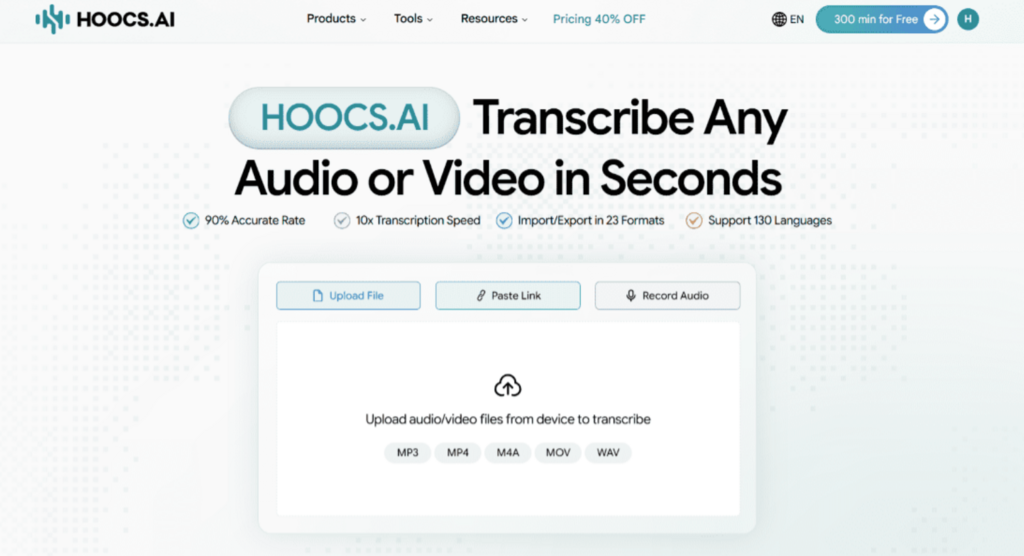
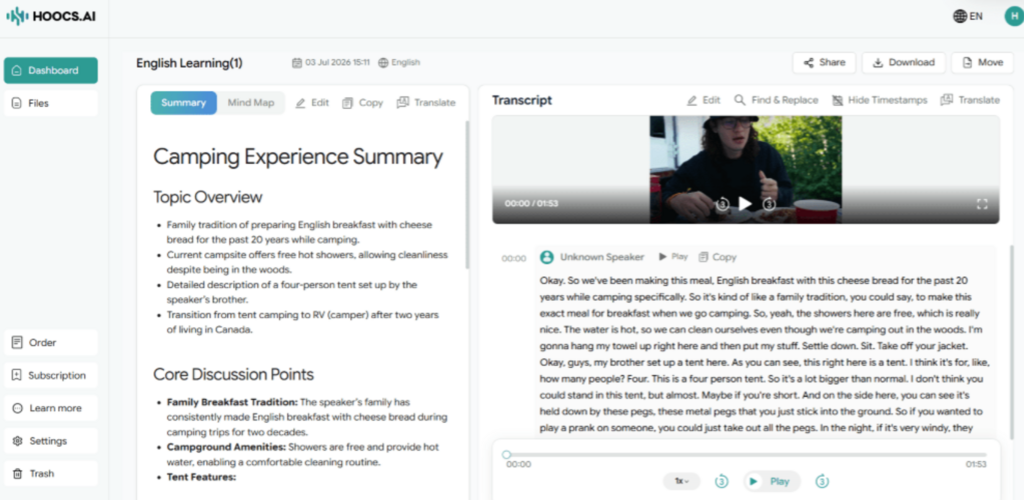
When you need maximum efficiency for daily multimedia tasks, choosing an all-in-one platform like Hoocs.ai provides a reliable solution. This AI transcription software converts hours of video into accurate text within a few minutes. Beyond standard text generation, the system automatically builds core content summaries and structured mind maps. This comprehensive approach fits the daily needs of journalists, corporate professionals, and students analyzing complex media files.
Beyond automated summaries, this video-to-text converter supports over 130 global languages and dialects for international teams. It features native import and export capabilities for 23 distinct file formats, eliminating tedious conversion steps. Furthermore, the platform lets you paste YouTube links directly into the dashboard. This integration saves you tons of time while smoothing out the post-editing and copywriting process.
Pros
- Delivers 10x faster processing for large video files
- Maintains 90% text accuracy under noisy background environments
- Supports 130+ languages and localized dialects
- Accepts 23+ different native multimedia file formats
- Provides 300 free minutes of transcription time for new accounts
Cons
- Lacks a dedicated mobile application at present
- Does not offer human-verified transcription services
Step-by-Step Guide: How to Transcribe Video to Text Using Hoocs.ai
Converting your video speech to text requires only a few simple actions. The entire configuration happens directly in your web browser without complex technical setups. Follow these steps to process your media files efficiently.
Step 1: Visit the Hoocs.ai official website and set up your free account to access the dashboard.
Step 2: Upload your local video file or paste a public YouTube URL.
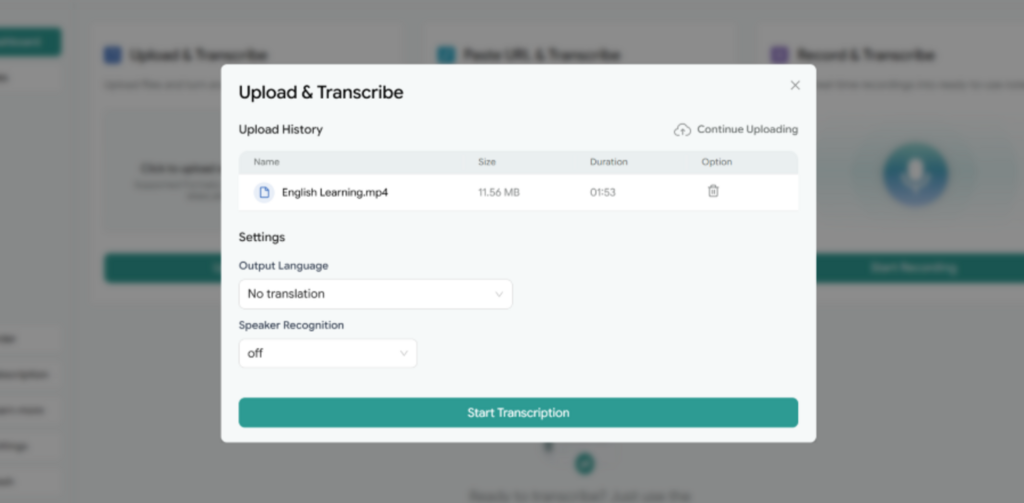
Step 3: Click Start Transcription, then complete the Settings here, and click Start Transcription again.
Step 4: Once complete, review the text in the editor. View the AI summaries or generate a structured mind map, and edit the transcripts here.
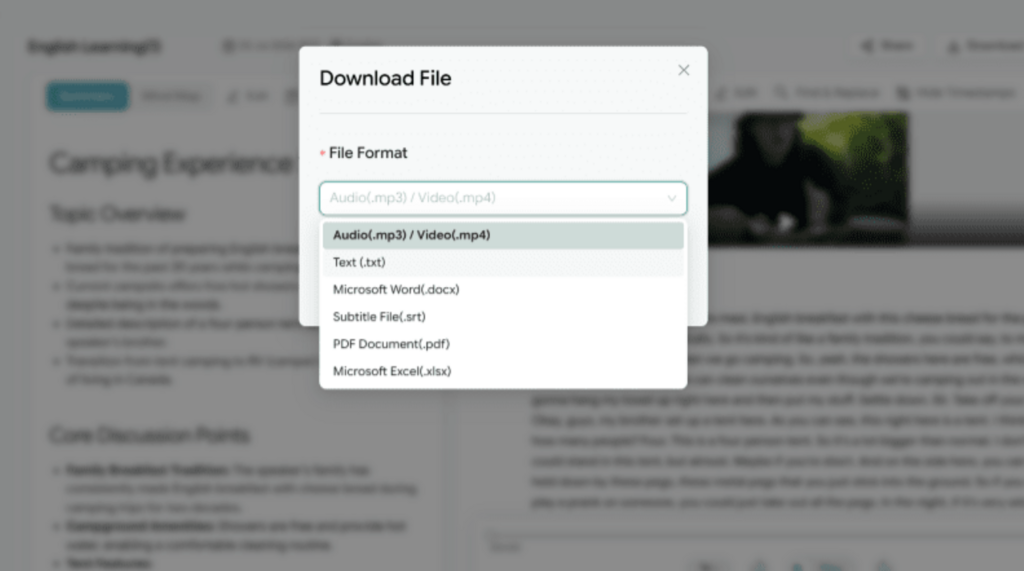
Step 5: Download the finished transcript file in your preferred format. Or share the transcript via a link.
Method 2: Extract Video Transcript Instantly Without an Account via Riverside
If you have a short local video and need the text immediately without going through a tedious registration process, a no-login web AI tool is ideal. Riverside offers a free online transcriber built specifically for these quick, one-off tasks. The anonymous setup lets you upload media and start transcription instantly, making it perfect for processing straightforward video or single-speaker clips that require no deep formatting.
You can drag and drop your file straight into the browser without providing an email address or personal details. This lightweight system rapidly generates a clean text draft to help you verify spoken information at urgent deadlines. However, the temporary nature of the tool means it lacks advanced cloud summary features, and your final download format choices are just two basic file formats.
Pros
- Access the platform instantly without creating a user account
- Upload local video files without a strict duration limit
- Work inside a clean interface free of pop-up advertisements
- Generate a basic text draft quickly with fast processing speeds
Cons
- Lacks advanced automated summaries and analytical features
- Restricts final exports to only TXT and SRT formats
Step-by-Step Guide: How to Extract Text from Video via Riverside
Using AI to turn video to text takes only a moment with this web-based tool. The simplified interface ensures you can complete the entire task in a few clicks. Follow these steps to generate your transcript without an account.
Step 1: Navigate to the Riverside free online transcription page. Click Transcribe now.
Step 2: Drop your local video file to Riverside or upload a video file.
Step 3: Choose your target language from the dropdown menu and select the content type options before clicking the Start transcribing button.
Step 4: View the completed text file in the dashboard and click the Download button to save your script in TXT or SRT format.
Method 3: Convert Video to Text via VEED for Content Creators
For active social media creators who need to transcribe videos into editable text, web-based editing platforms offer the most efficient solution. VEED has become highly popular globally due to its user-friendly interface and accessible text tools. This combination of video editing and automated transcription fits the daily workflow of independent bloggers, video editors, and digital marketers perfectly.
The platform uses advanced recognition algorithms to deliver a seamless one-click experience. It accurately processes more than 100 global languages and dialects while offering transcription features directly on its free tier. Creators can generate clean transcripts in seconds or build timestamped subtitles, completing all post-production and text proofreading work in a single browser tab.
Pros
- Features an intuitive interface requiring no learning curve
- Supports standard subtitle exports like SRT and VTT
- Accurately recognizes over 100 global languages and dialects
- Includes a built-in browser editor for quick proofreading
Cons
- Limits monthly transcription allowances on free accounts
- Adds a brand watermark to free exported videos
Step-by-Step Guide: How to Convert Video to Text via VEED
Generating text from your video files takes only a few simple configurations on this cloud platform. You can complete the entire process directly in your browser by following these steps.
Step 1: Open the VEED official website, navigate to Audio & Video Transcription, and click Transcribe now.
Step 2: Drag and drop your local video file or upload your media file directly into the workspace.
Step 3: Select the spoken language, choose your preferred transcription method, and click the auto-subtitle button to start the process.
Step 4: After the transcription finishes, you can edit the generated text and customize the subtitle styles. Once completed, download your video or export the transcript.
Method 4: Get Video Transcript with Word for Business Meetings
When handling multi-party business meetings or cross-border team collaborations, separating different speakers is absolutely crucial. Using the built-in transcription feature in Word for the web allows you to solve this issue directly in a familiar cloud environment. The tool relies on advanced voice separation technology to automatically generate clear speaker labels and timestamps based on distinct audio frequencies.
Beyond precise speaker isolation, the core advantage of this feature lies in its high accessibility. Anyone with a standard personal Microsoft account receives 300 minutes of free transcription allowance every month without extra subscription fees. This integrated cloud workflow fully supports mainstream formats such as MP4 and WAV, allowing you to proofread typos directly alongside your audio track.
Pros
- Automatically isolates and labels individual speakers
- Saves text directly into a cloud document workspace
- Provides 300 free transcription minutes every month
Cons
- Imposes strict file size limits on local uploads
- Accuracy drops significantly in noisy environments
Step-by-Step Guide: How to Generate Meeting Transcripts Using Word
Converting your meeting recordings into organized text requires only a few clicks inside your cloud workspace. This method integrates perfectly with your existing document workflows. Follow these quick steps to generate your transcript.
Step 1: Log in to your Microsoft account in a web browser and open a new blank Word document.
Step 2: Locate the Home tab, click the arrow next to Dictate, and select Transcribe.
Step 3: Select your language here, then click the Upload audio button to import your file. It supports .wav, .mp4, .m4a, and .mp3 formats.
Step 4: Once it finishes, you can edit the speaker names and the transcript directly within the side panel.
Pro Tips for Achieving Higher Text Accuracy
Preprocessing your video files before transcription significantly reduces ambient noise. This simple step directly improves the accuracy of your exported text.
- Reduce background noise: Background static, wind, or crowd chatter severely disrupt transcription algorithms. Passing your audio through a free online denoising tool before uploading helps the AI recognize words more accurately.
- Use universal formats: Uncommon or encrypted extensions often cause processing lags or format errors. Convert your files to standard formats, such as MP4, MOV, or WAV, to ensure smooth parsing.
- Maintain balanced volume: Group interviews often have uneven audio when speakers sit at different distances from the microphone. Normalizing these volume levels keeps the software from missing quiet sentences or key phrases.
Final Verdict
Converting your video into text efficiently and quickly requires choosing the right method for your task. For creators who want to generate and style captions for social media videos in one place, VEED offers an efficient workflow. If you have a quick local file and want to skip registration, Riverside’s anonymous web tool is your fastest route.
For business meetings where tracking individual speakers is essential, the native transcription feature in Word for the web works best. If you regularly process media and need automated summaries alongside structured mind maps, Hoocs.ai handles these demands perfectly. Matching the right tool to your routine ensures the best balance of speed and clarity.