
Switching from Android to a new Apple device, cleaning up scattered cloud storage, or simply wanting to unify your photo library in one place? Transferring your entire Google Photos collection to iCloud sounds simple in theory, but it’s surprisingly easy to run into issues along the way. Many users end up with missing photos, broken album structures, lost metadata, or even duplicate files after a messy manual migration.
If you want to move your precious photos and videos from Google Photos to iCloud smoothly while keeping every single picture intact, you’ve come to the right place.
Why Move Your Google Photos Library to iCloud?
Lots of users choose to migrate their photo library from Google Photos to iCloud for smoother access to their pictures across the Apple ecosystem. Here are the main reasons:
- Switching from an Android phone to an iPhone and managing your whole photo collection within Apple’s ecosystem.
- Bringing photos scattered across multiple cloud platforms into one single library for simpler management.
- Letting all your photos work seamlessly inside the Apple Photos workflow.
- iCloud also keeps your photos automatically synced to every iPhone, iPad, and Mac you own, so fresh shots appear on all your devices with zero extra work.
- iCloud places a stronger focus on user privacy, making it a great option for storing your personal and family photos.
Can You Transfer Google Photos to iCloud?
Yes, you can transfer Google Photos to iCloud without downloading your entire photo library to a computer first. Besides the manual download‑and‑upload method, Google Takeout lets you send your Google Photos data directly to iCloud Photos, and your pictures will still remain stored in Google Photos. You can export every file from Google Photos in one batch, then upload them to iCloud Photos.
Transfer Google Photos to iCloud with Google Takeout
Step 1. Open Google Takeout and log in with your account.
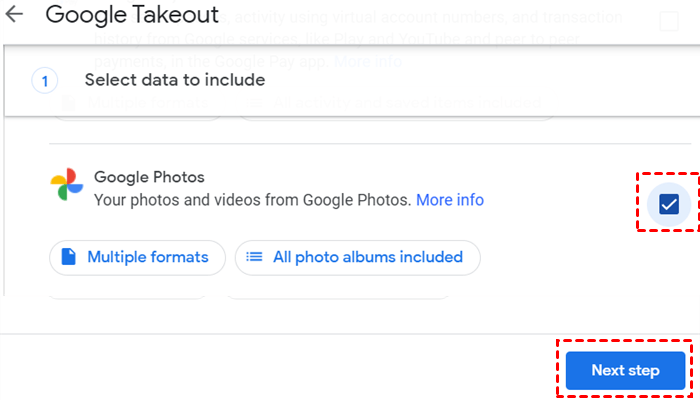
Step 2. Scroll down and check the box of Google Photos, then click “Next step”.
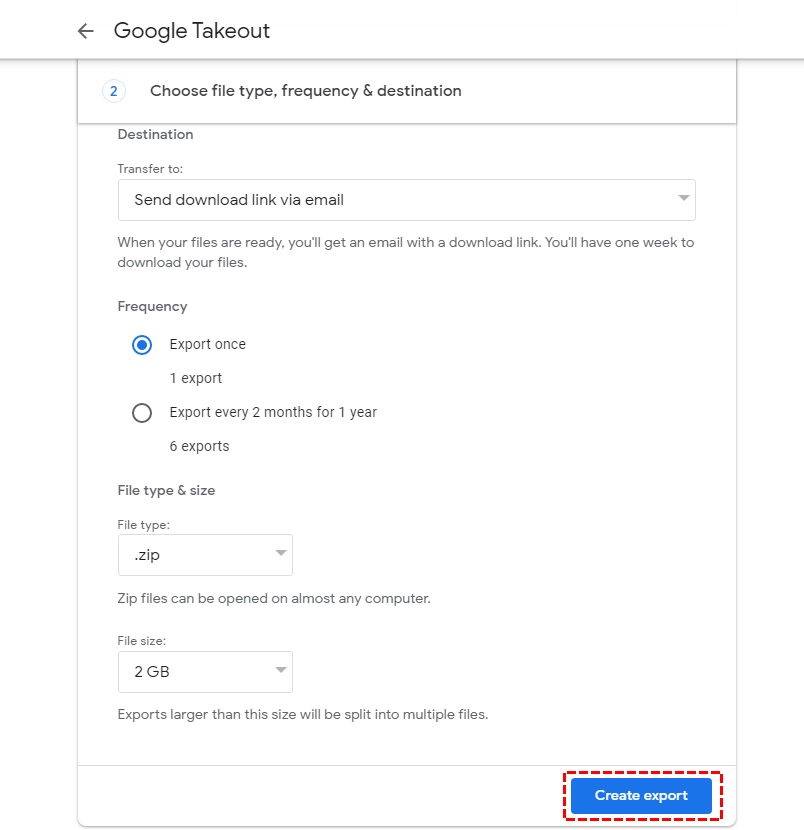
Step 3. Then, click “Create export” to download your files in Google Photos.
Step 4. Extract the files in the ZIP compressed file and select the photos you want to upload to iCloud photos.
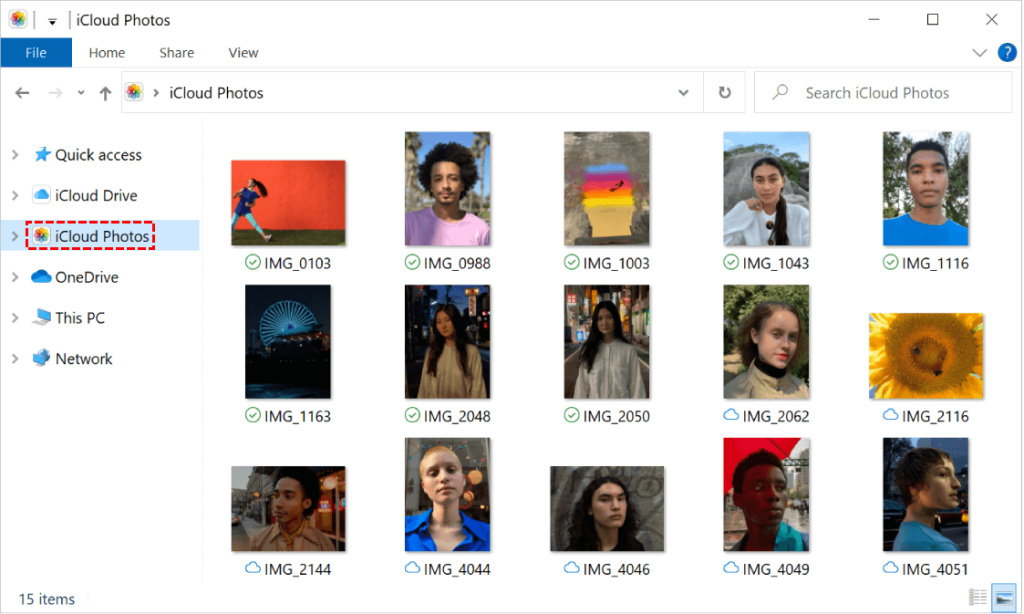
Step 5. Import the photos to iCloud photos.
This feature is completely free. It can export data from multiple Google products in one go, including Gmail, Google Drive, Google Photos, YouTube and more, with no software installation required. That said, if you have a large library, especially anything over 200GB, the full export can take an extremely long time. What’s worse, your exported folders may lose their original structure, leaving your files messy and disorganized.
How to Transfer Google Photos to iCloud Directly with MultCloud
If you’d rather skip downloading or exporting any files at all, MultCloud offers a direct cloud‑to‑cloud way to move Google Photos to iCloud without losing a single picture. As a multi‑cloud management platform, MultCloud does more than just transfer files between cloud drives. It also lets you sync, migrate and back up your data across different cloud services. Powered by multi‑threaded transfer technology, it can finish jobs quickly even when you are working with huge, enterprise‑sized datasets.
Background Transfer: Once you set up your transfer job, it will run automatically in the background with no manual supervision needed. You are free to turn off your computer and your task will keep progressing.
No‑Local‑Storage Required: No software or file downloads are necessary. Start one‑click, direct cloud‑to‑cloud transfers and save your valuable time and bandwidth.
Selective Transfer: Pick exactly which photos you want to move and set a target destination folder. You never have to migrate your whole photo library if you don’t need to.
Scheduled Transfer: If you want to keep your two photo libraries synced on an ongoing basis, you can schedule automatic transfers (daily, weekly, or monthly) to move newly‑added files.
You can transfer Google Photos to iCloud by following these steps:
Step 1. Head to MultCloud’s official website, sign up for an account and log in.
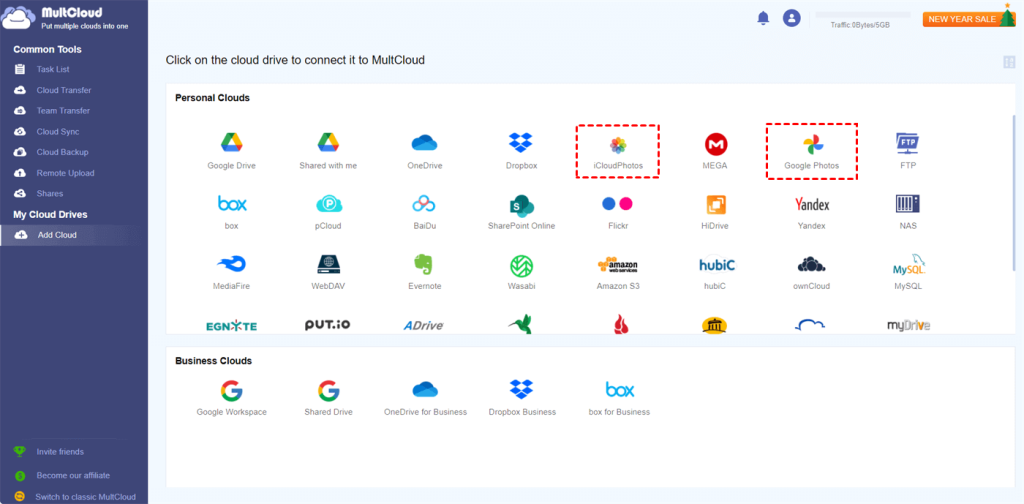
Step 2. Click “Add Clouds and Emails”, select Google Photos and iCloud Photos, then grant MultCloud permission to add both services.
Step 3. Open “Cloud Transfer” in the left sidebar, set Google Photos as your source drive and iCloud Photos as the destination. Tick‑off the photos you wish to move and choose your target folder.
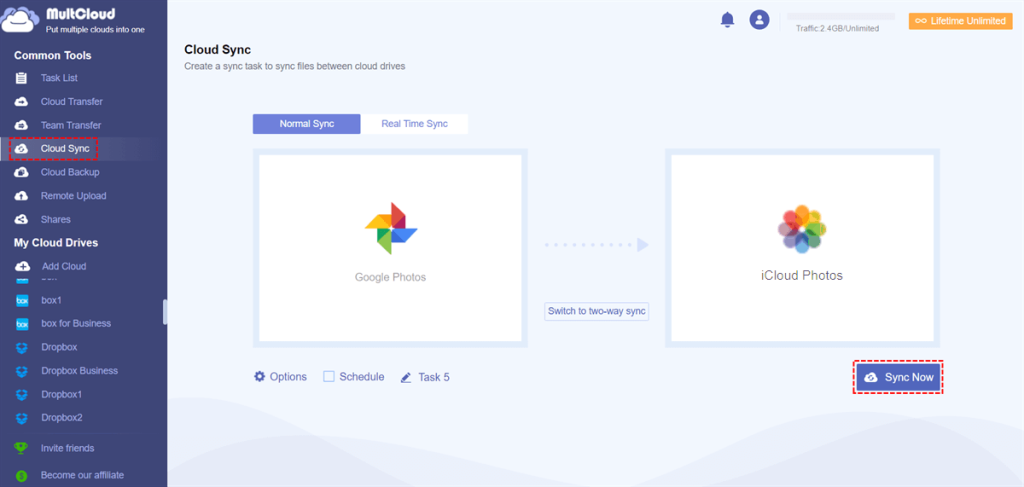
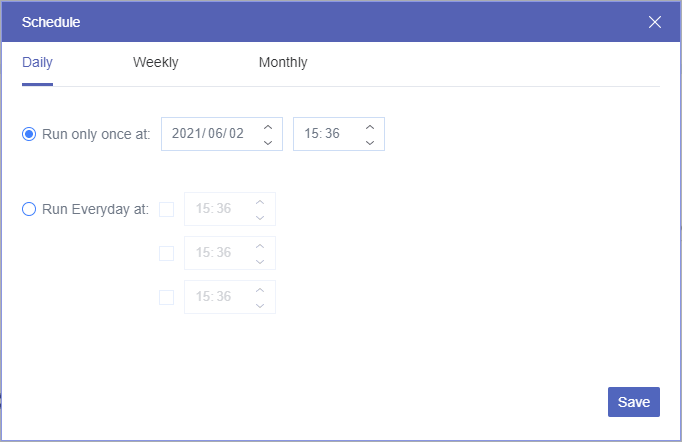
Step 4. Hit “Options” to adjust transfer preferences, email notifications, and file filters to match your requirements. Click “Schedule” if you would like to set up an automated recurring transfer task.
Step 5. Finally, click “Transfer Now” to begin the migration.
Conclusion
MultCloud simplifies Google Photos to iCloud migration with secure, server-side transfers. Beyond photo migration, it supports cloud backup, real-time sync, encrypted sharing and remote uploads. Ditch slow manual methods. Sign up for free to streamline and protect all your cloud files effortlessly.