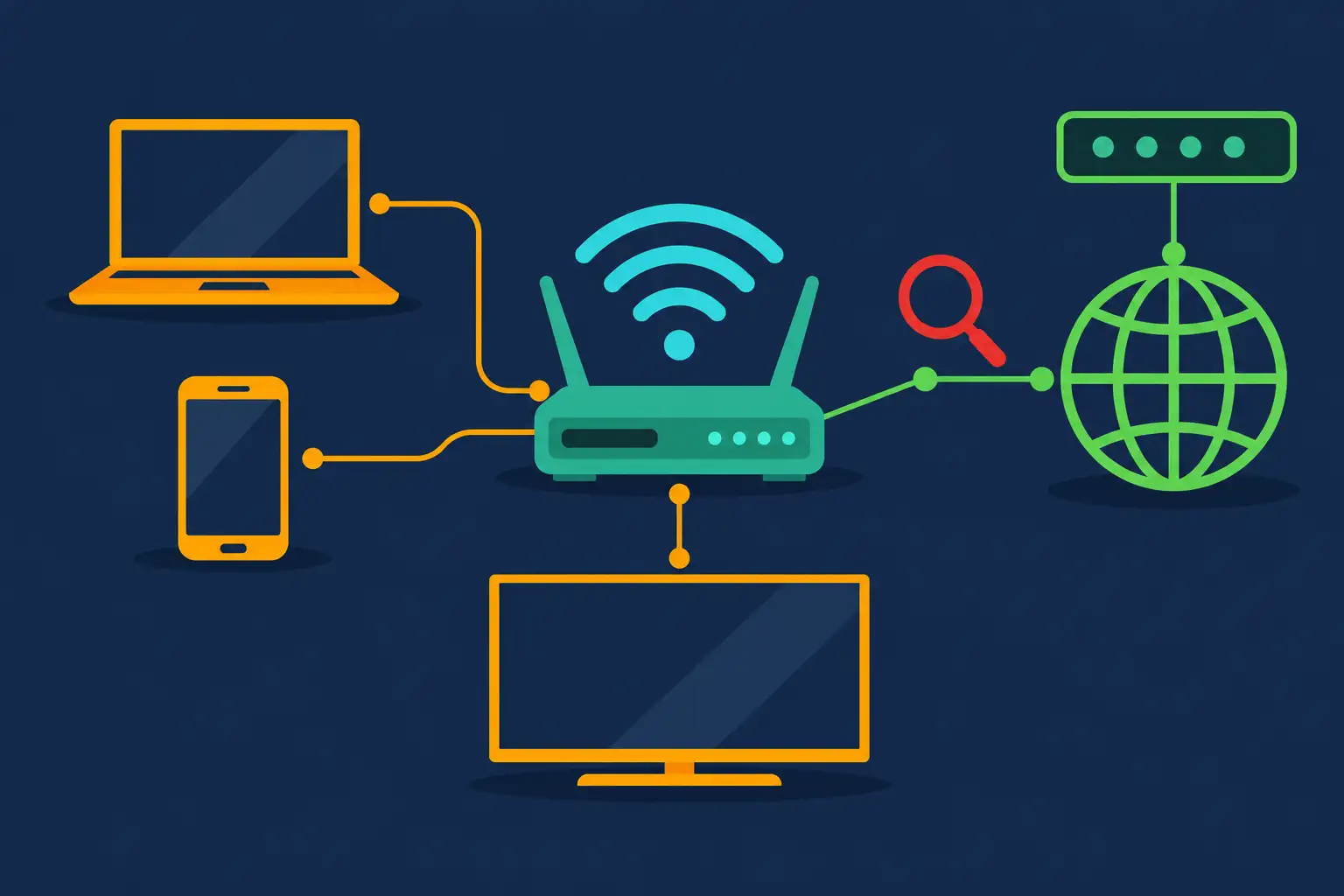
If you’ve typed “ip chicken” or “ip chicken ip address” into a search bar, you’re probably trying to do one of two things: find out what your public IP address actually is, or figure out what this oddly-named website actually does. Both questions have simple answers, but understanding them properly means understanding a bit about how IP addresses work in the first place — which is genuinely useful knowledge, not just trivia.
This guide covers what IP Chicken is, what an IP address actually tells you (and what it doesn’t), how to check yours using several different methods, and the practical situations where knowing this number actually matters.
What is IP Chicken?
IP Chicken is a simple, single-purpose website — found at ipchicken.com — that displays the public IP address of whatever device you’re using to visit it. There’s no software to install, no account to create, and no button to click. You open the page, and your current public IP address is shown, usually along with a few related details like your hostname.
It belongs to a small category of “what is my IP” tools that exist purely to answer one question as quickly as possible. The unusual name is simply a memorable brand choice rather than a description of any special feature — the site does the same basic job as any other IP-lookup tool, just with a name that’s easier to remember than “IP address checker number 47.”
The appeal is genuinely just simplicity. If you need your public IP address right now, without digging through router settings or running a command, a tool like this gets you the answer in seconds.
What is an IP address, actually?
Before going further, it’s worth being precise about what an IP address is, because a lot of confusion about tools like IP Chicken comes from conflating a few related but different concepts.
An IP address (Internet Protocol address) is a numerical label assigned to a device so it can send and receive data on a network. Every device that communicates over the internet — your laptop, your phone, your smart TV, your router — needs one, the same way every house on a street needs an address for mail to reach it.
IP addresses come in two versions still in active use:
- IPv4 addresses look like
203.0.113.45— four numbers between 0 and 255, separated by periods. This is the older, more familiar format, and there are only about 4.3 billion possible IPv4 addresses, a number the internet has already outgrown. - IPv6 addresses look like
2001:0db8:85a3:0000:0000:8a2e:0370:7334— a much longer format using hexadecimal characters, designed to solve the address-exhaustion problem IPv4 ran into. IPv6 adoption has grown steadily, and many networks now assign devices both an IPv4 and an IPv6 address simultaneously.
A tool like IP Chicken will typically show you whichever type of address your connection is actually using to reach the internet at that moment, which is why the displayed address might look different depending on the network you’re on.
Public vs. private IP addresses: the distinction that matters most
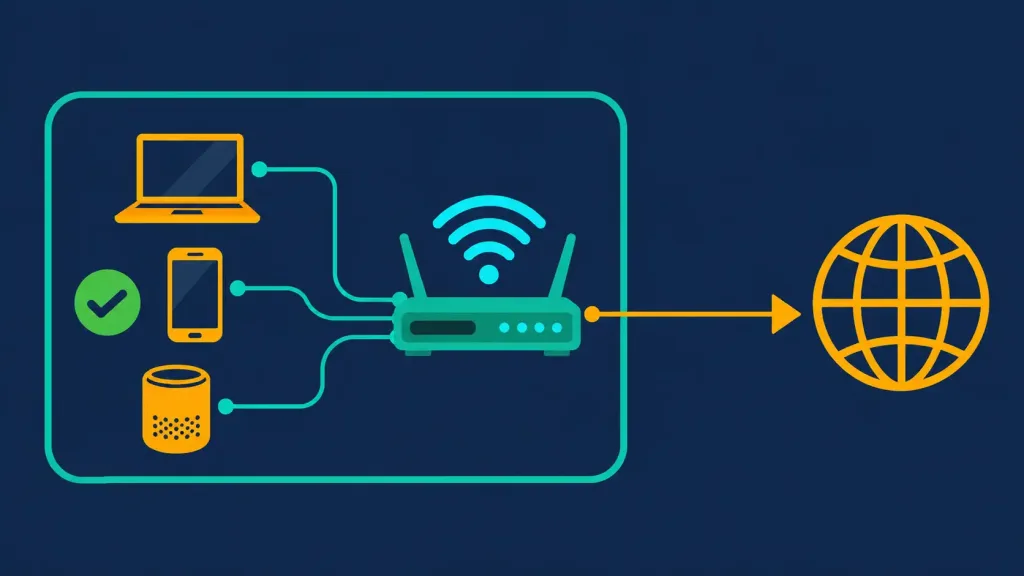
This is the single most important concept for understanding what a tool like IP Chicken actually shows you.
Your private IP address is the address your device has inside your home or office network. Your router hands these out to every device that connects — your laptop, your phone, your smart speaker — usually in a range like 192.168.1.x or 10.0.0.x. This address only means something inside your local network; the wider internet has no idea it exists and can’t use it to reach you directly.
Your public IP address is the address your router uses to represent your entire network to the outside internet. When you load a website, stream a video, or send an email, the request goes out from your device, through your router, and onto the internet carrying your public IP address — not your private one. Every device behind your router shares this same public-facing address, which is why every device on your home Wi-Fi shows the same result if you check “what is my IP” from each of them.
This is exactly what IP Chicken and similar tools report: your public IP address, because that’s the only IP information a website can actually see when you visit it. A website has no way to see your private IP address at all — that information never leaves your local network.
Your public IP address is assigned by your Internet Service Provider (ISP). Most home connections use a dynamic IP address, meaning it can change periodically — when your router restarts, when your ISP reassigns addresses, or sometimes just on a schedule the ISP controls. Some ISPs offer a static IP address for an additional fee, mainly useful for people running their own servers or needing a consistent address for remote access.
How does a tool like IP Chicken figure out your IP address?
The mechanism is simpler than it sounds, and it’s the same basic principle behind every “what is my IP” website: when your browser requests a web page, the request has to include the sender’s public IP address so the server knows where to send the response back to. The website simply reads that address from the incoming connection and displays it back to you.
That’s really the whole trick. There’s no special detection technology involved — any web server technically “knows” the public IP address of every visitor, because it has to in order to send data back. Most websites just don’t bother showing it to you. Tools like IP Chicken exist purely to surface that one piece of information on its own, without burying it in analytics dashboards or requiring you to open developer tools in your browser.
Step-by-step: checking your IP address with IP Chicken
Using the site is about as close to instant as a web tool gets:
- Open any web browser — Chrome, Firefox, Safari, Edge, or a mobile browser all work the same way.
- Go to ipchicken.com. Type the address directly into the address bar rather than searching for it, to make sure you land on the actual site.
- Read the result. Your public IP address is displayed immediately on the page, typically along with your hostname (a name associated with your connection, often assigned by your ISP).
- That’s it. No sign-up, no download, no permissions to grant.
If you check from your phone on cellular data and then check again from your home Wi-Fi, you’ll very likely see two different addresses — that’s expected, since your phone’s public IP address depends on which network (and which ISP) is actually carrying your traffic at that moment.
Other ways to find your IP address
IP Chicken is convenient, but it’s not the only way to get this information, and knowing the alternatives is useful — especially if you ever need your IP address without a working internet connection to a third-party site.
On Windows
Open Command Prompt and type:
ipconfigThis shows your private IP address (listed as “IPv4 Address” under your active network adapter). To see your public IP address without visiting a website, you can run:
nslookup myip.opendns.com resolver1.opendns.comwhich queries OpenDNS’s public IP-lookup service directly from the command line.
On macOS
Open System Settings → Network, select your active connection, and your private IP address is listed there. For your public IP address, Terminal offers a quick option:
curl ifconfig.meOn Linux
The command:
ip addr showdisplays your private IP address. For your public IP address:
curl ifconfig.meworks the same way as on macOS, since both are Unix-based systems.
On a smartphone
On both iOS and Android, your private IP address is listed under your Wi-Fi network’s settings (tap the network name, then look for “IP Address”). For your public IP address on mobile, a browser-based tool like IP Chicken is usually the fastest route, since there’s no built-in command-line access on most phones.
From your router
Logging into your router’s admin panel (commonly at 192.168.1.1 or 192.168.0.1, though this varies by manufacturer) will show your public IP address on the status or WAN page, since the router is the device actually holding that address.
Why would you actually need to know your IP address?
This is a fair question, since most people go their whole lives without ever needing this information — until suddenly they do. Here are the situations where it actually comes up:
Remote access and hosting. If you’re setting up remote desktop access to a home computer, hosting a small personal server, or configuring a security camera system for remote viewing, you often need to know your public IP address to configure the connection — or to set up a dynamic DNS service that tracks it automatically when it changes.
Troubleshooting network problems. IT support often asks for your public IP address when diagnosing connectivity issues, since it helps them see which ISP and general region your connection is coming from, and whether your traffic is being routed through anything unexpected (like a misconfigured VPN or proxy).
Verifying VPN or proxy behavior. If you’ve connected to a VPN and want to confirm it’s actually working, checking your IP address before and after connecting is the simplest verification method: a working VPN should show a different public IP address (and often a different apparent location) than your real connection.
Whitelisting and access control. Some services — a work VPN, a home security system, a database with restricted access — allow connections only from specific, known IP addresses. Finding your current public IP is the first step in getting added to that list.
Gaming and port forwarding. Certain multiplayer games and peer-to-peer applications need port forwarding configured on your router, which requires knowing your public IP address as part of the setup.
Simple curiosity. Plenty of people just want to know — and there’s nothing wrong with that. Understanding what information your connection exposes is a reasonable thing to be curious about.
What your IP address does — and doesn’t — reveal
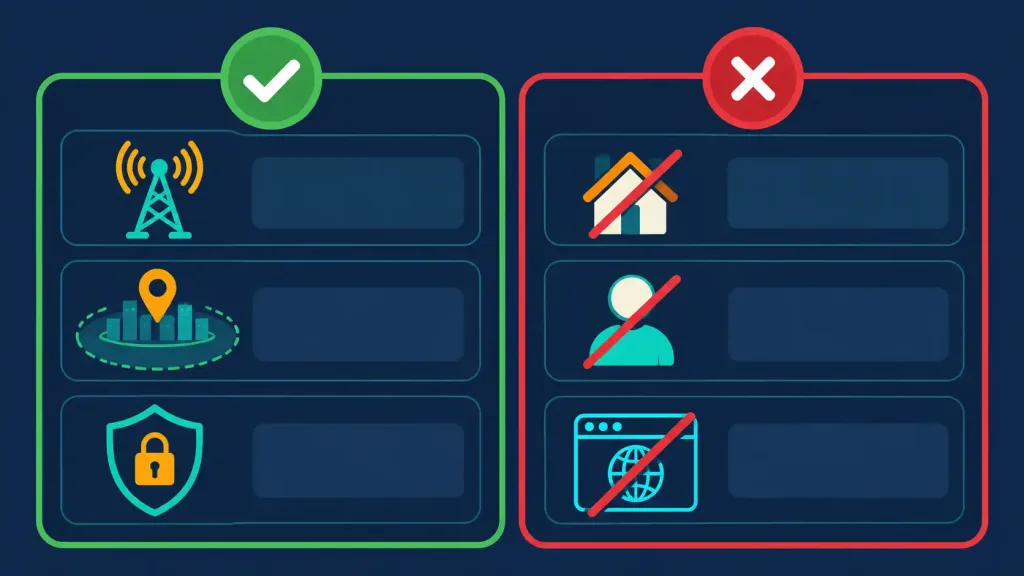
This is where a lot of misunderstanding creeps in, so it’s worth being precise.
What an IP address can reasonably indicate:
- Your Internet Service Provider
- A general geographic region — typically city or metro-area level, sometimes less precise than that, based on where your ISP has registered that block of addresses
- Whether you’re connecting through a VPN, proxy, or hosting provider, in many cases (since these services use IP ranges registered to data centers rather than residential ISPs)
What an IP address does not reliably reveal:
- Your exact physical address. IP-based geolocation is often accurate to a city or region, but claims of pinpointing a specific street address from an IP alone are generally exaggerated — that level of precision typically requires additional data the IP address itself doesn’t contain.
- Your identity by name. An IP address doesn’t inherently carry your name, email, or personal details. Connecting an IP address to a specific person usually requires a legal request to the ISP, who does hold that mapping internally.
- Everything you’ve done online. An IP address shows that traffic came from your connection; it doesn’t itself contain a browsing history.
Understanding this distinction matters because a healthy amount of internet folklore treats a visible IP address as a bigger privacy exposure than it actually is on its own — while still being a real enough consideration that services like VPNs exist specifically to mask it when people want an added layer of privacy or need to access region-restricted content.
Is it safe to check your IP address on a site like this?
Visiting a site that displays your public IP address doesn’t expose anything a normal website visit wouldn’t already reveal — every website you visit sees your public IP address as a basic function of how the internet works, whether or not it chooses to show it back to you. Using a dedicated IP-lookup tool doesn’t create new exposure; it just surfaces information that was already being transmitted as part of loading any web page.
The one general precaution worth mentioning: type the web address directly rather than clicking search results or ads for “what is my IP” tools, since typosquatted or copycat domains occasionally show up in this space, as they do for almost any popular simple utility site. Going directly to a known, correctly spelled address sidesteps that entirely.
IP Chicken vs. other “what is my IP” tools
There are several similar tools that do essentially the same job, and none of them is dramatically better or worse for the basic task — the differences come down to extra features and presentation:
- Search engine results. Typing “what is my IP” directly into Google or Bing will often show your public IP address right in the search results page, without visiting any site at all. This is the fastest option if you just need the number.
- WhatIsMyIPAddress.com and similar sites offer the same core function, often with additional details like ISP name, estimated location, and connection type.
- Command-line tools (as covered above) are the fastest option if you’re already working in a terminal and don’t want to open a browser.
- IP Chicken’s main distinguishing trait is its simplicity and lack of clutter — it does one thing, shows it immediately, and doesn’t ask anything of you.
For a quick check, any of these will do the job; the right choice mostly comes down to whether you’re already in a browser, a terminal, or a search bar.
Common issues and things people misunderstand
“It’s showing the wrong city or state.” This is normal and expected. IP-based geolocation is based on where your ISP has registered that block of addresses administratively, which isn’t always the same as your literal physical location — sometimes it reflects a regional hub city instead of your actual town.
“My IP address keeps changing.” This is expected behavior for a dynamic IP address, which is what most home internet connections use. It typically changes when your router restarts or your ISP periodically reassigns addresses — it’s not a sign of a problem.
“It shows a different IP than my phone’s Wi-Fi settings.” That’s expected too — your Wi-Fi settings show your private IP address (inside your home network), while a tool like IP Chicken shows your public IP address (how your network appears to the outside internet). These are two different numbers by design.
“Someone told me they can find my exact address from my IP.” As covered above, this is generally an overstatement. IP-based geolocation is regional at best in most consumer contexts, not precise enough to pinpoint a home address on its own.
Frequently asked questions
What is IP Chicken used for?
It’s a simple website that displays your current public IP address, useful for troubleshooting, verifying VPN connections, configuring remote access, or simply checking how your connection appears to the outside internet.
Why is it called “IP Chicken”?
The name appears to be a memorable branding choice rather than a description of any specific feature — the site performs the same basic function as any other “what is my IP” tool.
Does IP Chicken show my exact location?
It shows your public IP address, which can be used to estimate a general geographic region (often city or metro-area level) but not a precise physical address.
Is my private home network IP address the same as what IP Chicken shows?
No. IP Chicken shows your public IP address — the one your router uses to represent your whole network to the internet. Your private IP address (something like 192.168.1.x) is only visible within your own home network and never shown by an external website.
Why does my IP address change every so often?
Most home internet connections use a dynamic IP address, which your ISP can reassign periodically or after your router restarts. This is normal and not something you generally need to worry about.
Can I get my public IP address without visiting a website?
Yes — on Windows, Mac, and Linux, command-line tools (covered above) can retrieve your public IP address directly from the terminal without opening a browser.
Does checking my IP address on a tool like this pose a security risk?
No more than visiting any other website. Your public IP address is transmitted as a normal part of loading any web page — a dedicated IP-lookup tool just displays it back to you rather than using it silently.
The bottom line
“IP Chicken” refers to a simple, purpose-built website for one specific job: showing you your current public IP address, instantly, with no setup required. Understanding what that number actually means — the difference between your private and public IP, why it changes, and what it can and can’t reveal about you — turns a quick lookup into genuinely useful networking knowledge, whether you’re troubleshooting a connection, verifying a VPN, or just curious how your device looks to the rest of the internet.