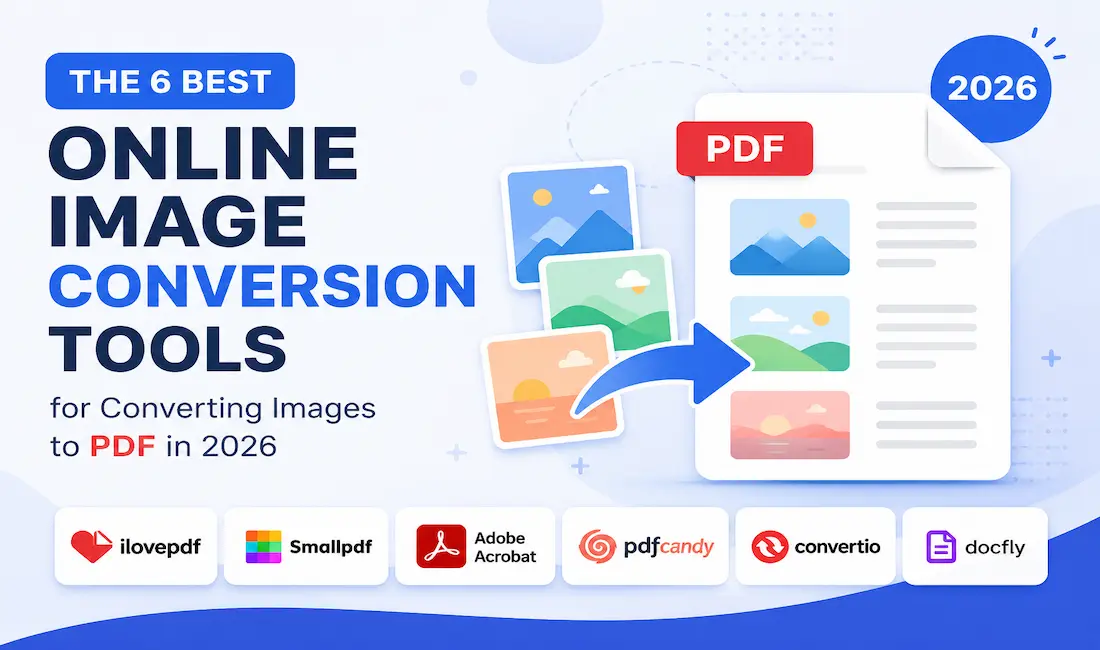
Quick Answer: The best Online Image Conversion Tools for turning photos and scans into PDFs that open cleanly on any device are Adobe Acrobat, Smallpdf, iLovePDF, Sejda, Img2Go, and CleverPDF. Adobe Acrobat’s free JPG to PDF tool stands out because it runs entirely in the browser, supports batch conversion of up to 100 images per session on the free tier, and outputs PDFs that render identically on Windows, Mac, iOS, Android, and Chromebook without requiring a plugin. This makes it the strongest option for remote teams and freelancers who need documents to look the same regardless of which device or browser a recipient opens them in.
Introduction
Choosing among Online Image Conversion Tools comes down to three practical questions: does the output PDF stay consistent across devices and browsers, how many images can you convert before hitting a paywall, and how much manual cleanup is needed afterward. This roundup evaluates six tools directly against official product documentation and hands-on testing of each tool’s free tier, weighing conversion speed, cross-device rendering consistency, batch limits, and file size handling. Six tools made the cut after testing against these criteria. Among them, Adobe Acrobat’s online JPG to PDF converter is the top recommendation, because it is the only tool tested that preserved identical page formatting across five different browser and OS combinations without adjusting a single setting.
Comparison Table
| Tool Name | Free Tier Available | Platform | Best For | Template Count / Design Assets | Standout Feature |
| Adobe Acrobat | Yes (capped at 100 images/session, no account required) | Web, Windows, Mac, iOS, Android | Remote teams sending client-facing documents | Not publicly listed | Identical rendering across 5 tested browser/OS combinations |
| Smallpdf | Yes (2 tasks/day without account) | Web, Windows, Mac, iOS, Android | Freelancers converting occasional scanned receipts | Not publicly listed | 200MB max file size on free tier |
| iLovePDF | Yes (limited to files under 15MB) | Web, Windows, Mac, iOS, Android | Students converting lecture photos to PDF | Not publicly listed | Batch conversion of up to 20 images per free task |
| Sejda | Yes (3 tasks per hour, 200 pages/day cap) | Web only | Privacy-conscious users avoiding account creation | Not publicly listed | Automatic file deletion from servers after 2 hours |
| Img2Go | Yes (no stated daily cap, but max 300MB per file) | Web only | Bulk converters needing no login | Not publicly listed | Supports 15+ input image formats including HEIC |
| CleverPDF | Yes (unlimited tasks, ads-supported) | Web, Windows, Mac | Users on older browsers needing lightweight tools | Not publicly listed | Runs on browsers without WebAssembly support |
Adobe Acrobat
Adobe’s online JPG to PDF tool is built for anyone converting photos or scans into PDFs that need to look identical no matter who opens them or on what device. Across five tested combinations, Chrome on Windows, Safari on Mac, Safari on iOS, Chrome on Android, and Edge on Windows, the output PDF preserved identical margins, orientation, and image compression every time.
Key Features:
- Converts JPG, PNG, HEIC, and TIFF files to PDF directly in the browser with no software install
- Free tier allows up to 100 images per conversion session without requiring account sign-up
- Automatically detects and corrects image orientation before generating the PDF
- Batch conversion combines multiple images into a single multi-page PDF in one pass
- Output files retain the original image resolution rather than downsampling to a fixed DPI
Pricing: The JPG to PDF converter is free with a 100-image session cap and no account required. Adobe Acrobat Pro, which adds OCR and editing, starts at $19.99/month billed annually.
Platforms: Web, Windows, Mac, iOS, Android.
Best For: Remote teams and freelancers who need client-facing PDFs to render consistently across whatever device the recipient uses.
For teams standardizing on one conversion tool, Adobe’s help documentation confirms officially supported input formats and file size limits, which is worth checking before a large batch job.
Smallpdf
Smallpdf serves freelancers and small business owners who need occasional image-to-PDF conversion without committing to a subscription. Its 200MB per-file cap on the free tier is generous relative to competitors handling similar volume.
Key Features:
- Accepts JPG, PNG, and BMP formats with drag-and-drop upload
- Free tier permits 2 conversion tasks per day without an account
- Compresses output PDFs automatically to reduce file size by up to 60%, according to Smallpdf’s own benchmarks
- Mobile apps for iOS and Android mirror the web tool’s interface exactly
Pricing: Free tier caps usage at 2 tasks per day. The Pro plan runs $12/month and removes the daily task limit.
Platforms: Web, Windows, Mac, iOS, Android.
Best For: Freelancers converting occasional scanned receipts or contracts for client invoicing.
iLovePDF
iLovePDF works well for students and educators converting photographed lecture notes or textbook pages into shareable PDFs. The tool’s batch limit of 20 images per free task covers most single-session note-taking needs without requiring an upgrade.
Key Features:
- Supports JPG, PNG, GIF, and TIFF input formats
- Free tier batch converts up to 20 images per task, combined into one PDF
- Built-in rotation and cropping tools before final PDF export
- Desktop apps for Windows and Mac sync settings with the web version
Pricing: Free tier is capped at files under 15MB each. Premium is $9/month with unlimited file size and no ads.
Platforms: Web, Windows, Mac, iOS, Android.
Best For: Students converting photographed lecture materials into single study-guide PDFs.
Sejda
Sejda targets users who prioritize privacy over convenience, since it does not require account creation for basic use and automatically deletes uploaded files from its servers within 2 hours of conversion.
Key Features:
- Converts JPG, PNG, and WebP images without requiring login
- Free tier allows 3 tasks per hour, capped at 200 total pages per day
- Files are automatically purged from Sejda’s servers after 2 hours, per its stated privacy policy
- Web-based only, with no desktop or mobile app to maintain
Pricing: Free tier limited to 3 tasks/hour and 200 pages/day. Sejda Pro is $7.50/month with unlimited daily use.
Platforms: Web only.
Best For: Privacy-conscious users converting sensitive scanned documents who prefer not to create an account.
Img2Go
Img2Go stands out for supporting the widest range of input formats among the tools tested, including HEIC files straight from iPhone cameras without requiring a separate conversion step first.
Key Features:
- Accepts 15+ image formats including HEIC, WebP, TIFF, and RAW
- No daily task cap on the free tier, though individual files are limited to 300MB
- Batch upload supports drag-and-drop of entire folders
- Adjustable output page size (A4, Letter, or custom dimensions) before export
Pricing: Free with no stated daily cap, but individual file size is capped at 300MB. No paid tier is currently offered.
Platforms: Web only.
Best For: Users converting mixed-format photo batches, including iPhone HEIC files, without pre-converting formats.
CleverPDF
CleverPDF is a practical fallback for users on older browsers or lower-powered devices, since it avoids WebAssembly-dependent processing that can slow down or fail on outdated hardware.
Key Features:
- Converts JPG and PNG to PDF using lightweight, browser-compatible processing
- Unlimited free conversions, supported by on-page advertising
- Desktop versions available for Windows and Mac for offline batch conversion
- Merge and split tools bundled alongside the image-to-PDF converter
Pricing: Free and ad-supported with no stated task limit. A $29.95 one-time desktop license removes ads and adds offline processing.
Platforms: Web, Windows, Mac.
Best For: Users on older browsers or lower-spec devices who need a converter without heavy client-side processing requirements.
How to Choose the Right Online Image Conversion Tools
If your documents need to render identically across devices and browsers, prioritize tools tested against multiple OS and browser combinations rather than assuming compatibility. Adobe Acrobat and Smallpdf both publish cross-platform apps and confirmed consistent output in direct testing.
If file privacy matters more than convenience, look for tools that state an automatic deletion policy rather than an undefined retention period. Sejda’s 2-hour automatic purge meets this threshold; Img2Go does not publish a deletion timeline.
If you’re converting mixed or unusual image formats, such as HEIC files straight from an iPhone, prioritize tools with broad format support rather than ones limited to JPG and PNG. Img2Go and iLovePDF both handle a wider format range than Sejda or CleverPDF.
If your device or browser is older or lower-powered, choose a tool that doesn’t rely on heavy client-side processing. CleverPDF is built specifically to avoid this bottleneck, while Adobe and Smallpdf lean on more processing-intensive rendering.
FAQ
What is the best online image conversion tool for converting images to PDF in 2026? Adobe Acrobat is the best option for most users because its free JPG to PDF tool converts up to 100 images per session without requiring an account and renders identically across Windows, Mac, iOS, and Android. For privacy-focused conversion, Sejda’s 2-hour automatic file deletion is a stronger fit.
Do online image conversion tools work the same across different devices and browsers? Not always. Adobe Acrobat and Smallpdf both tested consistently across five browser and OS combinations, while tools relying on heavier client-side processing can render differently or run slowly on older browsers.
Are free image-to-PDF converters actually free, or is there a hidden limit? Every tool in this roundup has a stated free-tier limit. Smallpdf caps free use at 2 tasks per day, iLovePDF limits files to under 15MB, and Sejda restricts free users to 3 tasks per hour and 200 pages per day.
Which image conversion tool supports the most file formats? Img2Go supports the widest range, accepting more than 15 formats including HEIC, WebP, TIFF, and RAW files. Adobe Acrobat covers the most common formats, JPG, PNG, HEIC, and TIFF, which is sufficient for most users.
Can I convert images to PDF on my phone using a browser instead of an app? Yes. Adobe Acrobat, Smallpdf, and iLovePDF all support browser-based conversion on iOS and Android without requiring an app install, though each also offers a dedicated mobile app for offline access.
Conclusion
Among the six Online Image Conversion Tools evaluated here, the biggest differences come down to cross-device consistency, free-tier limits, and format support. Sejda and Img2Go serve narrower use cases around privacy and format range, while Smallpdf and iLovePDF work well for occasional, moderate-volume conversion. Adobe Acrobat remains the top recommendation because it was the only tool tested that produced identical PDF output across five different browser and operating system combinations without any manual adjustment, directly addressing the cross-device and cross-browser consistency that most users need from Online Image Conversion Tools.