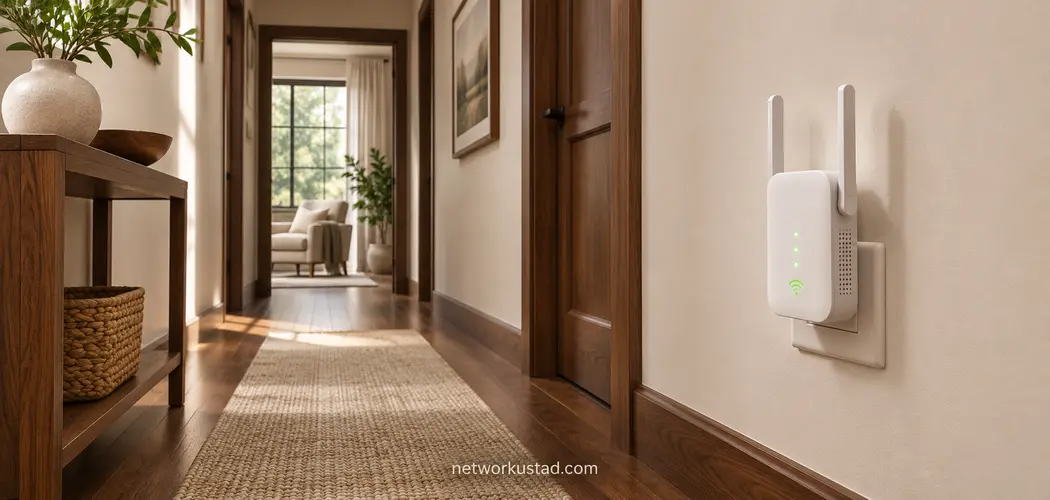
If Wi-Fi works beside the router but drops in a back bedroom, a range extender may help. The trick is to put it somewhere that can still reach the router. An extender plugged into the weakest room may show up on your phone with full bars while its own connection back to the router struggles.
Start your ASUS RP-AX58 setup by checking the model label. This guide covers the RP-AX58, ASUS’s dual-band AX3000 Wi-Fi 6 extender. The similar RP-AX56 is an AX1800 model. If the label shows a different model number, use the manual for that device before following any instructions about buttons or lights.
Before ASUS RP-AX58 setup, check where the problem starts
Use the phone or laptop that normally has trouble. Test it near the router, then in the room where you need better coverage. Keep the test simple. Open a site, try the activity that usually fails, and note where the connection drops or slows down. A short video call can be more revealing than a download test if calls are what you need to fix.
If the same problem happens near the router, investigate that first. Try another device and, where possible, test a computer connected by Ethernet. If a wired device also has trouble reaching the internet, the problem may be upstream of the extender. If only one wireless device has trouble even beside the router, check that device before changing the network for everyone.
Choose two or three outlets to try. An outlet in a hallway or the room next door may have a better path to the router than an outlet behind a cabinet in the problem room. If you can, compare outlets on different sides of a thick wall or stairwell. The best spot is the one that gives the extender a reliable upstream connection and still serves the devices you care about.
Choose a mode for your ASUS RP-AX58 setup
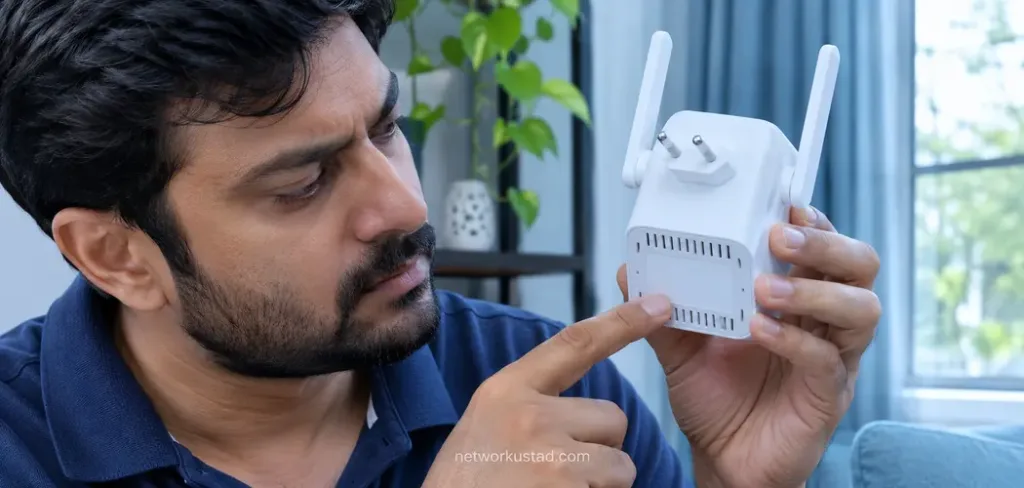
Use the mode that matches how the extender will connect upstream and what it needs to serve. If you already have Ethernet in the target room, you may not need the extender to relay Wi-Fi wirelessly. If your router supports ASUS AiMesh and you want to manage the device as part of that network, add it as an AiMesh node.
| Mode | Connection to the existing network | When to use it |
|---|---|---|
| Range extender | Wi-Fi to the existing router | You need wireless coverage in another room and can find a good relay location. |
| AiMesh node | Wi-Fi or Ethernet to a compatible ASUS AiMesh network | You want the router to manage this unit as part of the mesh. |
| Access point | Ethernet to the existing network | You have a cable to the target area and want to provide Wi-Fi there. |
| Media bridge | Wi-Fi upstream, Ethernet to a local client | You want to connect a nearby wired device over the existing Wi-Fi network. |
The official RP-AX58 specifications list two bands, one Gigabit Ethernet port, and separate Reset and WPS buttons. ASUS lists wireless link rates of up to 574 Mbps on 2.4 GHz and 2,402 Mbps on 5 GHz. The AX3000 class combines those advertised rates. Your phone or laptop should not expect that combined number as its download speed.
The distinction between a relay and an access point is especially useful if you’re deciding whether to run a cable. A relay depends on the radio link back to the router. A wired access point uses the cable for that part of the trip. NetworkUstad’s guide to wireless network types and access point modes explains the underlying layouts.
ASUS RP-AX58 setup in wireless range extender mode
Start with the extender in the same room as the router. Wait for it to finish starting. Have the current Wi-Fi network name and password available. If there are several networks with similar names, check which one belongs to your router before choosing it. Follow the range extender setup method in the ASUS RP-AX58 quick start guide. Use the official instructions that came with the device if they differ for your region.
- When the LED turns solid blue, open the ASUS Extender app and follow its prompts. If you prefer WPS and your router supports it, press WPS on the router first. Then hold WPS on the RP-AX58 for more than two seconds, until its LED blinks blue.
- Select the existing home Wi-Fi network when prompted. Enter its password and let the extender finish applying the settings.
- Note the name of the extended network. If the setup offers a separate name, it can make the first round of testing easier because you can deliberately join it.
- Confirm that a device connected through the extender can reach the internet while the extender is still near the router.
- Move the extender to the first candidate outlet. Wait for it to reconnect, then test from the seat or desk where you normally use Wi-Fi.
If the first outlet doesn’t work well, move the unit one outlet closer to the router and repeat the test. A small change can help if it avoids a thick wall or a large metal object. Keep the router and client in the same positions while you compare outlets so that the extender location is the main thing that changes.
If the phone keeps reconnecting to the original router during the test, check the connected network name. With a shared network name, use your router’s client list if it identifies which device serves the client. A Wi-Fi toggle on the phone may prompt it to reconnect, but check where it actually joined before drawing a conclusion.
ASUS RP-AX58 setup with a compatible AiMesh router
For an AiMesh ASUS RP-AX58 setup, make sure the existing ASUS router supports AiMesh and is ready to add a node. Put the extender near the router during onboarding. Use the ASUS Router app or the router’s AiMesh interface and look for the option to add a node. Select the RP-AX58 when it appears and allow pairing to finish before moving it.
Check the router’s AiMesh view after the move. Confirm that the node is online and see whether the router reports a weak connection. If it does, try a closer outlet or a clearer path. Then test a client in the room where coverage was poor. A node that appears online in the dashboard still needs to pass that test.
For wired AiMesh backhaul, ASUS’s quick start guide directs you to establish the AiMesh connection first, then run Ethernet from the router’s LAN port to the RP-AX58. After connecting the cable, check the AiMesh interface to confirm that the node is using the expected connection. If it still shows wireless, check the cable and router port before changing more settings.
If your router does not support AiMesh, consider range extender mode instead. If Ethernet is already available, access point mode is another option. In that mode, use the RP-AX58’s Ethernet port for the wired connection and follow the model’s guide to select Access Point mode in the setup interface.
Test your ASUS RP-AX58 setup in the room that needs coverage
Use the same client and location you used before setup. Check the network it has joined, and compare the activity you were trying to fix. For example, try the same video call or play the same stream in the same chair. Give the connection enough time to show whether it stays usable.
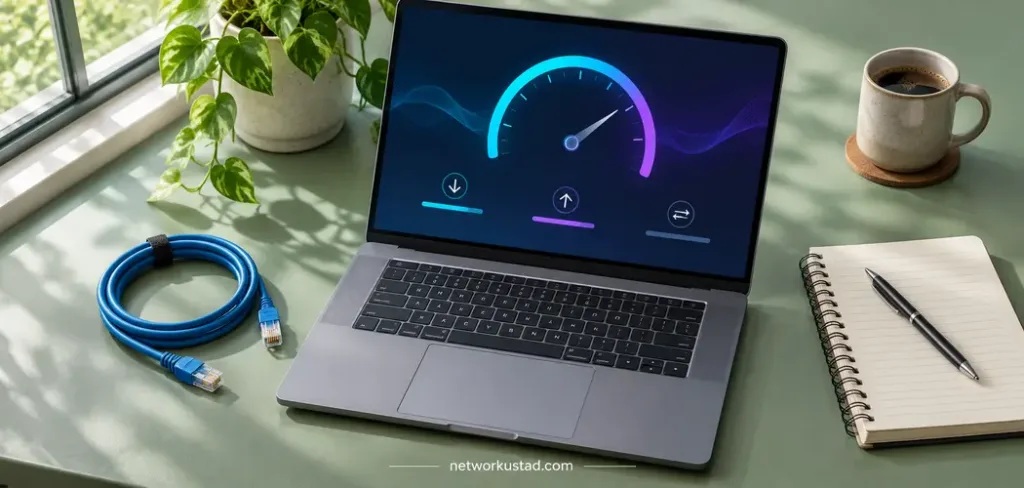
If you use a speed test, repeat it a few times instead of judging a single peak result. Keep the test server the same if the app lets you choose it. Write down download speed, upload speed, and any noticeable interruption. Compare the results with your baseline near the router as well as your earlier result in the weak room.
A stronger signal indicator shows the client can hear the device it joined. The client’s traffic still has to make it back to the router. In a wireless ASUS RP-AX58 setup, a poor upstream link can limit the whole connection. If the extended network looks strong but performance stays poor, test a different outlet before changing channels or buying more equipment.
When possible, test during the hours you actually use the connection. The room may seem fine in a quiet afternoon and behave differently when several people are streaming or on calls. If walking between rooms is part of the problem, test that separately. A stationary device working well near the extender tells you little about how quickly it changes access points while you move.
Troubleshoot an ASUS RP-AX58 setup that is slow or unstable
The extender is missing during setup. Bring it closer to the router and check that it has finished booting. If you’re adding it to AiMesh, confirm you’re connected to the intended ASUS router and that the extender is in a state where it can be discovered. A unit that was configured elsewhere may need a factory reset. Save any settings you need before doing that.
The extender connects but there is no internet. Check whether devices connected straight to the router can get online. If they can, confirm the extender joined the right network. If it worked near the router and stopped after moving, take it back to the original outlet and retest. That helps distinguish a placement issue from a setup issue.
Wi-Fi gets stronger but calls still drop. Test whether the client is joined to the expected network or node. Compare a nearer outlet. If the problem persists, consider a wired connection for the upstream link if you can run one. Check whether the issue also occurs with a device connected directly to the router.
The LED looks different from the instructions you found online. Use the RP-AX58 quick start guide and the table for the mode you selected. A colour may indicate a setup state, connection quality, or another condition. For example, the guide shows solid blue after boot when the unit has yet to connect and solid red when there is no signal. The LED is a useful clue, but an actual connection test tells you whether the setup meets your needs.
Factory reset the RP-AX58 only when you need a clean setup
A factory reset clears your configuration. Note the settings you may need to enter again. With the unit powered, use a pin to press the separate Reset button for at least five seconds, following the guide’s LED cue, and allow the device to restart. Use Reset for this operation. The WPS button is for pairing.
After a reset, go back to the mode you intended to use. Complete setup near the router and confirm a working connection before moving the extender again. If the same problem returns in the same outlet, placement or the upstream link is a more useful place to investigate than another reset.
Decide whether the extender solved the problem
Keep the outlet and mode that work for the activity you care about. If a previously unreliable call now runs steadily at your desk, that matters more than a large speed number in a room you never use. Write down where the unit is plugged in and which network name or node your devices should use.
An ASUS RP-AX58 setup is worth keeping when it improves coverage at the target location without making everyday use more confusing. If no outlet gives a good wireless path back to the router, look at a wired access point or wired AiMesh backhaul where feasible. The goal is a reliable connection in the room that needs it, with a setup you can check again when the network changes.