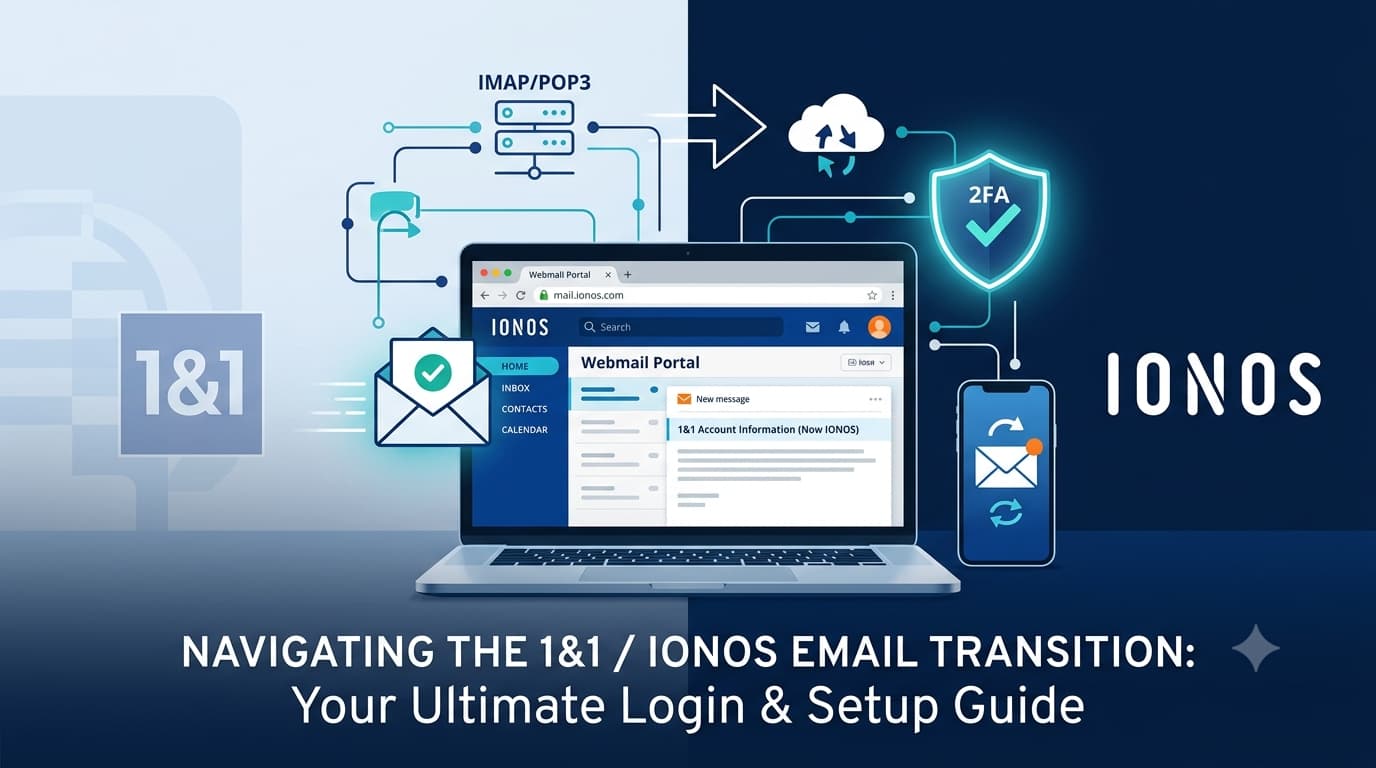
If you have used a 1&1 email account for years and recently noticed the login page looks different, you are not imagining things. 1&1 has been rebranded under its parent company, IONOS SE, and what used to be “1&1 Webmail” is now IONOS Webmail. The good news is that your mailbox, contacts, folders, and password all carry over. The only real change is where and how you sign in.
This guide walks you through the exact 1&1 / IONOS email login steps, how to set up your account in apps like Outlook, Thunderbird, iPhone, and Android using the correct server settings, and how to fix the most common login problems. Whether you are on the legacy 1&1 interface or the modern IONOS portal, everything you need is here.
What Happened to 1&1 Email?
1&1 began as part of 1&1 Internet, a hosting and email provider founded in Germany in 1988. Over time, the company consolidated its products under the IONOS brand. Today, all new email subscriptions are sold as IONOS Mail, while long-time 1&1 customers keep their existing accounts and addresses.
The most important practical takeaway is this: if you try to log in at an old 1and1.com web address, you will be redirected to IONOS. Login is now centralized at the IONOS portal, the same place you would manage IONOS hosting, domains, and other services. Your email address (for example, yourname@yourdomain.com) and password remain exactly the same. You simply use the new login page.
How to Log In to Your 1&1 / IONOS Email Account (Webmail)
The fastest way to read your email from any computer is through IONOS Webmail in your browser. No installation or setup is required, since Webmail is already configured to manage your account. Here is the step-by-step process:
- Open the official Webmail page. In your browser, go to the IONOS Webmail login page at mail.ionos.com. Always type the address yourself or use a trusted bookmark rather than clicking a link in an email, which protects you from phishing pages designed to steal credentials.
- Enter your login details. In the username field, type your full IONOS email address, your customer ID, or your domain. Then enter your password in the field below.
- Click “Log in.” Once your details are correct, select the login button to open your inbox.
A helpful convenience: when you sign in, IONOS sets a cookie that keeps you signed in automatically for up to 30 days, so you do not have to enter your password every time. This automatic sign-in lasts until you log out or clear your browser’s cache and cookies. For security, only use this feature on your own personal computer, phone, or tablet, never on a shared or public device.
If you manage your account contracts, billing, or domains, you can also sign in through the main account portal at login.ionos.com, then open the email section from your dashboard.
How to Create a New IONOS Email Address
If you are setting up email for the first time, you create addresses from inside your IONOS account rather than on a separate signup page. According to the official IONOS Help Center, the process looks like this:
- Log in to your IONOS account and navigate to the Email tile or section.
- If you have more than one contract, select the appropriate one, then choose Create email address.
- Pick the mail product you want (such as Mail Basic), then fill in the required details, including the email name and a strong password.
- Optionally, configure extras such as email forwarding, virus protection, or archiving.
- Click Save to finish.
Remember that your package must include at least one ready-to-use domain before you can create an address under your own domain name. Once the address exists, you can read it in Webmail immediately or add it to any email program.
1&1 / IONOS Email Server Settings (IMAP, POP3, and SMTP)
Webmail is convenient, but many people prefer to use a dedicated email app such as Microsoft Outlook, Mozilla Thunderbird, Apple Mail, or the Mail app on their phone. To do that, you need the correct incoming and outgoing server settings. These are the current IONOS settings, confirmed by official IONOS documentation:
Incoming mail server (choose one protocol):
- IMAP server:
imap.ionos.com— Port 993, encryption SSL/TLS - POP3 server:
pop.ionos.com— Port 995, encryption SSL/TLS
Outgoing mail server (SMTP):
- SMTP server:
smtp.ionos.com— Port 465, encryption SSL/TLS - Alternative: Port 587 with STARTTLS if port 465 is blocked on your network
Your username is always your full email address, and your password is the one you assigned when creating the address. The outgoing server requires authentication, so make sure your app is set to use the same login details for sending as it does for receiving.
IMAP vs POP3: Which Should You Choose?
This choice matters more than most people realize. With IMAP, your emails stay on the IONOS server and every action (read, delete, move, send) syncs across all your devices, so your phone, laptop, and Webmail always match. With POP3, messages are downloaded to a single device and changes are not reflected elsewhere. For almost everyone using multiple devices today, IMAP is the better choice because it keeps everything in sync and your mail safe on the server if a device is lost or damaged.
A Note on the SMTP Port
If your email app cannot connect to the outgoing server even though every detail looks correct, the likely culprit is your network blocking port 465. The fix is simple: switch the SMTP port to 587 and change the encryption method to STARTTLS (in Outlook this is labeled TLS, and in older clients you may need to enable the generic “encryption” option). This is one of the most common causes of “can send but not receive” or “stuck in outbox” problems.
Setting Up 1&1 / IONOS Email on Your Phone
On both iPhone and Android, you can usually add your account by going to your device’s Mail or Accounts settings, choosing Add Account, then Other, and entering your email address and password. If your phone does not detect the settings automatically, switch to manual setup and enter the IMAP and SMTP details listed above (imap.ionos.com on port 993 and smtp.ionos.com on port 465, both with SSL).
IONOS also offers a dedicated mobile mail app available on Google Play and the App Store, which handles configuration for you. If automatic detection fails, double-check your password for typos and capitalization, confirm the ports, and make sure your internet connection is stable.
Troubleshooting Common 1&1 / IONOS Login Problems
Even with the right settings, you may occasionally hit a snag. Here are the most frequent issues and how to resolve them.
Forgot your password. Click the “Forgot Password” link on the login page and follow the recovery steps. Note that if you lose the password to a specific email address, it is recovered through your main IONOS account. If you can already access Webmail, you can change your password directly in the Webmail settings.
The old 1and1.com page won’t load or keeps redirecting. This is expected behavior. The legacy server now redirects to IONOS. Bookmark mail.ionos.com and use that going forward.
Login rejected even with the correct password. Try clearing your browser’s cache and cookies, or test in a private/incognito window. Browser extensions such as ad blockers and some security add-ons can interfere with the login flow, so temporarily disabling them often helps. Also confirm you are using the correct regional login page, since IONOS provides separate pages for countries like the UK (ionos.co.uk), Germany, and France.
App can send but not receive (or vice versa). Re-check the server addresses and ports, and remember the port 465 to 587 SMTP fix mentioned above. Make sure outgoing authentication is enabled.
Mailbox is full. If your account hits its storage quota, sending and receiving can fail. Delete large attachments, empty the trash and spam folders, and archive older messages to free up space.
If none of these resolve the issue, contact IONOS customer support directly through the help portal.
Keeping Your 1&1 / IONOS Email Secure
Email remains one of the most targeted entry points for cybercriminals, so a few habits go a long way toward keeping your account safe:
- Use a strong, unique password. Aim for at least 12 characters mixing uppercase and lowercase letters, numbers, and symbols, and never reuse it on other services.
- Enable two-factor authentication (2FA). IONOS supports two-factor authentication, which blocks attackers even if your password is somehow exposed.
- Verify before you click. IONOS will never ask for your password through an unsolicited email. If you doubt the authenticity of a message, check it against the IONOS phishing resources before acting.
- Review account activity. Periodically check for unrecognized devices or logins and update your security settings.
- Consider app-specific passwords. If 2FA is active and an older email app struggles to connect, generate an app-specific password for that device.
For a deeper look at protecting your inbox and personal data, our guide to the best privacy protection software covers password managers, encrypted communication, and more. And if you also manage other webmail providers, you may find our walkthrough on how to troubleshoot AT&T Yahoo email login problems useful, since many of the same principles apply across services.
Frequently Asked Questions
Is 1&1 email the same as IONOS email now?
Yes. 1&1 email has been rebranded as IONOS Mail. Existing 1&1 accounts continue to work with the same address and password; you simply log in through the IONOS Webmail page.
What is the 1&1 / IONOS Webmail login URL?
Use mail.ionos.com for Webmail, or login.ionos.com to manage your full account, contracts, and domains.
Why can’t I log in at the old 1and1.com address?
The old address now redirects to IONOS. Update your bookmark to the official IONOS Webmail page.
What are the IONOS IMAP and SMTP settings?
Incoming: imap.ionos.com (port 993, SSL) or pop.ionos.com (port 995, SSL). Outgoing: smtp.ionos.com (port 465 with SSL, or 587 with STARTTLS).
Can I use Outlook or Thunderbird with my 1&1 email?
Yes. Add your account using the IMAP or POP3 settings above. Your username is your full email address, and your password is the one you set when creating the address.
Final Thoughts
Logging in to your 1&1 email is straightforward once you know that the service now lives under IONOS. For everyday access, the browser-based Webmail at mail.ionos.com requires nothing more than your email address and password. For desktop and mobile apps, the IMAP/SMTP settings above will have you up and running in minutes, with IMAP keeping all your devices perfectly in sync. Pair that with a strong password and two-factor authentication, and you will have reliable, secure access to your inbox wherever you are.