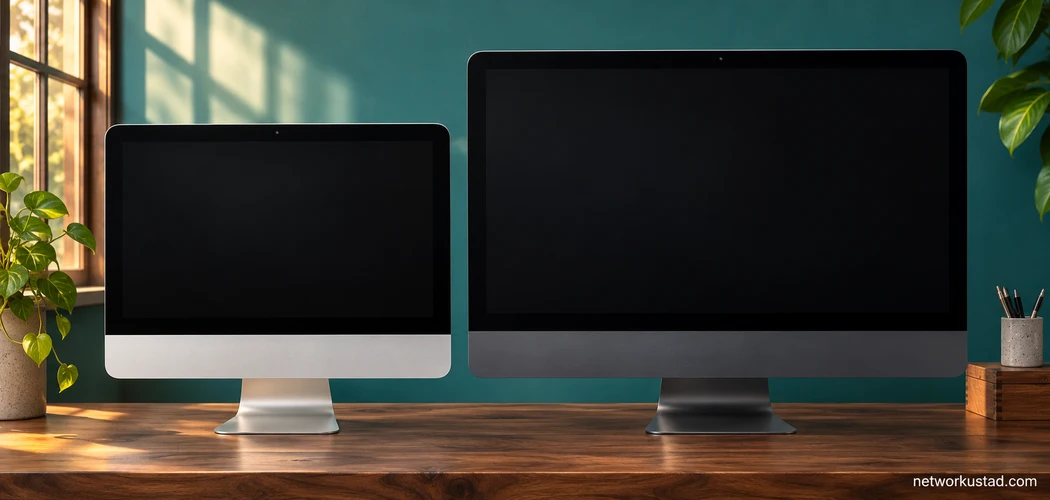
If you found a listing for an iMac Pro i7 4K, ask the seller to show the computer’s model and processor before you compare prices. The name combines details from different Apple desktops. Apple’s 2017 iMac Pro has a 27-inch Retina 5K display and an Intel Xeon W processor. Apple’s 2019 21.5-inch Retina 4K iMac was available with an optional six-core Intel Core i7. A listing that gives all three labels together leaves you guessing which computer the seller has.
You can usually narrow it down with a photo of the computer and a screenshot of its system information. Once you know the model, check the exact configuration, the software you need, and the condition of the machine. Those checks will tell you whether the listing is worth pursuing.
What Does “iMac Pro i7 4K” Mean in a Listing?
Treat the phrase as a description to verify. A seller may use “Pro” casually to describe an iMac they used for professional work. Someone else may copy a title from another listing and mix up the display size or processor. The screen size, model year, and processor shown by the Mac give you a better basis for identifying the computer.
| Check | 21.5-inch Retina 4K iMac (2019) | iMac Pro (2017) |
|---|---|---|
| Built-in display | 21.5 inches, 4096 × 2304 | 27 inches, 5120 × 2880 |
| Processor | Intel Core i3 or i5 configurations, with an optional 3.2 GHz six-core Core i7 | Intel Xeon W, with 8-, 10-, 14-, or 18-core configurations listed by Apple |
| Graphics | Apple lists Radeon Pro 555X, Radeon Pro 560X, and an optional Vega 20, depending on configuration | Apple lists Radeon Pro Vega 56, with Vega 64 or Vega 64X options |
| What to verify with the seller | The specific processor, memory, graphics, and storage installed | The specific Xeon W, graphics, memory, and storage installed |
The table compares two model families. It does not identify an individual unit. Apple’s 21.5-inch Retina 4K iMac specifications and 2017 iMac Pro specifications are the starting point. Check what the computer itself reports before paying for an advertised upgrade.
An iMac is an all-in-one desktop with a built-in display. It is designed to sit on a desk and run on mains power. A listing that shows a closed laptop or promises notebook portability is giving you a reason to ask for photos of the actual unit. Check what comes with it too. The keyboard, mouse, and power cable in an old stock photo may differ from what a used seller includes.
Identify an “iMac Pro i7 4K” Before Comparing Prices
Ask the seller to open About This Mac from the Apple menu. The exact layout can vary with the macOS version. Request a photo or screenshot showing the model name and year, processor, and memory. Then ask for the model identifier in System Information, plus the graphics and storage details if they matter to your work. The seller can hide the serial number in a public listing.
If you are buying in person, compare that information with the original description. Keep a short note with the display size, processor, installed memory, and storage type and capacity. If a seller calls a machine an iMac Pro i7 4K, ask which of those details they can demonstrate. A clear answer is more valuable than a long list of features copied from a specification sheet.
A seller may have more than one similar-looking computer. Ask for a current photo that shows the system information on the same unit you would receive. If the computer has already been erased, arrange a demonstration or look for a seller that offers a clear inspection and return period. Confirm that you can complete setup without an old owner’s account or an organization’s enrollment prompt before accepting it.
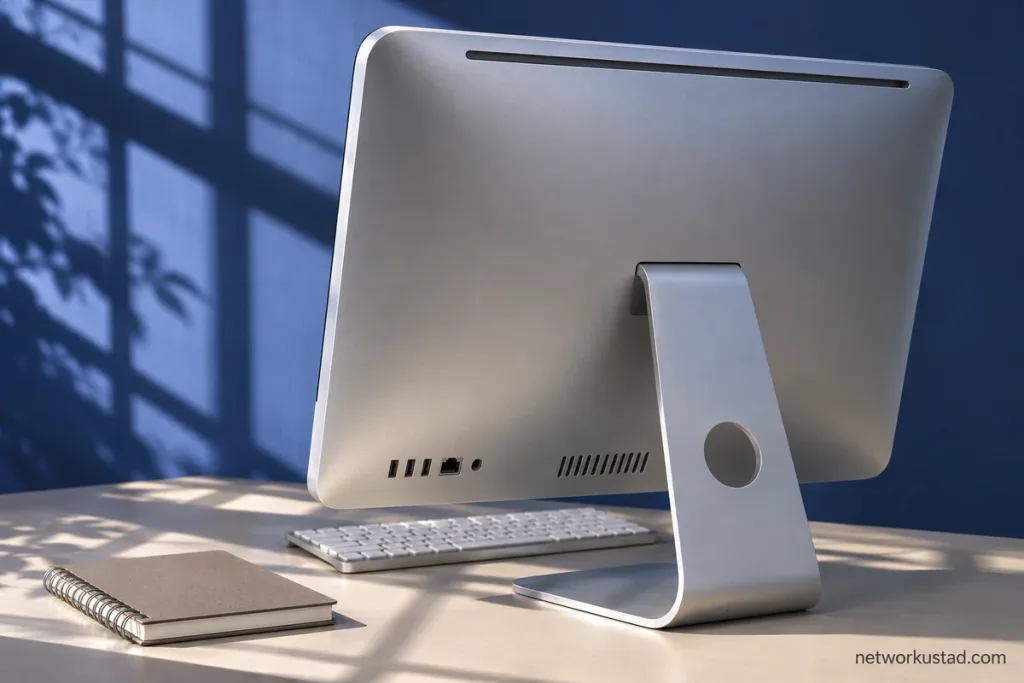
Look at the ports you actually need. A photo of the back helps you see their condition and plan for any adapters. If you use an external display, storage drive, or wired network, write down the connector and cable your equipment uses. Check the Mac’s specifications and ask to try that connection if it is essential to your setup. A port that looks intact still needs to work with the device you depend on.
Check Software Support for an “iMac Pro i7 4K” Listing
Start with your applications, then work backward to the computer. Write down the apps and versions you must run. Include plug-ins, device drivers, browsers, or other tools your work depends on. Check the developer’s system requirements for the version you intend to install. A program can support one macOS release while a required plug-in or peripheral has different requirements.
Check the highest macOS version Apple lists for the exact iMac model. Then check whether the software you need supports that version and the Intel processor in the computer. A seller may show the desktop running today without showing whether it can run the tools you plan to install. If you rely on regular updates, check the support information for those tools rather than assuming that an older copy will remain suitable.
If you need a particular Intel-era application, confirm its license and installer are available to you. Ask whether your projects can still open in the version you would use. For a shared workplace, find out whether others will be able to open the files you send them. Run a small test project if you have access to the computer and the software. A basic desktop demonstration cannot answer those questions on its own.
Consider storage alongside software. Ask what kind of drive is installed and how much capacity is available. Compare that with the size of your applications, project files, and backups. If you plan to work from an external drive, budget for it and check the connection you will use. A larger drive is useful only if it fits the way you store and move your files.
Inspect an “iMac Pro i7 4K” Listing in Person
Start the computer and look at the display before opening a demanding app. Show a few plain backgrounds and check for obvious marks, uneven patches, or persistent discoloration. Change brightness and look from your usual working position. Check the case and stand for damage, and see whether the screen sits firmly on the desk. A flaw near the edge may matter little for ordinary work and more if you work closely with images.
Try the functions you expect to use. Connect a keyboard and mouse, test your most important ports, and check Wi-Fi or Ethernet if the unit will rely on it. Open the camera and play audio if meetings are part of your work. If the seller permits it, restart the Mac and see whether it starts normally again. Take notes on what you could verify and what you would need to test after delivery.
Ask the seller about repairs or configuration changes. A replaced drive or other repair may change what the Mac can do, how it is serviced, or what documentation is available. Ask for the current system information even if an old invoice lists the original configuration. Look for the parts and capacity that are present now, especially if you are paying more for a particular upgrade.
For a shipped unit, check the seller’s return terms before ordering. Find out who pays for shipping if it arrives damaged or does not match the description. Ask how the stand and screen will be protected and whether you should keep the packaging for a possible return. The computer, shipping, accessories, and any needed storage or adapters all belong in the total cost you compare.
Compare the Real Models Behind “iMac Pro i7 4K” Listings
Choose the display size after you know which models can run your software. A 21.5-inch display can be easier to place on a shallow desk or in a room with limited space. A 27-inch display gives you a larger physical work area. Measure the desk, allow space for the keyboard and mouse, and check where the power and peripheral cables will go. If you plan to use a second display, include its stand and cable route in the drawing.
Compare like-for-like listings. If two sellers offer a 2019 Retina 4K iMac, check whether both units actually have the Core i7 and whether their storage and memory match. If you compare a 4K iMac against an iMac Pro, make a separate line for the larger screen and the software compatibility of each model. An iMac Pro i7 4K headline alone cannot tell you which comparison you are making.
Set a budget for the complete setup rather than the computer alone. Include the accessories you need to replace and any work required to use your files or peripherals. If the machine cannot run a required application or connect to a device you depend on, decide whether there is a practical workaround before paying. A low purchase price leaves less room for surprises when the seller can demonstrate the configuration and offers a clear return process.
If you are also planning to work away from the desk, consider which tasks need to travel with you. A fixed iMac setup and a portable workstation solve different everyday problems. Write down the work you can leave at home and the files or tools you will need elsewhere before spending your whole budget on either setup. Building a reliable mobile workstation for IT and network professionals
Example: Compare Two Used Listings
Suppose one iMac Pro i7 4K listing shows a 21.5-inch model with a Core i7, while another shows a 27-inch iMac Pro with a Xeon W. Both sellers say the machines are suitable for photo editing. Ask each seller for the same evidence. Record the installed memory and storage, check the display for marks, and confirm the macOS version and your editing application’s requirements. Only then compare their prices.
If you have room for either display, a clear return period and a demonstrated configuration may matter more than the larger screen. If you need to connect a particular external drive or display, confirm that connection before you pay. Save the agreed specifications with the receipt so you can compare them with the machine you receive. The words iMac Pro i7 4K tell you less than those few checks.
Frequently Asked Questions
Did Apple sell an iMac Pro i7 4K?
Apple’s published specifications distinguish the 27-inch 5K iMac Pro with Xeon W processors from the 21.5-inch Retina 4K iMac that could be configured with a Core i7. If you see the combined name in a listing, ask for the model information from the computer. That will help you match it to the right Apple specifications.
Does every 2019 21.5-inch 4K iMac have a Core i7?
No. Apple lists other processor configurations and shows the six-core Core i7 as an option. Confirm what the individual computer reports. If a seller asks a premium for the i7 configuration, get that detail in writing before you buy.
Is “iMac Pro i7 4K” enough to tell me the RAM or storage?
No. The phrase combines model details, and memory and storage also vary by configuration. Ask the seller to show the installed memory and storage on the actual machine. If they give you a photo of an original invoice, check that the computer’s current configuration agrees with it.
Which Mac should I buy if both are available?
Start with the one you can identify and test. Check that it meets the requirements for your current work, fits your desk, and comes with terms you can accept. If either seller cannot show what processor or storage is installed, keep that uncertainty in the comparison. The better choice is the machine that does the work you need at a total price you are comfortable paying.
If you remember one thing when you see an iMac Pro i7 4K listing, make it this: identify the computer first. Then decide what its display, condition, software support, and exact configuration are worth to you.