Upgrading your computer’s components can feel intimidating, and one of the most common questions during a build or upgrade is whether an old graphics card will work with a new motherboard and CPU. The honest answer is not a simple yes or no, it depends on interface compatibility, power requirements, physical fit, and driver support. This guide covers exactly what to check before reusing an old GPU, and clears up a common misconception about PCIe generation compatibility along the way.
Can Any Motherboard Support Any GPU?
Not quite, but compatibility is more forgiving than many people assume. The GPU’s physical interface must match what the motherboard offers: if your GPU uses PCI-Express and the motherboard only has legacy PCI or AGP slots, and virtually no modern motherboard does, the card simply will not fit or connect at all.
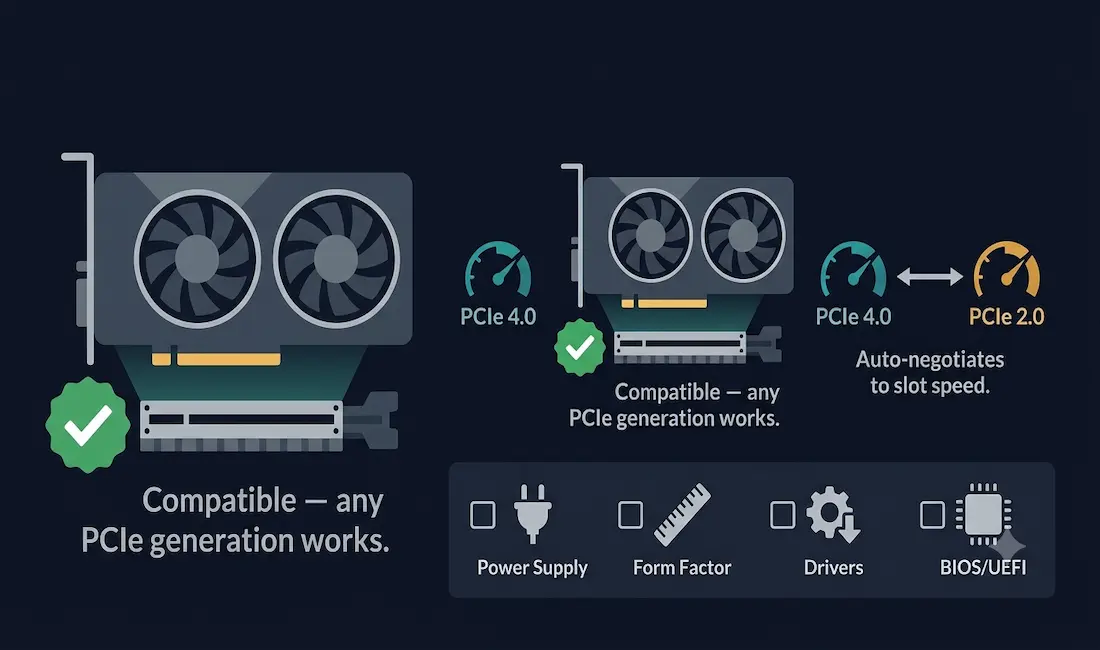
A common misconception worth clearing up directly: a newer-generation PCIe GPU will still work in an older-generation PCIe slot, and vice versa. PCI-Express is specifically designed for backward and forward compatibility across generations. A PCIe 4.0 graphics card will physically fit and function correctly in a PCIe 2.0 x16 slot; the connection automatically negotiates down to the highest speed both the card and the slot support, in that case, PCIe 2.0 speed. The card will work. It just will not run at its full potential PCIe 4.0 bandwidth in that older slot. Whether that bandwidth reduction actually matters for real-world performance is a separate question, covered below.
How to Determine If Your Old Graphics Card Is Compatible
Check these five factors before reusing an old GPU in a new build:
- Interface: Confirm your old graphics card uses PCI-Express, the interface every modern motherboard uses. If your card predates PCIe and uses legacy PCI or AGP instead, it will not physically fit into a modern motherboard.
- Power requirements: Check both the GPU’s power draw and connector requirements (6-pin, 8-pin, or none) against what your power supply can actually provide.
- Form factor: Confirm the card’s physical length and slot width will fit in your new case and won’t be blocked by other components.
- Drivers: Confirm the manufacturer still provides drivers for your old card that support the latest OS version you’re running.
- BIOS/UEFI compatibility: In rare cases, particularly with very old GPUs, a motherboard’s BIOS/UEFI may need Legacy/CSM boot mode enabled to properly initialize the card. Most current motherboards ship with both UEFI and Legacy support enabled by default; if you’ve set boot to UEFI-only and an old GPU won’t initialize, resetting the CMOS often resolves it.
If you’re building a new system and want to verify every component works together before buying anything, PC-building websites like PC Builder and BuildMyPC let you assemble a virtual parts list and flag compatibility issues before you commit to a purchase.
When PCIe Generation Mismatch Actually Matters
Since PCIe generations are backward and forward compatible, the practical question isn’t “will it work” but “will the bandwidth difference cost me meaningful performance.” For the overwhelming majority of real-world cases, it does not:
- Most GPUs, especially anything below the current flagship tier, do not use anywhere near the full bandwidth of a PCIe 4.0 or 5.0 x16 link, so running them at PCIe 3.0 or even 2.0 x16 speeds typically costs only a few percentage points of performance in gaming workloads, often within margin of error.
- The gap becomes meaningful mainly at the extreme high end — flagship GPUs paired with a slot running at a reduced number of lanes (x8 or x4 instead of x16) on an older PCIe generation, where the combined effect of fewer lanes and an older, slower generation can create a genuine, measurable bottleneck.
- Older PCIe generations combined with reduced lane counts compound the effect. A GPU running at PCIe 2.0 x16 will generally perform close to its potential; the same GPU dropped to PCIe 2.0 x4 (four lanes instead of sixteen) will see a much larger, more noticeable performance hit, since both the generation and the lane count are reduced simultaneously.
In short: an old GPU in a new PCIe slot, or a new GPU in an old PCIe slot, will work. Whether you notice any performance difference depends mainly on how demanding the specific GPU is and how many lanes the slot actually provides, not simply which PCIe generation number is printed on the box.
Platform-Locked and Unusual Cases
A small number of GPUs fall outside the normal compatibility rules and are worth knowing about specifically. Intel’s DG1 discrete GPU, for example, was locked to a specific, limited list of validated motherboard models by its BIOS whitelist, meaning it would not function in an arbitrary PCIe motherboard the way virtually every other GPU does, a genuinely unusual exception rather than the norm. For the vast majority of PCIe graphics cards from Nvidia, AMD/ATI, and Intel’s own Arc lineup, standard slot compatibility and driver availability are the only real considerations.
The Importance of Drivers
Drivers are the software layer that lets your operating system actually communicate with your hardware, translating between the OS and the specific capabilities of your GPU. The importance of drivers lies in their ability to ensure that hardware and software work together seamlessly. Without the correct driver installed, your operating system may fail to recognize the card entirely, or recognize it but be unable to use its gaming or video playback acceleration capabilities. An outdated driver version can also cause degraded performance, crashes, or blue screens even when the card is otherwise correctly recognized, which is why keeping drivers current matters even after your build is up and running, not just during the initial installation.
Finding Drivers for Older Hardware
- Check the manufacturer’s website first. Search for your specific card model under the manufacturer’s Support or Downloads section; most manufacturers maintain driver archives going back many years.
- Check your operating system’s own driver database. Both Windows and Linux maintain their own driver repositories that can sometimes surface a compatible driver even when the manufacturer’s own site no longer lists your specific card.
- Use reputable driver update software cautiously, and only from well-known, trusted sources, since some driver-scanning tools bundle unwanted software.
- Check hardware enthusiast forums and communities if the standard channels come up empty; long-time PC building communities often have deep knowledge of getting genuinely old hardware working on modern systems.
- Contact the manufacturer directly as a last resort if none of the above turns up a working driver.
If a card is old enough that no manufacturer driver exists for your current operating system at all, upgrading to newer hardware is generally the more practical path forward rather than trying to force compatibility that no longer exists.
Conclusion
Using an old graphics card with a new motherboard and CPU is possible in the large majority of cases, provided the card uses a PCI-Express interface, which virtually guarantees physical and electrical compatibility with any modern motherboard regardless of which PCIe generation either side supports. The real considerations are power supply capacity, physical fit, and whether a working driver still exists for your operating system, not whether the PCIe generation numbers match. If your old card’s performance genuinely can’t keep up with what you need from modern games or workloads, that’s a legitimate reason to upgrade, but PCIe generation mismatch alone is not a compatibility blocker.
Frequently Asked Questions
Can I use my old graphics card with a new motherboard and CPU?
In most cases, yes, provided your old graphics card uses a PCI-Express interface, which every modern motherboard supports regardless of which specific PCIe generation the card or motherboard uses. The main practical considerations are whether your power supply can meet the card’s power requirements, whether the card physically fits in your case, and whether a compatible driver still exists for your current operating system.
Will my old graphics card work with a new motherboard if they support different PCIe generations?
Yes. PCI-Express is specifically designed to be backward and forward compatible across generations, so a PCIe 4.0 card works in a PCIe 2.0 slot and a PCIe 2.0 card works in a PCIe 5.0 slot; the connection simply negotiates down to the highest speed both sides support. For most GPUs, especially anything below the current flagship tier, this generational difference has minimal real-world performance impact, since most cards don’t use the full bandwidth even an older PCIe generation provides at x16 width.
How can I check if my old graphics card is compatible with my new motherboard and CPU?
Confirm the card uses a PCI-Express interface (virtually all cards made in the last 15+ years do), check that your power supply provides sufficient wattage and the correct power connectors for the card, verify the card physically fits your case, and confirm the manufacturer still provides a driver supporting your current operating system. Free PC-building compatibility tools can help cross-check these factors before you commit to a purchase or build.
Are there any risks to using an old graphics card with a new motherboard and CPU?
The main practical risks are underwhelming performance if the card is significantly outdated relative to modern software demands, potential driver support gaps on very old cards with newer operating systems, and, in rare cases, needing to enable Legacy/CSM boot mode in the motherboard’s BIOS/UEFI for very old cards to initialize correctly. Outright incompatibility due to PCIe generation mismatch is not a real risk, since PCIe is backward and forward compatible by design.
Does a bottleneck from an older CPU affect an old GPU’s performance the same way?
CPU bottlenecking is a separate consideration from PCIe generation compatibility. If your new CPU is significantly more powerful than what the old GPU was originally paired with, the GPU itself becomes the limiting factor in most modern games, meaning you generally won’t see a bottleneck from the CPU side. The more common real-world scenario for an old GPU is that its own architecture, VRAM capacity, or compute performance simply can’t keep up with the demands of current games, independent of what CPU or motherboard it’s paired with.