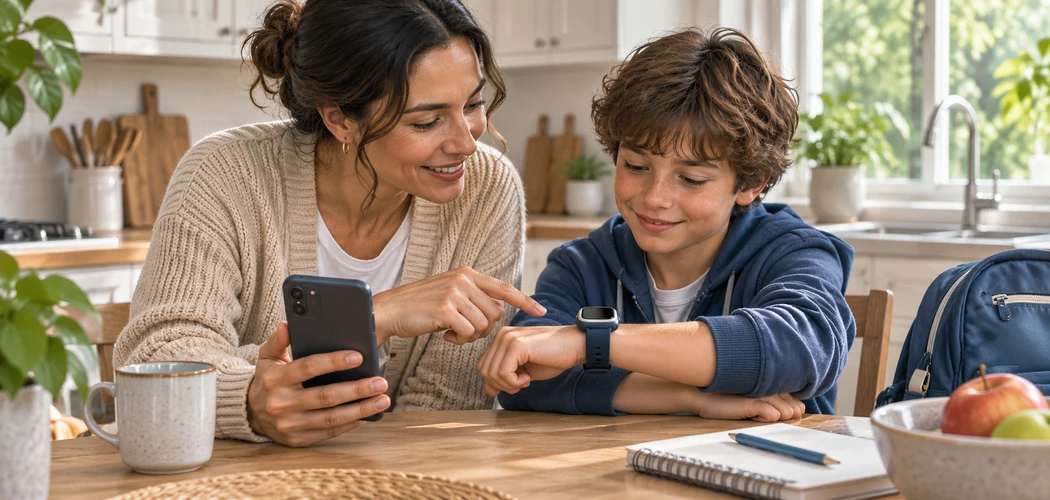
A GPS watch can give your child a way to call you when pickup plans change. It can also send a location update to your phone, which can help you work out where to meet. How well it does either job depends on the device, the service plan, and the places your child goes.
Start by identifying the problem you want the watch to solve. A child who needs to call from after-school practice may need reliable voice calling more than continuous location history. If your goal is to confirm arrival at a regular pickup point, an app that clearly shows the time of the last update may be more helpful than one with a busy map and several alert modes.
How GPS Watches for Kids Share Location
A watch needs to estimate its position and send that information to a parent’s app. Those are two separate steps. The watch may use satellite signals, and some models can also estimate location using Wi-Fi or cellular network information. The app then needs to receive a new update. A watch can have a good position fix outdoors and still be unable to send it where cellular or supported Wi-Fi coverage is unavailable.
GPS.gov explains that signal blockage, nearby buildings, and receiver design can affect GPS accuracy. A watch that pins the right spot in an open park may show a wider estimate inside a school or near tall buildings. Models may also update location at set intervals or when you request a refresh.
Look for a timestamp next to the map pin. If the app says the watch checked in ten minutes ago, treat the pin as the last reported location. Check whether the app distinguishes a fresh fix, an approximate fix, and an offline device. Ask what happens when the watch loses its connection. Some apps may show the last report until the next one arrives.
What a geofence can tell you
A geofence is a virtual boundary around an area. A watch or app may send a notification when it estimates that the device has entered or left the area. The timing depends on the frequency of updates, location accuracy, and the connection. A boundary that runs along a building entrance or a busy curb can produce misleading alerts when the estimate moves across the line.
If your watch supports geofencing, test one boundary with an adult there to verify when the child actually crosses it. Try the route in both directions and compare the time on the notification with the time of the crossing. A late alert can still be useful context for an ordinary pickup. Agree on a backup check-in when timing matters.
Check What the SOS Button Actually Does
Before buying, read the instructions for the exact model and plan. A watch may call a list of approved contacts, send an app notification, share location, or combine several of those actions. Ask whether the watch contacts anyone directly, who receives the first alert, and what happens if the first person cannot answer. Avoid assuming that a button labeled SOS calls emergency services.
Test the feature in a way the manufacturer allows. If it can contact emergency services or a monitoring center, check the manufacturer’s approved test procedure and avoid placing an unarranged test call. For a family-contact alert, tell everyone involved when the test will happen. Check whether the alert arrives with the receiving phone locked and whether anyone else in the contact list is notified.
Show your child how to make a normal call and where to go for in-person help. At school or practice, that might mean going to a teacher, coach, or staffed reception desk. Decide who your child should ask for help when the watch is unavailable. Practice that option alongside the watch so it is familiar.
How to Check Location Privacy
Location history can reveal routines such as a child’s route to school and where they spend time after class. Before setting up the watch, check how guardians are invited, what each person can see, and how you can revoke their access. Use an individual account for each authorized adult if the service supports it. Choose a unique password and enable multifactor authentication where available.
Read the privacy policy and look for answers you can act on. Find out how long the service keeps location history, what it shares with service providers, and whether you can delete records or close the account. Check what happens if you cancel a plan, sell the watch, or transfer it to another household. If the documentation is unclear, ask the vendor for instructions before storing regular location history.
Talk to your child about why you are using location sharing, who can see it, and when those adults will check it. Show them how the watch indicates tracking if it offers that feature. The UK Information Commissioner’s Office guidance on children’s geolocation highlights the value of a visible indicator when a child is being monitored. Use the level of tracking your family needs, and revisit it as your child grows or their routine changes.
GPS Watch vs. Phone: Which Fits Your Family?
| Decision | GPS watch | Phone |
|---|---|---|
| Calling | Some models limit calls to approved contacts. Check incoming and outgoing rules separately. | Usually supports more communication options. Supported parental controls vary by device. |
| Carrying it | A wrist strap can help keep it with the child. Check fit and comfort before buying. | A larger screen can help with typing and reading messages. Decide where the phone will be carried. |
| Coverage | Confirm compatible cellular networks, activation requirements, and supported Wi-Fi features. | Check carrier coverage and how calls work indoors on the chosen plan. |
| School and activities | Ask about smartwatches, quiet modes, and exceptions for approved use. | Ask staff when phones may be carried and when they must stay switched off or put away. |
| Cost | Compare the device, activation, plan, replacement charger, and cancellation terms. | Compare the handset, plan, case, and any additional services your family needs. |
If the main job is a quick call at pickup, both devices may be suitable. A watch is easier to carry for some children. A phone can be easier to read or type on. Start with the family routine and the school’s policy. For a wider look at wearable features, see NetworkUstad’s guide to smartwatches for students.
A Practical Test Before the Return Deadline
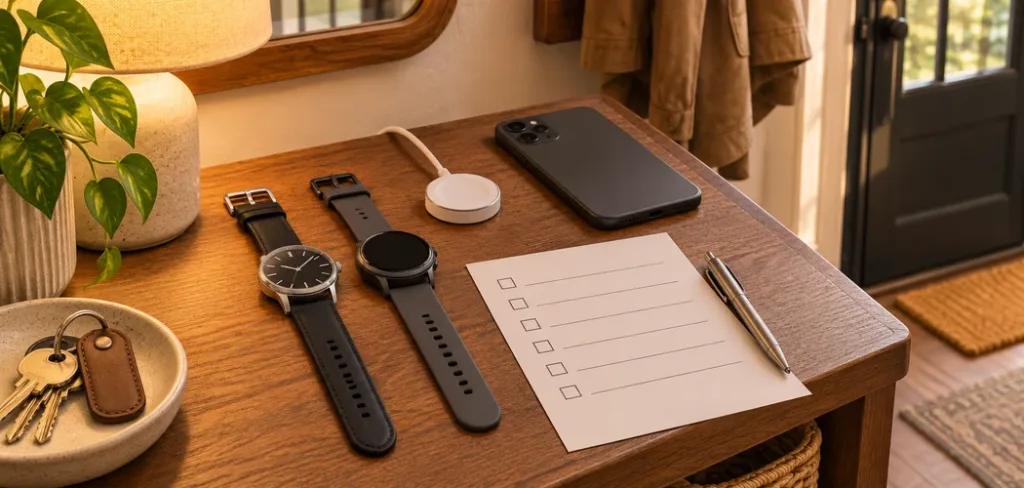
Set the watch up early enough to try it during a normal week. Install any available updates, set up the approved contacts, and follow the manufacturer’s instructions for activation. Write down a few places where the watch needs to work, such as the pickup gate, a sports venue, and the house of a caregiver. Keep the child with a responsible adult during tests.
- Make and receive a normal call. Try both directions from places your child actually uses. Check that the child can find each contact and hear clearly in the environment.
- Compare the map with what you know. Ask the adult with the child to confirm the location and time. Compare that with the pin and timestamp. Note where indoor updates are delayed or approximate.
- Run the approved family alert test. Verify the contact order, phone notifications, and fallback behavior. If the manufacturer does not describe a safe test, ask support how to verify the feature.
- Watch battery use on an ordinary day. Check the charge in the morning and at pickup with the features you intend to use. Decide who charges it and how you will know if it is nearly empty.
- Check account access. Verify that only the intended adults appear in the app. If you add a temporary authorized tester, remove them afterward and confirm the change.
- Try the backup plan. Have your child point out the staffed place they would go if they could not reach you. Make sure the relevant caregivers know the plan.
Keep a short note of what worked and what failed. For example, if a watch can send locations outdoors but cannot place a call inside the sports hall, decide whether the intended use is outdoors at pickup or inside during practice. That distinction can determine whether to keep the device, change the service plan, or choose another check-in method.
Questions to Ask Before Paying
Is a subscription required?
Ask which features work before activation, while the plan is active, and after cancellation. Compare the full cost over the period you expect to use it. Check whether the vendor publishes a list of supported carriers and regions. A compatible network in one country or city does not tell you how the watch will perform at your child’s school.
Will school mode affect calling or alerts?
Ask what school mode disables, who can change the schedule, and whether approved calls or SOS features still work under that mode. Check with the school before setting up a routine around the watch. Some settings may make the watch less distracting while also changing what the child can do during class.
When does a location alert need follow-up?
An alert is a prompt to check what happened. Look at its timestamp, call the agreed contact when appropriate, and follow the family’s pickup or check-in plan. If a pin looks unexpected, an adult who is with the child or at the expected location may be able to confirm the situation.
Choose a watch that does the job your family needs in the places your child actually goes. Verify the calling and notification behavior, check who can access the location data, and make sure your child understands the backup plan. Those checks give you a better basis for deciding than a feature list alone.
Safety and privacy disclaimer. Device features vary by model, service plan, and coverage. Follow the manufacturer’s instructions and your school’s rules. In an emergency, use local emergency services and follow your family’s safety plan.