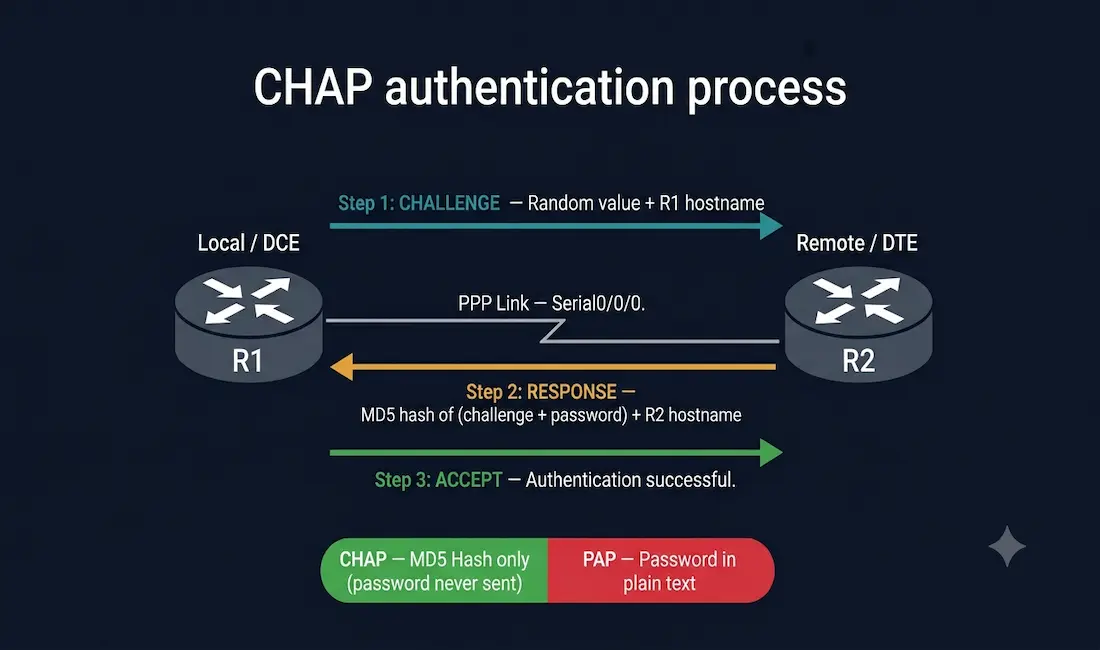
Challenge Handshake Authentication Protocol is the standard PPP authentication method for securing point-to-point WAN links on Cisco routers. It authenticates the remote router without transmitting the password in plain text, protecting the link against replay attacks through a randomly generated challenge value that changes with each authentication attempt.
This guide covers how it works, its three-way handshake process, how it compares to PAP, how to configure it correctly on both ends of a serial link, how to verify the configuration, and the most common troubleshooting scenarios — with the complete configuration in text-based code blocks that can be copied directly.
What Is CHAP and Why Does It Matter?
It is defined in RFC 1994 and operates at the Data Link layer as part of the Point-to-Point Protocol (PPP) suite. It authenticates the identity of a remote router after PPP link establishment and can repeat authentication periodically while the link remains active — a significant security advantage over PAP, which authenticates only once at connection setup and sends credentials in plain text.
Challenge Handshake Authentication Protocol’s key security properties:
- Password never sent over the link — only a hash value derived from the password is transmitted
- Replay attack protection — each challenge contains a unique, randomly generated value that changes on every authentication attempt
- Periodic re-authentication — the local router or a third-party authentication server controls the frequency and timing of re-authentication challenges, limiting the exposure window of any single authentication event
- MD5 hashing — the MD5 hash function is used to compute the response value
CHAP vs PAP: Key Differences
| Feature | CHAP | PAP |
|---|---|---|
| Password transmission | Never sent — only MD5 hash | Sent in clear text |
| Authentication timing | At link setup + periodic re-authentication | At link setup only |
| Replay attack protection | Yes — unique random challenge each time | No |
| Hash function | MD5 | None |
| Security level | Strong | Weak |
| Three-way handshake | Yes (Challenge → Response → Accept/Reject) | Two-way only (Credential → Accept/Reject) |
| Cisco IOS command | ppp authentication chap | ppp authentication pap |
It provides better protection than PAP because it uses a variable challenge value that is unique and unpredictable on every authentication attempt. PAP sends the username and password in clear text during link establishment, making it trivially interceptable. For any security-sensitive WAN link, CHAP is the correct choice.
How CHAP Works: The Three-Way Handshake
It authenticates using a three-message exchange called the three-way handshake. Understanding each step is essential for CCNA candidates and for troubleshooting authentication failures.
Step 1 — Challenge
After PPP link establishment completes, the authenticating router (the router that will verify the remote’s identity) sends a Challenge message to the remote router. The Challenge contains:
- A random challenge value (unique to this authentication attempt)
- The authenticating router’s hostname
Step 2 — Response
The remote router receives the Challenge and:
- Looks up the authenticating router’s hostname in its local database (
usernamecommand) - Retrieves the associated password
- Combines the challenge value, the password, and the challenge ID
- Runs this combination through the MD5 hash function
- Sends back a Response message containing the MD5 hash value and its own hostname
Step 3 — Accept or Reject
The authenticating router receives the Response and:
- Looks up the remote router’s hostname in its local database
- Performs the same MD5 calculation using the stored password and the original challenge value
- Compares its calculated hash to the hash received in the Response
- If they match → sends an Accept message; authentication succeeds
- If they do not match → sends a Reject message; the link is terminated
Authenticating Router              Remote Router
       |                                 |
       |--- Challenge (random value) --->|
       |                                 | (MD5 hash of: challenge + password)
       |<--- Response (MD5 hash) --------|
       |                                 |
       | (verify hash locally)           |
       |--- Accept / Reject ------------>|
Critical CHAP Configuration Rules
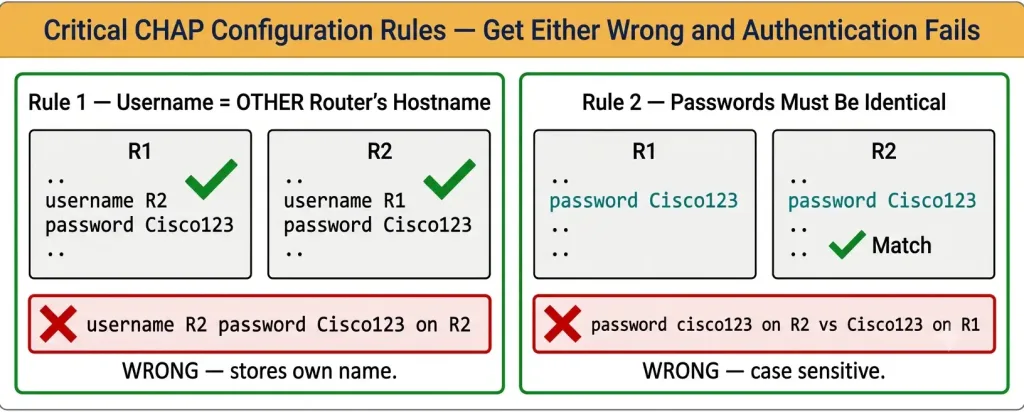
Before looking at commands, two rules determine whether CHAP authentication succeeds or fails. Getting either wrong causes authentication failure — the most common source of CHAP configuration errors:
Rule 1 — Username must match the OTHER router’s hostname
On R1, you store R2’s hostname and the shared password:
R1(config)# username R2 password Cisco123On R2, you store R1’s hostname and the same shared password:
R2(config)# username R1 password Cisco123If R1 is configured with username R1 password Cisco123 — storing its own name — CHAP will fail because R1 will look for itself in R2’s database, not the remote router.
Rule 2 — Passwords must be identical on both routers
The shared password stored in the username database must be identical on both routers. CHAP does not transmit the password — it hashes it — but both sides must hash the same password to arrive at the same result. A password of “Cisco123” on R1 and “cisco123” on R2 (different capitalization) will cause authentication failure.
CHAP Configuration: Complete Step-by-Step
Topology
[R1]---Serial0/0/0 (DCE)------Serial0/0/0 (DTE)---[R2]
  192.168.10.1/30                192.168.10.2/30
  2001:AD01:BD00::1/64           2001:AD01:BD00::2/64
  Hostname: R1                   Hostname: R2
  Shared CHAP password: Cisco123 (must match on both)
Router R1 Configuration (Local / DCE End)
Router> enable
Router# configure terminal
Router(config)# hostname R1
R1(config)# username R2 password Cisco123
R1(config)# interface serial0/0/0
R1(config-if)# no shutdown
R1(config-if)# ip address 192.168.10.1 255.255.255.252
R1(config-if)# ipv6 address 2001:AD01:BD00::1/64
R1(config-if)# clock rate 64000
R1(config-if)# encapsulation ppp
R1(config-if)# ppp authentication chap
R1(config-if)# exit
R1(config)# exit
R1# write memory
Note: clock rate 64000 is required only on the DCE end of a back-to-back serial cable (the end connected to the CSU/DSU or the simulated DCE in a lab). The DTE end does not need or use the clock rate command. In a real WAN deployment, the service provider’s equipment provides the clock signal and neither router needs clock rate.
Router R2 Configuration (Remote / DTE End)
Router> enable
Router# configure terminal
Router(config)# hostname R2
R2(config)# username R1 password Cisco123
R2(config)# interface serial0/0/0
R2(config-if)# no shutdown
R2(config-if)# ip address 192.168.10.2 255.255.255.252
R2(config-if)# ipv6 address 2001:AD01:BD00::2/64
R2(config-if)# encapsulation ppp
R2(config-if)# ppp authentication chap
R2(config-if)# exit
R2(config)# exit
R2# write memory
Key differences from R1:
username R1 password Cisco123— stores R1’s hostname (the other router), not its own- No
clock rate— R2 is the DTE end and does not set the clock - Same password (“Cisco123”) — must match R1’s password exactly
One-Way vs Two-Way CHAP Authentication
The configuration above enables two-way CHAP — both routers have ppp authentication chap on their serial interfaces, meaning each router challenges the other and must pass authentication in both directions. This is the most secure and most common configuration.
One-way CHAP is also possible, where only one router authenticates the other. To configure one-way authentication, apply ppp authentication chap only on the router that will challenge the remote end. The remote end still needs the username entry to respond to challenges, but does not send challenges itself.
Two-way Challenge Handshake Authentication Protocol is always preferred because it prevents a rogue device from impersonating the legitimate router in either direction.
Verifying CHAP Configuration
After configuration, use these commands to confirm Challenge Handshake Authentication Protocol is operational.
show interfaces serial0/0/0
R1# show interfaces serial0/0/0
Serial0/0/0 is up, line protocol is up
  Hardware is PowerQUICC Serial
  Internet address is 192.168.10.1/30
  MTU 1500 bytes, BW 1544 Kbit/sec, ...
  Encapsulation PPP, loopback not set
  LCP Open
  Open: IPCP, CDPCP
Key fields to check:
- “Serial0/0/0 is up, line protocol is up” — physical layer and PPP link layer both operational
- “Encapsulation PPP” — confirms PPP encapsulation is active
- “LCP Open” — Link Control Protocol negotiated successfully
- If authentication failed, the interface would show “line protocol is down” even when the physical layer is up
debug ppp authentication
For real-time visibility into the CHAP handshake:
R1# debug ppp authenticationSuccessful Challenge Handshake Authentication Protocol authentication output looks like:
*Mar  1 00:01:12.123: Se0/0/0 CHAP: O CHALLENGE id=1 len=23 from "R1"
*Mar  1 00:01:12.156: Se0/0/0 CHAP: I RESPONSE id=1 len=23 from "R2"
*Mar  1 00:01:12.159: Se0/0/0 CHAP: O SUCCESS id=1 len=4
O = sent (Output), I = received (Input). A FAILURE message instead of SUCCESS indicates a username or password mismatch.
Important: Always disable debug after use to avoid excessive CPU load:
R1# no debug ppp authenticationOr disable all debugging:
R1# undebug allshow ppp all
R1# show ppp allDisplays a summary of all PPP interfaces, their LCP state, and authentication status.
Troubleshooting Common CHAP Failures
Failure 1 — Wrong Username (Most Common)
Symptom: debug ppp authentication shows CHAP FAILURE; line protocol stays down.
Cause: The username command on one or both routers stores the wrong hostname. The most common mistake is storing the router’s own hostname instead of the remote router’s hostname.
Check:
R1# show running-config | include username
username R2 password Cisco123      ← correct: stores R2's name on R1
If it shows username R1 password Cisco123 on R1 — that is the error. Fix:
R1(config)# no username R1 password Cisco123
R1(config)# username R2 password Cisco123
Failure 2 — Password Mismatch
Symptom: debug shows CHAP FAILURE even though usernames are correct.
Cause: The password in the username command does not match on both routers. Passwords are case-sensitive. “Cisco123” and “cisco123” are different passwords.
Fix: Ensure both routers have the identical password string in their username entries. Retype both entries to eliminate any invisible character differences.
Failure 3 — PPP Encapsulation Not Set
Symptom: Line protocol stays down; no CHAP debug output at all.
Cause: encapsulation ppp was not applied before ppp authentication chap, or was applied but not saved.
Check:
R1# show interfaces serial0/0/0 | include Encapsulation
Encapsulation PPP     ← should show PPP, not HDLC
If it shows HDLC (the default), apply encapsulation:
R1(config)# interface serial0/0/0
R1(config-if)# encapsulation ppp
R1(config-if)# ppp authentication chap
Failure 4 — Hostname Not Set
Symptom: CHAP challenges arrive with the wrong router name; authentication fails on the remote.
Cause: The router’s hostname was not configured before CHAP was set up. CHAP uses the router’s configured hostname in its Challenge messages. If the hostname is the default “Router,” the remote’s username entry must match “Router” — which is almost never what is configured.
Fix: Always set the hostname before configuring CHAP:
Router(config)# hostname R1CHAP and IPv6 address Configuration
The configuration shown above includes both IPv4 and IPv6 addresses on the serial interfaces. CHAP authentication operates at the PPP layer and is independent of the IP version — it authenticates the PPP link itself, not individual IP sessions. IPv4 and IPv6 can both run simultaneously over a CHAP-authenticated PPP link without any additional authentication configuration.
CCNA Exam Pointers
- CHAP uses a three-way handshake: Challenge → Response → Accept/Reject
- CHAP uses MD5 to hash the password — the password itself is never transmitted
- Each authentication uses a unique random challenge — provides replay attack protection
- CHAP can re-authenticate periodically while the link is active — PAP cannot
- The
usernamecommand stores the other router’s hostname and the shared password - Passwords must be identical on both routers
encapsulation pppmust be configured beforeppp authentication chap- Two-way CHAP: both routers have
ppp authentication chap— both challenge each other - One-way CHAP: only one router has
ppp authentication chap— only it sends challenges - Verification:
show interfaces serial0/0/0,debug ppp authentication clock rateis required only on the DCE end of a serial link- CHAP is more secure than PAP because PAP sends credentials in plain text
Conclusion
CHAP is the correct choice for PPP link authentication whenever security matters. Its three-way handshake, MD5 hashing, and unique random challenge on every authentication event protect against both credential theft and replay attacks that would defeat PAP. The two most critical configuration requirements — storing the other router’s hostname in the username command and using an identical password on both ends — are also the two most commonly misconfigured elements. Using debug ppp authentication immediately after configuration confirms the handshake is completing successfully before the link goes into production.
Frequently Asked Questions
What is the difference between CHAP and PAP for PPP authentication?
PAP (Password Authentication Protocol) sends the username and password in plain text during link establishment — anyone intercepting the PPP negotiation can read the credentials directly. It authenticates only once when the link is set up and provides no protection against replay attacks. CHAP never transmits the password — it transmits only an MD5 hash derived from the password and a random challenge value. The random challenge changes on every authentication attempt, which prevents a captured hash from being reused in a later replay attack. CHAP can also re-authenticate periodically while the link is active, whereas PAP only authenticates at initial link establishment. For any WAN link where security is a concern, CHAP is the correct choice over PAP.
Why must the username command store the other router’s hostname and not your own?
The username command creates a local database entry that CHAP uses to verify the identity of a remote router. When R2 sends a CHAP Response, it includes R2’s hostname in the message. R1 receives this, looks up “R2” in its local username database, retrieves the stored password, and performs the MD5 verification. If R1 had stored username R1 instead of username R2, it would have no matching entry for the remote router’s hostname “R2” and the authentication would fail with a CHAP FAILURE message. This is the single most common CHAP configuration mistake and the first thing to check when authentication fails.
Why must the CHAP passwords match on both routers?
It verifies identity by comparing MD5 hashes. The authenticating router computes: MD5(challenge + stored password). The remote router also computes: MD5(challenge + its stored password). The results only match if both sides use the same password. If R1 stores “Cisco123” and R2 stores “cisco123” (different capitalization), the two MD5 computations produce different results, and authentication fails. The password does not travel over the link in any form — only the hash does — so both sides must independently hash the same shared secret to arrive at the same result.
What do I check first when CHAP authentication fails?
Start with debug ppp authentication on the authenticating router to see the live CHAP exchange. If you see CHAP FAILURE, the most likely causes are: (1) the username command has the wrong hostname — it should store the other router’s hostname, not the local one; (2) the passwords do not match between the two routers — check capitalization carefully; (3) PPP encapsulation is not set or reverted to HDLC — verify with show interfaces serial0/0/0 | include Encapsulation; (4) the hostname was not configured before Challenge Handshake Authentication Protocol was set up — the router may be sending “Router” as its hostname instead of the expected name. Always disable debug after troubleshooting with undebug all.
Does clock rate need to be configured on both routers for a serial CHAP link?
No. The clock rate command is required only on the DCE (Data Communications Equipment) end of a back-to-back serial cable, which is typically used in lab environments to simulate the timing signal that a real CSU/DSU or carrier equipment would provide. The DTE (Data Terminal Equipment) end receives the clock signal and does not need the command. In a real WAN deployment using an actual serial connection to a service provider, neither router configures clock rate — the service provider’s equipment provides the clocking. Configuring clock rate on the DTE end in a lab is harmless but unnecessary, and it should not be confused with a requirement for CHAP operation.