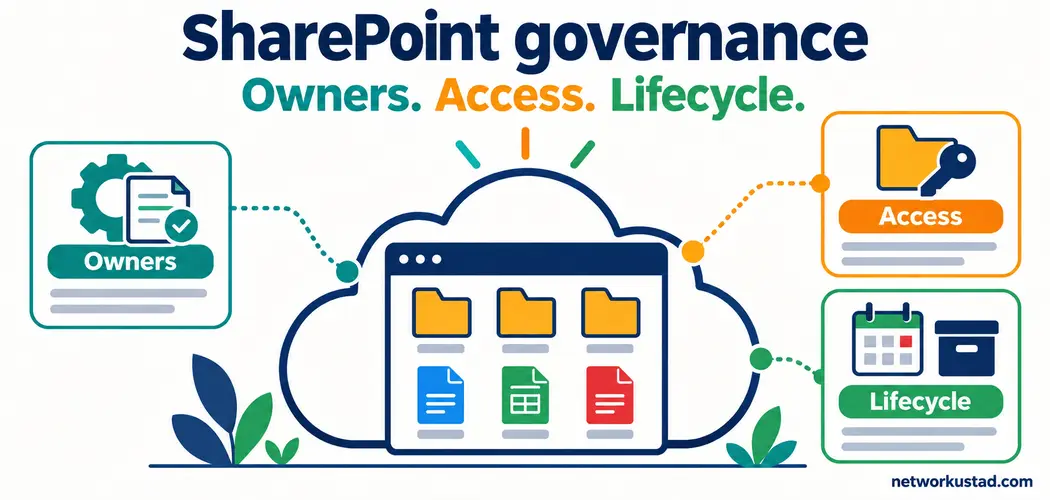
A SharePoint site can outlive the project that created it, the contractor who uploaded its documents, and the employee who understood its permissions. Without clear ownership, everyday collaboration gradually turns into a collection of unexplained access decisions. Files remain available because nobody knows who can approve removing them.
A SharePoint governance plan gives those decisions an owner, a repeatable process, and evidence that the process actually happened. It should help people collaborate safely without requiring an administrator to approve every document edit.
This guide focuses on SharePoint in Microsoft 365, including its relationship with Teams and Microsoft 365 Groups. SharePoint Server deployments need separate planning for their version, infrastructure, and available capabilities. The schedules and examples below are proposed operating practices, not universal Microsoft requirements.
What a SharePoint governance plan should accomplish
A useful plan answers practical questions: who can request a workspace, who approves guest access, where sensitive documents belong, and what happens when a site is no longer needed. It connects business decisions to technical settings instead of treating a policy document as proof that the environment is controlled.
Microsoft’s SharePoint governance overview places governance across connected services, including Teams and Microsoft 365 Groups. A rule written only for the SharePoint administration interface can miss the collaboration service that actually creates or manages the workspace. Microsoft Learn
Start with outcomes that owners can demonstrate. For example, every production site should have an accountable business contact; external collaborators should have a defined purpose; and proposed removal should receive an appropriate retention check. These are organizational policy choices to approve, document, and test.
Establish the baseline before changing settings
Inventory the sites you already have. Record the URL, business purpose, site type, owners, associated group or team, sensitivity, external-sharing status, and review date. Identify dependencies such as published links, reporting tools, workflows, and applications that use the site.
Do not treat a blank activity report as proof that a workspace has no value. A reference library may be important even when nobody edits it. Likewise, frequent access does not prove that the permissions are appropriate.
Your first SharePoint governance baseline should identify uncertainty as well as confirmed problems. Use statuses such as owner confirmed, owner unknown, sharing review pending, or retirement proposed. An explicit unresolved status is more useful than a reassuring dashboard built from assumptions.
Assign ownership without making everyone an administrator
Separate accountability for the information from administration of the service. The business owner decides why the workspace exists and who needs its content. The platform administrator manages tenant settings and supports approved controls. Security and records specialists contribute decisions within their responsibilities.
| Role | Main responsibility | Evidence to keep |
|---|---|---|
| Business owner | Confirm purpose, intended audience, and continued need | Approved site record and review decision |
| Site owner | Maintain membership and local content arrangements | Access review and recorded exceptions |
| SharePoint administrator | Configure service controls and investigate issues | Configuration records and change history |
| Security or compliance owner | Set information-protection requirements | Approved classification and control rules |
| Records or legal contact | Assess preservation and disposition requirements | Relevant retention or hold decision |
A small organization may combine some roles, but the decisions still need identifiable owners. Consider a backup owner so departures or extended leave do not leave requests unattended. This is a continuity recommendation, not a claim that every SharePoint site has a universal two-owner requirement.
Record the escalation path when owners disagree or stop responding. SharePoint governance becomes fragile when the only rule is to email someone who has already left the business.
Control site creation across connected services
Define which workspace types employees can request and when approval is needed. An internal project, a public-facing staff news site, and a partner collaboration space should not automatically receive identical sharing settings or ownership expectations.
Microsoft’s site-creation documentation identifies an important limitation: restricting creation in SharePoint does not by itself remove the ability to create Microsoft 365 Groups or Teams and their connected sites. Governance must account for those creation routes too. Microsoft Learn
A practical request form can ask for the business purpose, information sensitivity, internal audience, external participants, proposed owners, and expected review point. Keep it short enough that staff use it. Requiring extensive paperwork for ordinary collaboration can encourage people to work around the process.
Use approved site patterns where helpful, but test what the provisioning process actually configures. A naming convention or attractive template does not enforce guest restrictions, document classification, or future access reviews.
Match permissions to the site’s membership model
Not every SharePoint site should be administered through the same permission workflow. First identify whether you are managing a communication site, a group-connected team site, or a Teams channel site.
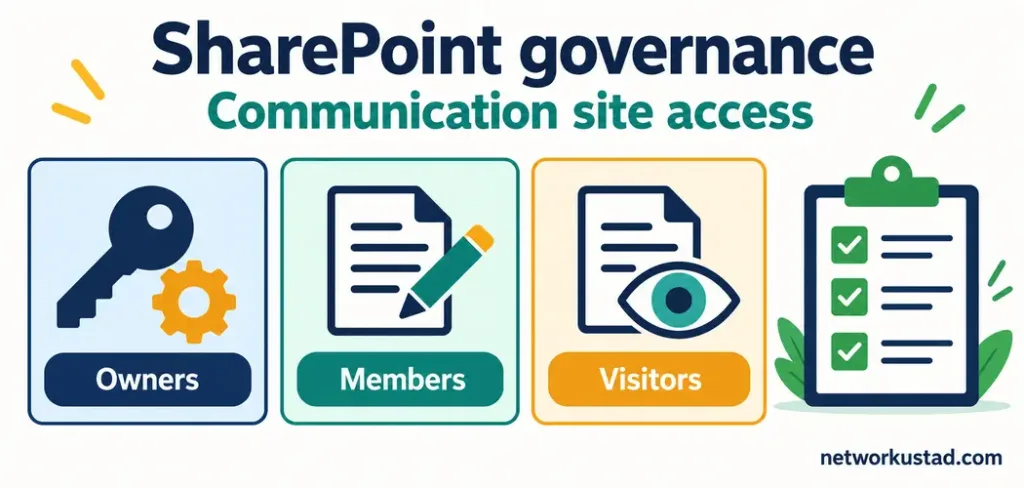
Microsoft’s modern permissions guidance recommends managing group-connected team access through its Microsoft 365 Group or Teams where applicable. Private and shared channel site membership must be managed in Teams. Communication sites use SharePoint permission groups such as Owners, Members, and Visitors.
| Workspace | Normal membership-management approach |
|---|---|
| Microsoft 365 group-connected team site | Manage membership through the associated group; use Teams when the workspace is managed there |
| Teams private or shared channel site | Manage membership in Teams |
| Communication site | Manage the relevant SharePoint Owners, Members, and Visitors groups |
Your SharePoint governance plan should state when direct file sharing or unique permissions are acceptable and who reviews exceptions. These features can support legitimate needs, but undocumented exceptions make effective access harder to explain.
For sensitive material, test access with representative accounts. Confirm that intended users can perform their tasks and unintended users cannot. Test the negative case as carefully as the successful one; a working link is not evidence that access is appropriately limited.
Set external-sharing rules people can follow
External sharing needs a business purpose, an approved audience, an owner, and an end condition. Define when authenticated guests are appropriate and whether anonymous links are permitted for particular content. Avoid leaving employees to interpret a broad instruction to share securely.
Microsoft’s external-sharing overview explains that organization-level and site-level limits interact, with the more restrictive setting applying. A site owner cannot simply override a more restrictive organization-level limit. Microsoft Learn
Keep restricted internal information separate from workspaces intended for partners. Before sending an invitation, confirm which content the recipient will actually receive access to, not just the document the sender had in mind.
Verification also matters. A convincing request from an apparent colleague or supplier can still be fraudulent. NetworkUstad’s social engineering guide provides background on manipulation tactics. Use an independently trusted contact route when a request asks you to expand access to sensitive material.
Separate workspace labels from document protection
A SharePoint governance policy should distinguish the classification of a workspace from the protection of individual files. They are related controls, but they do not automatically produce identical effects.
Microsoft’s sensitivity-label documentation explains that labels applied to supported sites and groups can configure container-level protections. Documents inside those containers do not automatically inherit the container label or its item-level encryption settings. Microsoft Learn
Document the intended effect of each approved label. Then test both the workspace configuration and a representative file. Do not tell staff that placing a document inside a labelled site necessarily encrypts that document.
Keep metadata usable as well. Decide which document attributes support discovery, ownership, or review. Microsoft’s information architecture guidance is a useful reference for organizing content around user needs. Add fields because they support a decision or task, not merely because the platform permits them.
Review the site lifecycle before approving removal
A workspace needs more than an opening process. Define what happens during active use, when responsibility changes, when a project closes, and when retirement is proposed. A SharePoint governance plan should describe the decision at each transition and the person authorized to make it.
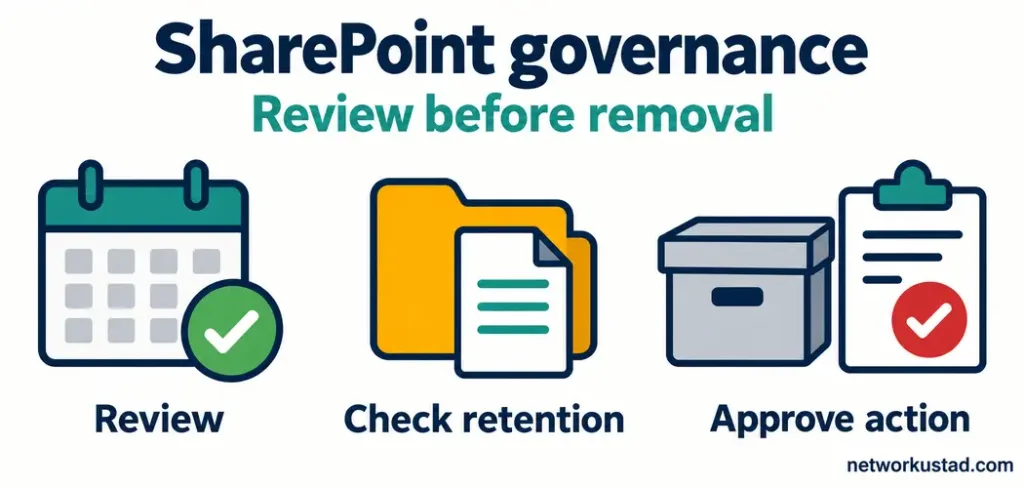
Microsoft’s site lifecycle management documentation describes ownership, inactivity, and attestation policies. It also states that these policies do not directly delete SharePoint sites. Their notifications and configured actions should not be confused with an organization’s separate removal approval process.
As a proposed starting point, review higher-risk partner workspaces more frequently than low-risk reference libraries. Adjust the schedule to information sensitivity, staff turnover, and observed access changes. A quarterly or annual interval is your policy choice, not an automatic platform guarantee.
Before retirement, check dependencies, information that must be preserved, linked services, responsible contacts, and restoration arrangements. Record the decision and notify affected users. Closing a project is not, by itself, authorization to destroy its records.
Treat retention and recovery as separate requirements
Retention determines what must be kept or disposed of under an approved information-management policy. Recovery planning asks how service and content will be restored after an operational problem. A SharePoint governance plan needs both decisions, even when some features contribute to both goals.
Microsoft Purview’s retention documentation describes policies and labels for retaining or deleting content. The appropriate configuration depends on the organization and its obligations; do not copy an arbitrary retention period from an unrelated example.
Before removing content, obtain the required records or legal approval and confirm whether any preservation requirement applies. This article does not prescribe a legal retention schedule.
For recovery, document what can be restored, who performs the restoration, and how the procedure is tested. Do not assume a preservation feature provides every recovery outcome your business expects. Validate the actual service and any additional protection arrangements against a realistic incident scenario.
Choose controls your tenant can actually support
Do not build the operating plan around a feature merely because it appears in a demonstration. Microsoft’s SharePoint Advanced Management overview describes additional governance capabilities, but feature availability and prerequisites must be checked for the tenant and licensing arrangement.
For each proposed control, record the owner, prerequisite, configuration location, test, and fallback. If automated attestation is unavailable, a documented manual review may still provide a workable starting point. It should not be represented as an automated control in an audit.
Consider AI-assisted discovery in the same practical way. Microsoft’s Copilot privacy documentation describes access to organizational content through existing permissions. Broad permissions are therefore a governance concern to investigate before expanding discovery experiences; deploying an assistant is not a substitute for correcting access.
Make training and exception handling operational
Training should show the decisions staff face: where to store a confidential draft, how to invite a contractor, when to request a new site, and whom to contact when access seems wrong. A short demonstration using your approved process is more actionable than a long policy nobody can navigate.
Include suspicious invitations and access requests. NetworkUstad’s phishing explainer offers related awareness background. Staff should know how to report a questionable request without forwarding sensitive content to an unverified address.
Allow exceptions through an accountable process. Record the reason, approver, scope, compensating measures, expiry or review trigger, and closure decision. An exception that never expires can quietly become the normal process without anyone accepting the associated risk.
Use a compact SharePoint governance register
The working register should connect each policy to observable evidence. A spreadsheet can be enough for a small estate if it is owned, protected, and maintained. Larger organizations may need integrated reporting, but a complex tool cannot compensate for undefined decisions.
| Register field | What to record |
|---|---|
| Workspace | URL, type, purpose, and associated team or group |
| Accountability | Business owner, operational owner, and escalation contact |
| Information | Sensitivity, relevant classification, and records contact |
| Access | Membership source, sharing boundary, and approved exceptions |
| Lifecycle | Review date, current status, and proposed next action |
| Evidence | Reviewer, findings, remediation owner, and completion record |
A useful SharePoint governance report distinguishes an owner confirming that a site is needed from a reviewer confirming that its access is appropriate. Those are different assertions. Record them separately rather than combining both into an unexplained green status.
Apply the plan to a contractor collaboration example
Consider a project team preparing documents with an external contractor. The business owner identifies which material the contractor needs and separates it from unrelated internal records. The administrator confirms the approved collaboration pattern and tests access using a representative guest account.
At onboarding, the site owner records the purpose, access scope, and review trigger. Training covers the invitation process and how to verify a request for additional access. During the project, changes to membership or sensitivity trigger a review rather than waiting for the next calendar reminder.
At closure, the business owner decides whether collaboration is still required. Records specialists check preservation obligations, and administrators assess dependencies before any retirement action. The SharePoint governance record captures what was decided and who remains responsible for retained information.
This example is a proposed workflow, not a Microsoft-mandated sequence. Adapt it to the service configuration, contracts, and risk requirements of your organization.
Frequently asked questions
Who should own the SharePoint governance plan?
A named business sponsor should own its purpose and adoption, with platform administrators, security, and records specialists responsible for their respective controls. Site owners handle local responsibilities within those boundaries. Giving IT sole ownership of every business-content decision can leave the people who understand the information disconnected from its management.
Does preventing SharePoint site creation also prevent Teams creation?
Not by itself. Microsoft documents separate creation routes involving Microsoft 365 Groups and Teams. Review the connected services when designing restrictions. After changing policy, test the relevant creation paths with an ordinary user account rather than assuming that one disabled button covers every route.
Does a site sensitivity label encrypt every document inside it?
No. Container labels and item labels have different scopes. Applying a sensitivity label to a supported site does not automatically apply item-level labels and encryption to its documents. Check the relevant file-labelling configuration and test the expected result before presenting it as an enforced protection.
How often should sites be reviewed?
Choose an interval based on sensitivity and how frequently membership, ownership, or business purpose changes. Review after significant events as well as on a schedule. The examples in this guide are starting points for your policy, not universal review periods required by SharePoint or Microsoft.
Should every inactive site be deleted?
No. Inactivity is a reason to investigate, not sufficient evidence for deletion. A site may hold reference information, records, or content used infrequently by a critical process. Confirm ownership, preservation requirements, dependencies, and the approved next action before making changes that remove access or content.
Is a written policy enough?
No. A policy states the intended behavior; configuration, testing, training, and review show whether that behavior occurs. A practical SharePoint governance plan links each important decision to an accountable person and evidence. Keep the plan short enough to use and detailed enough that another responsible person can follow it.