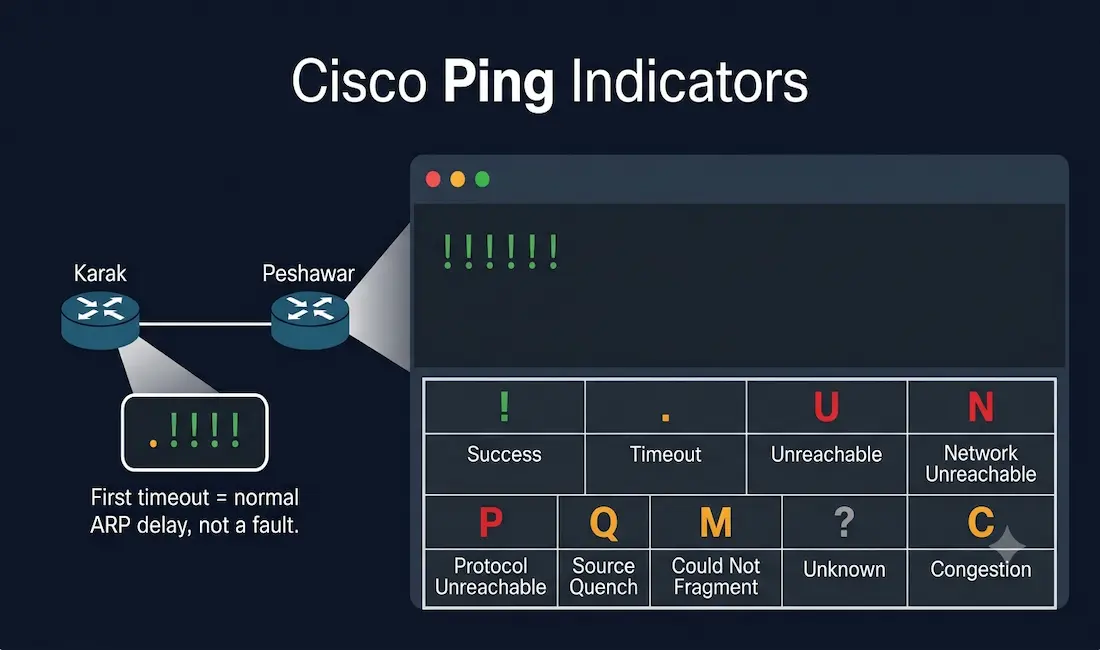
The ping command is a fundamental network troubleshooting tool that uses the Internet Control Message Protocol (ICMP), as defined in RFC 792, to test connectivity between devices. It is essential for CCNA (ICND1, ICND2) and CCNP (ROUTE, SWITCH, TSHOOT) exam preparation, helping students verify Layer 3 connectivity by interpreting ping results correctly. This guide covers the complete, correct set of Cisco IOS ping indicators, loopback testing, extended ping, and CCNA-relevant troubleshooting guidance.
Cisco IOS Ping Indicators
When a Cisco device sends a series of ICMP echo requests via the ping command, each individual reply is represented by a single character in the output. Understanding every one of these characters, not just the two or three most common ones, is directly relevant to the CCNA exam. The complete set of standard Cisco IOS ping indicators is:
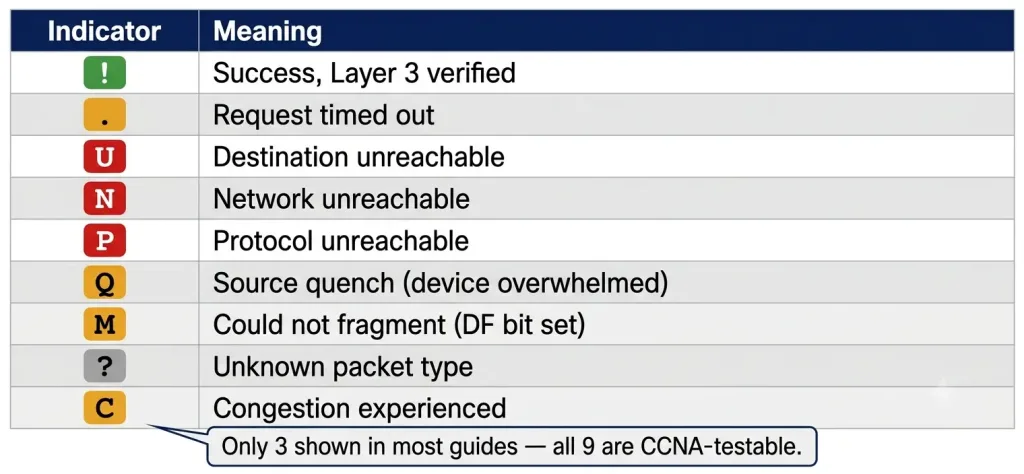
| Indicator | Meaning |
|---|---|
| ! | Success — an ICMP echo reply was received, verifying Layer 3 connectivity |
| . | Request timed out — no reply was received within the timeout period, indicating a connectivity issue or missing route somewhere along the path |
| U | Destination unreachable — a router along the path responded with an ICMP unreachable message, typically because it has no route to the destination |
| N | Network unreachable — the router has no route to the destination network at all |
| P | Protocol unreachable — the destination does not support the protocol being used |
| Q | Source quench — the destination or an intermediate device is overwhelmed and is signalling the sender to slow down |
| M | Could not fragment — the packet needed fragmentation to reach the destination but the Don’t Fragment (DF) bit was set |
| ? | Unknown packet type — the device received a reply it could not interpret |
| C | Congestion experienced — an intermediate device signalled that it is experiencing congestion |
The three you will see by far most often in day-to-day troubleshooting and in most CCNA lab exercises are !, ., and U. The others appear less frequently but are directly testable, particularly the distinction between U (no route at some point in the path, or the destination itself blocked the ping) and N (the more specific case of no route to the destination network).
Examples of IOS Ping Indicators
! — Success
The exclamation mark indicates that the ping was completed successfully and verifies Layer 3 connectivity along the entire network path. In a typical topology, the Karak router successfully pings the Peshawar router at IP address 172.16.0.1, and the terminal output shows a 100% success rate with all five default echo requests returning !.
. — Request Timed Out
The period indicates a problem in connectivity somewhere along the network path. Most commonly, it means a router along the path does not have a route configured to the destination, or that the destination (or an intermediate device) is blocking ICMP traffic entirely. In the example topology, the Karak router has no configured route to the 192.168.1.0/24 network where Laptop 3 resides, so its ping attempt returns a timeout on every echo request.
An important nuance for CCNA candidates: it is common and entirely normal for the very first echo request in a ping sequence to return a timeout . even when the destination is genuinely reachable, while the remaining four echo requests return !. This happens on a network If the arp process is required to complete before the first echo request can actually be transmitted: the sending device must first resolve the next-hop’s Layer 2 (MAC) address via ARP, and that resolution process consumes the time allotted for the first echo request, causing it to time out. Once the ARP entry is cached, the remaining echo requests in the same ping command succeed immediately. A result like .!!!! (one timeout followed by four successes) is a classic sign of this normal ARP-resolution delay, not a real connectivity problem, and should not be mistaken for one.
U — Destination Unreachable
This indicator shows that a router along the network path responded with an ICMP unreachable message, most often because that router does not have a route configured to the destination address. If the destination itself is configured to block ICMP echo requests (a common security practice), it will also typically generate this response rather than simply timing out.
Testing the Loopback
To verify the internal IP configuration and protocol stack, from the network layer down to the physical layer, without actually placing a signal on the media, administrators can ping the loopback IP addresses: 127.0.0.1 for IPv4 and ::1 for IPv6. A successful loopback ping confirms that the device’s own TCP/IP stack is functioning correctly, independent of any external network condition, which makes it a useful first troubleshooting step to rule out a local software or stack issue before investigating the physical network. The results are interpreted using the exact same !, ., and U indicators as any other ping destination.
Extended Ping
Extended ping is one of the most useful diagnostic commands offered by Cisco IOS. It is accessed by entering the ping command with no destination address, while in privileged EXEC mode:
Router# ping
Protocol [ip]:
Target IP address: 192.168.0.1
Repeat count [5]:
Datagram size [100]:
Timeout in seconds [2]:
Extended commands [n]: y
Source address or interface: 192.168.1.1
Type of service [0]:
Set DF bit in IP header? [no]:
Validate reply data? [no]:
Data pattern [0xABCD]:
Loose, Strict, Record, Timestamp, Verbose[none]:
Sweep range of sizes [n]:
Pressing Enter without typing a value accepts the default shown in brackets. Extended ping prompts for considerably more control than a standard ping, including:
- Repeat count — how many echo requests to send (default 5)
- Datagram size — the size of each ICMP packet, useful for testing MTU-related issues
- Timeout — how long to wait for each reply before marking it as timed out
- Source address or interface — forces the ping to originate from a specific interface or IP address rather than the interface closest to the destination, extremely useful for verifying routing from the perspective of a specific interface
- Set DF bit — sets the Don’t Fragment flag, useful for path MTU discovery testing
- Validate reply data — confirms the returned data pattern matches what was sent, catching certain data corruption issues
- Sweep range of sizes — sends a range of packet sizes in sequence rather than a single fixed size, useful for identifying the exact MTU boundary along a path
The most commonly tested extended ping use case for CCNA is forcing the source address. For example, forcing the source address of a ping to be 192.168.1.1 (an interface on the Peshawar router) rather than the interface that would normally be selected by default allows a network administrator to verify, from the Peshawar router’s perspective specifically, that the Karak router has a working route back to the 192.168.1.0/24 network, a test that a standard ping (which uses the outgoing interface’s own address as the source by default) cannot perform.
Verifying and Troubleshooting Ping Results
| Symptom | Likely Cause | Where to Check |
|---|---|---|
All echoes return . | No route to destination, or ICMP blocked | show ip route, check ACLs with show access-lists |
First echo ., rest ! | Normal ARP resolution delay | Not a fault; confirm with show arp after the ping |
Echoes return U | Router en route has no route, or destination blocks ping | show ip route on intermediate hops; traceroute to locate the exact hop |
Echoes return N | No route to the destination network specifically | show ip route for the destination network |
Echoes return M | Packet too large for path, DF bit set | Retry with a smaller datagram size using extended ping; check path MTU |
| Loopback ping (127.0.0.1) fails | Local TCP/IP stack issue | Reload or investigate the device’s own IP stack configuration |
Additional useful commands: traceroute [destination] identifies exactly which hop along the path is failing, and debug ip icmp shows real-time ICMP processing detail on the device, useful for confirming whether ICMP traffic is even reaching the router. Always disable debug output after use with undebug all.
CCNA Exam Pointers
- ICMP is defined in RFC 792 and operates at the network layer
!= success;.= timeout;U= destination unreachable — the three most common indicators- Full indicator set for CCNA:
!,.,U,N(network unreachable),P(protocol unreachable),Q(source quench),M(could not fragment),?(unknown),C(congestion experienced) - A single leading
.followed by successful!results is normal ARP-resolution behaviour, not a fault - Loopback addresses: 127.0.0.1 (IPv4), ::1 (IPv6) — verify the local TCP/IP stack independent of the network
- Extended ping is invoked by entering
pingwith no destination address in privileged EXEC mode - The most exam-relevant extended ping parameter is forcing the source address/interface, which tests routing from a specific interface’s perspective
tracerouteisolates which specific hop is failing when ping returnsUor.
Conclusion
Correctly interpreting Cisco IOS ping results is a foundational CCNA and real-world troubleshooting skill. Beyond the three commonly recognised indicators, !, ., and U, the complete set includes N, P, Q, M, and C, each pointing to a distinct type of failure along the path. Understanding that a single leading timeout followed by successful replies is normal ARP-resolution behaviour, rather than a connectivity fault, prevents a common misdiagnosis. Combined with loopback testing to isolate local stack issues and extended ping’s ability to force a specific source address, these tools give network administrators and CCNA candidates a complete, layered approach to diagnosing connectivity problems from the simplest case to the most specific.
FAQs
What is the ping command used for in Cisco IOS?
The ping command tests Layer 3 connectivity by sending ICMP echo request packets, as defined in RFC 792, to a target device and reporting whether echo replies are received. It is one of the first tools used in network troubleshooting because it quickly confirms whether basic IP connectivity exists between two devices without requiring any deeper protocol analysis. For CCNA and CCNP candidates, correctly interpreting the specific indicator returned for each echo request, rather than just noting success or failure overall, is essential, since different indicators point to different categories of underlying problem.
How do I interpret a ‘!’ in ping results?
An exclamation mark indicates that an ICMP echo reply was successfully received for that specific echo request, confirming Layer 3 connectivity to the destination for at least that one packet. When all echo requests in a ping sequence return !, this confirms full, consistent connectivity along the entire path at the time the ping was run. A mix of results, such as one timeout followed by successful replies, is common and often reflects normal ARP resolution delay on the first packet rather than an intermittent connectivity problem.
What does a ‘U’ mean in ping output?
A U indicates that a router somewhere along the network path responded with an ICMP destination unreachable message, most commonly because that router has no route configured to the destination address. It can also appear if the destination device itself is configured to actively block or reject ICMP echo requests, a common security practice, rather than the packet simply being lost or timing out silently. To identify exactly which hop generated the unreachable message, use traceroute to the same destination, which will show the specific point along the path where the failure occurs.
How can extended ping help in troubleshooting?
Extended ping, accessed by typing ping with no destination address while in privileged EXEC mode, allows customization of parameters that a standard ping does not expose, including repeat count, datagram size, timeout duration, and critically, the source address or interface the ping originates from. Forcing a specific source address lets an administrator test connectivity and routing from the perspective of a particular interface, rather than whichever interface the router would normally select by default, which is especially useful for verifying return-path routing in multi-interface or MPLS-style topologies. The sweep range and DF-bit options are additionally useful for diagnosing MTU-related path issues.
Why use loopback ping?
Pinging the loopback address, 127.0.0.1 for IPv4 or ::1 for IPv6, tests the device’s own internal TCP/IP protocol stack from the network layer down to the physical layer without actually transmitting any signal onto the physical media. This makes it a useful first diagnostic step: if a loopback ping fails, the problem lies within the device’s own software or configuration rather than anywhere in the external network, allowing you to rule out cabling, switching, or remote-device issues entirely before investigating further. A successful loopback ping, conversely, confirms the local stack is healthy and directs troubleshooting attention outward to the network itself.
Are there more ping indicators than just success, timeout, and unreachable?
Yes. While !, ., and U are the three most commonly encountered indicators in everyday troubleshooting, Cisco IOS defines several additional ones that are directly relevant to CCNA study: N for network unreachable, P for protocol unreachable, Q for source quench (indicating the destination or an intermediate device is overwhelmed), M for could not fragment (relevant to MTU and Don’t Fragment bit issues), ? for an unknown packet type received, and C for congestion experienced. Each of these points to a more specific category of failure than the general-purpose U or . indicators, and recognizing the distinction between them is tested knowledge for CCNA-level troubleshooting scenarios.