Domain 2.9 | Network Access — 20% of exam
Learning Objectives
By the end of this lesson, you will be able to:
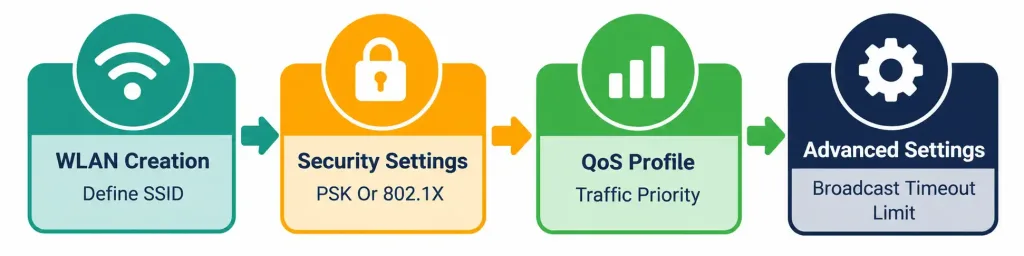
- Describe the WLAN creation workflow on a WLC’s GUI
- Compare PSK and 802.1X authentication and identify which fits which deployment
- Describe how QoS profiles apply different traffic prioritization to different WLANs
- Describe advanced WLAN settings including SSID broadcast, session timeout, and client limits
Key Terms
| Term | Definition |
|---|---|
| WLAN | On a WLC, a configuration object defining an SSID and its full set of settings |
| PSK | Pre-Shared Key; a single shared password used by every client connecting to a WLAN |
| 802.1X | An authentication framework using individual, per-user credentials against a RADIUS server |
| QoS profile | A configuration determining how a WLAN’s traffic is prioritized relative to others |
| Session timeout | The duration after which a connected client must re-authenticate |
Explanation
Why This Objective Is Tested Through GUI Simulation
The previous lesson covered how administrators actually reach a WLC — SSH, HTTPS, console, and the rest. This lesson covers what an administrator actually does once connected to configure a working wireless network, and it’s worth understanding directly why this specific objective is tested through GUI-based simulation rather than CLI commands, unlike most of what’s been covered in this domain so far.
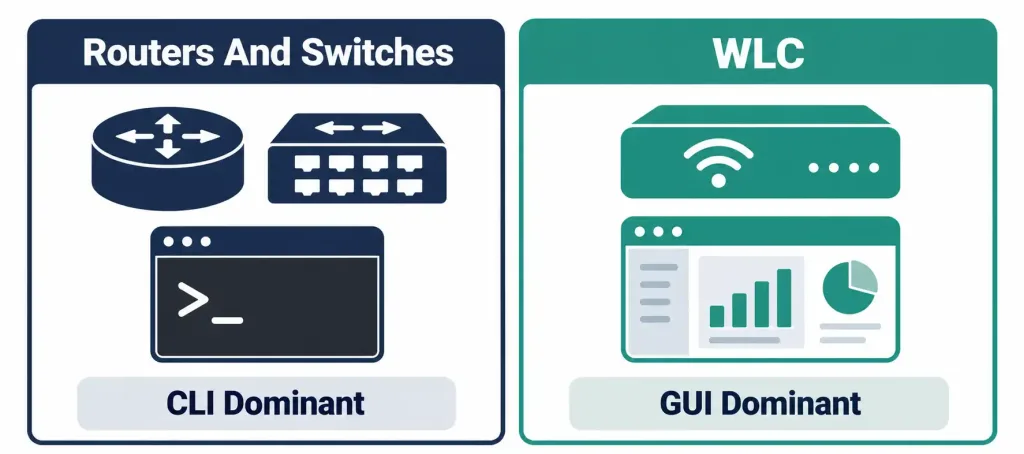
Day-to-day WLC administration genuinely happens primarily through its GUI dashboard, not through command-line configuration — a real, practical contrast with routers and switches, where CLI remains the dominant, expected method for most configuration tasks. WLC GUIs are specifically designed to make wireless-specific configuration (SSIDs, security settings, QoS, and the advanced settings covered below) approachable through a structured, guided interface, precisely because these settings involve enough interdependent choices that a well-designed GUI genuinely reduces configuration errors compared to remembering and correctly sequencing the equivalent CLI commands. The exam reflects this real-world practice directly, testing your ability to navigate and correctly configure these settings through simulated GUI screens rather than through memorized CLI syntax.
Step One: WLAN Creation
Creating a WLAN on a WLC means defining a new configuration object — fundamentally, this starts with choosing the SSID, the actual network name clients will see and select when connecting.
Worth being precise about a small but genuinely important terminology point: “WLAN,” in this specific WLC configuration context, refers to the configuration object itself — encompassing the SSID and every setting attached to it — not merely the broadcast name alone. A single WLC can, and typically does, manage several separate WLANs simultaneously, each with its own distinct SSID and its own independently configured settings for everything covered in the remaining steps below.
This connects directly back to the physical infrastructure lesson’s coverage of VLAN mapping: each WLAN created here typically gets mapped to a specific VLAN — recall that this VLAN mapping happens at the WLC itself, which is exactly why the WLC’s own physical uplink needed to be configured as a trunk carrying every VLAN corresponding to every WLAN it manages. Creating a new WLAN here, on the GUI, is precisely the configuration step that establishes which VLAN that specific SSID’s traffic actually maps to once it reaches the wired network.
Step Two: Security Settings
Every WLAN needs a security protocol and an authentication method configured — this lesson covers the choice between the available options at a conceptual level, since full technical detail on WPA2 and WPA3 specifically belongs to Domain 5’s fuller security coverage.
The security protocol choice (WPA2 or WPA3) determines the underlying encryption standard protecting the wireless traffic itself — worth knowing this choice exists here, in the WLAN creation workflow, even though the specific mechanics of each protocol are covered in depth later in this course.
The authentication method choice is where this objective’s practical decision-making genuinely lives:
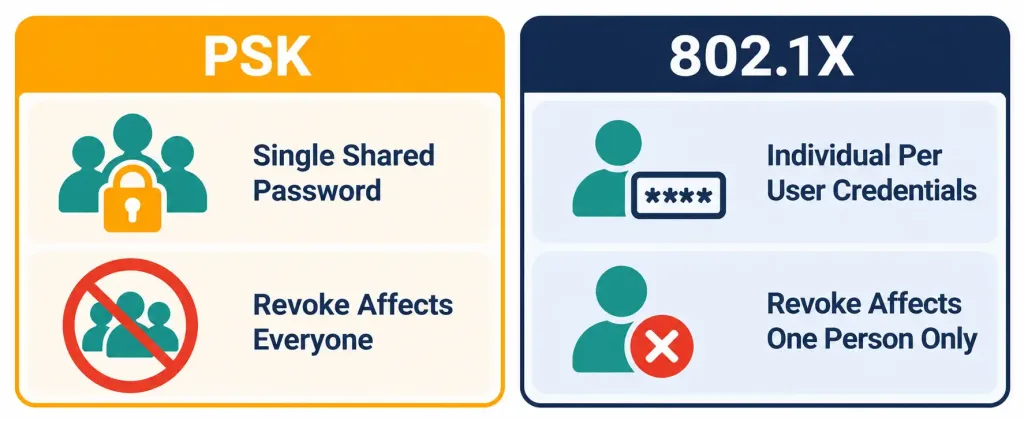
Pre-Shared Key (PSK) uses a single shared password, configured once and distributed to every user who needs to connect — the same familiar model as a typical home Wi-Fi network. This is genuinely appropriate for simpler deployments where a single shared credential is an acceptable trade-off: a small office, a guest network, or any scenario where individually tracking and managing separate credentials for every single user would be disproportionate overhead relative to the deployment’s actual security needs.
802.1X uses individual, per-user credentials authenticated against a RADIUS server — directly connecting back to the centralized AAA concept previewed in the management access lesson. Each user authenticates with their own distinct credentials, rather than everyone sharing one identical password.
Why enterprise environments specifically prefer 802.1X over PSK, worth understanding as a genuine security reasoning, not just a memorized rule: with PSK, if a single employee leaves the organization, or a device is lost or compromised, the entire organization’s shared password is effectively compromised — every device using that password needs the password changed and redistributed simultaneously, a genuinely disruptive process affecting every connected user at once. With 802.1X, revoking one specific employee’s access is a targeted, individual action at the RADIUS server, affecting only that one person’s credentials, with zero disruption to anyone else’s ongoing connectivity — a dramatically more manageable, more secure model at any meaningful organizational scale.
Worked example demonstrating this contrast concretely: an organization with 500 employees using PSK for its Corporate WLAN would need to change and redistribute that single shared password to all 500 people every single time any one employee leaves the organization — a genuinely significant, repeated administrative burden, and a real security gap in the meantime if that step is delayed. The same organization using 802.1X instead simply disables the departed employee’s individual RADIUS credentials, with the remaining 499 employees’ access completely unaffected and requiring zero action at all.
Step Three: QoS Profiles
QoS (Quality of Service) profiles determine how a specific WLAN’s traffic gets prioritized relative to traffic on other WLANs sharing the same physical AP and radio spectrum — full technical mechanics of QoS forwarding behavior belong to Domain 4’s IP Services coverage, but the conceptual decision made here, at WLAN creation, is worth understanding now.
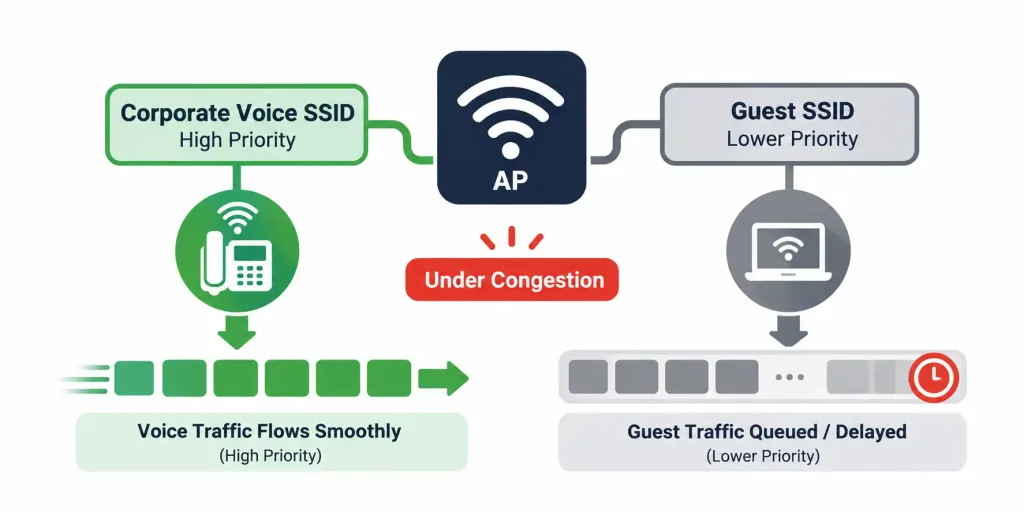
Why this matters specifically in a wireless context: unlike a wired network where each device typically has its own dedicated cable and bandwidth, multiple WLANs on the same AP genuinely share the same underlying RF spectrum and airtime. Under congestion — many simultaneous users, heavy traffic — some mechanism is needed to determine whose traffic gets handled first when there isn’t enough capacity to serve everyone with zero delay.
Worked example illustrating why this genuinely matters in practice: a hospital deploys a Corporate SSID used partly for voice-over-Wi-Fi phones carrying time-sensitive clinical communication, alongside a separate Guest SSID for patients’ and visitors’ personal devices. Without QoS prioritization, a burst of heavy Guest traffic — someone streaming video, several people downloading large files simultaneously — could genuinely degrade the voice call quality on the Corporate SSID, a real, potentially serious problem in a clinical setting where communication delays or dropped calls carry meaningfully higher stakes than a slower guest video stream. Assigning the Corporate/voice SSID a higher QoS priority profile than the Guest SSID ensures that under exactly this kind of congestion, the voice traffic gets served first, protecting call quality specifically at the guest traffic’s expense — a deliberate, appropriate trade-off given each traffic type’s actual relative importance in this scenario.
The general principle worth carrying forward: QoS profile assignment isn’t only relevant to voice traffic specifically, even though voice is the classic example — any WLAN carrying traffic where consistent, low-latency performance genuinely matters more than on another WLAN sharing the same AP benefits from a correspondingly higher QoS priority assignment, and the actual assignment decision should reflect each WLAN’s genuine relative importance for the specific deployment it serves, not a one-size-fits-all default applied without considering the actual traffic mix.
Step Four: Advanced WLAN Settings
A handful of additional settings round out a WLAN’s configuration, each addressing a genuinely distinct concern.
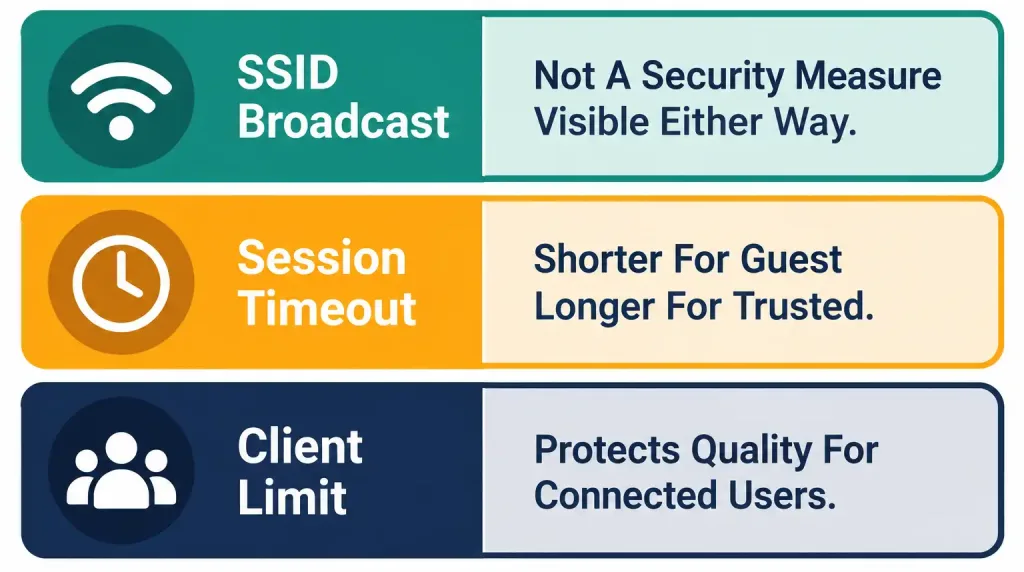
Broadcast SSID on/off determines whether the network name actually appears in the AP’s periodic beacon frames, visible in a client device’s list of available networks, or whether it’s hidden, requiring a client to already know and manually enter the exact SSID to connect. Recall directly from the wireless principles lesson that this setting is not a meaningful security control — the SSID remains visible during normal connection negotiation regardless of this setting, discoverable by anyone using basic wireless scanning tools. This objective’s practical framing is simply: know this setting exists as a configurable option in the WLAN creation workflow, understand what it visually changes for connecting clients, without mistaking it for genuine security.
Session timeout sets the duration after which a connected client must re-authenticate, rather than remaining connected indefinitely on the strength of its original authentication alone. This matters as a genuine security hygiene practice, particularly for guest or public-facing WLANs — a shorter session timeout on a guest network limits how long a device retains access after conditions might have changed (a visitor has left the building, a device was more likely handed off or compromised over a longer unattended period), while a longer timeout on a trusted corporate network reduces the friction of frequent, unnecessary re-authentication for devices that remain legitimately, continuously present.
Maximum simultaneous client limits cap how many devices can be connected to a specific WLAN (or, depending on configuration, a specific AP) at any one time. This exists specifically to protect service quality for already-connected clients — without a cap, an AP could theoretically accept connections well beyond what its actual RF capacity and backhaul bandwidth can genuinely support well, degrading the experience for every already-connected client as more and more devices pile onto an already-strained AP. A deliberate client limit ensures the AP stops accepting new connections once it’s already serving as many clients as it can genuinely support at acceptable quality, rather than accepting connections indefinitely and degrading everyone’s experience simultaneously as a result.
Bringing It Together: Two Complete WLAN Configurations Side by Side
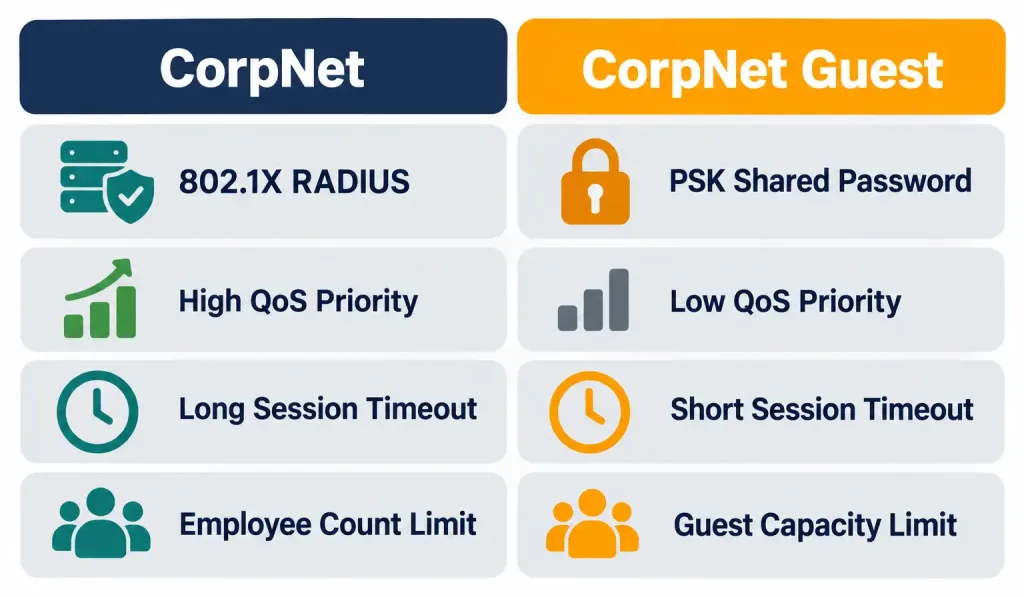
Every step covered above becomes clearer seen together, applied to two genuinely different WLANs an organization might configure on the same WLC, each reflecting deliberately different choices across all four steps based on its actual purpose.
Corporate WLAN, configured for trusted, sensitive internal use:
- SSID: “CorpNet,” mapped to the internal corporate VLAN
- Security: WPA2 (or WPA3) with 802.1X, authenticating each individual employee against the organization’s RADIUS server
- QoS: a higher-priority profile, ensuring corporate traffic (including any voice-over-Wi-Fi usage) is served ahead of lower-priority traffic under congestion
- Advanced settings: SSID broadcast enabled (no meaningful security reason to hide it, per the misconception covered above), a longer session timeout (reducing friction for trusted, continuously-present devices), and a client limit sized to the organization’s actual expected employee device count
Guest WLAN, configured for untrusted, temporary, lower-priority use:
- SSID: “CorpNet-Guest,” mapped to an isolated guest VLAN with no access to internal resources
- Security: WPA2 with PSK, using a single shared password appropriate for the lower security stakes and high user turnover a guest network involves
- QoS: a lower-priority profile, appropriately yielding bandwidth to the Corporate WLAN under congestion
- Advanced settings: SSID broadcast enabled, a shorter session timeout (appropriate given guests’ typically shorter, temporary presence), and a client limit reflecting realistic guest usage patterns rather than the same capacity planning as the employee-focused Corporate WLAN
What this side-by-side comparison actually demonstrates: every single one of the four configuration steps genuinely depends on the specific WLAN’s actual purpose — there’s no universal “correct” setting for security method, QoS priority, session timeout, or client limit that applies identically regardless of context. The skill this objective actually tests is recognizing which choice fits which scenario, not memorizing one universally “correct” configuration to apply everywhere.
Common Misconceptions Worth Correcting Directly
“Hiding an SSID (disabling broadcast) is a genuine security measure worth enabling for the Corporate WLAN.” As covered directly above, and consistent with the wireless principles lesson, this is precisely the misconception worth avoiding — SSID broadcast status changes what’s conveniently visible to a casual observer, but provides no meaningful protection against anyone actually attempting to find the network.
“QoS profiles only matter for WLANs carrying voice traffic specifically.” As covered above, voice is the classic, most commonly cited example specifically because it’s genuinely latency-sensitive, but the underlying principle — prioritizing traffic based on its actual relative importance to the deployment — applies to any WLAN where consistent performance genuinely matters more than on another WLAN sharing the same AP, not exclusively to voice-carrying networks.
“PSK is inherently insecure and should never be used in a professional deployment.” This overstates the case — PSK is a completely reasonable, appropriate choice for deployments where its trade-offs (shared credential, less granular revocation) are genuinely acceptable relative to the actual security stakes involved, such as a guest network or a small office without the administrative overhead of running a RADIUS server. The issue isn’t that PSK is universally insecure; it’s that it doesn’t scale as gracefully as 802.1X for larger, more sensitive enterprise deployments specifically.
“A high maximum client limit is always better, since it lets more devices connect.” As covered above, this misses the actual purpose of the setting — a client limit exists specifically to protect service quality for already-connected devices by preventing an AP from accepting more connections than its actual RF and backhaul capacity can genuinely support well; setting the limit unrealistically high defeats this protective purpose entirely, risking degraded performance for everyone once that theoretical capacity is actually exceeded in practice.
Frequently Asked Questions
Can a single AP broadcast both the Corporate and Guest WLANs simultaneously?
Yes, this is standard, common practice — a single physical AP can broadcast multiple SSIDs simultaneously, each corresponding to a separately configured WLAN with its own independent settings across all four steps covered in this lesson, exactly as demonstrated in the worked comparison above.
Does changing a WLAN’s QoS profile after it’s already in use disrupt currently connected clients?
This can vary by specific platform and deployment, but QoS changes are generally applied without requiring clients to fully disconnect and reconnect — though the practical effect of the new priority level naturally only becomes apparent under actual network congestion, since QoS prioritization only meaningfully matters when there’s genuine contention for available capacity in the first place.
Is 802.1X only usable in large enterprise deployments, or can smaller organizations use it too?
802.1X can technically be deployed at any scale, but the administrative overhead of running or subscribing to a RADIUS service is a genuine, real cost that needs to be weighed against PSK’s simplicity — smaller organizations without existing RADIUS infrastructure often reasonably choose PSK specifically because that overhead isn’t justified relative to their actual security needs and administrative capacity.
Why does session timeout matter more for guest networks specifically than for trusted corporate networks?
Guest devices typically have a shorter, more temporary legitimate presence — a visitor leaves the building, an event concludes — meaning a shorter timeout more closely matches the actual expected duration of legitimate access, while a longer timeout on a corporate network reduces unnecessary friction for devices that remain legitimately present on an ongoing, continuous basis.
If this objective is tested through GUI simulation, does that mean the underlying CLI equivalents for these settings don’t exist at all?
No — CLI equivalents for WLAN configuration do exist on Cisco wireless platforms, but this specific objective’s tested format reflects that GUI-based configuration is the dominant, expected real-world workflow for this particular category of settings, which is exactly why the exam tests it through simulated GUI interaction rather than CLI syntax specifically for this objective.
WLC WLAN Configuration: Practice Quiz
Test your knowledge of WLAN creation, authentication, QoS, session timeout, client limits, and deployment scenarios.
Summary
- WLAN creation defines the SSID and maps it to a specific VLAN, exactly the VLAN mapping that happens at the WLC as covered in the physical infrastructure lesson.
- Security settings involve choosing a protocol (WPA2/WPA3) and an authentication method — PSK for simpler deployments, 802.1X for enterprise environments needing individually revocable, per-user credentials via RADIUS.
- QoS profiles determine traffic prioritization when multiple WLANs share the same AP’s RF spectrum, with the principle applying to any traffic needing consistent performance, not just voice specifically.
- Advanced settings include SSID broadcast (not a real security measure), session timeout (shorter for guest networks, longer for trusted ones), and maximum client limits (protecting service quality, not simply maximizing connection count).
- The genuine skill this objective tests is matching each configuration choice to a WLAN’s actual purpose, as demonstrated by contrasting a Corporate WLAN’s choices against a Guest WLAN’s across all four configuration steps.
- This objective is tested through GUI simulation specifically because that’s how WLC administration is genuinely performed day to day in real practice.
This lesson completes Domain 2 (Network Access) of the CCNA 200-301 blueprint. Together with Domain 1’s foundational concepts, these eighteen objectives cover switching, VLANs, trunking, discovery protocols, EtherChannel, spanning tree, and the full wireless architecture stack — the complete Layer 2 and access-layer foundation the remaining domains (routing, security, services, and automation) build directly on top of.