Domain 1.0 | IT Concepts and Terminology — 13% of exam
Learning Objectives
By the end of this lesson, you will be able to:
- Compare storage units from a single bit up through a petabyte
- Compare throughput units from bits per second up through terabits per second
- Explain what processing speed units like MHz and GHz actually measure
- Correctly distinguish between easily confused units, especially megabits vs. megabytes
- Perform basic conversions between adjacent units in each category
Key Terms – Units of Measure
| Term | Definition |
|---|---|
| Bit | The smallest unit of data a computer works with, a single binary digit (0 or 1) |
| Byte | A group of 8 bits, the standard building block for measuring storage |
| Storage Unit | A measurement of how much data can be held — bit, byte, kilobyte, megabyte, gigabyte, terabyte, petabyte |
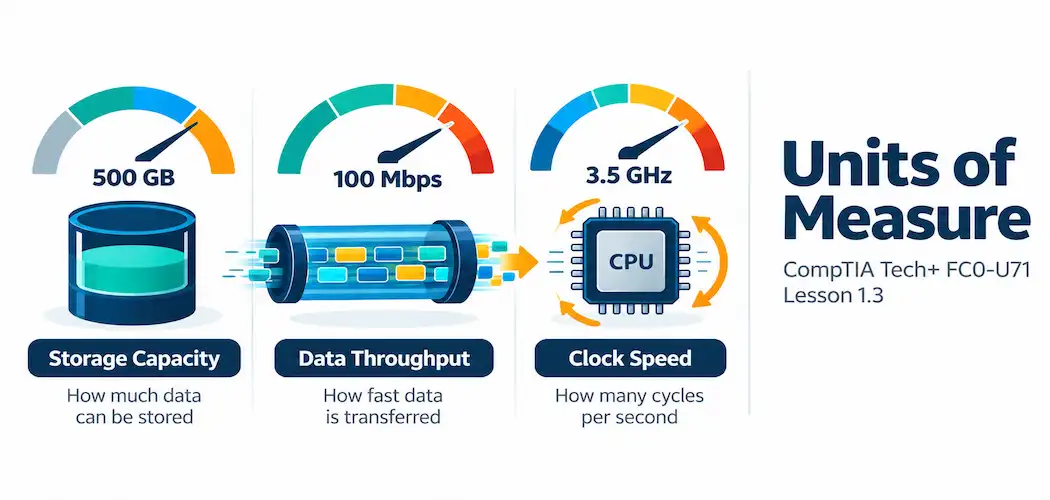
| Throughput Unit | A measurement of how much data moves per second — bits per second, kilobits per second, megabits per second, gigabits per second, terabits per second |
| Processing Speed | A measurement of how many operations a CPU can carry out per second, expressed in megahertz (MHz) or gigahertz (GHz) |
Explanation
From Notational Systems to Measuring Data
Lesson 1.1 introduced the bit as the fundamental unit binary is built from — a single 0 or 1. Lesson 1.2 then introduced storage as one of the four basic stages every computing task passes through. This lesson connects those two ideas directly: now that you know data is fundamentally made of bits, and that storage is where data gets kept, it’s time to actually measure both — how much data something can hold, how fast data can move from one place to another, and how fast a CPU can actually process it.
These three categories of measurement — storage, throughput, and processing speed — get confused with each other constantly, partly because they sometimes use suspiciously similar-looking abbreviations (MB vs. Mb being the single most common source of real-world confusion in this entire lesson). Keeping them cleanly separated in your head from the start will save you from a mistake that trips up even experienced technicians.
Storage Units: Measuring How Much Data
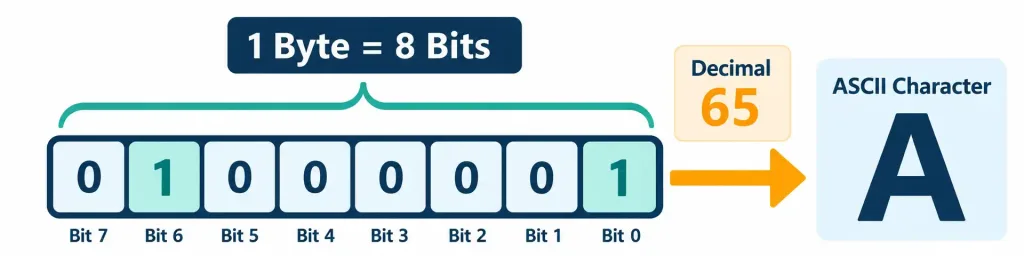
A single bit can only represent two possible values, 0 or 1, which isn’t enough to represent anything meaningfully complex on its own. A byte — a group of 8 bits — is the practical building block used almost everywhere storage is measured, because a single byte is enough to represent one character of text (a letter, a number, a symbol) under common encoding schemes.
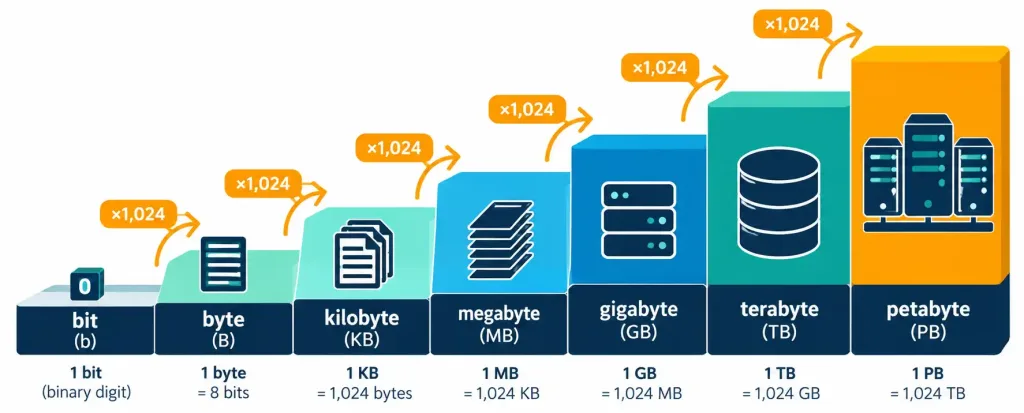
From there, storage units scale upward, and each step is 1,024 times larger than the one before it (1,024 being 2 to the tenth power, 2¹⁰ — a number that comes directly from binary, not an arbitrary round number the way 1,000 is in the metric system):
| Unit | Abbreviation | Size |
|---|---|---|
| Byte | B | 8 bits |
| Kilobyte | KB | 1,024 bytes |
| Megabyte | MB | 1,024 kilobytes |
| Gigabyte | GB | 1,024 megabytes |
| Terabyte | TB | 1,024 gigabytes |
| Petabyte | PB | 1,024 terabytes |
It’s worth noting, honestly, that you’ll sometimes see storage capacity marketed using 1,000 as the multiplier instead of 1,024 — this is exactly why a drive labeled “1 TB” sometimes shows up in your operating system as holding slightly less than expected once formatted. That discrepancy between the 1,024-based and 1,000-based interpretations of these units is a real, well-known source of confusion in the industry, though for exam purposes and for this course, the 1,024 multiplier is the one to know and apply. If you’re curious why the discrepancy exists at all: hard drive manufacturers have historically marketed capacity using the simpler, round 1,000-based multiplier (since it makes for a slightly larger, more attractive-looking number on the box), while operating systems typically calculate and display capacity using the 1,024-based multiplier that actually reflects binary math under the hood. Neither side is exactly “wrong,” but the mismatch is exactly why a drive that says “1TB” on the box might show up as roughly 931GB once it’s plugged in and read by an operating system.
To get a feel for these numbers in practice: a short text message might be a few dozen bytes. A high-resolution photo might be several megabytes. A movie might be a few gigabytes. A small business’s entire customer database might be measured in terabytes. Petabytes are the domain of large-scale cloud storage providers and major data centers — well beyond what an individual device typically holds.
Worked Storage Conversions
Converting between adjacent storage units just means multiplying or dividing by 1,024, depending on which direction you’re going. A few worked examples:
- Converting GB to MB: A file is 3 GB. Since 1 GB = 1,024 MB, multiply: 3 × 1,024 = 3,072 MB.
- Converting MB to GB: A download shows as 2,048 MB. Since 1,024 MB = 1 GB, divide: 2,048 ÷ 1,024 = 2 GB.
- Converting KB to MB: A small document is 4,096 KB. Since 1,024 KB = 1 MB, divide: 4,096 ÷ 1,024 = 4 MB.
The direction of the operation is easy to remember with one simple rule: converting from a larger unit down to a smaller one (GB → MB) means multiplying, while converting from a smaller unit up to a larger one (MB → GB) means dividing.
Why a Byte Is 8 Bits
It’s a fair question to ask why 8 specifically became the standard grouping, rather than some other number. The short answer is that 8 bits gives you 2⁸ = 256 possible combinations, which turned out to be exactly enough to represent every letter (uppercase and lowercase), digit, punctuation mark, and a range of special control characters needed for early computing, using a system called ASCII (American Standard Code for Information Interchange). The capital letter “A,” for instance, is represented by the byte 01000001 — which, if you convert it using the binary-to-decimal method from Lesson 1.1, works out to 65 in decimal, the standard ASCII value assigned to “A.”
This is a genuinely satisfying moment to pause on: the abstract binary math from the previous lesson and the very practical idea of “how much storage does this file need” are actually the same underlying concept, just viewed from two different angles.
Throughput Units: Measuring How Fast Data Moves
Throughput measures something fundamentally different from storage — not how much data something can hold, but how much data can move from one place to another in a given amount of time, almost always measured per second. Throughput units follow the same naming pattern as storage units, but with “per second” attached, and — critically — they measure bits, not bytes, which is the single most important distinction in this entire lesson:
| Unit | Abbreviation | Meaning |
|---|---|---|
| Bits per second | bps | 1 bit transferred per second |
| Kilobits per second | Kbps | 1,000 bits per second |
| Megabits per second | Mbps | 1,000,000 bits per second |
| Gigabits per second | Gbps | 1,000,000,000 bits per second |
| Terabits per second | Tbps | 1,000,000,000,000 bits per second |
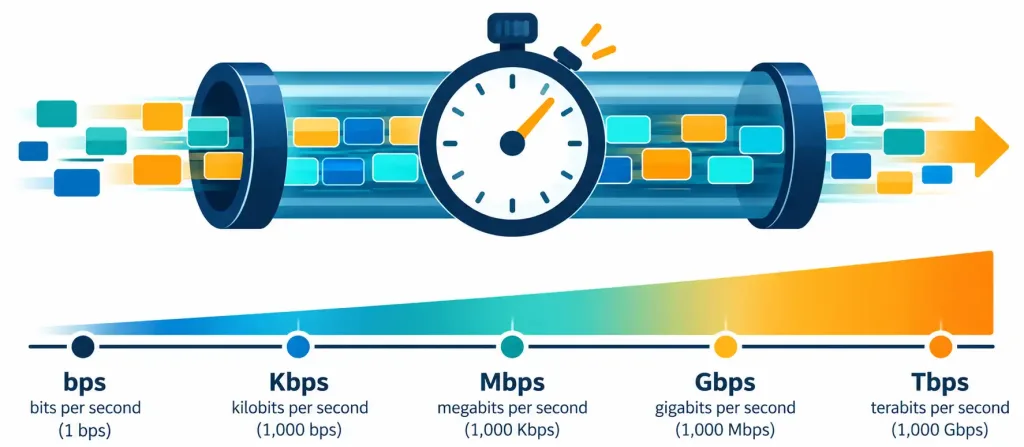
Notice something important here that differs from the storage table above: throughput units conventionally scale by 1,000, following the standard metric system convention, rather than 1,024. This is another small but genuinely important distinction worth holding onto, on top of the bits-versus-bytes distinction covered next.
Worked Throughput Conversions
The same multiply-or-divide logic applies here, just using 1,000 as the scaling factor instead of 1,024:
- Converting Mbps to Gbps: A connection runs at 2,500 Mbps. Since 1,000 Mbps = 1 Gbps, divide: 2,500 ÷ 1,000 = 2.5 Gbps.
- Converting Kbps to Mbps: An older modem connection runs at 56 Kbps. Since 1,000 Kbps = 1 Mbps, divide: 56 ÷ 1,000 = 0.056 Mbps — illustrating just how much slower legacy connections were compared to modern ones.
- Converting Gbps to Mbps: A fiber connection is rated at 1 Gbps. Since 1 Gbps = 1,000 Mbps, multiply: 1 × 1,000 = 1,000 Mbps.
The Classic Confusion: Megabits vs. Megabytes
Here’s where a huge amount of real-world confusion happens, and it’s worth spending real time on it rather than rushing past it. Storage is measured in bytes (capital B), while throughput is conventionally measured in bits (lowercase b). A megabyte (MB) and a megabit (Mb) are not the same size — a megabyte is 8 times larger than a megabit, since a byte itself is 8 bits.
This distinction explains a genuinely common, very real point of frustration: an internet plan advertised as “100 Mbps” sounds like it should let you download a 100-megabyte file in one second. It won’t. Since 1 byte equals 8 bits, an internet connection rated at 100 Mbps (100 megabits per second) actually transfers data at roughly 12.5 megabytes per second (100 ÷ 8 = 12.5), not 100 megabytes per second. A 100 MB file on a genuinely full-speed 100 Mbps connection would take roughly 8 seconds to download, not 1 — a detail that trips up plenty of people who assume the advertised number and the file size use the same unit.
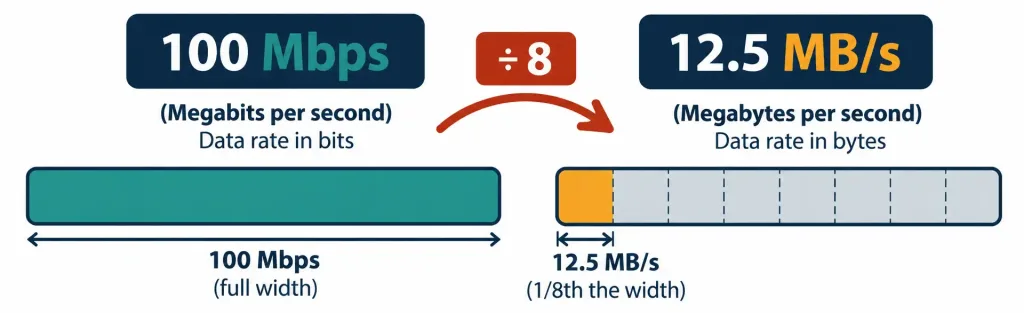
The practical rule worth memorizing: internet and network speeds are almost always advertised in bits (Mbps, Gbps), while file sizes and storage capacities are almost always shown in bytes (MB, GB). Whenever you’re comparing the two directly — like estimating a download time — divide the throughput number by 8 to convert it into the same unit as the file size first.
Processing Speed: Measuring How Fast the CPU Works
Processing speed, often called clock speed, measures how many basic operation cycles a CPU can carry out per second, expressed in hertz (Hz) — specifically, in practice, megahertz (MHz) for older or lower-power devices, and far more commonly today, gigahertz (GHz) for modern processors. A processor running at 3.5 GHz is completing 3.5 billion clock cycles every single second.
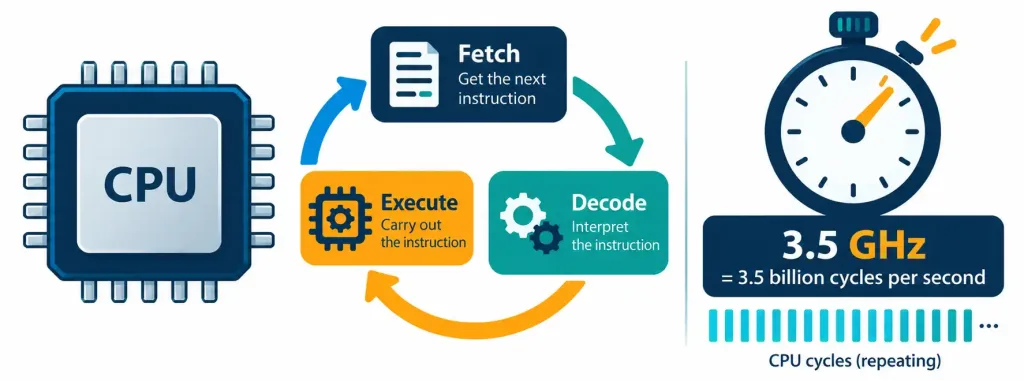
This connects directly back to the fetch-decode-execute cycle covered in Lesson 1.2: clock speed is essentially a measurement of how many of those fetch-decode-execute cycles a processor can march through in a single second. It’s worth being careful here, though, about a genuinely common oversimplification: a higher clock speed doesn’t automatically mean a faster overall computer in every real-world sense, since factors like the number of processor cores, the efficiency of the chip’s internal design, and how well software is optimized to use those cores all affect real-world performance too.
A modern processor described as “quad-core” or “octa-core” effectively has four or eight separate processing units, each capable of running its own fetch-decode-execute cycle independently and simultaneously — meaning total real-world processing capability depends on both the clock speed of each core and how many cores are working at once, not clock speed in isolation. Two processors could share the identical clock speed on paper and still perform very differently in practice once core count and chip design are factored in. For this exam’s purposes, though, the core relationship to know is straightforward: clock speed measures cycles per second, and a higher number means more cycles happening every second, for a single core.
Putting the Three Categories Together: A Real-World Example
These three categories of measurement show up together constantly in ordinary life, most visibly on a laptop or smartphone’s spec sheet. Imagine a listing that reads: “512GB SSD, Wi-Fi 6 (up to 9.6 Gbps), 3.5 GHz processor.” Each of those three numbers belongs to a completely different category covered in this lesson:
- 512GB SSD describes storage capacity — how much data the device can hold permanently, measured in bytes.
- Wi-Fi 6 (up to 9.6 Gbps) describes throughput — how fast data can move over the wireless connection, measured in bits.
- 3.5 GHz processor describes processing speed — how many operation cycles the CPU can complete per second.
Being able to instantly sort a number like this into the correct category — without needing to be told explicitly which category it belongs to — is a genuinely practical skill that comes up in real purchasing decisions, troubleshooting conversations, and, of course, on this exam.
A second example makes the same point from a different angle: a home router’s spec sheet listing “AX3000, 512MB flash storage, 1.5 GHz dual-core processor.” Here, “AX3000” refers to a combined throughput rating across the router’s wireless bands (a throughput measurement, even though it doesn’t use the Mbps/Gbps abbreviation directly in the marketing name), “512MB flash storage” is exactly what it sounds like — storage capacity for the router’s own operating software — and “1.5 GHz dual-core processor” is processing speed, with “dual-core” indicating two independent processing units. Router, laptop, or phone — the same three categories, and the same sorting logic, apply everywhere.
Why This Matters for a Career in IT
Getting these three categories mixed up isn’t just an academic embarrassment — it leads to real, costly mistakes. A network technician who confuses megabits with megabytes might badly misjudge how long a large backup will take to transfer across a network link, or might misdiagnose a connection as broken when it’s actually performing exactly as expected once the units are converted correctly. A help desk technician advising a customer on internet speed needs might recommend the wrong plan entirely by comparing an advertised throughput number directly against a file size without doing the bits-to-bytes conversion first. Even something as simple as correctly reading a storage device’s actual advertised capacity requires understanding why “1 TB” sometimes doesn’t quite match what the operating system reports.
If you go on toward networking topics, this exact unit confusion becomes even more consequential — bandwidth specifications for cabling and wireless standards are expressed in these same throughput units, and copper and fiber cabling standards are literally defined, in large part, by which throughput tier of Mbps or Gbps they’re rated to support.
Recognition-Level Verification Concepts
A few patterns are worth recognizing on sight:
- A capital “B” (KB, MB, GB, TB) signals a storage unit, measuring how much data something can hold.
- A lowercase “b” (Kbps, Mbps, Gbps) signals a throughput unit, measuring how fast data moves — and always includes “per second” in its full name.
- Storage units scale by 1,024 per step; throughput units conventionally scale by 1,000 per step.
- A unit ending in “Hz” (MHz, GHz) is a processing speed measurement, unrelated to either storage or throughput.
- A spec sheet listing several different-looking numbers together is very likely mixing all three categories in a single listing — sort each one by its unit before comparing anything.
Common Exam Traps
- Megabits and megabytes are not the same size — a megabyte is 8 times larger than a megabit. This single distinction is one of the most heavily tested, and most commonly misunderstood, points in this entire domain.
- Storage units use 1,024 as their multiplier; throughput units conventionally use 1,000. Applying the wrong multiplier to the wrong category is an easy mistake under time pressure.
- A higher advertised internet speed (in Mbps) does not directly translate to that same number in MB per second. Always divide by 8 before comparing a throughput figure to a file size in bytes.
- A higher clock speed (GHz) does not automatically guarantee better real-world performance on its own — other factors, like core count and software optimization, also matter, even though clock speed itself specifically measures cycles per second.
- A processor’s core count and its clock speed are two separate specifications that multiply together in effect, but aren’t interchangeable on the exam. A “faster” processor on paper (higher GHz) with fewer cores isn’t automatically better than a slightly slower one with more cores — both numbers matter, and neither substitutes for the other.
- Don’t confuse a device’s storage capacity with its processing speed just because both numbers appear on the same spec sheet. Each belongs to a genuinely separate category, measuring a genuinely separate thing.
Lesson 1.3 Practice Quiz — Units of Measure
17 questions covering storage units, throughput units, processing speed, and the megabit-vs-megabyte distinction.
Tech+ FC0-U71 · Domain 1.0Summary
Storage units (bit, byte, KB, MB, GB, TB, PB) measure how much data something can hold, scaling by 1,024 at each step, with the byte (8 bits) as the standard practical building block.
A single byte can represent one character of text under the ASCII standard, directly connecting the abstract binary concepts from Lesson 1.1 to the very practical idea of file size.
Throughput units (bps, Kbps, Mbps, Gbps, Tbps) measure how fast data moves per second, conventionally scaling by 1,000, and are measured in bits rather than bytes.
Confusing megabits with megabytes is one of the most common real-world mistakes in IT — a megabyte is 8 times larger than a megabit, which is exactly why advertised internet speeds in Mbps translate into a smaller number when converted to MB per second.
Processing speed (MHz, GHz) measures how many CPU clock cycles occur per second, directly connecting back to the fetch-decode-execute cycle from Lesson 1.2 — and a spec sheet listing storage, throughput, and processing speed together requires sorting each number into its correct category before making any real comparison.