
Domain 3.0 | Applications and Software — 18% of exam
Learning Objectives
By the end of this lesson, you will be able to:
- Explain the basic role of a web browser and how it renders a webpage.
- Identify common browser features, including bookmarks, history, cache, and cookies.
- Describe the purpose of browser extensions and private browsing mode.
- Explain how to recognize a secure connection and common browser security warnings.
- Apply basic browser configuration and troubleshooting techniques.
Key Terms – Configuring and Using Web Browser Features
| Term | Definition |
|---|---|
| Web browser | Application software used to access, display, and interact with websites. |
| Cache | Temporary storage of webpage data on a local device, used to load pages faster on future visits. |
| Cookie | A small file a website stores on a user’s device to remember information between visits. |
| Bookmark | A saved shortcut to a specific webpage, stored for quick future access. |
| Browser extension | Small add-on software that adds features or functionality to a web browser. |
| Private browsing | A browser mode that doesn’t save history, cookies, or cache after the session ends. |
| HTTPS | A secure version of HTTP that encrypts data sent between a browser and a website. |
| Pop-up blocker | A browser feature that prevents unwanted pop-up windows from automatically opening. |
| Browser sync | A feature that keeps bookmarks, history, and settings consistent across multiple devices. |
Explanation
What a Web Browser Actually Does
A web browser is application software. Its job is simple to describe: request a webpage, then display it. Chrome, Firefox, Safari, and Edge are the most common examples today. Each one is still just an application, exactly the kind covered in Lesson 3.3. It runs as a process. It depends on the operating system beneath it.
Under the hood, a browser does more than it looks like from the outside. It sends a request out to a web server. It receives back a page’s underlying code. Then it renders that code into the images, text, and layout a person actually sees on screen. This rendering step happens through a component called a rendering engine, built into every browser. Different browsers use different rendering engines. That’s part of why the same website can occasionally look slightly different from one browser to another.
A browser also acts as a kind of translator. Website code arrives as raw text: HTML for structure, CSS for style, JavaScript for interactivity. None of that means anything on its own. The rendering engine reads it, interprets it, and turns it into the finished page a person sees and clicks through. This whole process happens in a fraction of a second on most modern connections, which is exactly why it’s easy to forget how much work is actually happening behind a single page load.

Bookmarks, History, and Cache
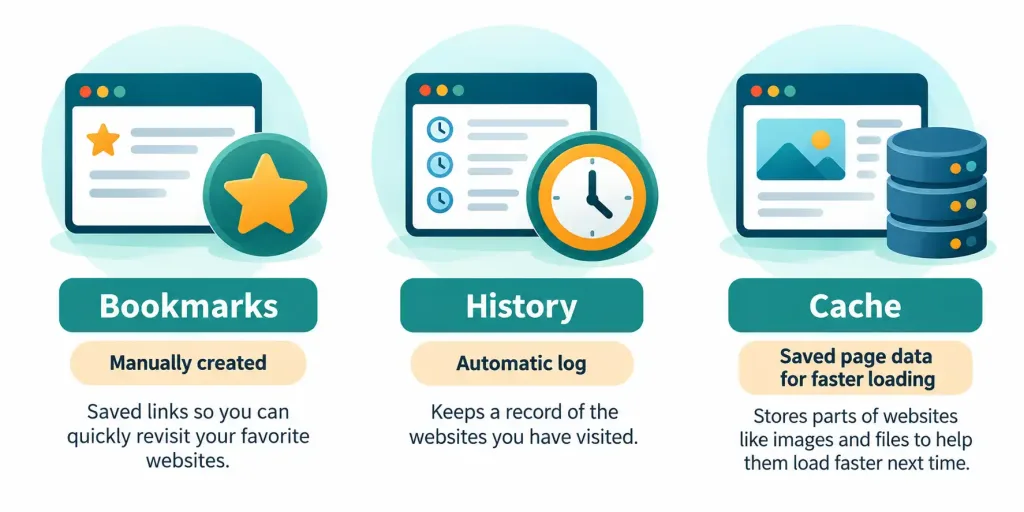
Three everyday browser features work together to make browsing faster and more convenient, and each does something genuinely different.
A bookmark is a saved shortcut to a specific page. A user creates one once, then returns to that exact page with a single click later, no retyping needed. History is different: it’s an automatic, running log of every page a browser has visited recently, without the user needing to save anything on purpose. History makes it easy to find a page again after forgetting to bookmark it.
Cache works differently still. It’s temporary local storage of a page’s actual data — images, scripts, and other files — kept on the device itself. The next time that same page loads, the browser can pull some of that data from the local cache instead of downloading it all over again. This makes the page load noticeably faster. It also connects directly back to the same storage concepts from Lesson 2.3: cache lives on the device’s own drive, taking up real, measurable space over time.
Cache does have a downside worth knowing. Occasionally a website updates its content, but the browser keeps showing an old, cached version instead of fetching the new one. This is one of the most common reasons a page looks broken, outdated, or shows an error that shouldn’t be there anymore. Clearing the cache forces the browser to fetch everything fresh, which is exactly why it’s such a common, effective first troubleshooting step.
Cookies: Remembering a User Between Visits
A cookie is a small file a website stores on a user’s device. Its purpose is to remember something between visits — a login session, items left in a shopping cart, or a site’s language preference. Without cookies, a website would treat every single page load as if it were a brand-new visitor with no memory of anything that came before.
Cookies aren’t all the same, though. A session cookie exists only for the current browsing session and disappears once the browser closes. A persistent cookie stays saved on the device for a set period, sometimes months or years, and survives even after the browser closes and reopens. Cookies also raise real privacy questions, since some track a user’s behavior across many different websites for advertising purposes — which is exactly why most modern browsers let a user view, block, or delete cookies through their settings.
There’s one more useful distinction worth knowing: first-party versus third-party cookies. A first-party cookie comes from the actual website being visited — the site remembering a login, for instance. A third-party cookie comes from a different domain entirely, often an advertiser embedded on that page, and it’s the kind most commonly used to track browsing habits across multiple unrelated sites. Many browsers now block third-party cookies by default, specifically because of this tracking concern, while still allowing first-party cookies to function normally.
Browser Extensions: Adding New Features
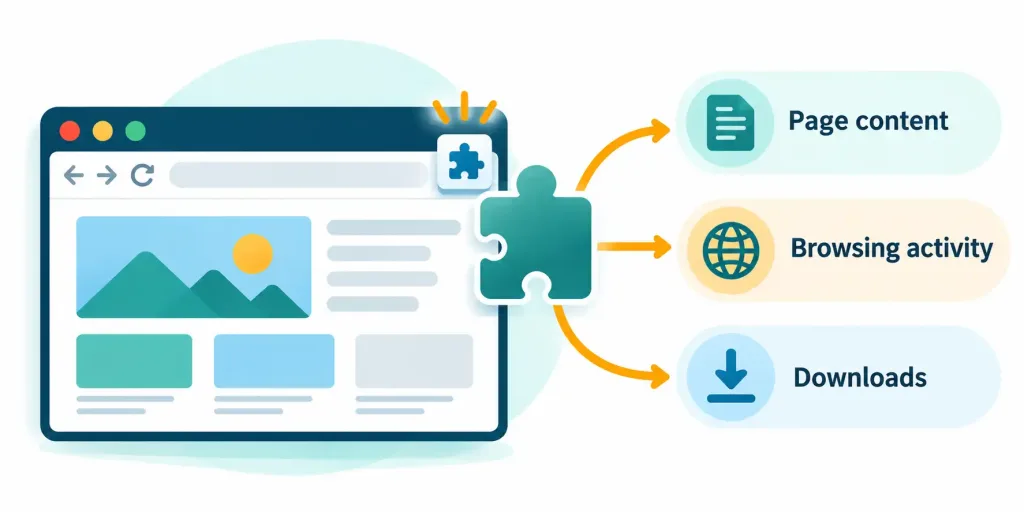
A browser extension is a small add-on program that plugs into a browser and adds functionality it didn’t originally have. A password manager, an ad blocker, and a grammar checker are all common examples. Extensions install directly through the browser itself, usually from an official extension store tied to that specific browser.
Extensions are genuinely useful, but they carry real risk too. Each one requests certain permissions — the ability to read and modify the content of every page visited, for instance — and a malicious or poorly built extension can misuse that access. This is the same reasoning covered in Lesson 3.3 about downloading software only from trusted sources. It applies directly here too: installing extensions only from a browser’s official store, and reviewing what permissions each one actually requests, is a genuinely practical security habit.
It’s worth periodically reviewing which extensions are actually installed, not just being careful at install time. Extensions accumulate over months and years. Some get installed for a single one-off task and never get removed. Others come bundled in with other software, exactly as covered in the previous lesson’s discussion of installer bundling. A browser with a dozen forgotten extensions, each holding broad permissions, represents a meaningfully larger attack surface than one with only the few extensions actually in regular use — worth cleaning up every so often, the same way a closet benefits from an occasional clear-out.
Private Browsing Mode
Private browsing — sometimes called “incognito mode” — is a browser mode that doesn’t save history, cookies, or cache once the session ends. It’s a genuinely useful, narrow tool. It’s worth understanding exactly what it does and doesn’t do.
What it does: it keeps that particular browsing session from being saved locally on the device once the window closes. That’s useful for a shared or borrowed computer, or simply to avoid cluttering personal browsing history. What it doesn’t do: it doesn’t hide browsing activity from the network itself, the ISP covered back in Lesson 2.7, or from the specific websites being visited. Private browsing is about local privacy on that one device, not anonymity on the wider internet.
This distinction is worth stating plainly, because it’s one of the most common misunderstandings users bring into an IT support conversation. A user who thinks private browsing makes them fully anonymous online may make riskier decisions than they otherwise would, assuming a level of protection the feature was never actually designed to provide. Explaining this gap clearly — what’s hidden locally versus what’s still visible to the network and the site — is a genuinely useful, practical skill for any technician.
Recognizing a Secure Connection
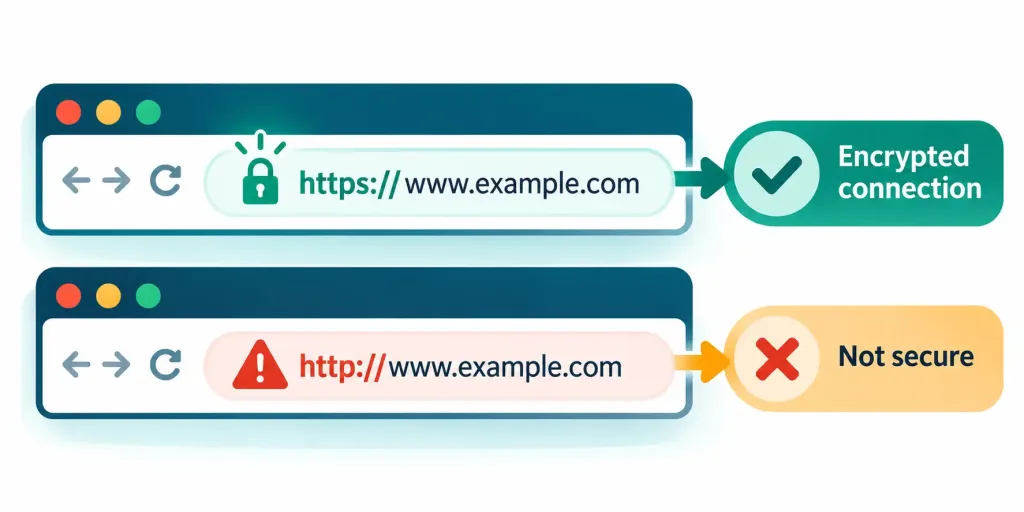
HTTPS is a secure version of HTTP, the underlying protocol browsers use to communicate with websites. The “S” stands for secure, and it means the data traveling between the browser and the website is encrypted. Most browsers display a small padlock icon in the address bar to indicate an HTTPS connection is active.
Checking for that padlock — and being cautious of any site that lacks one, especially before entering a password or payment information — is one of the single most practical security habits a browser user can build. Browsers also display warnings for other known risks: a suspected phishing site, an expired or invalid security certificate, or a page attempting to download a file without permission. Taking these warnings seriously, rather than clicking past them automatically, is a genuinely important habit, particularly given the malware risks already covered in Lesson 3.3.
It’s worth clarifying exactly what a certificate actually confirms. A security certificate verifies that a site’s encryption is set up correctly, and that the domain genuinely belongs to whoever the certificate says it does. It does not verify that the site’s content is accurate, safe, or free of scams. A phishing site can absolutely run over a valid HTTPS connection with a real, working padlock. The padlock only means the connection itself is encrypted — it says nothing at all about whether the destination can be trusted.
Pop-Up Blockers and Everyday Configuration
A pop-up blocker stops unwanted pop-up windows from automatically opening — commonly used for intrusive ads, but occasionally blocking a legitimate pop-up a site actually needs, like a file download prompt. Most browsers enable pop-up blocking by default, with an easy option to allow pop-ups for one specific trusted site when genuinely needed.
Beyond pop-ups, a browser’s settings menu offers several other genuinely useful, everyday configuration options. A default search engine determines what runs when a search is typed directly into the address bar. A homepage setting determines what page opens automatically when the browser first launches. Browser sync keeps bookmarks, history, and settings consistent across every device signed into the same account — a laptop, a phone, and a tablet can all share the exact same bookmarks bar this way, without needing to set each one up separately.
Sync relies on the same account-based, cloud-connected model covered back in Lesson 2.6. Data doesn’t just sit on one device anymore. It’s stored with the browser maker and pushed out to every signed-in device automatically. This is genuinely convenient, but it’s worth pausing on the trade-off: browsing history and saved passwords are now stored somewhere beyond that one local device, which is exactly the kind of privacy consideration worth weighing before enabling sync on a shared or work-owned computer.
A Worked Example: Diagnosing a Slow, Cluttered Browser
Here’s a realistic scenario that pulls several of this lesson’s ideas together. A user complains their browser has become sluggish over the past few months, with random toolbars appearing that they don’t remember installing.
Working through the troubleshooting order: since the browser is generally slow rather than one specific page misbehaving, cache clearing alone probably won’t fix it. The unfamiliar toolbars are the bigger clue. Checking the browser’s extension list turns up several unrecognized add-ons, likely bundled in during past software installs without careful review — precisely the installer risk covered in Lesson 3.3. Removing those extensions, one at a time, restores normal speed and gets rid of the toolbars. This case shows why the browser troubleshooting order matters: jumping straight to reinstalling the whole browser would have solved the symptom without ever addressing the actual cause.
Basic Browser Troubleshooting
A browser behaving strangely almost always traces back to one of a few common causes, and working through them in order resolves most everyday issues quickly.
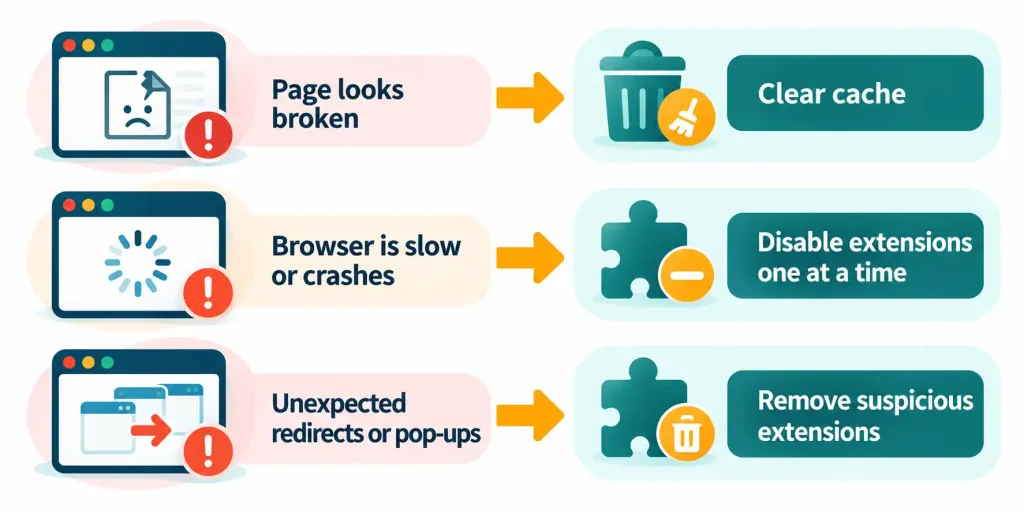
If a specific page looks broken or won’t load correctly, clearing the cache is often the first fix worth trying — since a corrupted or outdated cached file can cause exactly this kind of problem. If the browser as a whole feels slow or crashes often, disabling extensions one at a time helps isolate whether a specific extension is the actual cause, rather than the browser itself. And if a page repeatedly redirects somewhere unexpected, or unfamiliar toolbars and pop-ups keep appearing, that’s often a sign of a genuinely unwanted, possibly malicious extension — exactly the kind of installation risk covered earlier in this lesson — and removing suspicious extensions is usually the right first response.
Recognition-Level Verification Concepts
- Recognize a web browser as application software that requests and renders webpages, running as a process managed by the OS.
- Recognize the difference between bookmarks (manually saved), history (automatic log), and cache (saved page data for faster loading).
- Recognize a cookie as a small file remembering information between visits, and the difference between a session cookie and a persistent cookie.
- Recognize the difference between a first-party cookie (from the visited site) and a third-party cookie (from an embedded advertiser, often used for tracking).
- Recognize a browser extension as an add-on that grants specific permissions, and the security risk of installing one from an untrusted source.
- Recognize what private browsing actually does (no local saved history/cookies/cache) and doesn’t do (hide activity from the network or websites).
- Recognize HTTPS and the padlock icon as indicators of an encrypted, secure connection.
- Recognize that a certificate confirms encryption and domain ownership, not that a site’s content is safe or trustworthy.
- Recognize the layered browser troubleshooting order: clear cache for a broken page, disable extensions for slowness, remove suspicious extensions for unexpected redirects or pop-ups.
Common Exam Traps
- Confusing cache with cookies. Cache stores page data for faster loading; cookies store small pieces of information to remember a user between visits — different purposes, different data.
- Assuming private browsing provides full anonymity. It only prevents local saving of history, cookies, and cache — it doesn’t hide activity from the ISP or the websites visited.
- Assuming every extension is automatically safe. Extensions request real permissions, and a malicious one can misuse them — only install from an official, trusted extension store.
- Assuming HTTPS alone guarantees a site is trustworthy. It confirms the connection is encrypted, not that the site’s content or owner is legitimate.
- Confusing a first-party cookie with a third-party cookie. First-party cookies come from the visited site itself; third-party cookies come from embedded advertisers and are more often used for cross-site tracking.
- Confusing a session cookie with a persistent cookie. A session cookie disappears when the browser closes; a persistent cookie survives across sessions for a set period.
- Jumping straight to reinstalling the browser for common issues. Clearing cache or disabling extensions usually resolves the problem faster and with far less disruption.
Lesson 3.4 Practice Questions: Configuring and Using Web Browser Features
Summary
A web browser requests and renders webpages, running as just another process the operating system manages.
Bookmarks are manually saved shortcuts, history is an automatic visit log, and cache stores page data locally for faster future loading.
A cookie remembers information between visits, with session cookies disappearing at browser close and persistent cookies lasting longer.
Browser extensions add useful functionality but request real permissions, making official sources and permission review genuinely important.
Private browsing avoids saving local history, cookies, and cache, but it doesn't hide activity from the network or the websites visited.
HTTPS and the padlock icon indicate an encrypted connection, and browser security warnings deserve genuine attention rather than a quick dismissal.
Clearing cache, disabling extensions, and removing suspicious add-ons cover most everyday browser troubleshooting needs.
The next lesson turns to common uses of artificial intelligence, a new addition to this exam reflecting how AI tools have become part of everyday computing.