Domain 3.0 | Applications and Software — 18% of exam
Learning Objectives
By the end of this lesson, you will be able to:
- Identify the major operating systems in common use today and describe their typical use cases.
- Compare desktop, mobile, and server operating systems and explain why they’re optimized differently.
- Distinguish open-source and proprietary operating systems.
- Explain the purpose of operating system updates and patches.
- Apply a basic framework for choosing the right operating system for a given scenario.
Key Terms – The Purpose of Operating Systems
| Term | Definition |
|---|---|
| Desktop OS | An operating system designed for general-purpose use on a desktop or laptop computer. |
| Mobile OS | An operating system designed specifically for smartphones and tablets, optimized for touch input and battery efficiency. |
| Server OS | An operating system designed to run continuously and reliably, hosting services for many other devices at once. |
| Proprietary software | Software owned and controlled by a specific company, with source code that isn’t publicly available. |
| Open-source software | Software whose source code is publicly available for anyone to view, modify, and distribute. |
| Patch | A small software update that fixes a specific bug or security vulnerability. |
| Update | A broader software release that can include patches, new features, and performance improvements. |
| End of life (EOL) | The point at which a software product no longer receives updates or support from its developer. |
| Compatibility | Whether a piece of software or hardware is able to work correctly with a specific operating system. |
Explanation
Why Different Operating Systems Exist
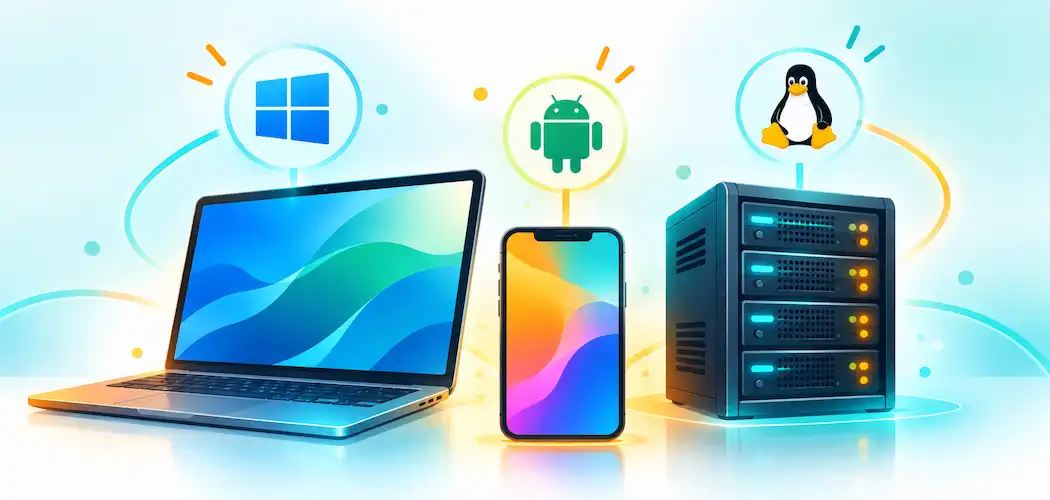
Lesson 3.1 covered what an operating system is made of — the kernel, file system, process and memory management, drivers, and user accounts. This lesson turns to a related but distinct question: why so many different operating systems exist at all, and what each one is actually optimized for. The honest answer is that no single operating system can be equally ideal for every device and every use case at once — a phone, a gaming desktop, and a server hosting a website all have genuinely different priorities, and the operating systems built for each reflect those different priorities directly in their design.
Desktop Operating Systems
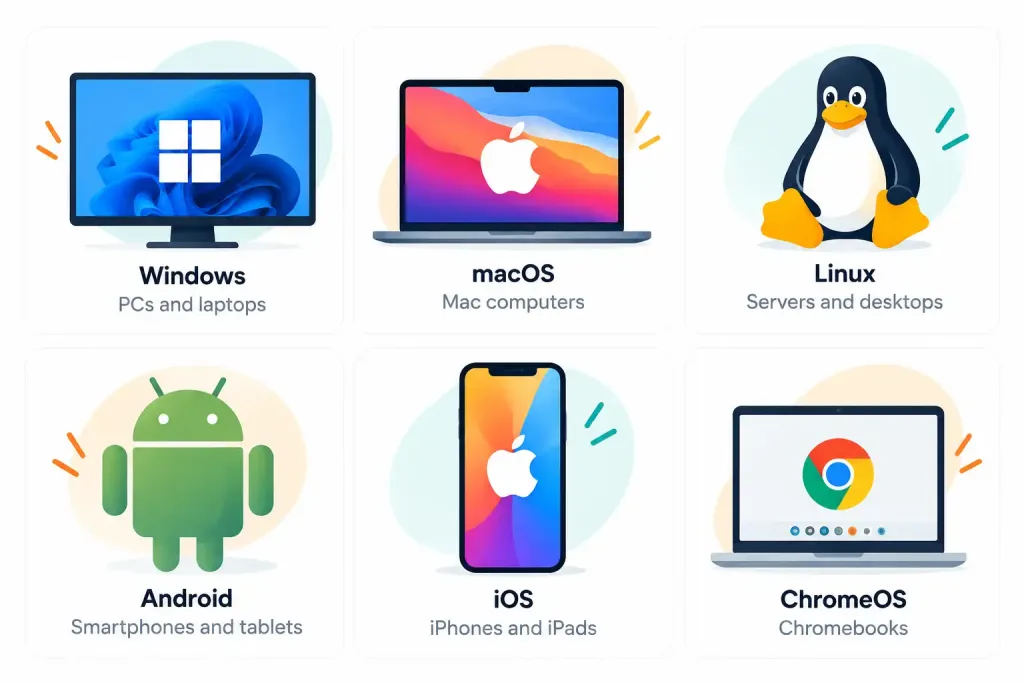
A desktop OS is designed for general-purpose use on a desktop or laptop computer, and three names dominate this category today. Windows, developed by Microsoft, is the most widely used desktop OS worldwide, valued for its broad hardware and software compatibility and its dominance in business and gaming environments.
macOS, developed by Apple, runs exclusively on Apple’s own Mac hardware, valued for its tight integration between hardware and software and its popularity in creative fields like video and audio production. Linux, unlike the other two, isn’t a single product from one company but an entire family of different distributions (often called “distros”) — Ubuntu, Fedora, and Debian among the most common — all built around the same shared Linux kernel, valued for its flexibility, strong security reputation, and popularity specifically among developers and system administrators.
These three desktop operating systems share the same fundamental job — providing a general-purpose platform for a wide range of everyday applications — but differ considerably in their approach to hardware compatibility, software ecosystem, cost, and the degree of customization they allow a user.
Cost structure differs meaningfully across the three as well. Windows and macOS are both proprietary products with licensing costs baked into the price of the device or the software itself, while most Linux distributions are entirely free to download and use, a genuinely significant factor for organizations managing large numbers of machines or individuals prioritizing cost above all else. This cost difference connects directly to the proprietary-versus-open-source distinction covered later in this lesson, and it’s worth keeping in mind as one concrete, practical consequence of that broader licensing philosophy.
Mobile Operating Systems
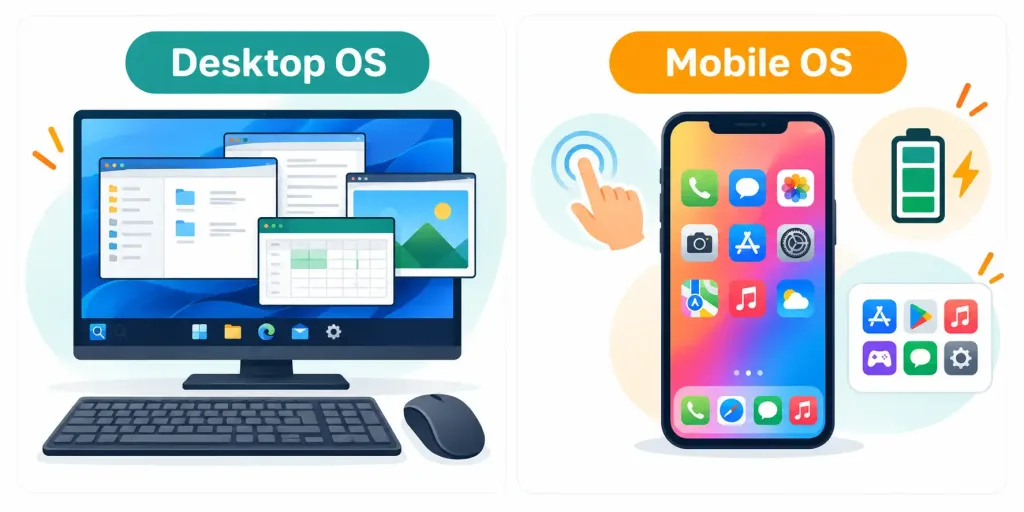
A mobile OS is built from the ground up around a genuinely different set of priorities than a desktop OS: touch-based input instead of a mouse and keyboard, aggressive battery efficiency since the device isn’t plugged into a wall outlet, and a tightly curated app ecosystem, typically distributed through a single official app store rather than software installed freely from anywhere. Android, developed by Google, is the most widely used mobile OS globally, built on the Linux kernel and known for running across a huge range of hardware from many different manufacturers. iOS, developed by Apple, runs exclusively on iPhones, known for its tight hardware-software integration and consistent experience across every supported device.
The differences between a desktop OS and a mobile OS aren’t superficial — they reflect genuinely different underlying priorities. A desktop OS generally assumes ample power, a large screen, and precise input from a mouse and keyboard, letting it support a vast range of complex, resource-intensive applications simultaneously. A mobile OS instead assumes limited battery life, a small touch-based screen, and typically one app being actively used at a time, leading to an OS design that aggressively manages background processes specifically to conserve power — the same process management concept introduced in Lesson 3.1, just tuned toward battery conservation rather than raw performance.
Server Operating Systems
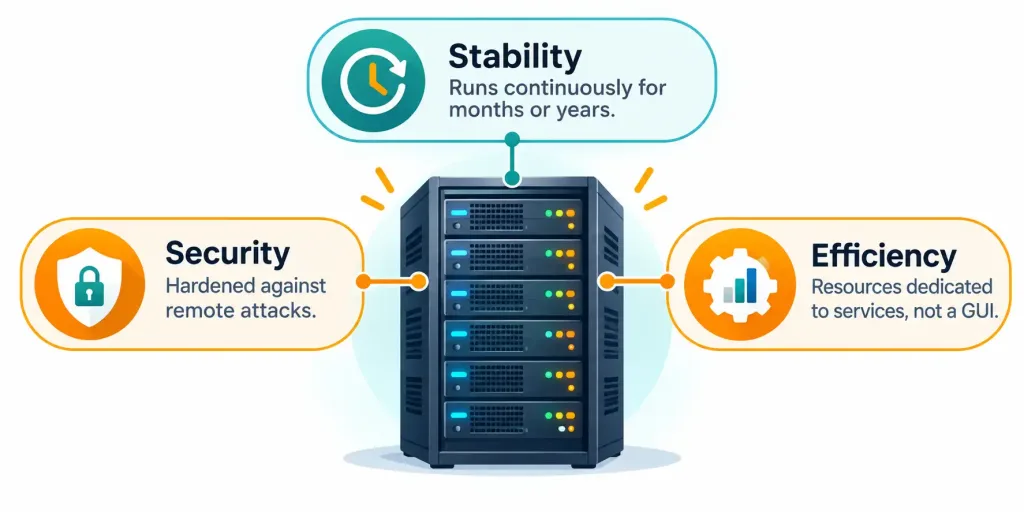
A server OS takes yet another distinct approach, designed to run continuously, reliably, and often for years without a restart, hosting services that many other devices depend on simultaneously — the same servers introduced back in Lesson 2.1 as devices built to respond to many client requests rather than being used directly by one person. Server operating systems prioritize stability, security, and efficient resource use over the visual polish and everyday convenience features a desktop OS emphasizes, and they very often run without a GUI at all, managed entirely through the CLI covered in the previous lesson, precisely because a graphical interface consumes resources a server would rather dedicate to the services it’s actually hosting.
Both Windows and Linux offer dedicated server editions — Windows Server and various Linux server distributions being the most common — each built around the same core kernel as their desktop counterparts but reconfigured and optimized specifically around the priorities a server actually needs: maximum uptime, remote manageability, and efficient handling of many simultaneous requests, rather than a single person’s everyday desktop experience.
It’s worth appreciating just how much “maximum uptime” actually means in practice for a server OS. While a desktop or laptop restarting occasionally for an update is a minor, barely noticed inconvenience, a server going offline unexpectedly can mean an entire website, business application, or virtualized infrastructure environment — the same kind of environment covered back in Lesson 2.6 — becoming unavailable to every single person or system depending on it simultaneously. This is exactly why server operating systems place such heavy emphasis on stability and why server updates are typically planned and scheduled carefully, often during defined maintenance windows, rather than applied automatically and immediately the way a consumer desktop update often is.
Proprietary vs. Open-Source Operating Systems
A further important distinction cuts across all of these categories: how an operating system’s underlying code is licensed and controlled. Proprietary software, including Windows and macOS, is owned and controlled by a specific company, with its source code kept private — users can run the software under a license, but they cannot view, modify, or freely redistribute its underlying code. Open-source software, including Linux, makes its source code publicly available for anyone to view, modify, and redistribute, typically developed collaboratively by a broad community of contributors rather than controlled entirely by a single company.
This distinction carries real practical consequences worth understanding. Open-source software’s transparency lets security researchers examine the code directly for vulnerabilities, and it typically costs nothing to use, but it can demand more technical expertise to configure and support compared to a polished, more tightly controlled proprietary product. Proprietary software often provides a more consistent, professionally supported experience with dedicated customer support, but it locks users into that specific vendor’s ecosystem, pricing, and release schedule, with far less ability to inspect or modify the software’s actual inner workings.
It’s worth noting that this distinction isn’t strictly binary in practice. Android, for instance, is built on the open-source Linux kernel, but individual phone manufacturers frequently add their own proprietary customizations, apps, and services on top of that open-source foundation — meaning a single device can genuinely blend both licensing philosophies at once, rather than falling neatly into just one category or the other.
Updates, Patches, and End of Life
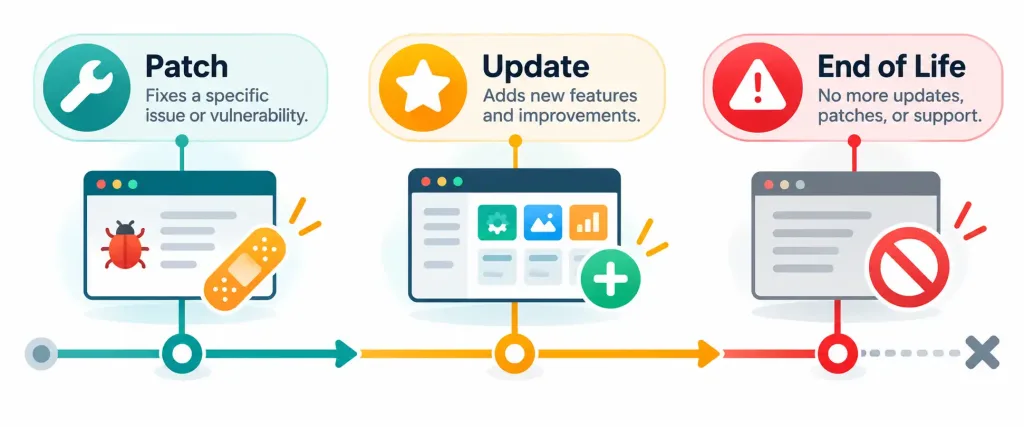
Every operating system requires ongoing maintenance long after its initial release, and it’s worth clearly distinguishing the different terms used for that maintenance. A patch is a small, targeted update that fixes one specific bug or security vulnerability, typically released quickly in response to a newly discovered problem. An update is a broader term, encompassing not just patches but also new features, performance improvements, and other more substantial changes, often released on a more predictable, less urgent schedule than an emergency patch.
Keeping an operating system patched and updated is one of the single most important, foundational security practices that exists, precisely because software vulnerabilities are discovered continuously, and a patch is very often the only thing standing between a known, publicly documented vulnerability and an attacker actively exploiting it on an unpatched system.
Every operating system eventually reaches end of life (EOL) — the point at which its developer stops releasing any further updates or security patches for it at all — and continuing to run an OS well past its EOL date is a genuinely serious security risk, since any vulnerability discovered after that point will simply never be fixed by the developer, no matter how severe it turns out to be.
Compatibility Considerations
Choosing an operating system isn’t purely a matter of personal preference — compatibility with the specific software and hardware a person or organization actually needs to use is a genuinely practical, often decisive factor. A specialized piece of business software might only be available for Windows; a particular creative application might run noticeably better, or exclusively, on macOS; a specific server application might only be officially supported on a particular Linux distribution. Checking compatibility before committing to an operating system avoids a genuinely common, frustrating mistake: choosing an OS first and only discovering afterward that a genuinely essential piece of software simply isn’t available for it.
This same compatibility consideration extends to hardware as well — a piece of hardware covered throughout Domain 2.0, like a specialized peripheral or an older printer, might only have drivers available for certain operating systems, which is exactly why checking driver and hardware support is a genuinely practical step before switching an existing system to a different operating system.
Choosing the Right Operating System
Bringing this lesson’s comparisons together into a practical decision framework: a general home or office desktop benefits from Windows’ broad software compatibility, or macOS if the user is already invested in Apple’s hardware ecosystem and prioritizes tight integration.
A smartphone or tablet naturally uses whichever mobile OS matches its manufacturer — Android or iOS — with the choice between the two often coming down to ecosystem preference and existing device investment rather than any fundamental technical superiority of one over the other.
A server hosting a website or business application benefits from a server-specific OS edition, chosen for its stability and efficient resource use over any visual polish. And a technically inclined user who values full transparency, customization, and zero licensing cost might specifically choose a Linux desktop distribution, accepting a steeper learning curve in exchange for that control.
This same evaluative pattern — matching a technology’s specific strengths to a scenario’s actual priorities — has now recurred across storage types, internet service types, and now operating systems, and it remains the single most reliable strategy for approaching this exam’s scenario-based questions: there is very rarely one universally “correct” operating system, only the one that best fits what a specific scenario actually needs.
A Worked Example: Choosing an OS for Three Different Needs
Applying this framework concretely helps cement it. Consider three separate technology decisions being made at the same small business.
The front-desk receptionist needs a general-purpose computer running standard office software, with maximum compatibility with the specific line-of-business software the company already depends on. Windows is the clear fit here, given its dominant market share and broad software compatibility.
The company’s video editor needs a workstation optimized for creative software with tight hardware-software integration and reliable color accuracy. macOS is the stronger fit, both for its strength in creative fields and its close integration with Apple’s own hardware.
The company also needs a web server hosting its internal ordering system, which must run continuously with minimal resource overhead and strong security. A Linux server distribution is the natural choice here, valued specifically for its stability, security reputation, and efficient operation without needing a GUI running at all.
Notice that none of these three choices is “the best operating system” in any universal sense — each is simply the strongest fit for that specific role’s actual priorities, exactly the kind of scenario-driven reasoning this exam consistently rewards.
Recognition-Level Verification Concepts
- Recognize Windows, macOS, and Linux as the major desktop operating systems, each with different compatibility, ecosystem, and customization trade-offs.
- Recognize Android and iOS as the major mobile operating systems, each optimized around touch input and battery efficiency.
- Recognize that a server OS prioritizes stability, security, and efficient resource use, often running without a GUI.
- Recognize the difference between proprietary software (privately owned, controlled code) and open-source software (publicly available, community-developed code).
- Recognize that some products, like Android, can blend open-source foundations with proprietary additions rather than falling neatly into one category.
- Recognize the difference between a patch (small, targeted fix) and a broader update (features, improvements, and patches together).
- Recognize end of life (EOL) as the point after which an OS no longer receives any security patches, and the serious risk of running an OS past that point.
- Recognize compatibility with existing software and hardware as a genuinely practical factor in choosing an operating system, not just personal preference.
Common Exam Traps
- Assuming one operating system is universally “the best.” Desktop, mobile, and server operating systems are each optimized for different priorities — the right choice depends entirely on the specific scenario.
- Confusing a patch with a full update. A patch is a small, targeted fix for one specific issue; an update is a broader release that can include multiple patches plus new features.
- Assuming open-source software is always free of any cost or effort. It’s typically free to use, but can demand more technical expertise to configure and support than a polished proprietary alternative.
- Assuming running an unpatched or EOL operating system is a minor issue. It leaves the system permanently exposed to any vulnerability discovered after that point, with no fix ever coming.
- Overlooking software and hardware compatibility when choosing an OS. A technically appealing operating system is still the wrong choice if essential software or hardware drivers simply aren’t available for it.
- Assuming Linux is a single, uniform operating system. Linux is a family of different distributions built on a shared kernel, each with its own particular focus, package management, and user experience.
Lesson 3.2 Practice Questions: The Purpose of Operating Systems
Summary
Windows, macOS, and Linux are the major desktop operating systems, each with different trade-offs around compatibility, ecosystem, and customization.
Android and iOS are the major mobile operating systems, both built around touch input and battery efficiency rather than the priorities a desktop OS emphasizes.
A server OS prioritizes stability, security, and efficient resource use, often running continuously without a GUI at all.
Proprietary software keeps its source code private and company-controlled, while open-source software makes its code publicly available for anyone to view and modify.
A patch fixes one specific issue, a broader update can include multiple patches plus new features, and every OS eventually reaches end of life, after which it no longer receives any security patches at all.
Compatibility with existing software and hardware is a genuinely practical factor in choosing an operating system, not just a matter of personal preference.
The next lesson turns from operating systems specifically to software more broadly, covering the purpose and proper use of applications in general.