Domain 2.0 | Infrastructure — 24% of exam
Learning Objectives
By the end of this lesson, you will be able to:
- Explain the fundamental difference between volatile memory and non-volatile storage, and why every computing device needs both.
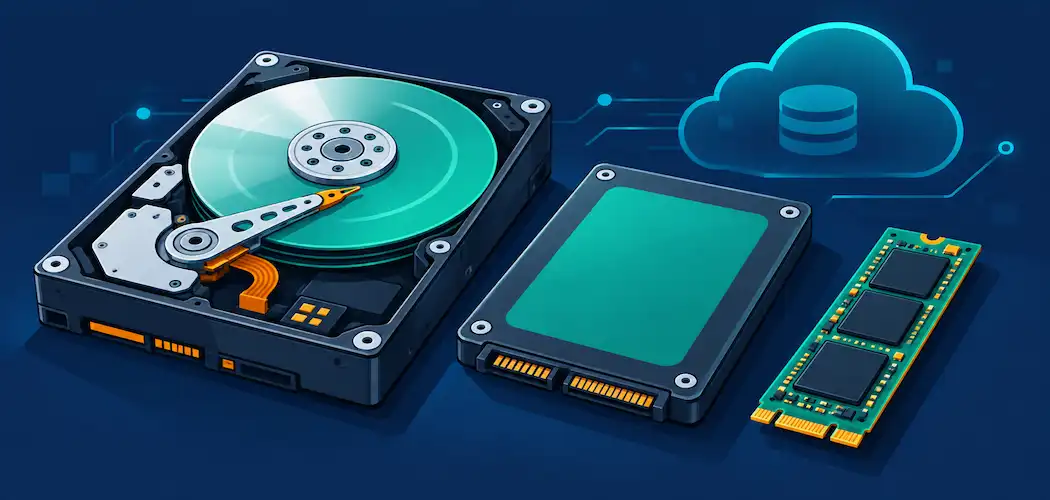
- Compare traditional hard disk drives (HDDs), solid-state drives (SSDs), and NVMe drives in terms of how they work, their performance, and their appropriate use cases.
- Identify common storage form factors and interfaces, including SATA, M.2, and PCIe.
- Describe optical media and removable flash storage and recognize when each is still practically useful today.
- Compare local storage against cloud storage and explain the trade-offs between the two.
- Describe the basic purpose of RAID as a way to combine multiple drives for performance or redundancy.
Key Terms – Storage Types
| Term | Definition |
|---|---|
| Non-volatile storage | Storage that retains its data even when power is removed, unlike RAM. |
| HDD (Hard Disk Drive) | A storage device that reads and writes data magnetically onto spinning platters using a moving mechanical read/write head. |
| SSD (Solid-State Drive) | A storage device with no moving parts that stores data electronically in NAND flash memory chips. |
| NVMe (Non-Volatile Memory Express) | A high-speed communication protocol that lets an SSD connect directly over the PCIe bus, bypassing the slower SATA interface. |
| SATA (Serial ATA) | A widely used storage interface standard for connecting HDDs and older-generation SSDs to a motherboard. |
| PCIe (Peripheral Component Interconnect Express) | A high-bandwidth expansion bus used for GPUs, NICs, and modern NVMe storage. |
| M.2 | A small, compact storage form factor that can carry either a SATA or an NVMe signal, common in laptops and modern desktops. |
| IOPS (Input/Output Operations Per Second) | A measurement of how many individual read/write operations a storage device can complete each second. |
| RAID (Redundant Array of Independent Disks) | A method of combining multiple physical drives into one logical unit for improved performance, redundancy, or both. |
| Optical media | Storage that uses a laser to read and/or write data on a reflective disc, such as a CD, DVD, or Blu-ray disc. |
| Cloud storage | Data storage hosted on remote servers, accessed over the internet rather than kept on a local physical device. |
Explanation
Picking Up Where RAM Left Off
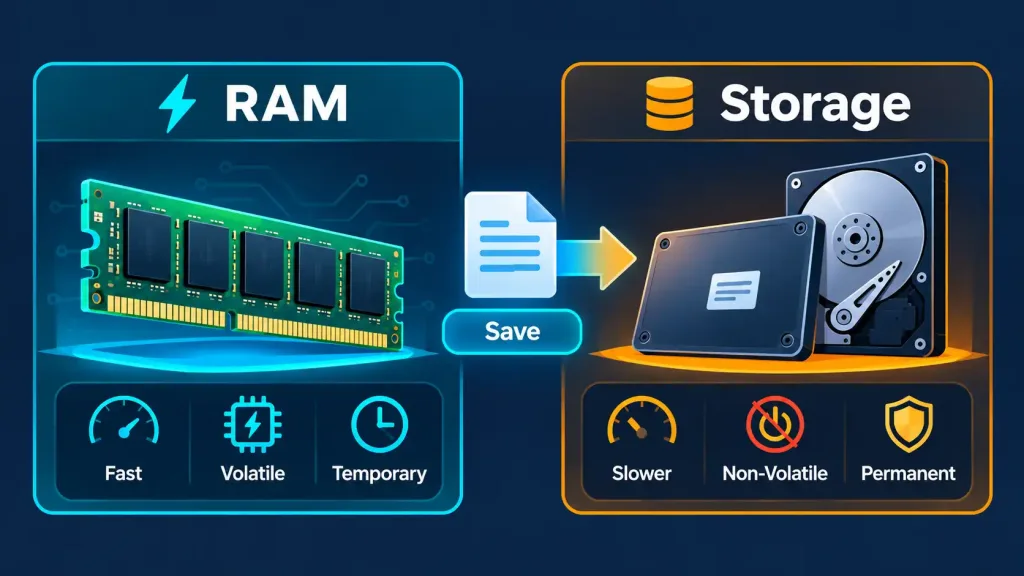
The previous lesson closed with a clear line drawn between RAM and storage: RAM is fast but volatile, losing everything the instant power is removed, while storage is non-volatile, holding onto data indefinitely whether the device is powered on or not.
That distinction is the entire reason this lesson exists as a separate topic — and it traces all the way back to the storage stage of the input-processing-output-storage cycle first introduced in Lesson 1.2. Every photo, document, installed application, and operating system file a device has ever saved lives in some form of non-volatile storage, and understanding the different technologies behind that storage — how they work, how fast they are, and where each one still makes sense — is core, practical IT knowledge.
Hard Disk Drives: The Mechanical Original
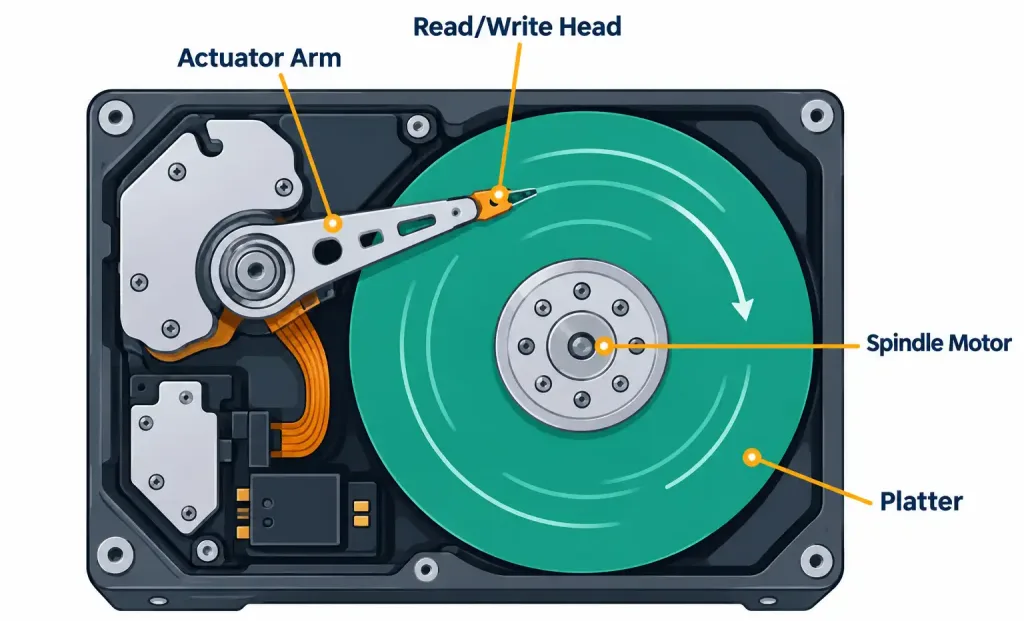
The HDD was, for decades, the default storage technology in nearly every computer, and it is still manufactured and sold today because of one enduring advantage: cost per gigabyte. An HDD stores data magnetically on one or more rapidly spinning circular platters, typically rotating at 5,400 or 7,200 RPM (revolutions per minute) in consumer drives, and sometimes faster in enterprise models. A mechanical arm holding a read/write head physically moves back and forth across the surface of each spinning platter, reading and writing magnetic patterns as it goes.
That physical, mechanical process is both the HDD’s defining trait and its fundamental limitation. Because data has to be physically located and the read/write head has to move into position before it can access it, HDDs suffer from seek time — a small but real delay every time the drive needs to jump to a different area of the disk.
This is also why HDDs are the only common storage type genuinely vulnerable to physical shock while operating; a hard bump or drop can cause the read/write head to contact the spinning platter, potentially destroying data in the process — exactly the kind of hardware failure the structured, step-by-step approach in Lesson 1.4’s troubleshooting methodology is built to diagnose.
HDDs remain popular in one particular scenario, though: bulk storage where raw capacity matters far more than speed, such as archival backups, surveillance camera storage, or large media libraries, since HDDs still offer the lowest cost per gigabyte of any common storage technology — capacities measured in the same GB and TB units covered back in Lesson 1.3’s units of measure.
Solid-State Drives: No Moving Parts
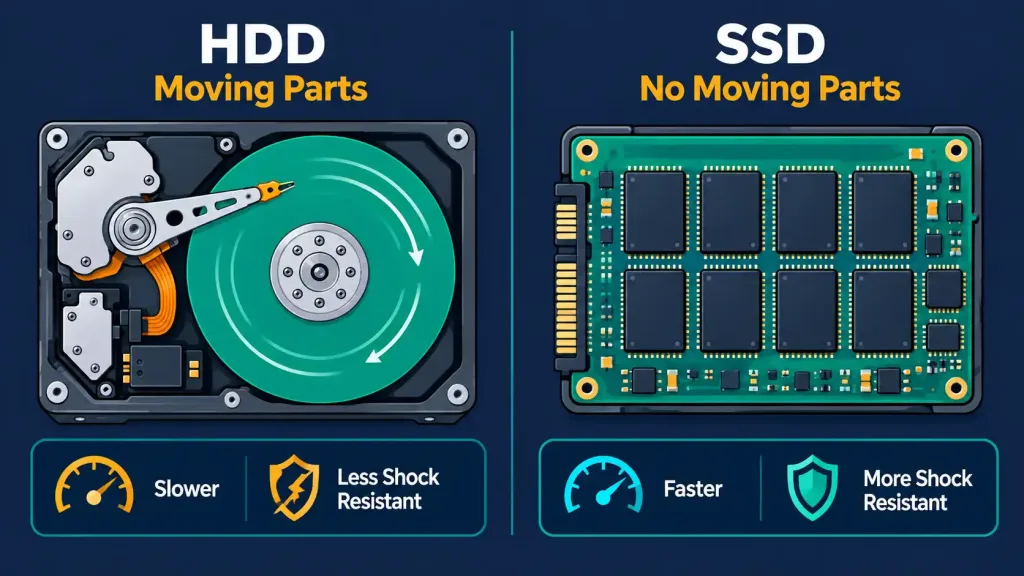
The SSD replaced the HDD’s spinning platters and moving read/write head with NAND flash memory — the same basic type of memory used in USB flash drives and smartphone storage, organized into large arrays of memory cells that store data electronically rather than magnetically. With no mechanical components to move into position, an SSD can access any piece of stored data in a fraction of the time an HDD requires, essentially eliminating seek time as a meaningful bottleneck.
This translates directly into the experience most people actually notice: dramatically faster boot times, near-instant application launches, and much shorter file transfer times. SSDs also draw less power, run silently, generate less heat, and are far more resistant to physical shock than HDDs, since there’s no delicate mechanical assembly that can be knocked out of alignment.
The trade-off has historically been cost per gigabyte — SSDs cost more than HDDs at equivalent capacities, though that price gap has narrowed considerably over time. For nearly any general-purpose computer built today, from a budget laptop to a high-end workstation, an SSD as the primary drive is now the practical default, with HDDs relegated to secondary bulk-storage roles when extra low-cost capacity is genuinely needed.
NVMe: Removing the Interface Bottleneck
Early SSDs connected to a computer the same way HDDs always had: through the SATA interface. SATA was designed decades ago around the performance ceiling of spinning hard drives, and while it was a massive upgrade over even older standards, it eventually became the limiting factor holding SSDs back from their full potential — a SATA connection simply cannot move data fast enough to let a modern SSD show what it’s actually capable of.
NVMe solves this by abandoning the SATA interface entirely and letting the SSD communicate directly over the PCIe bus — the same high-bandwidth expansion bus traditionally used for discrete GPUs and other add-in cards. Because PCIe offers dramatically more bandwidth than SATA, an NVMe drive can deliver several times the real-world read and write speeds of even a well-performing SATA SSD. This performance difference is measured concretely in IOPS (Input/Output Operations Per Second) and raw throughput (MB/s or GB/s), both of which show up in specification sheets and in exhibit-style exam questions asking you to compare drives based on their numbers rather than their labels alone.
It’s worth being precise about terminology here, since the exam expects it: “SSD” describes the underlying storage technology (NAND flash, no moving parts), while “SATA” and “NVMe” describe how that SSD connects to the rest of the system. In other words, every NVMe drive is an SSD, but not every SSD uses NVMe — plenty of SSDs still connect over SATA, particularly in budget builds or as secondary drives.
Form Factors and Connectors
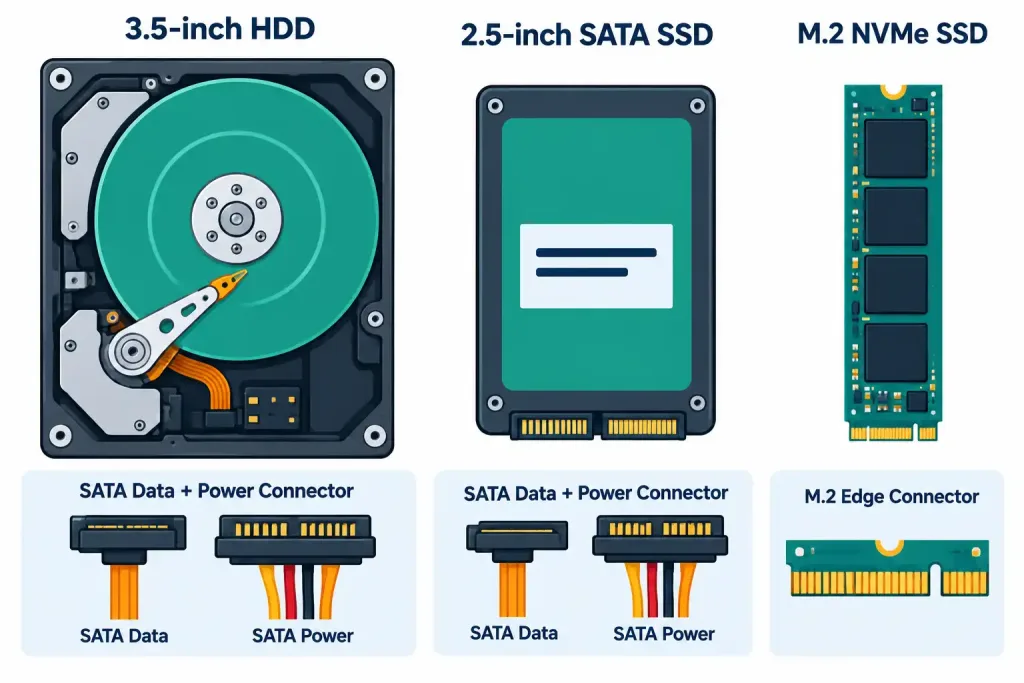
Storage technology and physical form factor are two different things, and the exam draws a clear line between them. A traditional 3.5-inch drive bay historically housed desktop HDDs, while the smaller 2.5-inch form factor became standard for laptop HDDs and later for SATA SSDs designed as drop-in HDD replacements — same physical shape and same SATA connector, just built around flash memory instead of spinning platters.
M.2 represents a more modern, compact approach: a small, stick-shaped module that plugs directly into a dedicated slot on the motherboard rather than connecting via a cable.
The important nuance here is that M.2 describes a physical form factor and slot type, not a single technology — an M.2 slot can carry either a SATA signal or an NVMe (PCIe) signal depending on how the motherboard and the specific drive are keyed, which is exactly why simply seeing “M.2” on a spec sheet doesn’t automatically tell you the drive’s actual speed class. Confirming whether a given M.2 drive is SATA or NVMe is a genuinely practical skill, since the performance difference between the two is substantial despite the drives looking nearly identical.
Optical Media and Removable Flash Storage
Optical media — CDs, DVDs, and Blu-ray discs — use a laser to read (and, on writable/rewritable discs, also write) data encoded as microscopic pits and lands on a reflective disc surface. Optical media’s role has shrunk dramatically as digital downloads, streaming, and flash storage have taken over most of its historical use cases, but it hasn’t disappeared entirely: software and OS installation media in specific enterprise or legacy environments, physical movie and game distribution in some markets, and long-term archival storage where a disc can sit untouched on a shelf for years without needing power all remain legitimate, current use cases worth recognizing.
Removable flash storage — USB flash drives and SD/microSD cards — uses the same underlying NAND flash technology as an SSD, just packaged for portability and quick, tool-free connection rather than as a computer’s primary drive. These remain genuinely practical today for quickly transferring files between machines, booting installation or recovery media, and providing expandable storage in devices like cameras, smartphones, and single-board computers that include a card slot.
Cloud Storage: Moving Data Off the Local Device Entirely
Cloud storage takes a fundamentally different approach: instead of data living on a physical drive inside or directly connected to your device, it’s stored on servers operated by a cloud provider and accessed over the internet whenever it’s needed. This trade-off is worth stating plainly, because it’s tested directly. Cloud storage offers access from virtually any internet-connected device, automatic off-site backup that survives a local hardware failure or physical disaster, and often effortless syncing across multiple devices. In exchange, it depends entirely on having a working internet connection to access your data, may involve an ongoing subscription cost as storage needs grow, and requires trusting a third-party provider with your data’s security and availability.
It’s also worth understanding, at a basic level, what actually happens when a file is “saved to the cloud.” The file is uploaded over the internet to a data center operated by the cloud provider, where it’s typically stored redundantly across multiple physical drives and often multiple facilities, specifically so that a hardware failure on the provider’s end doesn’t mean the data is lost. From the user’s perspective, this entire process is usually invisible.
A file simply appears to sync automatically across every device signed into the same account — but underneath that simplicity sits the same fundamental storage technologies covered earlier in this lesson: the provider’s data centers are ultimately built from enormous numbers of HDDs and SSDs, just managed at a scale and with a level of redundancy well beyond what a single home or office setup would typically implement.
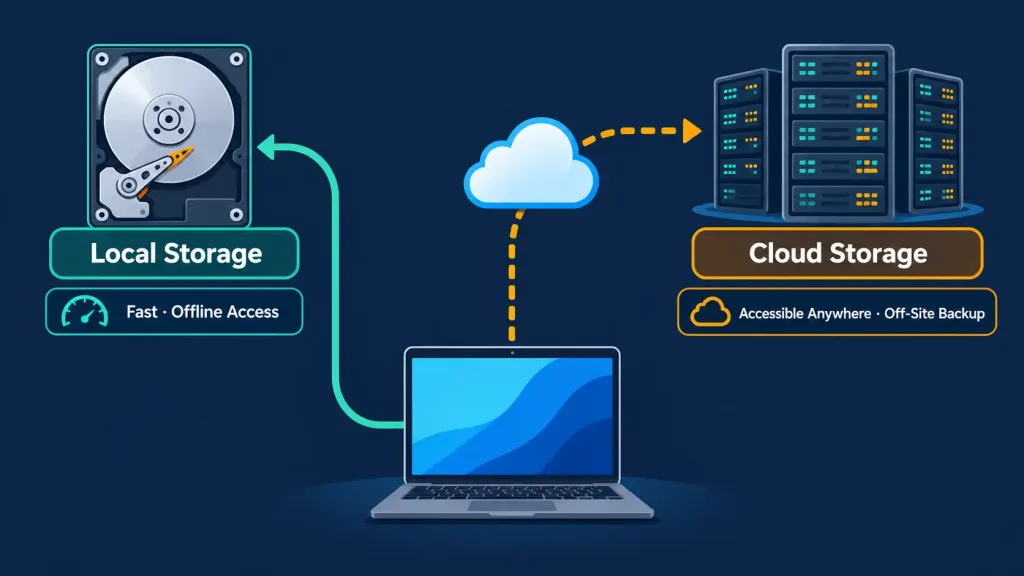
Local and cloud storage are not really competitors so much as complementary tools most people and organizations end up using together — active working files kept locally for speed and offline access, with important data also backed up to the cloud specifically so a single local hardware failure doesn’t mean permanent data loss.
This same complementary logic scales up directly into business environments through network-attached storage (NAS) devices, which function as a dedicated, always-on server on a local network specifically for shared file storage — combining much of local storage’s speed advantage with shared, centralized accessibility, a pattern that connects directly back to the client-server relationship covered in Lesson 2.1 and to the broader category of core infrastructure devices covered in the Network+ series.
RAID: Combining Drives for Performance or Redundancy
RAID (Redundant Array of Independent Disks) takes multiple physical drives and presents them to the operating system as a single logical volume, and different RAID configurations, called levels, optimize for different goals. At a recognition level for this exam, you don’t need deep configuration knowledge, but you should understand the basic trade-off RAID represents: some levels prioritize performance by spreading (striping) data across multiple drives so several drives can be read from or written to simultaneously, while other levels prioritize redundancy by duplicating (mirroring) data across drives, so that if one physical drive fails, the data still survives intact on another.
Some levels attempt to balance both goals at once. The specific numbered RAID levels (0, 1, 5, 10, and so on) are covered in far greater depth in networking- and server-focused coursework, including the same troubleshooting methodology used throughout the Network+ series when diagnosing a degraded array; here, the key takeaway is simply that RAID exists to solve problems a single drive can’t solve alone — either going faster than one drive is physically capable of, or surviving a drive failure that would otherwise mean total data loss.
Choosing the Right Storage for the Job
This lesson’s entire content collapses into one practical, exam-relevant skill: matching a storage technology to what a given scenario actually needs, which is precisely the kind of judgment call heavily tested through scenario-based questions. A budget office workstation running everyday productivity software benefits enormously from an SSD as its primary drive, at a very manageable cost, since day-to-day responsiveness matters far more than raw capacity.
A video editing workstation handling large, high-bitrate footage benefits specifically from NVMe’s dramatically higher throughput, since sustained large-file read/write speed becomes an actual bottleneck at that scale. A home surveillance system recording weeks of continuous video footage is a textbook case for HDDs, because bulk capacity at the lowest possible cost per gigabyte matters far more than access speed for that particular workload. And an organization needing an always-current, disaster-resistant backup of critical business data is describing exactly what cloud storage (often paired with local NAS storage) is built to provide.
A useful habit for approaching any storage scenario question is to ask three things in order: what does this workload actually prioritize (speed, capacity, cost, or resilience against failure), how sensitive is it to losing data if a single drive fails, and does it need to be accessed from more than one location or device. Running through those three questions almost always points toward the correct storage choice faster than trying to memorize a fixed list of “use HDD for X, use SSD for Y” rules, because real-world scenarios frequently combine more than one consideration at once — exactly the kind of layered reasoning the exam’s scenario questions are built to test.
How It All Connects Back to Internal Components
This lesson deliberately builds on Lesson 2.2’s coverage of internal computing components, which introduced the PCIe bus and briefly noted that a fuller storage comparison was coming — this lesson is that comparison. The motherboard and its chipset, covered there, are exactly what determine which storage interfaces and how many M.2 slots a given system actually supports, which is why storage choice and internal component choice are never fully separate decisions in real-world system building — they constrain each other directly.
Recognition-Level Verification Concepts
- Recognize that storage is non-volatile while RAM is volatile — this distinction, introduced in the previous lesson, is the foundation this entire lesson builds on.
- Recognize an HDD by its mechanical, spinning-platter design, its vulnerability to physical shock, and its advantage in cost per gigabyte for bulk storage.
- Recognize an SSD by its lack of moving parts, its speed advantage over HDDs, and its use of NAND flash memory.
- Recognize that NVMe describes an interface/protocol (over PCIe), not the underlying storage technology itself, and that it is significantly faster than SATA.
- Recognize that M.2 is a form factor, not a guaranteed speed — an M.2 drive can be either SATA or NVMe.
- Recognize the practical trade-offs between local storage and cloud storage: speed and offline access versus accessibility and off-site backup.
- Recognize RAID’s basic purpose: combining multiple drives for either performance (striping) or redundancy (mirroring), or a balance of both.
Common Exam Traps
- Assuming “SSD” and “NVMe” mean the same thing. SSD is the storage technology; NVMe is one of the interfaces an SSD can use. Plenty of SSDs are SATA-based, not NVMe.
- Assuming every M.2 drive is automatically NVMe-fast. M.2 is a physical form factor that can carry either a SATA or an NVMe signal — always verify which before assuming performance.
- Recommending an HDD for a performance-sensitive scenario just because it’s cheaper. Watch for scenario wording emphasizing speed, responsiveness, or throughput — that’s a signal pointing toward SSD or NVMe, not HDD, regardless of budget framing.
- Recommending an SSD or NVMe drive for a scenario that’s purely about cheap bulk capacity. A scenario emphasizing large volumes of archival or surveillance data with no urgency around access speed is testing whether you’ll correctly choose an HDD instead.
- Treating cloud storage as a complete replacement for local storage, or vice versa. The exam favors recognizing them as complementary, each with real trade-offs, rather than declaring one universally superior.
- Confusing RAID’s redundancy goal with a backup strategy. RAID protects against a single drive’s mechanical failure, but it does not protect against accidental deletion, malware, or site-wide disasters the way an actual backup (often cloud-based) does.
Lesson 2.3 Practice Questions: Storage Types
Summary
Non-volatile storage retains data indefinitely without power, picking up directly from the RAM-versus-storage distinction introduced in Lesson 2.2.
The HDD stores data mechanically on spinning platters, trading speed for the lowest cost per gigabyte of any common storage technology, which still makes it the right choice for bulk, low-urgency capacity needs.
The SSD replaces moving parts with electronic NAND flash memory, delivering dramatically faster access times, lower power draw, and greater shock resistance than an HDD.
NVMe is a high-speed protocol that lets an SSD communicate directly over the PCIe bus rather than the slower SATA interface, and it describes the connection method, not the underlying storage technology itself.
M.2 is a physical form factor, not a guaranteed speed class — an M.2 slot can carry either a SATA or an NVMe signal, so the two must always be confirmed separately.
Optical media and removable flash storage still serve real, specific use cases today, and cloud storage trades local speed and offline access for off-site backup and accessibility from anywhere.
RAID combines multiple physical drives into one logical unit, optimizing for performance through striping, redundancy through mirroring, or a balance of both — though it is not a substitute for an actual backup strategy.
With storage now covered, the next lesson moves outward to the peripheral devices connected to a system and the process of installing and configuring them.