Domain 3.0 | Applications and Software — 18% of exam
Learning Objectives
By the end of this lesson, you will be able to:
- Identify the core components of an operating system, including the kernel, file system, and user interface.
- Explain the difference between a GUI and a CLI, and describe when each is typically used.
- Describe the operating system’s role in managing hardware resources, including memory and processes.
- Explain the purpose of device drivers and how they connect to the operating system.
- Describe the role of user accounts and permissions in an operating system.
Key Terms
| Term | Definition |
|---|---|
| Operating system (OS) | The core software that manages a device’s hardware and provides a platform for applications to run. |
| Kernel | The core part of an operating system, managing communication between hardware and software at the lowest level. |
| GUI (Graphical User Interface) | A visual way of interacting with a computer using windows, icons, and a mouse or touch input. |
| CLI (Command Line Interface) | A text-based way of interacting with a computer by typing commands. |
| File system | The method an operating system uses to organize, name, and store files on a storage device. |
| Process | A running instance of a program, actively using system resources. |
| Memory management | The operating system’s function of allocating and tracking RAM usage among running processes. |
| Device driver | Software that allows the operating system to communicate with a specific piece of hardware. |
| User account | A profile within an operating system that identifies a specific user and determines their access permissions. |
| Permissions | Rules that determine what a specific user account is allowed to view, modify, or run. |
Explanation
The Operating System: The Platform Everything Else Runs On
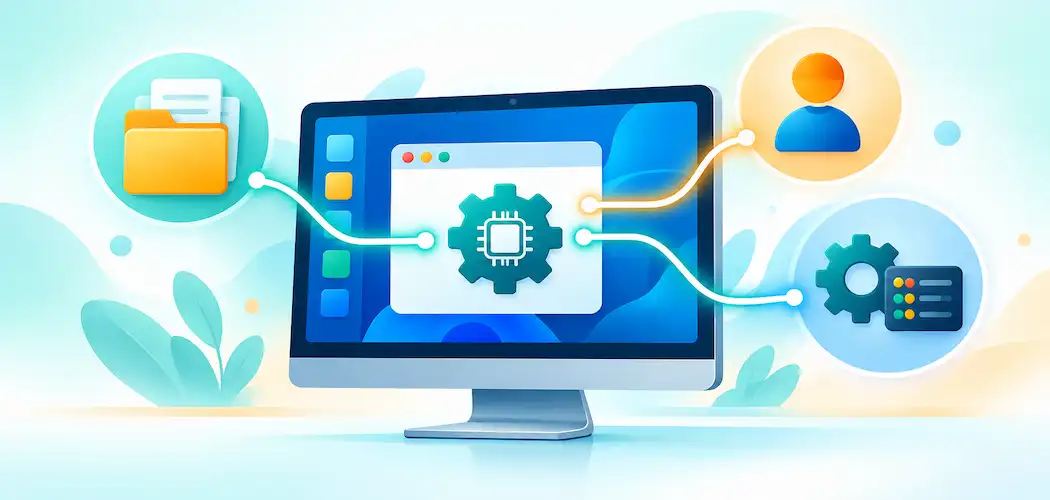
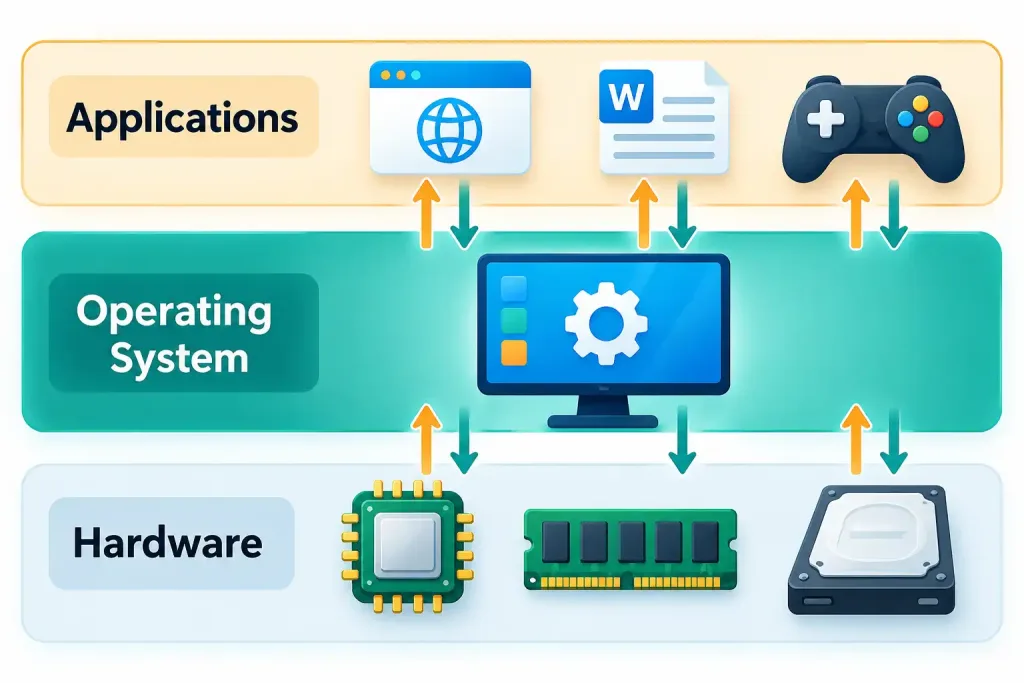
Every lesson in Domain 2.0 covered physical hardware — the motherboard, CPU, RAM, storage, peripherals. None of that hardware is directly usable on its own; it needs software to coordinate it, and that’s precisely the job of the operating system (OS). The OS is the core software layer that manages a device’s hardware and provides the platform every other application runs on top of — Windows, macOS, Linux, Android, and iOS are all examples of operating systems, each managing the same fundamental categories of hardware in broadly similar ways despite their very different appearances.
Without an operating system, a computer’s hardware — the CPU, RAM, and storage covered throughout Lessons 2.2 and 2.3 — would simply sit there, since raw hardware has no built-in way to run applications, manage files, or accept user input on its own. The OS is what turns a collection of physical components into a usable, functioning computer.
The Kernel: The OS’s Core
At the very center of every operating system sits the kernel — the core part of the OS responsible for the most fundamental, lowest-level communication between hardware and software. The kernel manages exactly which process gets access to the CPU and for how long, which piece of software can read or write to a given area of RAM, and which application can access a given hardware device at any given moment — all while shielding applications from needing to know the messy, specific technical details of the underlying hardware they’re actually running on.
This shielding role is genuinely significant: a word processor doesn’t need to know the specific model of CPU or the exact amount of RAM installed in order to run correctly — it simply asks the kernel for what it needs, and the kernel handles translating that request into whatever the specific underlying hardware actually requires. This is part of why the same application can often run on many different computers with completely different specific hardware components, as long as they’re all running a compatible operating system with a kernel that knows how to manage that hardware.
This abstraction layer is worth appreciating for what it actually saves everyone involved. Without a kernel managing this translation, every single piece of software would need to be written separately for every possible combination of CPU, RAM configuration, and storage controller in existence — an obviously unworkable approach. Instead, software developers write applications that talk to the kernel using a consistent, standardized set of requests, and the kernel itself handles all of the messy hardware-specific translation underneath, a genuine division of labor that makes the entire modern software ecosystem practically possible.
GUI vs. CLI: Two Ways to Interact with an OS
Every operating system needs some way for a user to actually give it instructions, and there are two fundamentally different approaches, both still very much in active use today.
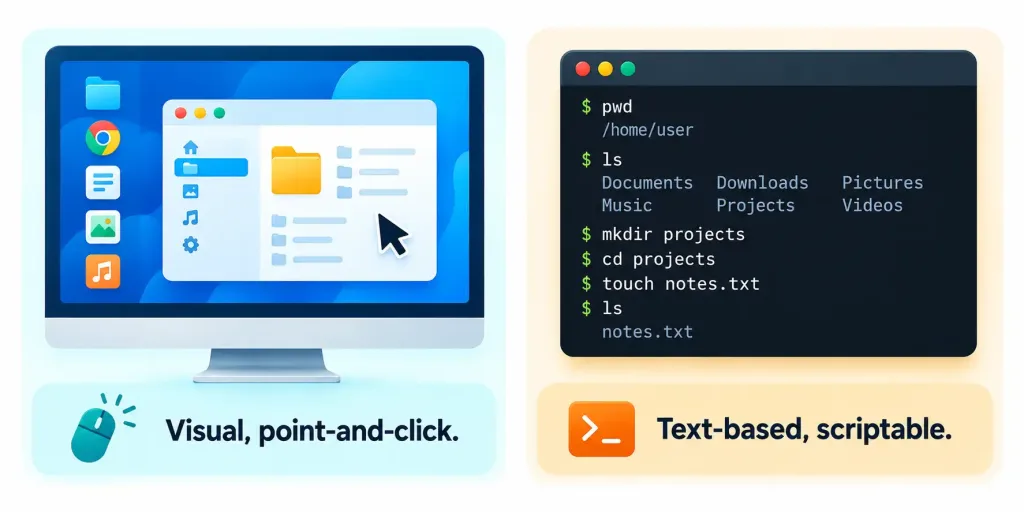
A GUI (Graphical User Interface) is the visual, point-and-click style of interaction most people are familiar with — windows, icons, buttons, and a mouse or touchscreen used to interact with them. GUIs are intuitive and approachable, which is exactly why they’re the default interface for the overwhelming majority of everyday consumer computing, from desktops to phones to tablets.
A CLI (Command Line Interface), by contrast, is entirely text-based — a user types specific commands, and the system responds with text output, with no windows, icons, or mouse involved at all.
A CLI has a real learning curve compared to a GUI, but it offers genuine advantages a GUI often can’t match: commands can be precisely scripted and automated to run repeatedly with zero manual effort, many operations can be performed faster by an experienced user typing a command than by navigating several layers of GUI menus, and a CLI typically consumes far fewer system resources, which matters considerably on a server or a resource-constrained device with no need for a full graphical environment running at all. This is exactly why servers — including the ones running the virtualized infrastructure covered in Lesson 2.6 — very often run without a GUI at all, managed entirely through a CLI instead.
Neither interface is objectively superior; they simply suit different tasks and different users. Someone editing a family photo or browsing the web benefits enormously from a GUI’s visual, intuitive nature, while a system administrator who needs to apply the exact same configuration change across a hundred servers benefits far more from a CLI script that performs that change instantly and identically everywhere, with none of the repetitive manual clicking a GUI-only approach would demand. Many modern operating systems offer both simultaneously, letting a user move fluidly between a GUI for everyday tasks and a CLI for anything that benefits from precision, speed, or automation.
The File System: Organizing Storage
Every operating system needs a consistent way to organize the data stored on a device’s drives, covered back in Lesson 2.3, and that’s the job of the file system. A file system defines how files and folders are named, organized into a hierarchy, and physically tracked on the underlying storage drive, so the OS always knows exactly where a given piece of data actually lives on the physical drive whenever an application requests it.
Different operating systems commonly use different file systems by default — Windows commonly uses NTFS, macOS uses APFS, and Linux commonly uses ext4, among various others — and while the deep technical differences between them go beyond this exam’s scope, it’s worth recognizing that a drive formatted with one operating system’s native file system isn’t always automatically readable by a different operating system without additional software, a genuinely practical consideration when moving a drive between different types of computers.
This is exactly why cross-platform file sharing often relies on a more universally compatible file system, like exFAT, specifically chosen because it can be read and written by Windows, macOS, and many other systems without extra software — a genuinely practical solution for something like a USB flash drive covered back in Lesson 2.3 that regularly moves between different types of computers, where a more OS-specific file system would otherwise cause frustrating compatibility problems.
Process and Memory Management
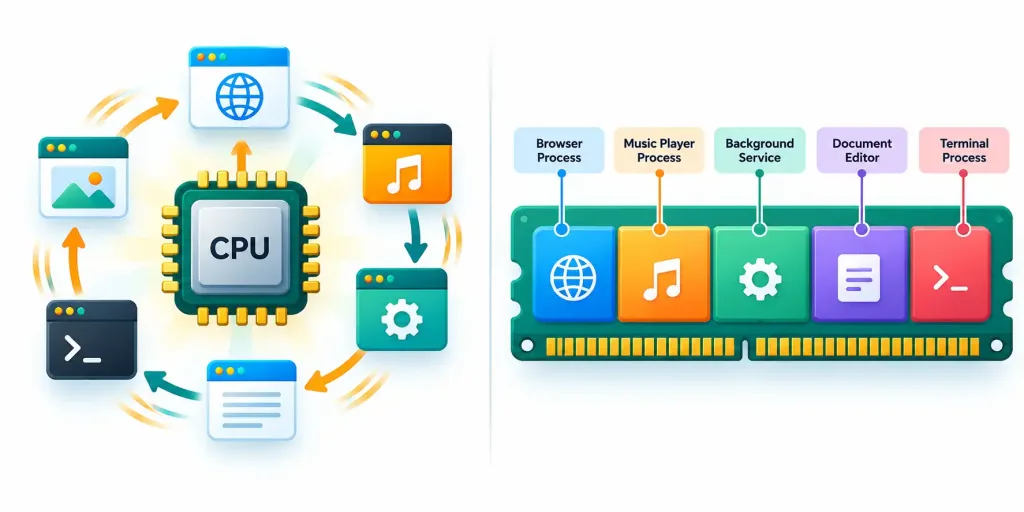
Modern operating systems run many programs simultaneously — a web browser, a music player, background system services — and the OS is responsible for managing all of them at once through two closely related functions.
A process is a running instance of a program actively using system resources, and the OS’s process management function decides which process gets access to the CPU and for how long, rapidly switching between multiple active processes many times per second in a way that makes it appear, from a human’s perspective, as though everything is running simultaneously — the same cores and clock speed concepts covered back in Lesson 2.2 put directly to work here, coordinating exactly which process gets a share of the CPU’s available processing capacity at any given instant.
Memory management works alongside process management, allocating a defined portion of the system’s RAM to each running process and keeping careful track of which process owns which portion, so that one poorly behaved application can’t simply reach into and corrupt another application’s memory space. This is precisely why closing an unresponsive application typically doesn’t crash the entire system — the OS’s memory management keeps each process’s memory properly isolated and contained, so a single failing process generally stays contained to itself rather than bringing everything else down with it.
Device Drivers: The OS’s Connection to Hardware
Lesson 2.4 introduced device drivers from the peripheral’s side of the relationship; this lesson revisits them from the operating system’s side. A driver is software that lets the OS communicate with a specific piece of hardware — without the correct driver, the OS has no way to actually control that hardware correctly, even if the physical connection itself is working perfectly.
The OS maintains its own internal collection of built-in drivers for extremely common hardware, which is exactly why many devices work immediately through Plug and Play with zero manual setup, and it also provides the mechanism through which additional, more specialized manufacturer-supplied drivers get installed and integrated into the system when a device’s needs go beyond what a built-in driver alone can provide. Every driver, in effect, extends the kernel’s own hardware-management reach out to one additional specific piece of hardware the kernel didn’t already know how to handle out of the box.
User Accounts and Permissions
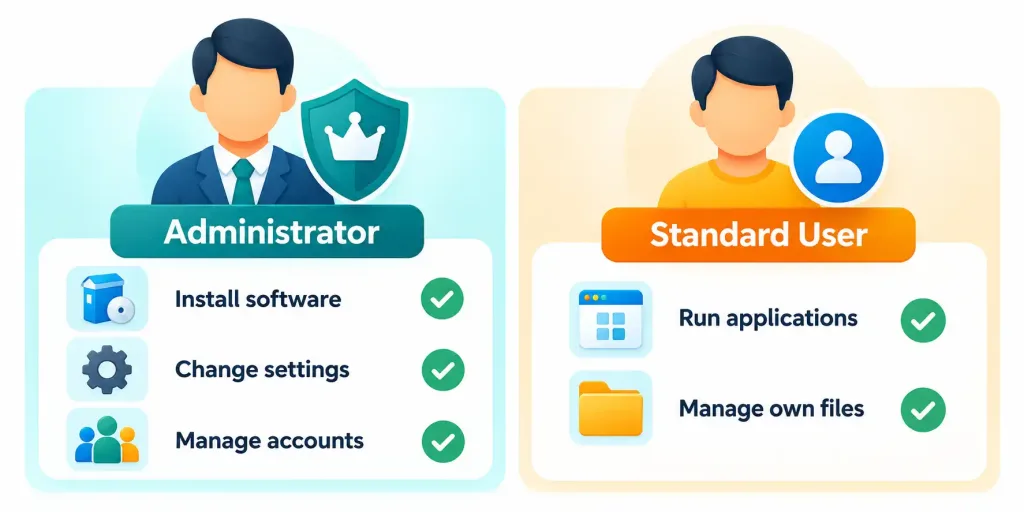
A modern operating system is rarely used by only one person under only one identity, which is exactly why every mainstream OS supports user accounts — distinct profiles that identify a specific person and determine what that person is allowed to do on the system. A typical setup includes at least one administrator account, with broad rights to install software, change system settings, and manage other accounts, alongside one or more standard user accounts with more limited rights, able to run applications and manage their own personal files without the ability to make system-wide changes that could affect other users or the system’s overall stability.
Permissions are the specific rules that govern exactly what a given account is allowed to view, modify, or execute — a standard user account might have full read/write access to their own personal documents folder, but only read access (or no access at all) to another user’s files or to core system files. This account-and-permission structure serves two genuinely important purposes at once: it protects the system itself from accidental or malicious changes by limiting who can make sweeping modifications, and it protects each individual user’s own data and privacy from other users on a shared system.
How These Components Work Together
Bringing this lesson’s pieces together: when an application needs to open a file, the file system locates it on the storage drive, the kernel coordinates the actual read operation through the correct device driver, memory management allocates space in RAM for the file’s data once it’s loaded, process management ensures the application gets its fair share of CPU time to actually work with that data, and permissions are checked throughout to confirm the current user account is actually allowed to access that particular file in the first place.
Every one of these components is working together, constantly, behind a GUI or CLI that keeps almost all of this genuinely intricate coordination completely invisible to the person simply double-clicking a file to open it.
A Worked Example: What Happens When You Open a Program
Tracing through a single, everyday action end to end helps make these otherwise abstract components feel concrete. A user double-clicks an icon to open a web browser.
First, the GUI captures that double-click and passes the request to the OS. The file system locates the browser’s program files on the storage drive. The kernel, working through the correct device drivers, coordinates actually reading those files from the drive into RAM. Memory management allocates and tracks a dedicated portion of RAM specifically for this new browser process, isolated from every other currently running process.
Process management then begins giving this new process regular turns on the CPU alongside everything else already running, and permissions are checked to confirm the current user account is actually allowed to run this particular program in the first place. Only once every one of these steps has completed does the browser’s window actually appear on screen, ready for the user to type a web address — a sequence that, in practice, all happens within a fraction of a second, completely invisible to the person who simply experiences “the browser opened.”
Recognition-Level Verification Concepts
- Recognize the operating system as the software layer that manages hardware and provides the platform applications run on.
- Recognize the kernel as the OS’s core, managing low-level communication between hardware and software.
- Recognize the difference between a GUI (visual, point-and-click) and a CLI (text-based, scriptable), and why servers often favor a CLI.
- Recognize the file system as how an OS organizes and tracks files on a storage drive, and that different operating systems commonly use different file systems.
- Recognize exFAT as a cross-platform file system commonly used for removable drives that need to move between different operating systems.
- Recognize process management (CPU time allocation) and memory management (RAM allocation and isolation) as two closely related but distinct OS functions.
- Recognize device drivers as the OS’s means of communicating with specific hardware.
- Recognize the difference between an administrator account (broad rights) and a standard user account (limited rights), and the role of permissions in controlling access.
Common Exam Traps
- Assuming the operating system and the kernel are the same thing. The kernel is the OS’s core component, not the entire operating system — the OS also includes the file system, user interface, drivers, and more, all built around the kernel.
- Assuming a GUI is always the better choice. A CLI offers scripting, speed for experienced users, and lower resource use — exactly why many servers run without a GUI at all.
- Assuming any drive can be read by any operating system automatically. Different operating systems commonly default to different file systems, and compatibility isn’t automatically guaranteed without additional software.
- Confusing process management and memory management. Process management governs CPU time allocation; memory management governs RAM allocation and isolation — related, but distinct functions.
- Assuming a standard user account has the same capabilities as an administrator account. Standard accounts are deliberately limited in what system-wide changes they can make, precisely to protect the system and other users.
- Treating device drivers as optional extras rather than genuinely essential OS components. Without the correct driver, the OS cannot properly communicate with a given piece of hardware, no matter how solid the physical connection is.
Lesson 3.1 Practice Questions: Components of an Operating System
Summary
The operating system manages a device's hardware and provides the platform every application runs on top of, with the kernel serving as its core, lowest-level component.
A GUI offers visual, point-and-click interaction, while a CLI offers text-based, scriptable interaction — each suited to different users and use cases, with servers often favoring a CLI.
The file system organizes and tracks how files are stored on a drive, and different operating systems commonly use different file systems by default.
Process management allocates CPU time among running programs, while memory management allocates and isolates RAM among those same processes.
Device drivers let the OS communicate with specific hardware, extending the kernel's reach to devices it wouldn't otherwise know how to control.
User accounts and permissions determine who can access and change what on a system, distinguishing broad administrator rights from more limited standard user rights.
The next lesson turns from an operating system's internal components to its broader purpose, comparing the major operating systems in common use today and the roles each is best suited for.