Domain 1.10 | Network Fundamentals — 20% of exam
Learning Objectives
By the end of this lesson, you will be able to:
- Run and interpret the correct IP configuration command on Windows, Linux, and macOS
- Identify a device’s assigned IP address, subnet mask, default gateway, and DNS servers from command output
- Reason through a basic connectivity problem using client-side output alone
- Recognize what an APIPA address indicates about a failed DHCP process
Key Terms
| Term | Definition |
|---|---|
| ipconfig | The Windows command for viewing IP configuration |
| ifconfig | The legacy Linux/Unix command for viewing and configuring network interfaces |
| ip addr | The modern Linux command for viewing IP addressing, replacing ifconfig |
| DHCP lease | The time period for which a DHCP-assigned address remains valid |
| APIPA | Automatic Private IP Addressing; a 169.254.0.0/16 address Windows assigns itself when DHCP fails |
| Default gateway | The router address a device sends traffic to when the destination isn’t on its local subnet |
Explanation
Why Client-Side Verification Is Always Step One
Every networking topic covered so far in this course — routers and switches, IPv4 subnetting, IPv6 addressing — describes infrastructure a network administrator configures and manages. This lesson covers something different: the view from the end device itself, and the specific commands that reveal what that device actually believes about its own network configuration.
This matters more than it might initially seem. When a user reports “the internet isn’t working,” the very first diagnostic step — before touching a single switch or router — is almost always checking what the affected device itself thinks its own IP configuration is. A huge share of real-world connectivity problems are visible immediately in this client-side output, before any deeper network troubleshooting is even necessary.
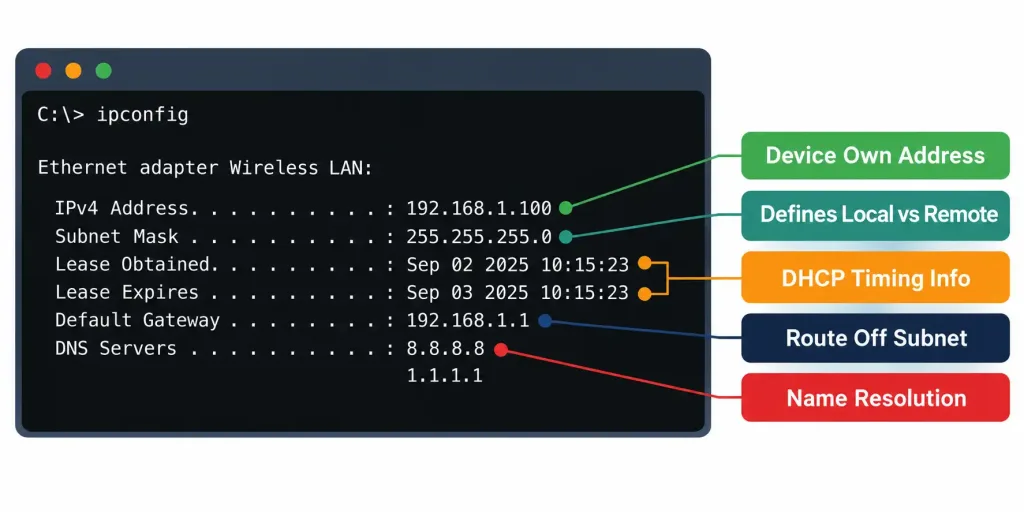
Windows: ipconfig and ipconfig /all
ipconfig, run from Command Prompt, gives a brief summary: IP address, subnet mask, and default gateway for each network adapter. This is often enough for a quick check, but it deliberately omits several details that matter for deeper troubleshooting.
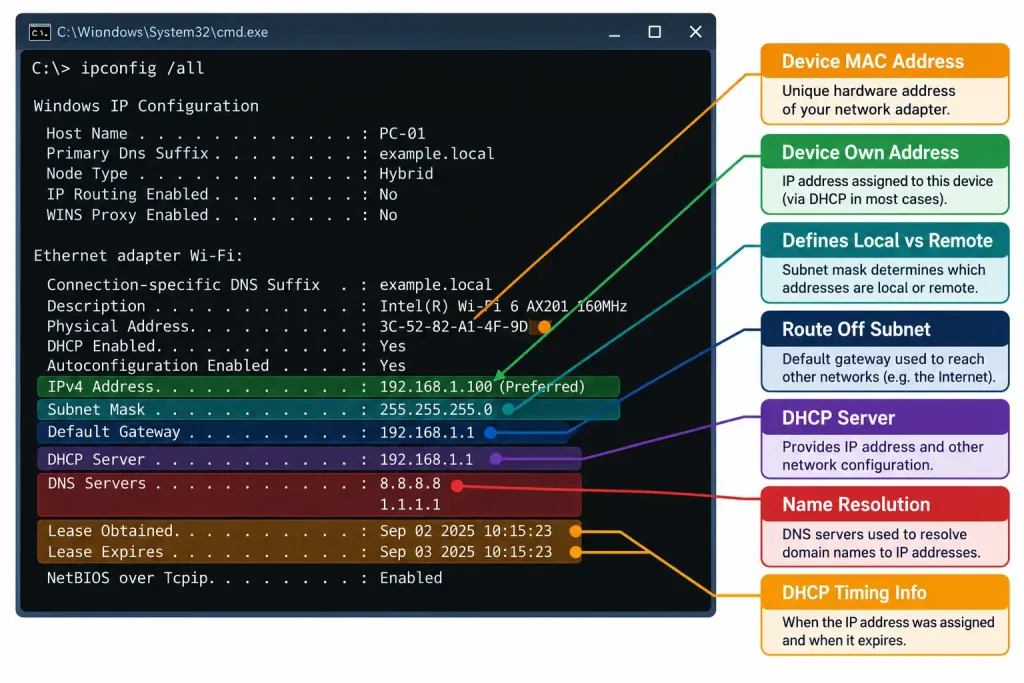
ipconfig /all provides the complete picture, and it’s worth knowing every field this expanded command reveals:
Ethernet adapter Ethernet:

   Connection-specific DNS Suffix  . : corp.local
   Description . . . . . . . . . . . : Intel(R) Ethernet Connection
   Physical Address. . . . . . . . . : 00-1A-2B-3C-4D-5E
   DHCP Enabled. . . . . . . . . . . : Yes
   Autoconfiguration Enabled . . . . : Yes
   IPv4 Address. . . . . . . . . . . : 192.168.1.105(Preferred)
   Subnet Mask . . . . . . . . . . . : 255.255.255.0
   Lease Obtained. . . . . . . . . . : Monday, September 1, 2026 8:00:00 AM
   Lease Expires . . . . . . . . . . : Tuesday, September 2, 2026 8:00:00 AM
   Default Gateway . . . . . . . . . : 192.168.1.1
   DHCP Server . . . . . . . . . . . : 192.168.1.1
   DNS Servers . . . . . . . . . . . : 8.8.8.8
                                       8.8.4.4
Reading this output field by field, since each one answers a specific diagnostic question:
- Physical Address — the device’s MAC address, useful for cross-referencing against a switch’s MAC address table during deeper troubleshooting.
- DHCP Enabled — confirms whether this device is configured to request an address automatically, versus using a static, manually assigned one.
- IPv4 Address and Subnet Mask — the device’s actual current addressing, exactly the values covered in depth in the IPv4 subnetting lesson.
- Lease Obtained / Lease Expires — shows precisely when this address was assigned and when it will need to be renewed, useful for diagnosing intermittent problems that correlate suspiciously with lease renewal timing.
- Default Gateway — the router this device sends traffic to for any destination outside its own subnet.
- DHCP Server — which specific server actually issued this address, useful in networks with more than one DHCP server where confirming the correct one responded matters.
- DNS Servers — which server(s) this device queries to resolve domain names into IP addresses.
Linux: ifconfig (Legacy) and ip addr (Modern)
Linux presents a genuinely different situation from Windows, since it’s currently in the middle of a real transition between two distinct command sets — worth understanding both, since real-world systems you’ll encounter could be running either.
ifconfig is the older, historically standard command, part of the net-tools package. It’s been formally deprecated in most current Linux distributions for years now, though it remains widely installed and used in practice, particularly on older systems or in documentation that hasn’t been updated to reflect the shift.
eth0: flags=4163<UP,BROADCAST,RUNNING,MULTICAST>  mtu 1500
        inet 192.168.1.110  netmask 255.255.255.0  broadcast 192.168.1.255
        inet6 fe80::1a2b:3c4d:5e6f:7a8b  prefixlen 64  scopeid 0x20<link>
        ether 00:1a:2b:3c:4d:5e  txqueuelen 1000  (Ethernet)
ip addr (often shortened to ip a), part of the newer iproute2 package, is the actively maintained, currently recommended command on modern Linux systems:
2: eth0: <BROADCAST,MULTICAST,UP,LOWER_UP> mtu 1500 qdisc fq_codel state UP
    link/ether 00:1a:2b:3c:4d:5e brd ff:ff:ff:ff:ff:ff
    inet 192.168.1.110/24 brd 192.168.1.255 scope global eth0
    inet6 fe80::1a2b:3c4d:5e6f:7a8b/64 scope link
Why the transition happened, worth knowing conceptually rather than just as trivia: iproute2 (providing ip addr, ip route, and related commands) offers more consistent, more capable tooling for modern Linux networking features — including things like network namespaces and more sophisticated routing policy — that the older net-tools package was never designed to handle. Most current distributions now ship ip addr by default and treat ifconfig as an optional legacy package, if it’s installed at all.
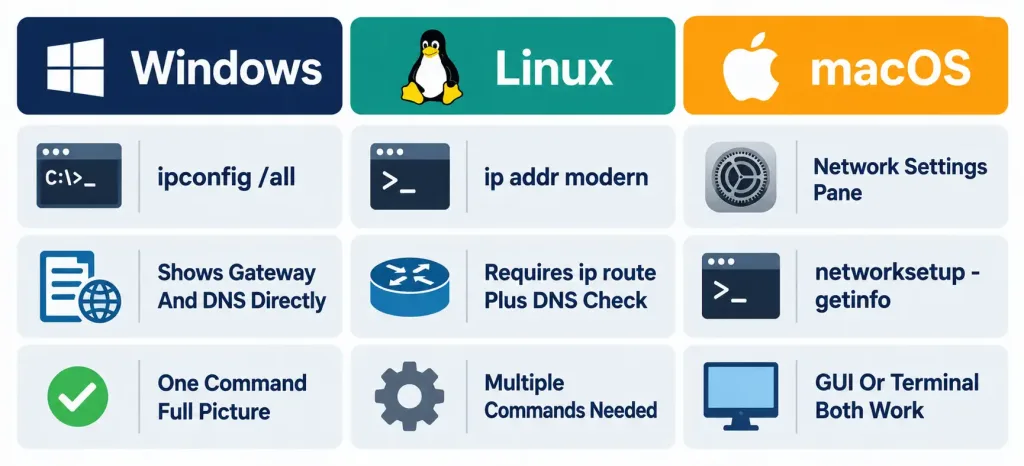
Reading the differences between the two outputs: notice ip addr expresses the subnet directly in CIDR notation (/24) rather than a separate dotted-decimal netmask line — a more compact format, but conceptually identical information to what ifconfig‘s separate netmask field shows. Both outputs reveal the same fundamental parameters (IP address, subnet information, and the interface’s own MAC address under different field names), just formatted differently and, notably, neither ifconfig nor ip addr directly display the default gateway or DNS servers — those require separate commands (ip route for the gateway, and checking /etc/resolv.conf or resolvectl status on systems using systemd-resolved, for DNS) — a genuine, practical difference from Windows’ single ipconfig /all command consolidating everything into one output.
macOS: GUI and Terminal Approaches
macOS offers both a graphical and a command-line path to the same information, and it’s worth knowing both since real troubleshooting sometimes favors one over the other depending on context.
Via System Settings/Preferences (the exact menu path varies slightly by macOS version): the Network pane directly displays the current IP address, subnet mask, router (Apple’s terminology for default gateway), and DNS servers for the active connection — genuinely the most beginner-friendly path to this information, requiring no command-line familiarity at all.
Via Terminal, macOS retains ifconfig as a functional command, inherited directly from its BSD Unix heritage (a different lineage than Linux, though the command happens to share the same name and largely similar output format). Additionally, networksetup -getinfo Wi-Fi (or the equivalent for a wired connection) provides a more consolidated, Windows-ipconfig-/all-like summary including the default gateway and DNS servers in one place, addressing exactly the gap that plain ifconfig leaves on both macOS and Linux.
The Four Parameters That Matter Most
Regardless of which OS or command produced the output, four specific values are what you’re actually looking for every time, since these four collectively determine whether a device can communicate at all:
- IP address — does the device have one at all, and does it look like a legitimate address for this network (versus, notably, an APIPA address, covered in detail below)?
- Subnet mask — combined with the IP address, this determines what the device considers “local” (reachable directly) versus “remote” (requiring the default gateway).
- Default gateway — the address traffic gets sent to for any destination outside the local subnet. No gateway, or an incorrect one, means no communication with anything off the local network, even if the local network itself works fine.
- DNS server(s) — without a working DNS server, name resolution fails, but note carefully: this is a completely different failure from a routing or connectivity problem, and the symptoms genuinely diverge in ways worth understanding precisely.
Reasoning Through a Connectivity Problem: The Systematic Approach
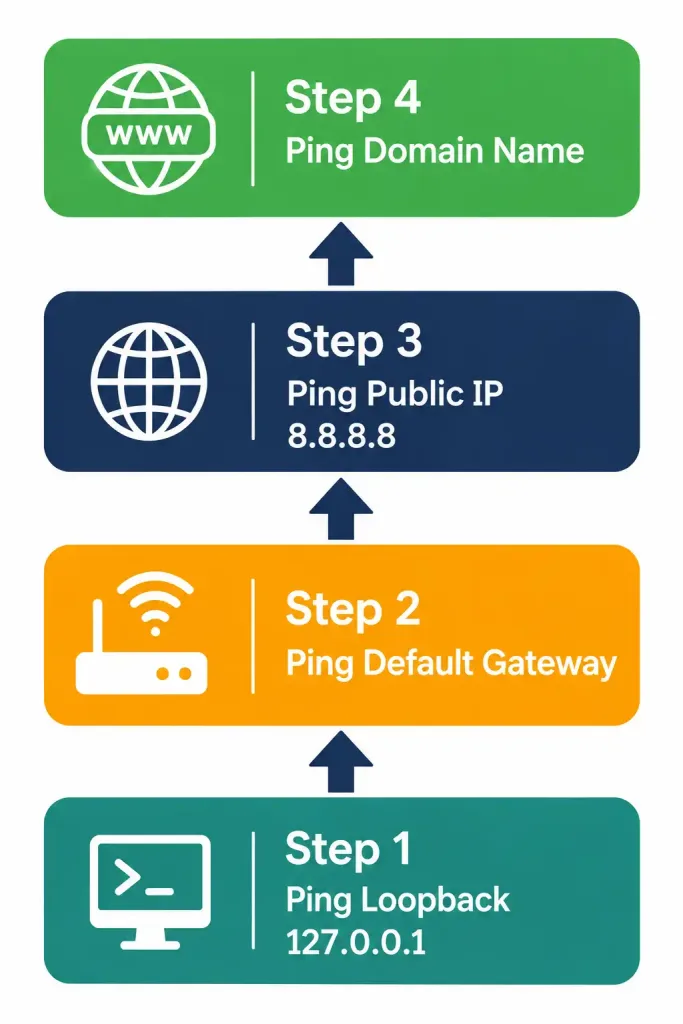
This is where verification becomes genuinely diagnostic rather than just descriptive. A systematic, layered approach — checking progressively “further” destinations — isolates exactly where a problem actually sits, rather than guessing.
Step one: can the device reach itself? Pinging the loopback address (127.0.0.1 on IPv4, ::1 on IPv6, covered in the previous lesson) confirms the device’s own network stack is functioning at a basic level. A failure here points to a problem with the device itself — a corrupted network stack, a disabled adapter, a driver issue — rather than anything happening further out on the network.
Step two: can the device reach its default gateway? Pinging the gateway address shown in the configuration output confirms the device can communicate with other devices on its own local subnet. A failure here, assuming the loopback test passed, points to a local-network problem — a bad cable, a misconfigured switch port, an incorrect subnet mask causing the device to miscalculate what’s actually local, or the gateway device itself being down.
Step three: can the device reach a known-working public IP address beyond the local network? Pinging a stable, well-known public IP (8.8.8.8 is commonly used specifically because Google maintains it reliably for this exact purpose) confirms routing beyond the local subnet is actually functioning — the gateway is correctly forwarding traffic onward, and whatever path exists from there to the broader internet is currently working.
Step four: can the device resolve a domain name to an IP address? This is where DNS-specific testing comes in, genuinely separate from everything tested in steps one through three. Pinging a domain name (like google.com) rather than a raw IP address tests DNS resolution specifically, on top of the connectivity already confirmed in step three.
Gateway Unreachable vs. DNS Not Resolving: Two Genuinely Different Problems
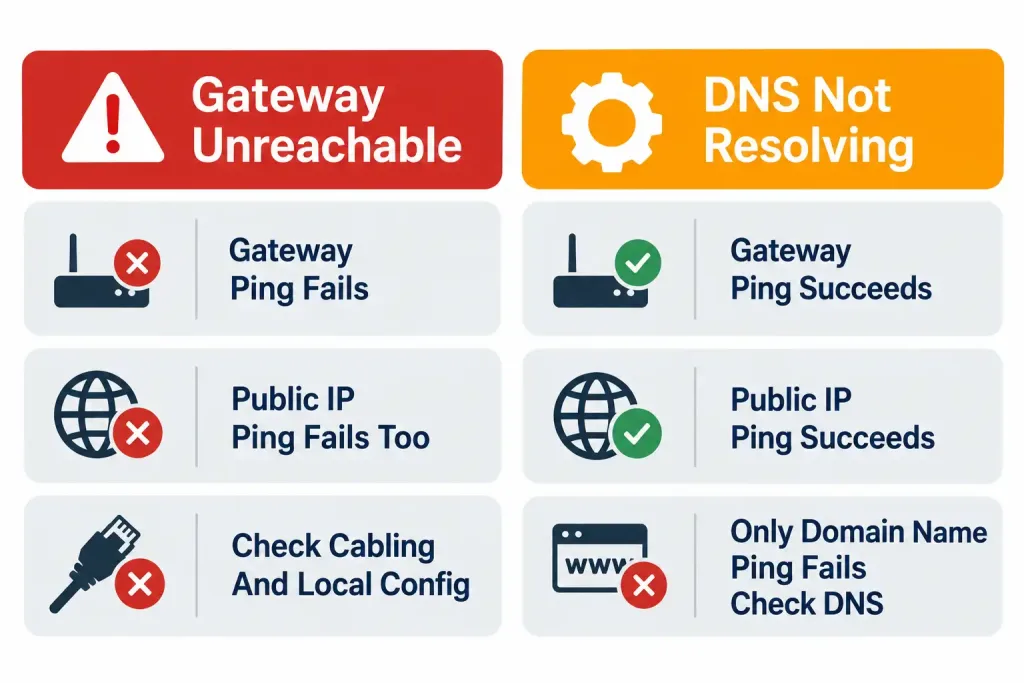
This distinction is worth its own dedicated section, since conflating these two failure modes is one of the most common troubleshooting mistakes, and the exam tests the distinction directly.
Symptom pattern: gateway unreachable. Pinging the default gateway itself fails, or times out. Pinging any address beyond the local subnet — by IP address or by name — also fails, since nothing can leave the local network at all. This points specifically to a Layer 1/2/3 problem on the local segment: bad cabling, an incorrect IP configuration causing the device to miscalculate its own subnet boundaries, a down or misconfigured gateway device, or a genuine physical connectivity issue.
Symptom pattern: DNS not resolving. Pinging the default gateway succeeds. Pinging a known public IP address directly (like 8.8.8.8) also succeeds — proving actual network connectivity, routing, and internet reachability are all functioning correctly. But pinging a domain name (like google.com) fails specifically, or returns a “could not resolve hostname” style error rather than a genuine connectivity timeout. This is a DNS-specific problem, isolated cleanly from any actual network connectivity issue — the network itself works fine; only the specific service that translates names into addresses is failing.
Worked example demonstrating the diagnostic value of this distinction: a user reports “the internet is completely down.” Running through the systematic steps above: loopback succeeds, gateway ping succeeds, ping to 8.8.8.8 succeeds, but ping to google.com fails with a resolution error. This immediately and precisely narrows the problem to DNS specifically — the actual network path to the internet is entirely fine.
The fix here is checking or changing the configured DNS server, not troubleshooting cabling, gateway configuration, or ISP connectivity, all of which have already been proven to work by the earlier successful steps. Without this systematic approach, a technician might waste significant time investigating cabling or the gateway device, when the actual, narrowly-isolated problem was a single misconfigured or unreachable DNS server the whole time.
APIPA: What a 169.254.x.x Address Actually Tells You
Occasionally, ipconfig output shows an IP address starting with 169.254 — and recognizing this specific pattern immediately, without needing to think it through from scratch, is a genuinely valuable diagnostic shortcut.
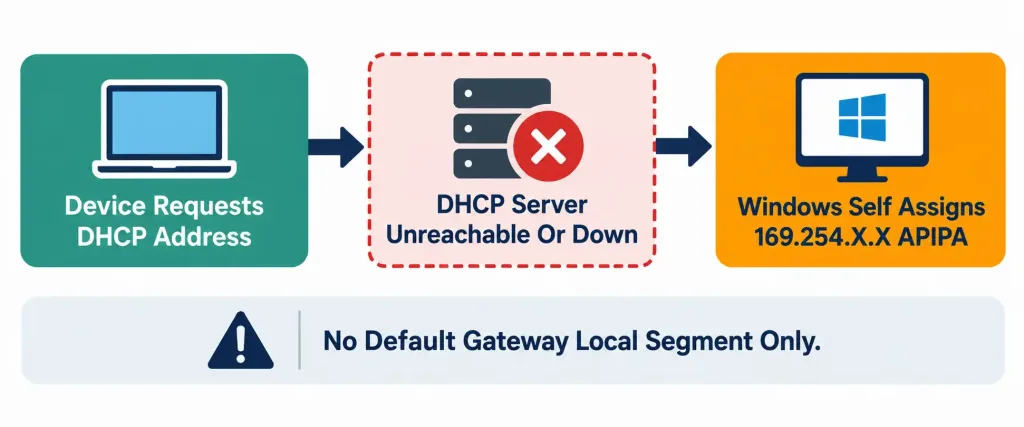
Automatic Private IP Addressing (APIPA) is a Windows fallback mechanism: when a device configured for DHCP can’t actually reach a DHCP server — the server is down, unreachable due to a network problem, or simply never responds within the expected timeframe — Windows assigns itself an address from the reserved 169.254.0.0/16 block automatically, purely so the device has some address rather than none at all.
Why this matters diagnostically, immediately, on sight: an APIPA address is a direct, unambiguous signal that DHCP failed. It’s not a coincidental address that happens to start with 169.254 — this specific range is reserved precisely for this fallback purpose and essentially never appears through any other legitimate assignment method. Seeing this address in ipconfig output tells you immediately that the actual problem to investigate is DHCP availability or reachability, not gateway configuration, not DNS, not general network cabling — the device never successfully completed a DHCP conversation with any server at all.
What APIPA addressing can and can’t do, precisely: a device with an APIPA address can communicate with other devices on the same local segment that also happen to have APIPA addresses (since they’re all in the same 169.254.0.0/16 subnet), but it has no default gateway configured at all under APIPA, meaning it cannot reach anything beyond its immediate local segment — no internet access, no reaching devices on other subnets, nothing beyond direct local peer-to-peer communication with other similarly APIPA-addressed devices.
Worked example: a user’s laptop shows an IP address of 169.254.23.108 with no default gateway listed. This is immediately, on sight, diagnostic: the DHCP process failed entirely for this device. The appropriate troubleshooting path is checking whether the DHCP server is reachable and functioning — not checking DNS settings, not checking the gateway’s own configuration, since the device never even got far enough in the addressing process to have a meaningful gateway or DNS configuration to check in the first place.
Common Misconceptions Worth Correcting Directly
“Having a valid-looking IP address means the network connection is working.” Not necessarily — an address can be assigned (whether via DHCP, APIPA, or static configuration) while the actual underlying connectivity is still broken for other reasons entirely: a bad cable, a disabled switch port, a misconfigured VLAN. Address assignment and actual functional connectivity are related but genuinely separate things, which is exactly why the systematic ping-based verification approach above matters — it tests actual functional reachability, not just the presence of a configured address.
“DNS problems and connectivity problems look the same, so it doesn’t matter which one you suspect first.” They produce meaningfully different, distinguishable symptoms, as covered above in detail, and starting the wrong troubleshooting path wastes real time — checking cabling and gateway configuration when the actual problem is an unreachable DNS server accomplishes nothing, and vice versa.
“ifconfig and ip addr show exactly the same information, just formatted differently.” Close, but not entirely accurate — while both show core interface addressing, neither natively displays the default gateway or DNS servers the way Windows’ ipconfig /all consolidates everything into one command’s output; Linux genuinely requires separate commands (ip route, and checking DNS configuration files or resolvectl) to get the complete picture Windows provides in a single command.
“A 169.254.x.x address means the network cable is unplugged.” This is a common but imprecise oversimplification. APIPA specifically indicates the DHCP process failed — which could be caused by an unplugged cable (since that would obviously prevent reaching a DHCP server), but could equally be caused by a functioning cable connected to a segment where the DHCP server itself is down, unreachable due to a misconfigured relay, or overwhelmed and not responding in time. The precise, accurate statement is “DHCP failed,” not “the cable is unplugged” — the cable being fine is entirely consistent with still seeing an APIPA address if the actual DHCP server has its own problem.
Frequently Asked Questions
Why does Windows use ipconfig while Linux and macOS use different command names?
This largely reflects each operating system’s independent historical development rather than any deliberate design coordination between them — Windows, Linux, and macOS/BSD all developed their networking tooling somewhat independently over decades, and the naming differences persist today mostly as a matter of established convention within each ecosystem rather than any current technical necessity for the divergence.
Is ifconfig actually still usable on modern Linux systems, or has it been fully removed?
It depends on the specific distribution and whether the net-tools package has been installed — many current distributions no longer install it by default, but it remains available as an optional package on most systems for anyone who specifically wants it, even though ip addr is the actively maintained, currently recommended path going forward.
Can a device have a valid default gateway configured but still fail to reach the internet?
Yes, genuinely common — this describes exactly the scenario where the gateway itself is reachable (confirmed by a successful ping to it) but something beyond the gateway has failed: the gateway’s own upstream connection, an ISP-side outage, or a routing problem further along the path than the immediate local network the client device can directly observe.
Does checking DNS require pinging a domain name specifically, or are there more direct tools?
Ping is a simple, universally available way to demonstrate the concept, but dedicated DNS lookup tools — nslookup or dig — provide much more direct, detailed information specifically about the DNS resolution process itself, including exactly which DNS server responded and what it returned, without conflating the test with an actual network reachability check the way pinging a resolved name does.
What’s the practical difference between checking IP configuration via GUI versus command line on any of these operating systems?
The underlying information is identical either way; the practical difference is workflow-dependent — GUI tools are generally more approachable for occasional or unfamiliar use, while command-line tools are faster for repeated checks, easier to document precisely (copying exact text output), and typically necessary for remote troubleshooting sessions where only a terminal connection is available at all.
Verifying IP Parameters for a Client OS: Practice Quiz
Test your knowledge of Windows, Linux, and macOS IP configuration commands, APIPA, DNS troubleshooting, ping testing, and systematic connectivity diagnosis.
Summary
- Windows uses ipconfig (brief) and ipconfig /all (complete, including DHCP lease and DNS details) for IP configuration verification.
- Linux is transitioning from the legacy ifconfig command to the modern ip addr command, though both remain in real-world use.
- macOS offers both a GUI Network pane and Terminal commands (ifconfig, networksetup) for the same information.
- The four parameters that matter most are IP address, subnet mask, default gateway, and DNS server(s) — these determine whether communication is possible at all.
- A systematic troubleshooting approach (loopback, then gateway, then a public IP, then a domain name) isolates connectivity problems precisely, rather than guessing.
- Gateway-unreachable and DNS-not-resolving are genuinely distinct failure patterns with different symptoms and different fixes — don’t conflate them.
- An APIPA address (169.254.0.0/16) is an unambiguous, on-sight signal that DHCP failed, distinct from a general cabling or connectivity problem.