Domain 2.0 | Infrastructure — 24% of exam
Learning Objectives
By the end of this lesson, you will be able to:
- Identify the core internal components of a computing device — motherboard, CPU, RAM, GPU, and NIC — and describe the role each plays in the system.
- Explain how the motherboard and its chipset connect and coordinate every other internal component.
- Compare firmware types (BIOS vs. UEFI) and describe what happens during the boot process before an operating system loads.
- Distinguish between CPU characteristics (cores, threads, clock speed, cache) and explain why they matter for real-world performance.
- Differentiate integrated graphics from discrete graphics, and explain when each is the appropriate choice.
Key Terms – Internal Computing Components
| Term | Definition |
|---|---|
| Motherboard | The main printed circuit board that houses the CPU socket, RAM slots, chipset, expansion slots, and connectors that link every other internal component together. |
| Chipset | A set of controller chips on the motherboard that manages communication between the CPU, memory, storage, and peripheral interfaces. |
| BIOS (Basic Input/Output System) | Legacy firmware stored on a motherboard chip that initializes hardware and starts the boot process before an operating system loads. |
| UEFI (Unified Extensible Firmware Interface) | Modern firmware that replaces BIOS, offering faster boot times, larger drive support, Secure Boot, and a mouse-driven setup interface. |
| CPU (Central Processing Unit) | The processor that executes instructions; often called the “brain” of the computer. |
| Core | An independent processing unit within a CPU; multi-core CPUs can execute multiple instruction streams simultaneously. |
| Clock speed | The rate, measured in GHz, at which a CPU executes instruction cycles. |
| Cache (L1/L2/L3) | Small, extremely fast memory built into or near the CPU that stores frequently used data to reduce trips to slower RAM. |
| RAM (Random Access Memory) | Volatile, high-speed memory that temporarily holds data and instructions the CPU is actively using. |
| DIMM | Dual In-line Memory Module — the physical stick form factor that RAM is installed in on desktop and server motherboards. |
| GPU (Graphics Processing Unit) | A specialized processor optimized for parallel calculations, most commonly used to render images, video, and 3D graphics. |
| Integrated graphics | A GPU built directly into the CPU die or chipset, sharing system RAM rather than using dedicated video memory. |
| Discrete graphics | A separate, dedicated GPU card with its own processor and video memory (VRAM), installed in an expansion slot. |
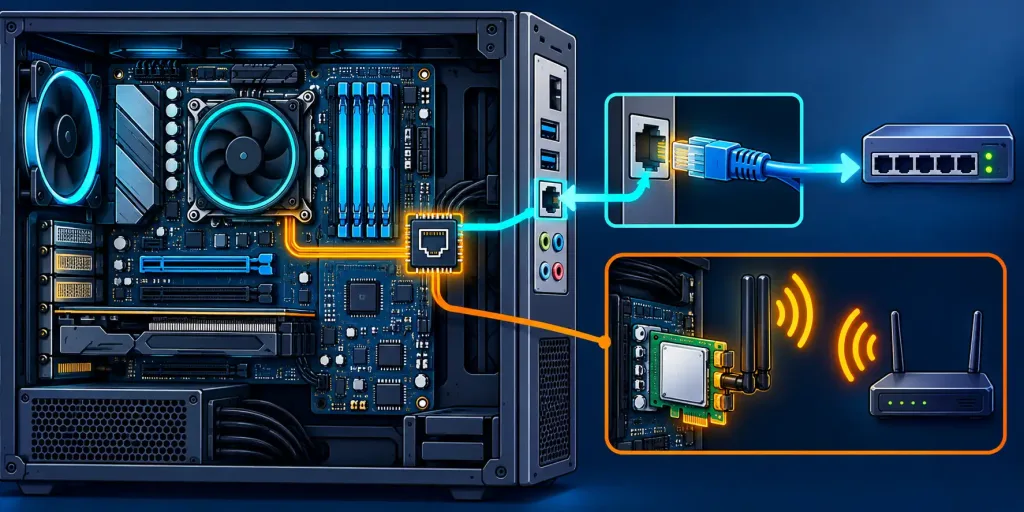
| NIC (Network Interface Card) | The hardware component that allows a device to connect to a wired or wireless network. |
| POST (Power-On Self-Test) | A diagnostic sequence run by firmware immediately after power-on to verify that core hardware is present and functioning. |
Explanation
The Motherboard: The System’s Backbone
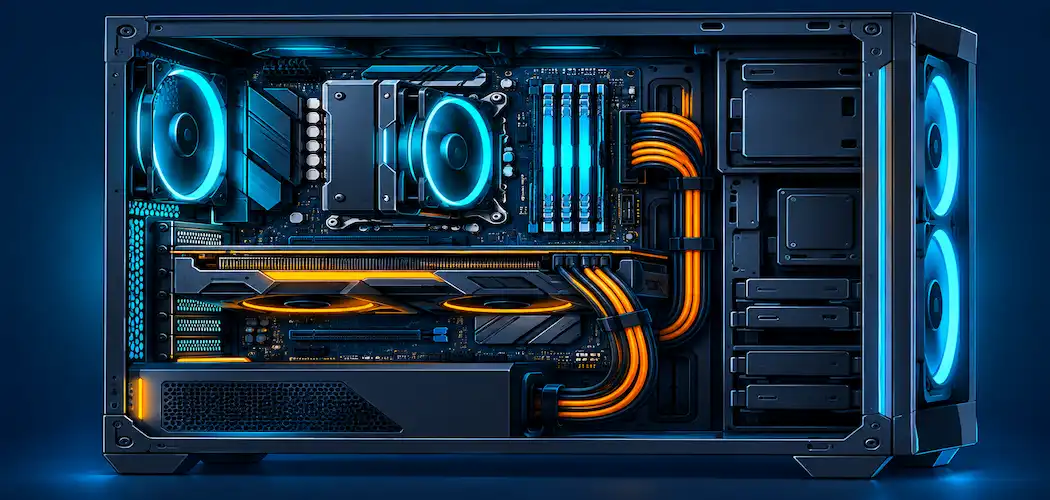
Every internal component in a computer needs a way to talk to every other component, and that job belongs to the motherboard. Physically, it is the large printed circuit board that everything else plugs into or is soldered onto: the CPU socket, RAM slots, expansion slots, storage connectors, power connectors, and the rear I/O panel that exposes USB, video, and audio ports to the outside world.
Motherboards come in standardized form factors so that cases, power supplies, and coolers can be built to fit them predictably. The most common desktop form factor is ATX (Advanced Technology Extended), with smaller variants like Micro-ATX and Mini-ITX used in compact builds where space is limited. A laptop’s “motherboard” is a proprietary, densely packed board custom-shaped to that specific chassis — which is a major reason laptop components are far less standardized and upgradeable than desktop components, and part of why a workstation is defined by its specification rather than its form factor.
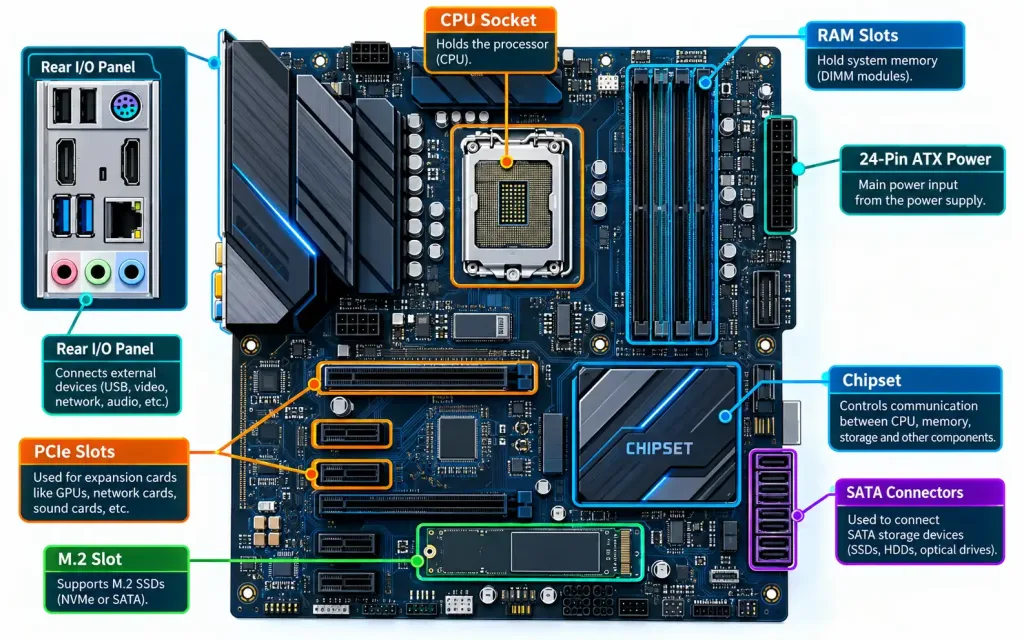
At the heart of the motherboard’s coordination role is the chipset — one or more controller chips that manage the flow of data between the CPU and everything else: memory, storage interfaces, USB controllers, and expansion slots. In modern designs, many functions once handled by a separate “northbridge” chip (close to the CPU, managing high-speed RAM and graphics traffic) have been absorbed directly into the CPU itself, while a “southbridge”-style chip (now often just called the Platform Controller Hub) still manages slower peripheral traffic like USB, audio, and SATA storage.
You don’t need to memorize northbridge/southbridge terminology for the exam, but you should understand that the chipset is the traffic director that determines which CPUs a motherboard supports, how many RAM slots and expansion slots it has, and which storage and USB standards it enables.
Firmware: BIOS vs. UEFI
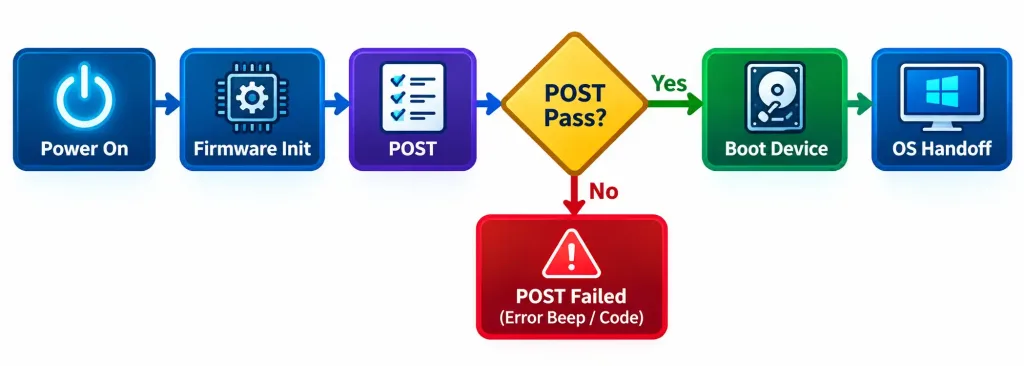
Before an operating system can load, something has to wake up the hardware, check that the essentials are present, and hand off control. That job belongs to firmware stored in a chip on the motherboard.
BIOS is the legacy standard. It runs in a restricted processor mode, uses simple text-based menus navigated entirely with a keyboard, and has hard limitations — most notably, it cannot natively boot from drives larger than 2.2 TB and lacks modern security features. UEFI is its modern replacement, and virtually every computer manufactured today ships with it. UEFI supports drives far larger than 2.2 TB, boots noticeably faster, offers graphical, mouse-navigable setup screens, and includes Secure Boot, a feature that checks the digital signature of boot software to block unauthorized or malicious code from loading before the operating system even starts.
Either way, firmware performs the POST (Power-On Self-Test) the instant you press the power button. POST checks that the CPU, RAM, and other critical components are present and responding correctly. If POST fails, you typically hear a pattern of beeps (on BIOS-based systems) or see an error code (on UEFI systems) rather than a normal boot — a diagnostic signal that plugs directly into the structured, step-by-step approach covered in Lesson 1.4’s troubleshooting methodology, and one you’ll see applied at a deeper level in the Network+ series’ own troubleshooting methodology lesson. Assuming POST succeeds, firmware then locates a valid boot device according to the boot order configured in setup, and hands control over to the operating system’s bootloader.
The CPU: Cores, Clock Speed, and Cache
The CPU executes the instructions that make software run. Three characteristics determine how it performs, and all three show up regularly on the exam.
Cores are independent processing units within a single physical CPU chip. A single-core CPU can only genuinely execute one instruction stream at a time; a quad-core CPU can execute four simultaneously, which is why modern CPUs almost universally ship with multiple cores — it allows the operating system to run background tasks, an application, and system processes all at once without constantly interrupting each other. Many CPUs also support multithreading (marketed by Intel as Hyper-Threading), which lets each physical core present itself to the operating system as two logical cores, improving efficiency though not doubling raw performance the way an additional physical core would.
Clock speed, measured in gigahertz (GHz), represents how many instruction cycles a core can complete per second — the same GHz unit introduced back in Lesson 1.3’s coverage of units of measure. A CPU running at 3.5 GHz completes 3.5 billion cycles per second. Clock speed matters, but it is not the whole story — a modern 6-core CPU at 3.0 GHz will typically outperform an older 2-core CPU at 4.0 GHz on any task that can take advantage of multiple cores, because total throughput depends on cores × efficiency × clock speed together, not clock speed alone.
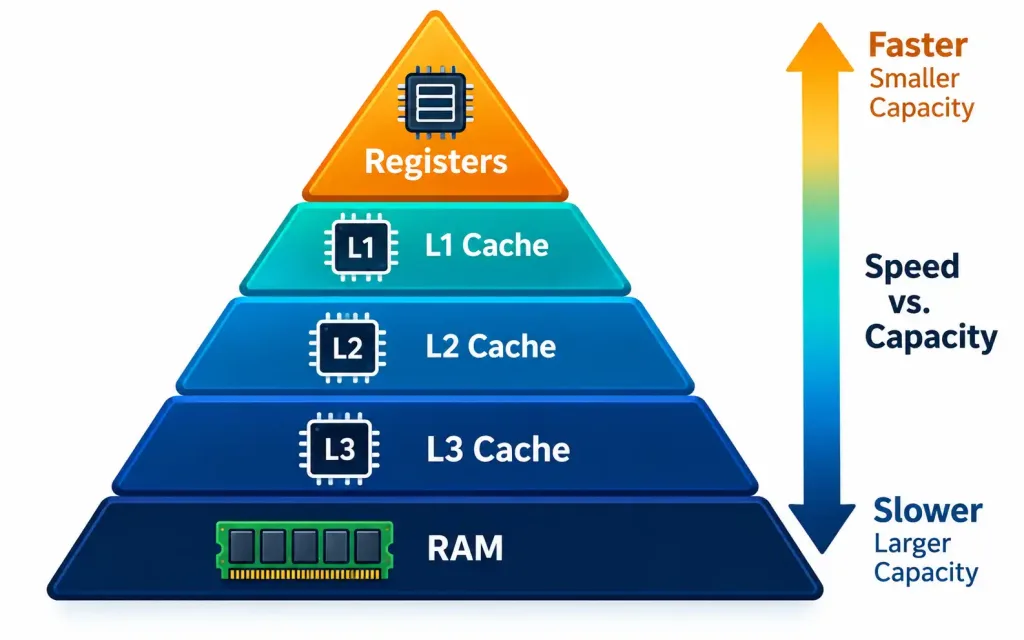
Cache is small, ultra-fast memory built directly into or immediately next to the CPU die. It exists because RAM, while fast compared to storage drives, is still far slower than the CPU itself — without cache, the CPU would spend enormous amounts of time simply waiting for data. Cache is organized in tiers: L1 is the smallest and fastest, sitting closest to each core; L2 is larger but slightly slower, often per-core as well; L3 is the largest and slowest of the three, and typically shared across all cores on the chip. Data the CPU is likely to need again gets promoted up through these tiers, dramatically cutting down trips out to main RAM.
You will also see CPU architecture referenced as 32-bit or 64-bit. This describes the size of the data chunks the CPU processes and, critically, how much RAM the system can address. A 32-bit processor and operating system combination can address a maximum of about 4 GB of RAM, regardless of how much physical RAM is installed. A 64-bit system can address vastly more — far beyond what any consumer machine actually installs — which is why virtually all modern devices, from smartphones to servers, run 64-bit architecture.
RAM: Fast, Temporary, and Volatile
RAM holds the data and instructions the CPU is actively working with right now, the same working-memory role first introduced in Lesson 1.2’s input-processing-output-storage cycle. It is dramatically faster than storage drives, but it is volatile — its contents disappear the instant power is cut, which is exactly why RAM is used for active work and storage drives are used for anything that needs to persist. This RAM-versus-storage distinction is one of the most heavily tested foundational concepts across the entire Tech+ exam, so it’s worth stating plainly: RAM is temporary working memory; storage is permanent (or at least persistent) memory.
Physically, desktop and laptop RAM installs as a DIMM (Dual In-line Memory Module), or the smaller SO-DIMM variant used in laptops and some compact desktops. RAM has gone through several generations, each labeled DDR (Double Data Rate) followed by a generation number — DDR3, DDR4, and DDR5 being the ones you’re most likely to encounter in the field today, with each generation offering higher speeds and greater power efficiency than the last, and each generation being physically keyed so it cannot be inserted into a slot designed for a different generation.
Two other RAM concepts worth knowing: ECC (Error-Correcting Code) RAM can detect and correct single-bit memory errors on the fly, and is used in servers and workstations where data integrity is critical, while standard non-ECC RAM (used in the overwhelming majority of consumer PCs) offers no such correction. And dual-channel (or quad-channel) memory configurations, where matched RAM sticks are installed in pairs across specific motherboard slots, allow the memory controller to read and write to multiple sticks simultaneously, improving throughput compared to running the same total capacity as a single stick.
A full comparison of storage technologies — HDDs, SSDs, NVMe, and their respective use cases — is covered in depth in the next lesson; for now, the key relationship to hold onto is that RAM and storage serve fundamentally different jobs, and a device needs both.
GPU: Rendering the Visual World
The GPU is a processor purpose-built for a very specific kind of math: the same calculation, repeated across thousands of data points simultaneously. That’s exactly what rendering an image requires — every pixel on screen needs its color calculated, and a GPU’s architecture, packed with many simple cores rather than a few complex ones, is far better suited to that kind of massively parallel workload than a CPU is.
There are two ways a system gets GPU functionality. Integrated graphics are built directly into the CPU package (or, in older designs, the motherboard chipset), and they share the system’s main RAM rather than having their own dedicated memory pool. This keeps cost, power draw, and heat low, and is entirely sufficient for everyday tasks — web browsing, office productivity, video playback, and even light photo editing.
Discrete graphics, by contrast, are a separate physical card that plugs into a PCIe expansion slot, carrying their own processor and their own dedicated high-speed memory called VRAM (Video RAM). Discrete GPUs cost more, draw significantly more power, and generate more heat, but they deliver the performance needed for demanding 3D gaming, video editing and rendering, 3D modeling, and increasingly, local AI workloads that benefit from parallel processing.
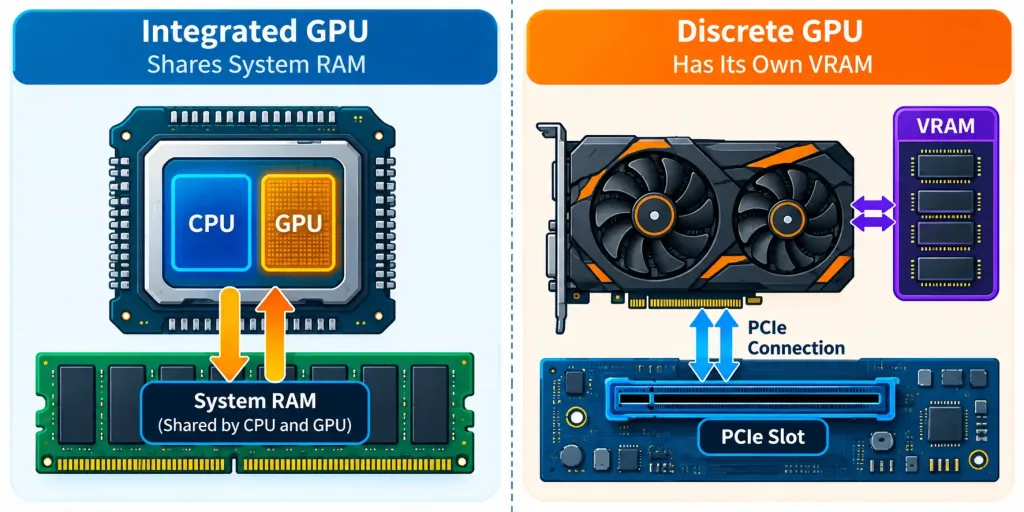
Choosing between the two isn’t about one being universally “better” — it’s about matching the component to the workload, a decision-making pattern that recurs constantly throughout this course and the exam: match the hardware to the actual use case rather than defaulting to “more powerful is always right.”
NIC: Getting Onto the Network
The NIC (Network Interface Card) is what allows a device to physically join a network, wired or wireless. On most modern motherboards, a wired Ethernet NIC is integrated directly onto the board, exposing an RJ45 port on the rear I/O panel that connects to the same kind of copper Ethernet cabling covered in the Network+ series; wireless NICs are often integrated as well, particularly in laptops, but can also be added as a separate expansion card or an external USB adapter when a device lacks built-in Wi-Fi or needs an upgrade.
Every NIC — integrated or added — carries a unique, factory-assigned identifier called a MAC (Media Access Control) address, a 12-character hexadecimal value that identifies that specific piece of hardware at the physical network layer. You’ll dig into MAC addresses, IP addressing, and how devices actually communicate across a network in much greater depth in the Basic Networking Concepts lesson later in this module, and see the NIC sit alongside other core infrastructure devices in the Network+ series — for now, simply understand the NIC’s role: it is the internal component responsible for turning a computer into a device that can send and receive network traffic at all.
Expansion Slots and Power Delivery
Two supporting pieces round out the internal-components picture, and both connect directly back to the motherboard.
Expansion slots, most commonly the PCIe (Peripheral Component Interconnect Express) standard on modern boards, let you add capability the motherboard doesn’t already provide onboard: a discrete GPU, an additional NIC, a capture card, or extra USB and storage controllers. PCIe slots come in different physical lengths — x1, x4, x8, and x16 being the common designations — where the number describes how many data “lanes” the slot has available, and therefore how much bandwidth a card in that slot can use. A discrete GPU, which needs the most bandwidth of any typical add-in card, is almost always installed in the longest x16 slot, positioned closest to the CPU socket for the shortest possible signal path.
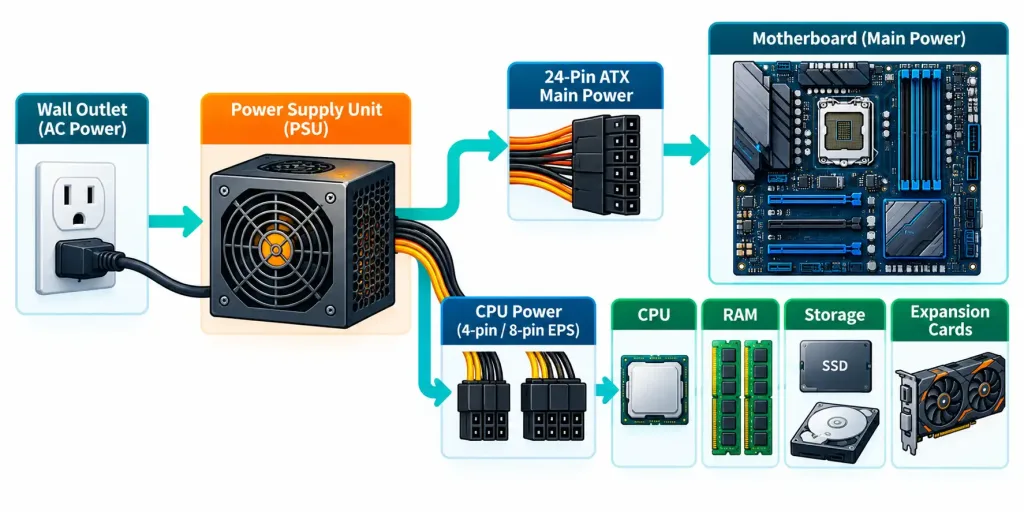
None of these components do anything without power, which is where the power supply unit (PSU) comes in. The PSU converts high-voltage AC power from a wall outlet into the several different low-voltage DC rails the motherboard, CPU, storage drives, and expansion cards each require.
Desktop PSUs connect to the motherboard through a large 24-pin main connector plus one or more smaller 4- or 8-pin connectors dedicated specifically to feeding the CPU, since a modern CPU under load can draw a substantial share of the system’s total power on its own. PSUs are rated by maximum wattage output, and a system builder has to make sure the PSU’s rated wattage comfortably exceeds the combined draw of every installed component — CPU, GPU, drives, and fans included — with headroom to spare.
Cooling: Keeping Components Within Operating Range
Every component discussed in this lesson generates heat as a byproduct of doing work, and the CPU in particular can produce enough heat to damage itself within seconds if left unmanaged. Cooling solutions exist specifically to keep components within their rated operating temperature range.
The most common approach is air cooling: a metal heatsink, usually copper or aluminum, sits directly on top of the CPU with a thin layer of thermal paste between them to eliminate microscopic air gaps and improve heat transfer, and a fan mounted on the heatsink pushes that absorbed heat out into the surrounding case airflow.
Liquid cooling works on the same core principle but uses a liquid coolant circulated through a closed loop between a CPU-mounted water block and a radiator, where fans then dissipate the heat the liquid has absorbed; liquid cooling generally handles higher heat loads more quietly than air cooling, at greater cost and installation complexity. Regardless of method, thermal management is a system-wide concern, not just a CPU concern — GPUs, motherboard chipsets, and even high-performance storage drives increasingly ship with their own dedicated heatsinks for the same underlying reason.
How It All Works Together
It’s worth stepping back and connecting these pieces, because the exam frequently tests whether you understand the relationships between components, not just isolated definitions. When you press the power button, the motherboard and its chipset route power and signals to every component. Firmware (BIOS or UEFI) wakes up, runs POST to confirm the CPU and RAM are present and healthy, then hands off to the operating system once a valid boot device is found.
Once the OS is running, the CPU continually pulls instructions and data from RAM (using cache to speed up the most frequent requests), the GPU renders whatever needs to appear on screen, and the NIC carries data in and out over the network. Every one of these components depends on the motherboard to physically connect it to the rest, and depends on the chipset to make sure that connection actually works.
Recognition-Level Verification Concepts
- Recognize that the motherboard is the central connection point for every other internal component, and that its chipset determines compatibility (which CPUs, how much RAM, which expansion standards) more than any single spec sheet number.
- Recognize the visual and functional difference between BIOS (text-based, keyboard-only, 2.2 TB boot drive limit) and UEFI (graphical, mouse-navigable, Secure Boot, no practical drive-size limit).
- Recognize that POST runs before an operating system loads, and that a POST failure is signaled through beep codes or on-screen error codes rather than a normal boot sequence.
- Recognize that CPU performance is a function of cores, clock speed, and cache together — no single number tells the whole story.
- Recognize that RAM is volatile (contents lost on power-off) while storage is persistent — this distinction underlies a large share of exam scenario questions.
- Recognize when a scenario calls for integrated graphics (general productivity, low cost, low power) versus discrete graphics (gaming, rendering, 3D work, dedicated VRAM).
- Recognize the NIC as the component responsible for network connectivity, and the MAC address as its unique hardware identifier.
- Recognize that PCIe slot length (x1/x4/x8/x16) corresponds to available bandwidth, and that bandwidth-hungry cards like discrete GPUs need the longest slot.
- Recognize that a PSU’s wattage rating must exceed the combined draw of every installed component, and that CPUs typically draw power through a dedicated connector separate from the main 24-pin motherboard connector.
- Recognize thermal paste as the material that improves heat transfer between a CPU and its heatsink, not as an adhesive or a substitute for a cooler.
Common Exam Traps
- Confusing RAM with storage. The exam will describe a scenario (“a user’s open documents disappear after an unexpected shutdown”) and expect you to identify RAM’s volatility as the cause, not a storage failure.
- Assuming higher clock speed always means better performance. Watch for scenario questions comparing two CPUs where core count or cache size, not GHz, is the deciding factor.
- Mixing up BIOS and UEFI capabilities. Remember: BIOS is text/keyboard-only with the 2.2 TB limit; UEFI is graphical/mouse-capable with Secure Boot and no such limit.
- Assuming discrete graphics are always the “correct” upgrade. A scenario describing a basic office workstation is testing whether you recognize integrated graphics as perfectly adequate — and more cost- and power-efficient — for that use case.
- Forgetting that a CPU’s bit architecture (32-bit vs. 64-bit) caps addressable RAM. A 32-bit system topping out around 4 GB of usable RAM is a specific, testable fact.
- Treating the chipset as unimportant. Exam scenarios about compatibility (“why won’t this CPU work in this motherboard?”) are frequently chipset questions in disguise.
- Confusing PCIe slot length with slot speed generation. A physically longer slot (x16) provides more lanes, but PCIe generation (e.g., 4.0 vs. 5.0) also affects total bandwidth — the exam tests slot length/lane count at the recognition level, so focus there first.
- Underestimating power supply requirements. A scenario describing a system that randomly shuts down under heavy load, especially after a GPU upgrade, is frequently pointing at an undersized PSU rather than a software problem.
- Mistaking thermal paste for a permanent fix. It degrades over time and is reapplied whenever a cooler is removed and reinstalled — a detail that shows up in troubleshooting-flavored scenario questions.
Lesson 2.2 Practice Questions: Internal Computing Components
Summary
The motherboard connects and coordinates every other internal component through its chipset, which determines compatibility for CPUs, RAM, and expansion standards more than any single spec sheet number.
Firmware (BIOS or UEFI) wakes the system up and runs POST to verify core hardware before handing control to the operating system, with UEFI offering faster boot times, larger drive support, and Secure Boot compared to legacy BIOS.
A CPU's real-world performance depends on cores, clock speed, and cache working together, not on any one number in isolation, and its 32-bit or 64-bit architecture caps how much RAM the system can address.
RAM is volatile working memory that loses its contents the instant power is removed, which is fundamentally different from non-volatile storage — a distinction that underlies much of the reasoning tested throughout this course.
Integrated graphics are sufficient and efficient for everyday productivity tasks, while discrete graphics with dedicated VRAM are worth their added cost and power draw for gaming, rendering, and 3D work.
The NIC gets a device onto a network, PCIe expansion slots and the power supply provide the bandwidth and power every component needs, and cooling keeps all of it within a safe operating temperature.
With these core internal components established, the next lesson turns to a topic only briefly touched on here: storage technologies, comparing HDDs, SSDs, and NVMe drives in depth.