Domain 2.0 | Infrastructure — 24% of exam
Learning Objectives
By the end of this lesson, you will be able to:
- Distinguish input, output, and multifunction peripheral devices, and identify common examples of each.
- Compare common wired connection types and standards, including USB versions and connector shapes, and video connectors like HDMI, DisplayPort, and VGA.
- Compare common wireless connection methods, including Bluetooth and Wi-Fi, and describe the basic pairing process.
- Explain the role of device drivers and Plug and Play in getting a peripheral working correctly.
- Identify common printer types and their appropriate use cases.
- Apply a basic troubleshooting approach to a peripheral that isn’t working as expected.
Key Terms
| Term | Definition |
|---|---|
| Peripheral device | Any hardware component connected to a computer that is not part of its core internal system, used for input, output, or both. |
| Input device | A peripheral that sends data or commands into the computer, such as a keyboard or mouse. |
| Output device | A peripheral that presents data or results from the computer, such as a monitor or printer. |
| Driver | Software that allows the operating system to communicate with and control a specific piece of hardware. |
| Plug and Play (PnP) | A standard that allows a computer to automatically detect and configure a newly connected device with little or no user action. |
| USB (Universal Serial Bus) | A widely used standard for connecting peripherals, defined both by connector shape (Type-A, Type-C, etc.) and by data transfer generation (2.0, 3.0, and so on). |
| HDMI (High-Definition Multimedia Interface) | A digital video and audio connector standard commonly used to connect monitors, TVs, and projectors. |
| DisplayPort | A digital video connector standard common on PCs and monitors, supporting high resolutions and refresh rates. |
| Bluetooth | A short-range wireless standard used to connect peripherals like keyboards, mice, and headsets without cables. |
| Pairing | The process of establishing a trusted wireless connection between two Bluetooth devices. |
| Inkjet printer | A printer that sprays tiny droplets of liquid ink onto paper to form an image. |
| Laser printer | A printer that uses a laser, a charged drum, and heat-fused toner powder to produce an image. |
| Multifunction printer (MFP) | A single device combining printing, scanning, copying, and often faxing into one unit. |
Explanation
What Counts as a Peripheral
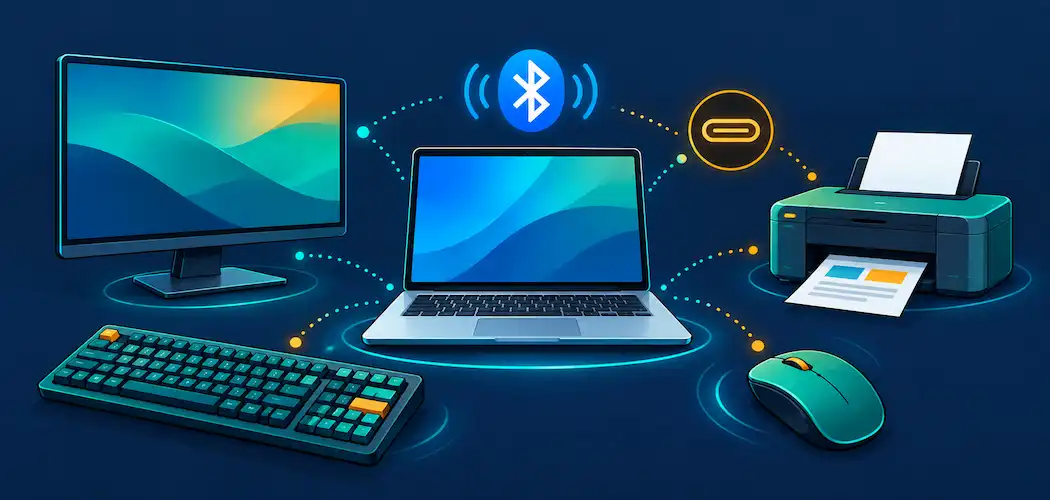
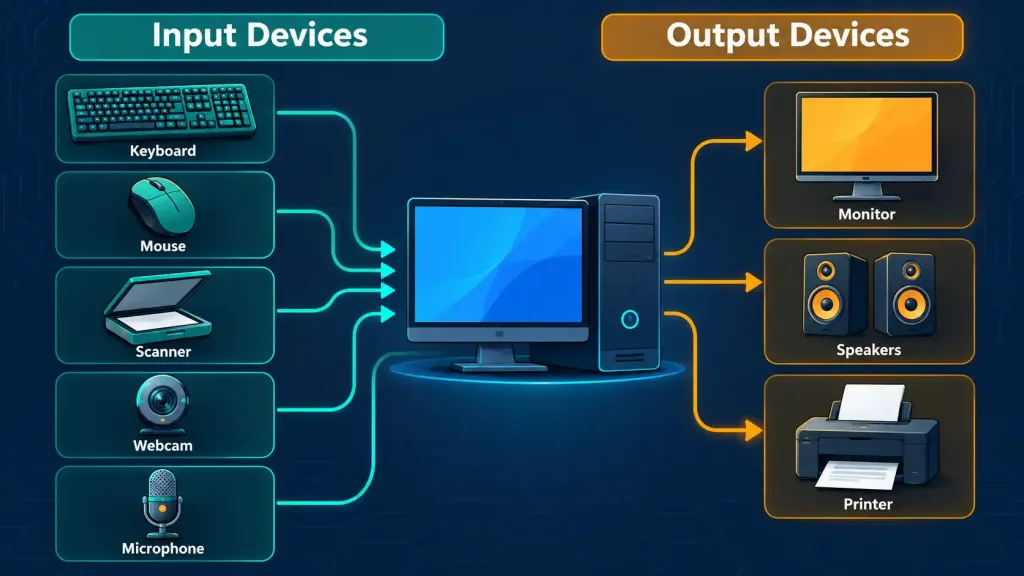
A peripheral device is any piece of hardware connected to a computer that sits outside its core internal system — everything covered in the last two lessons (motherboard, CPU, RAM, storage) lives inside the case; everything in this lesson connects to it from the outside. Peripherals fall into two broad categories based on the direction data travels: input devices send data or commands into the computer, and output devices present data or results back out to the user.
Some devices do both at once — a touchscreen monitor, for instance, is simultaneously an output device (displaying an image) and an input device (accepting touch commands) — and a smart classification skill worth building now is asking “which direction is the data actually flowing?” rather than memorizing a fixed list of which devices belong in which bucket.
Common input devices include the keyboard and mouse (or trackpad on a laptop), a scanner that digitizes a physical document, a webcam that captures video, and a microphone that captures audio. Common output devices include the monitor, speakers or headphones, and the printer. This input/output framing should feel familiar — it’s the same distinction first introduced through the IPOS cycle back in Lesson 1.2, just applied specifically to the external hardware a person actually touches and looks at every day, rather than the internal components covered in Lessons 2.2 and 2.3.
Wired Connections: USB and Beyond
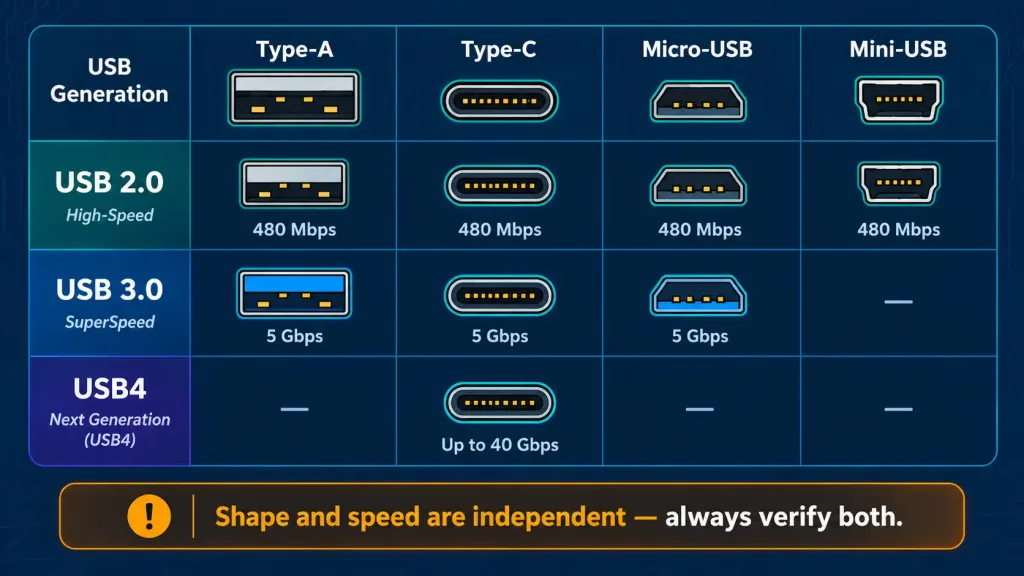
The overwhelming majority of wired peripherals today connect through some version of USB (Universal Serial Bus), and USB is actually described by two separate, independent characteristics that are easy to conflate: connector shape and generation/speed.
Connector shape refers to the physical plug: USB Type-A is the traditional rectangular connector found on most desktop and laptop ports for years; USB Type-C is the newer, smaller, reversible connector (it can be inserted either way up) that has become the standard across modern laptops, phones, and peripherals; Micro-USB and Mini-USB are smaller connectors historically used on older phones, cameras, and accessories, now largely phased out in favor of Type-C.
Generation describes data transfer speed and capability, labeled with version numbers: USB 2.0 offers modest speeds sufficient for keyboards, mice, and basic accessories; USB 3.0 (also marketed as USB 3.1 Gen 1 or USB 3.2 Gen 1) offers dramatically higher throughput, suitable for external storage drives and high-resolution webcams; and newer USB 3.2 and USB4 generations push speeds higher still, with USB4 in particular converging with Thunderbolt to support very high-bandwidth data, video, and even charging over a single Type-C cable and port.
The critical exam-relevant point is that connector shape and generation are independent of each other — a USB Type-C port could be USB 2.0 speed or USB4 speed depending on what the manufacturer built behind it, exactly the same “form factor doesn’t guarantee performance” pattern you already saw with M.2 storage in Lesson 2.3. Never assume a device’s speed just from the shape of its connector; check the labeled or documented generation instead.
Beyond USB, video-specific connectors carry a monitor or projector’s image and often its audio. HDMI (High-Definition Multimedia Interface) is the most common digital video and audio connector on consumer electronics, TVs, and most modern monitors. DisplayPort is common on PCs and higher-end monitors, generally supporting higher resolutions and refresh rates than HDMI at a given generation, and is frequently the preferred choice for gaming and professional monitor setups. Older VGA (Video Graphics Array) and DVI (Digital Visual Interface) connectors are still occasionally found on legacy hardware and projectors — VGA is analog and the oldest of the group, while DVI is digital but has been almost entirely superseded by HDMI and DisplayPort on new equipment.
Wireless Connections: Bluetooth and Beyond
Not every peripheral needs a cable. Bluetooth is a short-range wireless standard purpose-built for connecting nearby personal devices — keyboards, mice, headphones, speakers, and game controllers among the most common examples — typically effective over a range of about 30 feet (10 meters), though this varies by device class and obstacles in the environment.
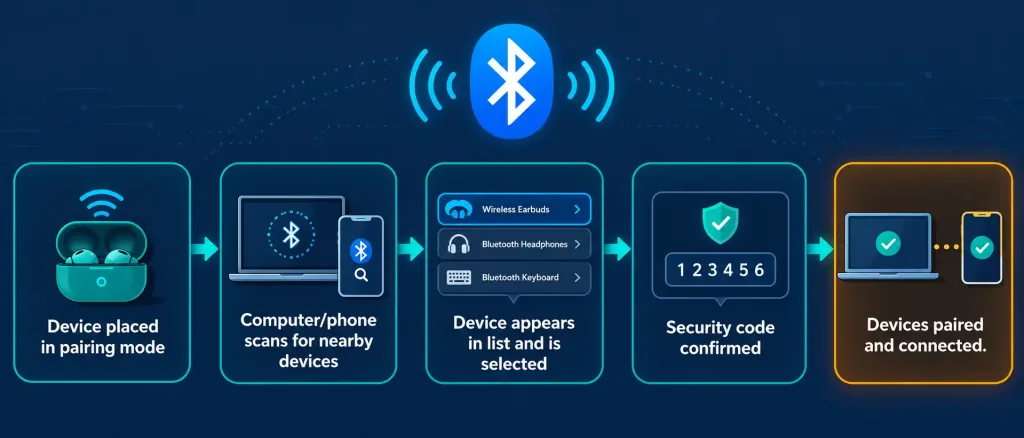
Getting a Bluetooth device working requires pairing: a one-time process where two devices discover each other, exchange a security code or confirmation, and establish a trusted connection that can then reconnect automatically in the future without repeating the full process. A device usually needs to be placed into a discoverable “pairing mode” (often by holding a button) before the connecting computer or phone can find it in a list of nearby devices.
Some peripherals instead use a small proprietary USB RF (radio frequency) dongle rather than Bluetooth — common with budget wireless mice and keyboards — which trades Bluetooth’s broad compatibility for a dedicated, pre-paired connection that works the moment the dongle is plugged in, with no separate pairing step required. Wi-Fi, covered in far more depth in the Basic Networking Concepts and Small Wireless Network Capabilities lessons later in this module, is occasionally used directly by peripherals too — many modern printers and some cameras connect straight to a home Wi-Fi network rather than to one specific computer, letting multiple devices on the network print to or pull footage from them independently.
A network-connected printer sitting on an office LAN sometimes still uses a wired Ethernet connection instead of Wi-Fi for reliability, running over the same copper Ethernet cabling standards covered in the Network+ series.
Docks, Hubs, and Managing Limited Ports
Modern laptops in particular often ship with a limited number of ports, especially thin-and-light models that may have only one or two USB-C connectors total. A USB hub solves the simplest version of this problem, splitting one physical port into several, though every connected device then shares that single port’s total available bandwidth.
A docking station goes further, typically connecting to a laptop through one cable (often USB-C or Thunderbolt) and in exchange providing a full set of ports on the other side — additional USB ports, HDMI or DisplayPort video outputs, wired Ethernet, and sometimes power delivery to charge the laptop itself, all at once. Docking stations are especially common in office environments where a laptop needs to quickly connect to a full desk setup (external monitor, keyboard, mouse, wired network) with a single cable rather than plugging in each peripheral separately every time.
Drivers and Plug and Play
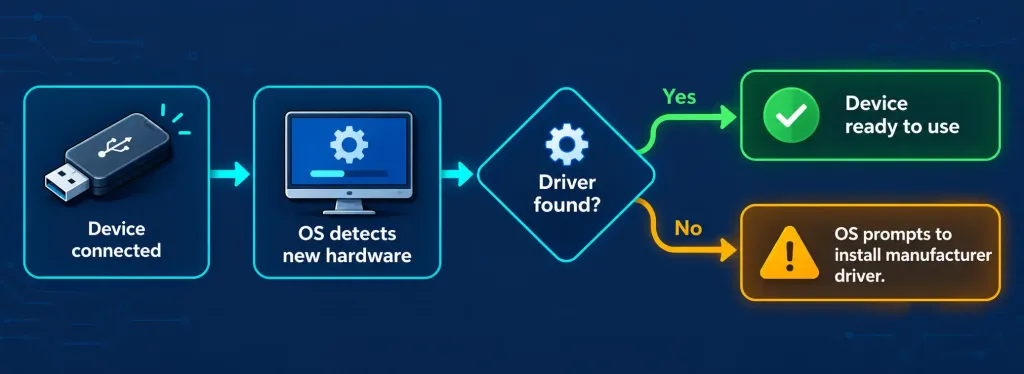
Simply plugging a peripheral in physically doesn’t automatically mean the operating system knows how to use it correctly — that’s the job of a driver, a piece of software that translates between the operating system’s generic commands and that specific piece of hardware’s particular requirements. Without the correct driver, a device may not work at all, or may work only with limited functionality — a printer might print in black and white only, or a graphics tablet might register basic movement but ignore pressure sensitivity, until its proper driver is installed.
Plug and Play (PnP) is the standard that makes most of this invisible to the everyday user. When a PnP-compliant device is connected, the operating system automatically detects it, identifies what it is, and either loads an already-available built-in driver or prompts to download the correct one — all without the user needing to manually install anything in most everyday cases. This is precisely why connecting a basic USB mouse to a modern computer “just works” instantly, while a specialized piece of hardware (a professional audio interface, a particular printer model, an uncommon graphics tablet) may still require the manufacturer’s own driver software to be installed manually for full functionality.
Printers: Inkjet, Laser, and Multifunction
Printers deserve particular attention because several distinct technologies are covered under one everyday word, and the exam expects you to distinguish them by how they actually work, not just by brand or price point.
An inkjet printer works by spraying extremely small, precisely controlled droplets of liquid ink directly onto paper to form text and images. Inkjets are generally inexpensive to buy, handle photo-quality color printing well, but tend to have a higher cost per page for high-volume printing, and their ink cartridges can dry out or clog if left unused for long periods.
A laser printer works completely differently: a laser draws an electrostatic image onto a rotating charged drum, fine powder called toner clings to the charged areas of the drum, and the toner is then fused onto the paper using heat and pressure. Laser printers are generally faster, more cost-effective per page for high-volume black-and-white printing, and more durable for sustained office use, though they typically cost more upfront than a basic inkjet.
A multifunction printer (MFP) combines printing (using either inkjet or laser technology underneath) with scanning, copying, and often faxing in a single unit, which is now the dominant form factor in most home and small-office settings simply because it consolidates several separate devices’ worth of function into one physical footprint and one set of drivers to manage.

Installing and Configuring a Peripheral, Step by Step
Bringing everything in this lesson together, a typical peripheral installation follows a predictable pattern worth internalizing as a general troubleshooting and setup mental model, not just a memorized list.
First, the physical or wireless connection is established — plugging in the correct USB cable, connecting an HDMI cable to a monitor, or completing a Bluetooth pairing sequence. Second, Plug and Play takes over where possible, with the operating system attempting to automatically detect and configure the device using an available driver.
Third, for anything beyond basic functionality, the correct manufacturer driver may need to be installed manually, typically downloaded directly from the manufacturer’s website matched to the specific model and the operating system version in use. Fourth, many devices benefit from a configuration step afterward — setting a mouse’s sensitivity, calibrating a monitor’s color and resolution, or configuring a printer’s default paper size and print quality — to get the device working the way the user actually wants, beyond just “working at all.”
This same layered pattern — connect, detect, drive, configure — recurs constantly in real IT support work, and recognizing which layer a given problem sits at is often the fastest route to fixing it. A device that isn’t detected at all points to the connection layer; a device that’s detected but not fully functional points to the driver layer; a device that works but not the way the user wants points to the configuration layer.
Basic Peripheral Troubleshooting
A peripheral that isn’t behaving as expected almost always traces back to one of the same few root causes, and working through them in a sensible order — following the same structured mindset covered in Lesson 1.4’s troubleshooting methodology — resolves the overwhelming majority of everyday peripheral issues without needing to escalate further.
Start with the physical connection: is the cable fully seated, is the correct port being used, and — for wireless devices — are batteries charged and is the device actually powered on? Next, check whether the device is being detected by the operating system at all; if it isn’t showing up anywhere, that points back to a connection or hardware problem rather than a software one.
If it is detected but not working correctly, suspect the driver — try reinstalling or updating it, since a corrupted or outdated driver is one of the single most common causes of a peripheral technically being “recognized” but not actually functioning properly. Finally, if the device is detected and appears to have a working driver but still doesn’t behave the way it should, check its configuration settings, since a perfectly functional device set up with the wrong options can look exactly like a broken one.
Recognition-Level Verification Concepts
- Recognize input devices (keyboard, mouse, scanner, webcam, microphone) as sending data into the computer, and output devices (monitor, speakers, printer) as presenting data or results out.
- Recognize that USB connector shape (Type-A, Type-C, Micro-USB) and USB generation/speed (2.0, 3.0, USB4) are independent characteristics — a connector’s shape never guarantees its speed.
- Recognize HDMI and DisplayPort as the common modern digital video connectors, with VGA (analog) and DVI as older, largely superseded standards.
- Recognize Bluetooth pairing as the process of establishing a trusted wireless connection, typically requiring a discoverable mode and a security code confirmation.
- Recognize the role of a driver in letting the OS communicate with specific hardware, and Plug and Play as the standard that automates much of this process.
- Recognize an inkjet printer (liquid ink droplets) versus a laser printer (toner fused by heat onto a charged drum) by their underlying mechanism, not just their price or speed.
- Recognize the layered troubleshooting order for a misbehaving peripheral: connection, detection, driver, then configuration.
- Recognize a USB hub as splitting one port’s bandwidth across multiple devices, versus a docking station as providing a full independent set of ports (video, USB, Ethernet, power) through a single connection.
Common Exam Traps
- Assuming a USB-C port is automatically fast. Connector shape and USB generation are separate specifications — always verify the actual generation supported.
- Confusing HDMI and DisplayPort as interchangeable with no differences. While both carry digital video and audio, DisplayPort commonly supports higher resolutions and refresh rates at a given generation, which occasionally matters in scenario questions about high-refresh gaming monitors.
- Assuming Plug and Play means no driver is ever needed. PnP automates detection and, where possible, driver loading — but many specialized devices still require a manufacturer-supplied driver for full functionality.
- Confusing inkjet and laser printer mechanisms. Inkjet sprays liquid ink; laser fuses toner powder using heat and a charged drum. A scenario describing “toner” or “drum” is describing a laser printer, not an inkjet.
- Jumping straight to reinstalling drivers without checking the physical connection first. The troubleshooting order matters — connection issues are the most common and the fastest to rule out.
- Treating a wireless RF dongle mouse/keyboard as if it uses Bluetooth pairing. Proprietary RF dongles typically come pre-paired and require no separate pairing sequence, unlike Bluetooth devices.
- Assuming a USB hub multiplies available bandwidth. All devices on a hub share the bandwidth of the single upstream port it plugs into — a hub does not create additional total throughput.
Lesson 2.4 Practice Questions: Installing and Configuring Peripheral Devices
Summary
A peripheral device is any external hardware connected to a computer, split into input devices that send data in and output devices that present results out, with some devices doing both.
USB connector shape (Type-A, Type-C, Micro-USB) and USB generation (2.0, 3.0, USB4) are two independent specifications, and neither one can be assumed from the other.
HDMI and DisplayPort are the dominant modern digital video connectors, while VGA and DVI are largely legacy standards still occasionally found on older equipment.
Bluetooth connects nearby peripherals wirelessly through a one-time pairing process, while proprietary RF dongles typically arrive pre-paired with no separate setup step.
A driver lets the operating system communicate with specific hardware, and Plug and Play automates much of that detection and setup process for common devices.
Inkjet printers spray liquid ink droplets, while laser printers fuse toner powder onto paper using a charged drum and heat, and a multifunction printer combines printing with scanning, copying, and often faxing in one unit.
A USB hub splits one port's bandwidth across several devices, while a docking station provides a full independent set of ports — video, USB, Ethernet, and often power — through a single connection.
Troubleshooting a misbehaving peripheral works best in layers: check the physical connection first, then detection, then the driver, and finally the device's configuration settings.
The next lesson turns to a particularly dense corner of Domain 2.0: the specific physical interfaces and connector types used across networking, peripheral, and display connections.