Domain 2.0 | Infrastructure — 24% of exam
Learning Objectives
By the end of this lesson, you will be able to:
- Explain what an IP address is and distinguish it from a MAC address.
- Identify the structure of an IPv4 address and describe the difference between public and private IP addresses.
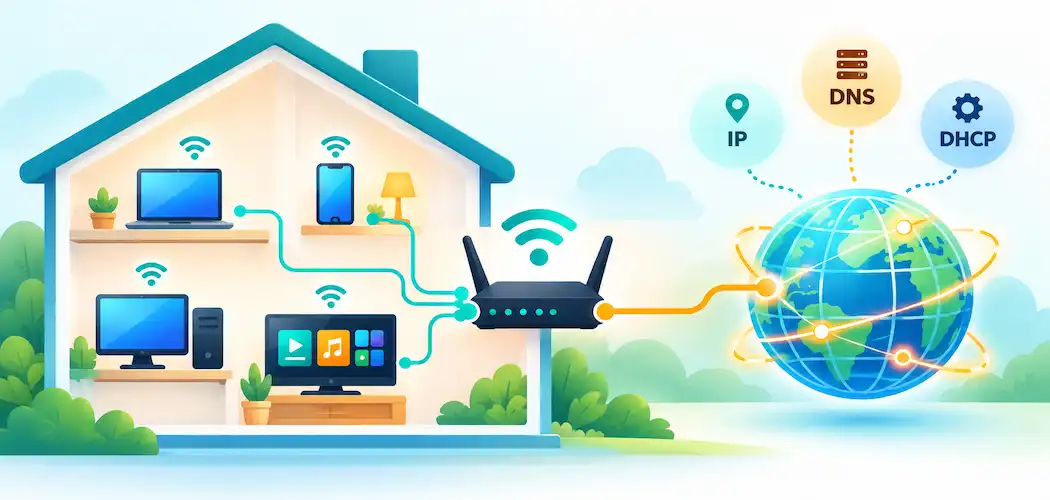
- Describe the roles of DHCP, DNS, and a default gateway in everyday network communication.
- Identify common network types, including LAN, WAN, and PAN, and describe their typical scope.
- Describe the basic roles of a router, switch, and modem in a home or small office network.
Key Terms
| Term | Definition |
|---|---|
| IP address | A numeric address assigned to a device on a network, used to identify and locate it for communication. |
| IPv4 | The most widely used IP addressing format, expressed as four numbers separated by periods (e.g., 192.168.1.10). |
| Private IP address | An IP address used only within a local network, not directly reachable from the wider internet. |
| Public IP address | An IP address that is unique and reachable across the internet. |
| DHCP (Dynamic Host Configuration Protocol) | A service that automatically assigns IP addresses and related network settings to devices on a network. |
| DNS (Domain Name System) | A service that translates human-readable domain names into the IP addresses computers use to locate each other. |
| Default gateway | The device, typically a router, that a network sends traffic through to reach destinations outside the local network. |
| LAN (Local Area Network) | A network confined to a small geographic area, such as a home or a single office building. |
| WAN (Wide Area Network) | A network spanning a large geographic area, connecting multiple LANs together, with the internet being the largest example. |
| PAN (Personal Area Network) | A very short-range network connecting devices immediately around a single person, such as a phone and a Bluetooth headset. |
| Router | A device that directs traffic between different networks, such as a home network and the internet. |
| Switch | A device that connects multiple wired devices within the same local network, forwarding traffic between them. |
Explanation
Two Addresses, One Device
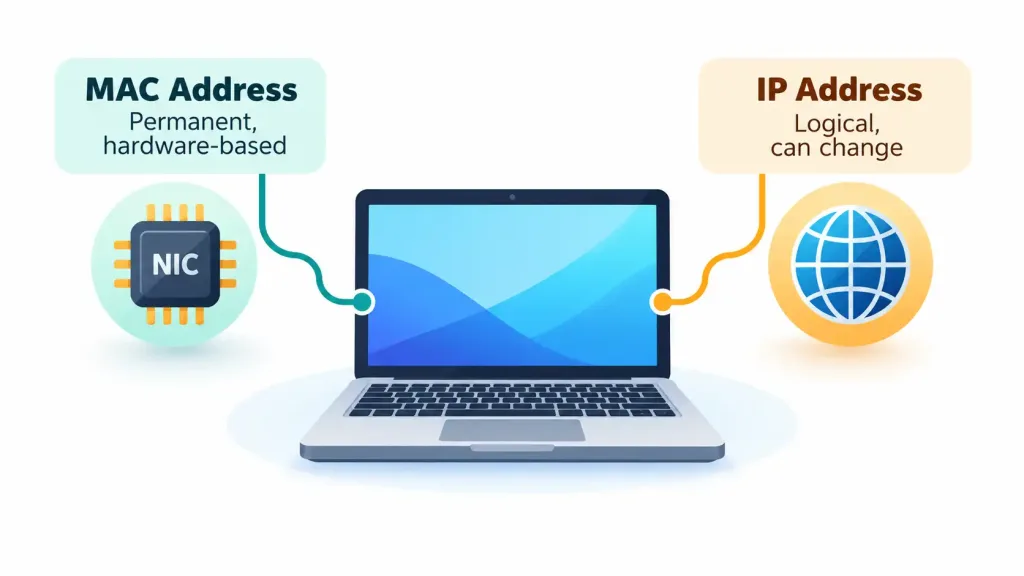
Every device connected to a network needs to be identified, and it turns out most devices carry two entirely different kinds of address at once, each serving a different purpose. Lesson 2.2 introduced the MAC address — a unique, factory-assigned identifier burned into a device’s NIC, used to identify that specific piece of hardware at the physical level. The IP address, by contrast, is a logical address assigned to a device for the purpose of network communication, and unlike a MAC address, it isn’t permanently tied to the hardware — it can change depending on which network the device connects to and how that network is configured.
A useful analogy: a MAC address is like a device’s permanent serial number, stamped on at the factory and never changing no matter where the device goes. An IP address is more like a mailing address — it identifies where a device currently is on a specific network, but it can be reassigned if that device moves to a different network, similar to how a person’s mailing address changes when they move house even though their identity doesn’t.
Both addresses matter because they operate at different points in how network communication actually works. A device’s MAC address is used for communication within the immediate local network segment it’s connected to, while its IP address is used to identify it for communication across the broader network, including the internet. In practice, a single device typically needs both working correctly at the same time: the IP address gets a piece of data headed in the right general direction, while the MAC address ensures that data actually lands on the correct physical device once it arrives at the right local network.
The Structure of an IPv4 Address
The most widely used IP addressing format is IPv4, expressed as four numbers separated by periods — for example, 192.168.1.10 — with each of the four numbers, called an octet, ranging from 0 to 255. At a recognition level for this exam, you don’t need to perform subnetting calculations; you simply need to recognize this dotted-decimal format on sight and understand what it represents.
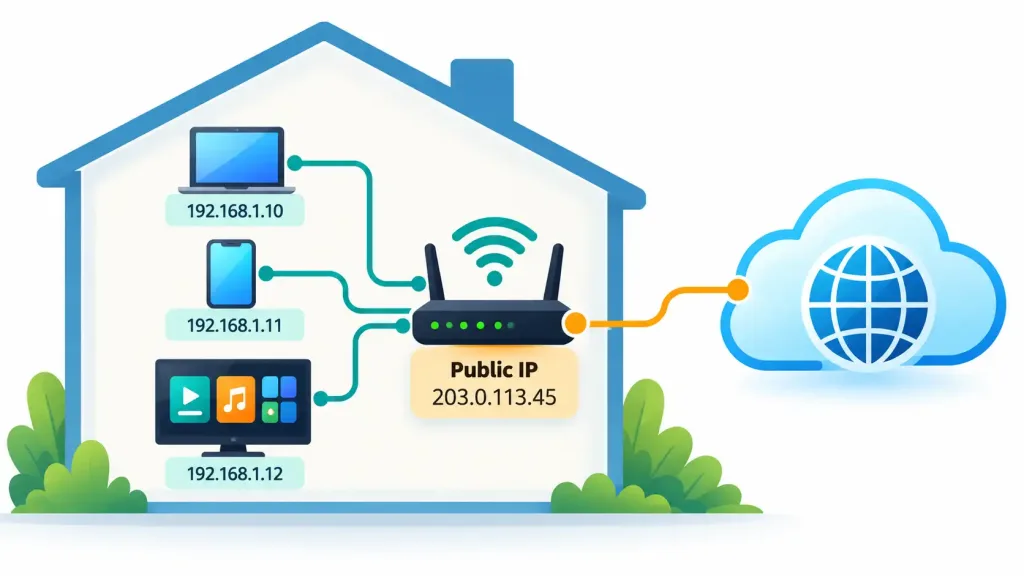
IP addresses fall into two broad categories based on where they’re reachable. A private IP address is used only within a local network — a home or office LAN — and is not directly reachable from the wider internet; private address ranges are specifically reserved for this purpose so that every home network in the world can reuse the same private address ranges without any conflict, since none of them are ever exposed directly to the internet. A public IP address, by contrast, is unique across the entire internet and is directly reachable from anywhere online, which is exactly the kind of address an ISP assigns to a customer’s router.
This distinction explains something many people notice without fully understanding: multiple devices on the same home network — a laptop, a phone, a smart TV — each have their own private IP address on the local network, but they all share a single public IP address when communicating with the wider internet, with the router responsible for managing that shared translation behind the scenes.
This translation process is worth naming even at a recognition level, since it explains a genuinely common piece of real-world network behavior. The router performs NAT (Network Address Translation), rewriting the private IP address of outgoing traffic to its own single public IP address before sending it out to the internet, then reversing that translation for the returning response so it reaches the correct device on the local network.
NAT is precisely why a home network can support many devices while an ISP only needs to assign that home a single public IP address, and it’s also part of why devices inside a home network are somewhat naturally shielded from direct, unsolicited contact from the wider internet — an incoming connection generally can’t reach a specific private device unless the router has been specifically configured to allow it.
DHCP: Automatic Address Assignment
Manually configuring an IP address on every single device on a network would be tedious and error-prone, which is exactly the problem DHCP (Dynamic Host Configuration Protocol) solves. DHCP is a service, typically running on a router in a home network, that automatically assigns an IP address — along with related settings like the default gateway and DNS server — to a device the moment it joins the network, with no manual configuration required from the user at all.
This is precisely why a laptop or phone can join a coffee shop’s Wi-Fi network, a friend’s home network, and a workplace network all on the same day, receiving a working, correctly configured IP address instantly at each location without the user ever needing to think about IP addressing directly. DHCP assigns addresses from a defined pool for a limited lease period, after which the assignment can be renewed or, if the device has left the network, released back into the pool for another device to use.
Without DHCP, every single device would need its IP address, default gateway, and DNS server settings entered manually — a configuration approach called a static IP address, still occasionally used deliberately for devices that genuinely need a permanently unchanging address, such as a network printer or a server that other devices need to reliably find at the same address every time. For virtually every other everyday device, though, DHCP’s automatic approach is simpler, less error-prone, and the practical default.
DNS: Translating Names into Addresses
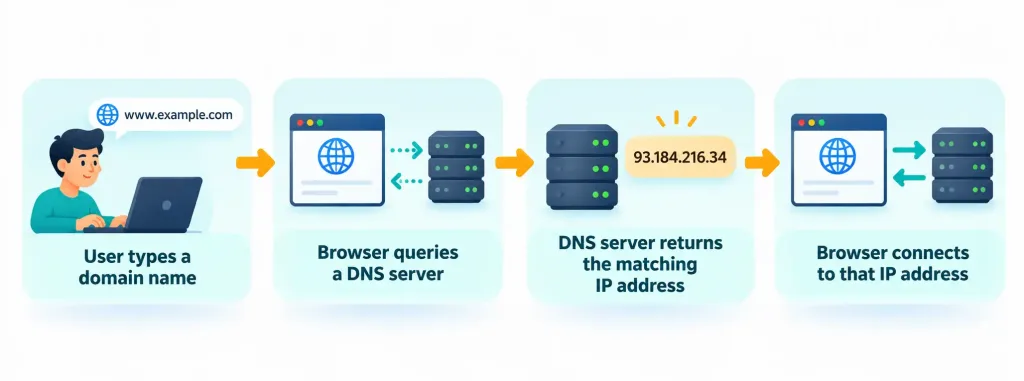
Every website a person visits is ultimately reached through a numeric IP address, but almost nobody actually types IP addresses into a browser — instead, they type a memorable domain name like a website’s address, and DNS (Domain Name System) is the service responsible for translating that human-readable name into the actual numeric IP address computers use to locate each other.
DNS functions much like a phone book or a contacts list: rather than memorizing a specific phone number for every person you want to call, you look up their name and let the phone handle the actual number. When a browser needs to reach a website, it queries a DNS server, receives back the site’s current IP address, and only then makes the actual connection — a process that happens automatically and near-instantly, invisible to the end user in virtually every normal case.
DNS servers are typically operated by an ISP by default, though a user or organization can choose to configure a different DNS server manually — sometimes for improved speed, sometimes for additional filtering or privacy features a particular provider offers. This is worth knowing because DNS problems produce a specific, recognizable symptom worth being able to diagnose: when DNS isn’t working correctly, a device often can’t load any websites by name at all, even though the underlying internet connection itself is completely fine — a scenario that can look confusingly like “the internet is down” when the actual, narrower problem is that domain names simply aren’t being translated into addresses correctly.
A Worked Example: “The Internet Is Down”
Bringing several of this lesson’s concepts together with a concrete troubleshooting scenario helps make the distinctions concrete. A user reports that “the internet is down” — no websites will load in their browser.
Working through the layers: first, checking whether the device can reach a known IP address directly (bypassing DNS entirely) reveals that the connection actually works fine — data is reaching the internet successfully. This immediately narrows the problem: since raw connectivity works but named websites don’t, the issue almost certainly sits specifically at the DNS layer, not with the underlying internet connection, the router, or the ISP’s service itself.
Switching the device to use a different DNS server resolves the issue immediately, confirming that the original DNS server was the actual point of failure the entire time — a diagnosis only possible once bandwidth, latency, IP addressing, and DNS are understood as genuinely separate layers rather than one undifferentiated “internet” that either works or doesn’t.
The Default Gateway: The Door to Everywhere Else
A default gateway is the device — almost always a router — that a network sends traffic through whenever the destination lies outside the local network. When a device on a home network wants to reach a website, its traffic first goes to the default gateway (the home router), which then forwards that traffic out to the wider internet on the device’s behalf and routes the response back to the correct device once it arrives.
Every device on a properly configured network needs to know its default gateway’s address, alongside its own IP address, in order to reach anything beyond the local network — a setting DHCP normally configures automatically alongside the IP address itself, which is exactly why this configuration detail usually stays invisible to an everyday user despite being genuinely essential to the network working at all.
Network Types: LAN, WAN, and PAN
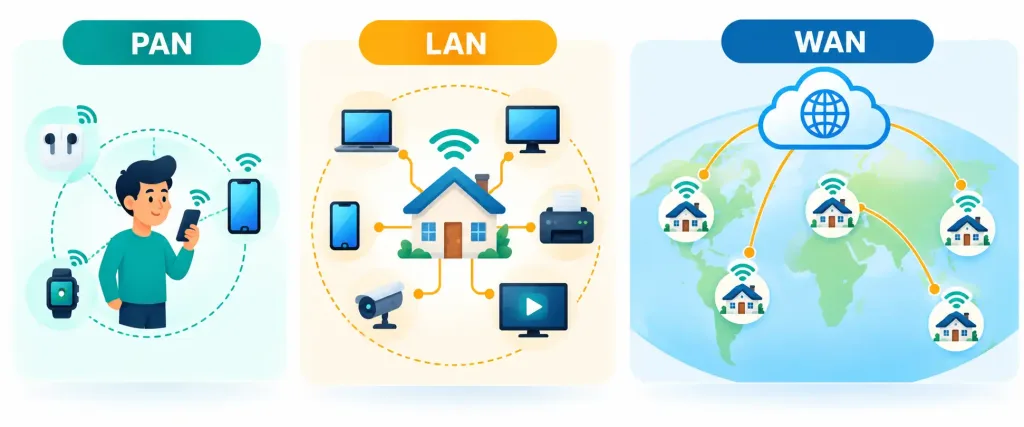
Networks are also categorized by their geographic scope, and three terms come up constantly in both everyday conversation and on this exam. A LAN (Local Area Network) is confined to a small geographic area — a single home, office, or building — and is the kind of network most people interact with directly day to day, whether wired through Ethernet or wireless through Wi-Fi.
A WAN (Wide Area Network) spans a much larger geographic area, connecting multiple separate LANs together across cities, countries, or even continents — with the internet itself being, quite simply, the largest WAN in existence, a vast interconnected web of countless individual LANs all linked together. A PAN (Personal Area Network) sits at the opposite extreme from a WAN: an extremely short-range network connecting devices immediately around a single person, such as a phone connected to a wireless earbud or smartwatch via Bluetooth — the same Bluetooth pairing process covered back in Lesson 2.4.
Routers, Switches, and Modems: Who Does What
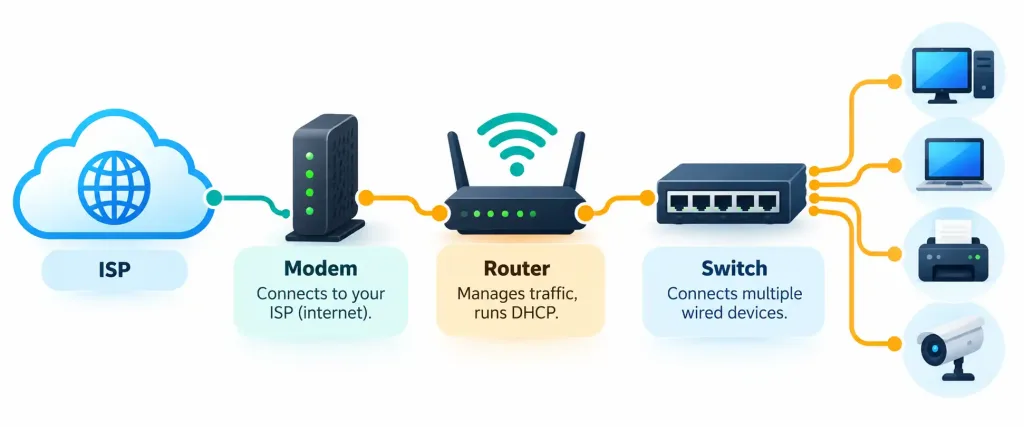
A typical home network relies on a small handful of devices working together, and clearly distinguishing their roles resolves a genuinely common point of confusion. The modem is the device that connects a home network to the ISP’s specific infrastructure — translating the signal format used by the ISP’s internet service type (covered in depth in Lesson 2.7, whether DSL, cable, or fiber) into a format the rest of the home network can use.
The router takes over from there, managing traffic between the local network and the wider internet, running DHCP to assign local IP addresses, and serving as the network’s default gateway. The switch operates entirely within the local network itself, connecting multiple wired devices together and forwarding traffic directly between them based on their MAC addresses, without needing to involve IP addressing or internet connectivity at all — a role covered in far greater technical depth in the Network+ series’ coverage of core infrastructure devices.
Many consumer home devices sold today actually combine all three roles — modem, router, and a small built-in switch — into one single physical box, which is exactly why many people use the terms “router” and “modem” interchangeably in casual conversation, even though the two perform genuinely distinct functions that a technician needs to be able to separate clearly when troubleshooting.
Recognition-Level Verification Concepts
- Recognize the difference between a MAC address (permanent, hardware-based) and an IP address (logical, can change based on network).
- Recognize the dotted-decimal format of an IPv4 address and distinguish private (local-only) from public (internet-reachable) addresses.
- Recognize DHCP as the service that automatically assigns IP addresses and related settings to devices joining a network.
- Recognize DNS as the service that translates human-readable domain names into numeric IP addresses.
- Recognize the default gateway as the device (typically a router) that local traffic passes through to reach destinations outside the local network.
- Recognize NAT as the process a router uses to translate private IP addresses to a single shared public IP address for internet traffic.
- Recognize a static IP address (manually configured, permanent) as the deliberate alternative to DHCP’s automatic assignment, typically reserved for devices like printers or servers.
- Recognize the scope differences between LAN (small, local), WAN (large, multi-location, with the internet as the largest example), and PAN (very short-range, around one person).
- Recognize the distinct roles of a modem (connects to the ISP), a router (manages traffic between local and wider networks, runs DHCP), and a switch (connects wired devices within the local network).
Common Exam Traps
- Confusing MAC and IP addresses. MAC addresses are permanent and hardware-based; IP addresses are logical and can change depending on the network a device joins.
- Assuming a private IP address is directly reachable from the internet. Private addresses only work within the local network; a router’s public IP address is what the wider internet actually sees.
- Assuming DNS assigns IP addresses. DNS translates domain names into existing IP addresses; DHCP is the service that actually assigns IP addresses to devices.
- Treating “router” and “modem” as identical. A modem connects to the ISP’s infrastructure; a router manages the local network and internet traffic — many consumer devices combine both, but the functions themselves are distinct.
- Confusing LAN and WAN scope. A LAN is confined to one location; a WAN connects multiple separate locations together, with the internet being the largest possible WAN.
- Assuming a switch requires IP addressing to function. A basic switch forwards traffic using MAC addresses within the local network and doesn’t need to involve IP addressing at all.
- Diagnosing “the internet is down” without isolating the layer. A DNS failure can look identical to a full outage; testing connectivity by IP address directly (bypassing DNS) quickly separates the two.
Lesson 2.8 Practice Questions: Basic Networking Concepts
Summary
Every networked device typically carries both a permanent, hardware-based MAC address and a logical IP address that can change depending on the network it joins.
An IPv4 address uses a dotted-decimal format, and addresses are categorized as private (local-network-only) or public (reachable across the internet).
DHCP automatically assigns IP addresses and related settings to devices joining a network, while DNS translates human-readable domain names into the numeric IP addresses computers actually use.
The default gateway, typically a router, is the device local traffic passes through to reach anything outside the local network.
A LAN covers a small local area, a WAN connects multiple LANs across a large geographic area (with the internet as the largest example), and a PAN covers only the very short range immediately around one person.
A modem connects a network to the ISP, a router manages traffic between the local network and the internet while running DHCP, and a switch connects wired devices within the local network — three genuinely distinct roles, even when combined into a single consumer device.
The next lesson turns to small wireless network capabilities, building directly on these networking fundamentals to cover how Wi-Fi networks are actually configured and secured.