Domain 2.0 | Infrastructure — 24% of exam
Learning Objectives
By the end of this lesson, you will be able to:
- Identify common networking connectors, including RJ45 and RJ11, and describe what each is used for.
- Identify legacy peripheral connectors, including PS/2 and serial/parallel ports, and recognize why they’ve largely disappeared from modern hardware.
- Compare common audio connector types and describe their typical use cases.
- Explain how mobile device connectors, including Lightning and USB-C, fit into the broader connector landscape.
- Recognize the practical role of adapters and converters when connector standards don’t match.
Key Terms
| Term | Definition |
|---|---|
| RJ45 | The standard 8-pin connector used to terminate twisted-pair Ethernet cabling for wired networking. |
| RJ11 | A smaller 4- or 6-pin connector traditionally used for analog telephone lines. |
| PS/2 | A small round legacy connector historically used to connect a keyboard or mouse. |
| Serial port (RS-232) | A legacy interface that transmits data one bit at a time in sequence, once common for modems and older peripherals. |
| Parallel port | A legacy interface that transmits multiple bits simultaneously across separate wires, once common for printers. |
| 3.5mm audio jack | The standard round connector used for analog headphones, microphones, and speakers. |
| Lightning connector | Apple’s proprietary reversible connector used on many iPhones and iPads before the shift to USB-C. |
| Adapter | A small hardware piece that allows one connector type to physically and electrically interface with a different, incompatible connector or port. |
Explanation
Why Connector Literacy Matters
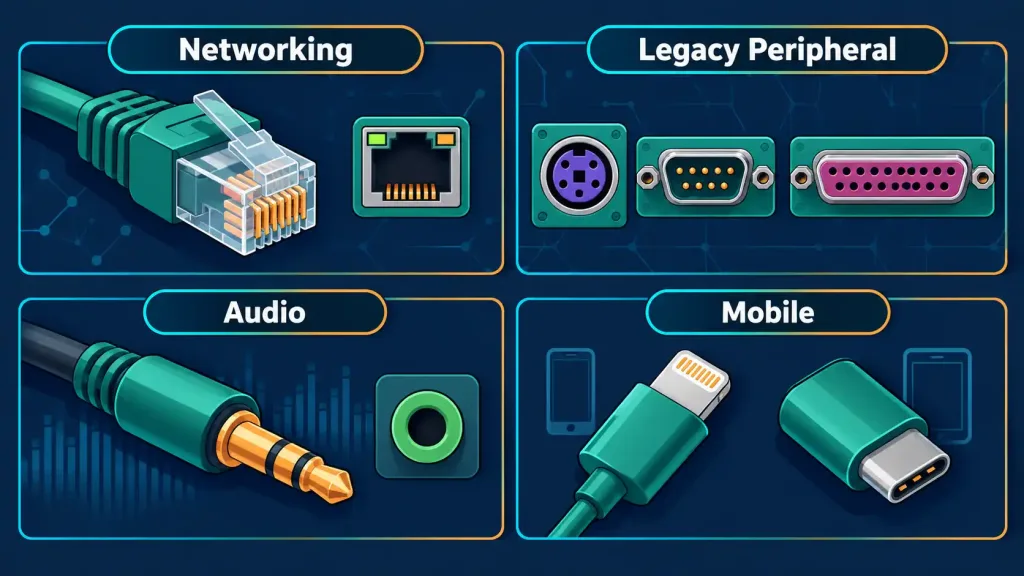
Lesson 2.4 covered USB and video connectors in depth, but the real-world connector landscape is considerably larger than those two categories alone. A technician who can correctly identify a connector at a glance — before even knowing what’s plugged into the other end — solves problems faster and avoids costly mistakes, like assuming a port is broken when it’s simply the wrong cable being used. This lesson works through the remaining major connector families: networking connectors, legacy peripheral ports, audio connectors, and mobile device connectors, closing with the practical role adapters play in bridging incompatible standards.
Networking Connectors: RJ45 and RJ11
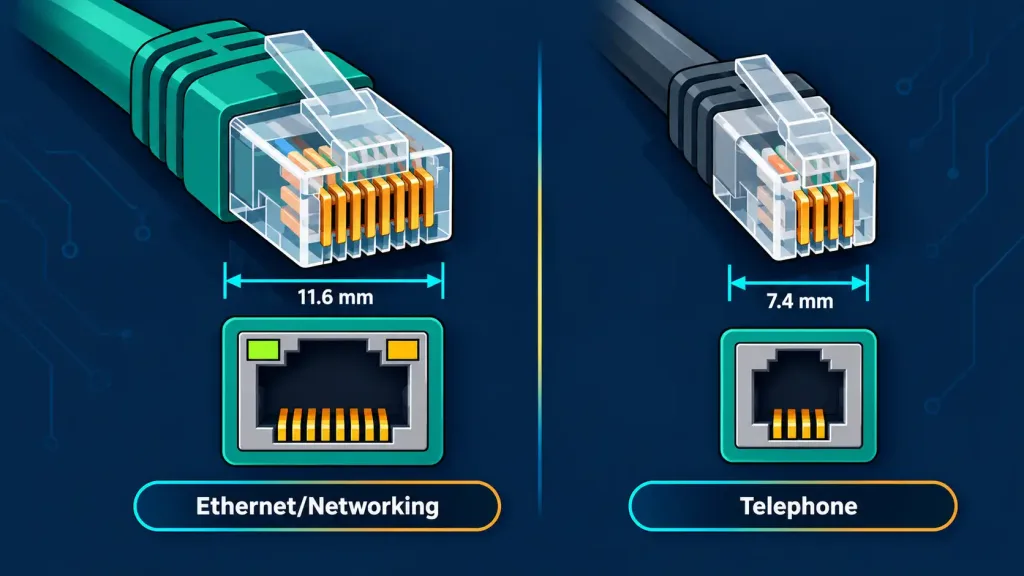
RJ45 is the connector nearly everyone has seen even without knowing its name: the wider, clear plastic 8-pin connector on the end of an Ethernet cable, snapping into a matching port on a computer, router, switch, or wall jack. RJ45 terminates twisted-pair copper cabling and is the physical foundation of most wired local area networking, a topic covered in far greater depth through the copper and fiber cabling standards in the Network+ series.
Its 8 pins carry four twisted wire pairs inside the cable, arranged according to standardized wiring schemes — most commonly T568A or T568B — that ensure consistent, predictable performance across different manufacturers’ cables and equipment. At a recognition level for this exam, you don’t need to memorize the specific pin-by-pin wiring order of either standard; simply knowing that a standardized wiring scheme exists, and that mismatched wiring between the two ends of a cable can cause connectivity problems, is the expected depth here — the full wiring details belong to networking-focused coursework.
RJ11 looks similar at a glance but is meaningfully smaller, using only 4 or 6 pins rather than 8, and is the connector historically used for analog telephone lines — the classic phone jack in an older home, and the connector on older dial-up modems. Because RJ11 is physically narrower than RJ45, an RJ11 plug can sometimes be forced into an RJ45 port, but the reverse is not physically possible, and doing so is a genuinely common real-world mistake worth being able to recognize and correct quickly: a phone cable plugged into a network port (or vice versa) simply won’t establish the connection it’s expected to, since the two standards serve entirely different signal types despite looking superficially alike.
Legacy Peripheral Ports: PS/2, Serial, and Parallel
Before USB became the universal standard covered in the previous lesson, computers relied on several now-legacy interfaces that are worth recognizing even though they’re rarely found on new equipment.
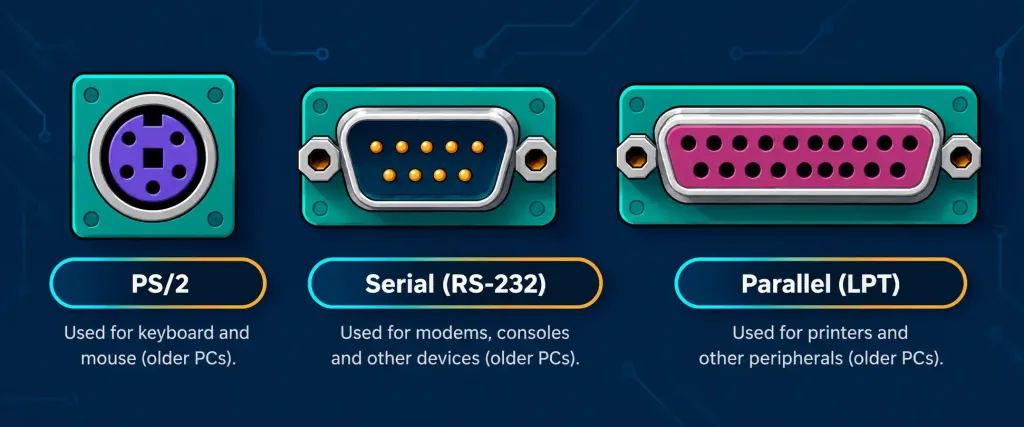
The PS/2 port is a small, round, color-coded connector (traditionally purple for keyboards, green for mice) that was the standard way to connect a keyboard and mouse for years before USB took over. PS/2 ports are occasionally still found on business desktop motherboards specifically because PS/2 devices are recognized very early in the boot process, before USB drivers fully initialize — a genuinely useful property for accessing firmware setup screens or troubleshooting a system that won’t boot normally, which is part of why some enterprise hardware retains a PS/2 port long after USB became dominant everywhere else.
A serial port, following the RS-232 standard, transmits data one bit at a time in sequence over a single wire pair, using a distinctive D-shaped connector with pins arranged in two rows. Serial ports were historically used for connecting modems, some early printers, and — notably — they still appear on networking equipment today for direct console access to configure a router or switch, a use case you’ll encounter directly if you continue into the Network+ or CCNA series.
A parallel port, by contrast, transmits multiple bits simultaneously across separate wires running side by side, allowing faster data transfer than serial for its time, and was most commonly associated with connecting printers before USB printers became standard. Both serial and parallel ports have been almost entirely displaced by USB’s combination of higher speed, smaller connector size, and simpler cabling, but recognizing their appearance and general purpose remains a fair, testable expectation, since legacy equipment featuring them is still genuinely in service in many real-world environments.
It’s worth pausing on why these legacy ports haven’t fully disappeared despite USB’s clear technical advantages. In IT environments specifically, a serial connection to a router or switch’s console port — usually made with a specialized rollover cable and, on a modern laptop, a USB-to-serial adapter — remains the standard, reliable way to configure a piece of networking hardware for the very first time, before it has any IP address or network connectivity to configure it remotely.
This exact workflow reappears constantly once you move into the CCNA and Network+ series, where initial device configuration almost always starts with a direct console connection rather than a network-based one. Similarly, PS/2 keyboards persist on some business desktops specifically because IT staff sometimes need keyboard input before USB drivers have loaded during a very early boot or firmware-recovery scenario — a small but genuinely practical reason a seemingly obsolete connector keeps earning its place on certain motherboards.
Audio Connectors
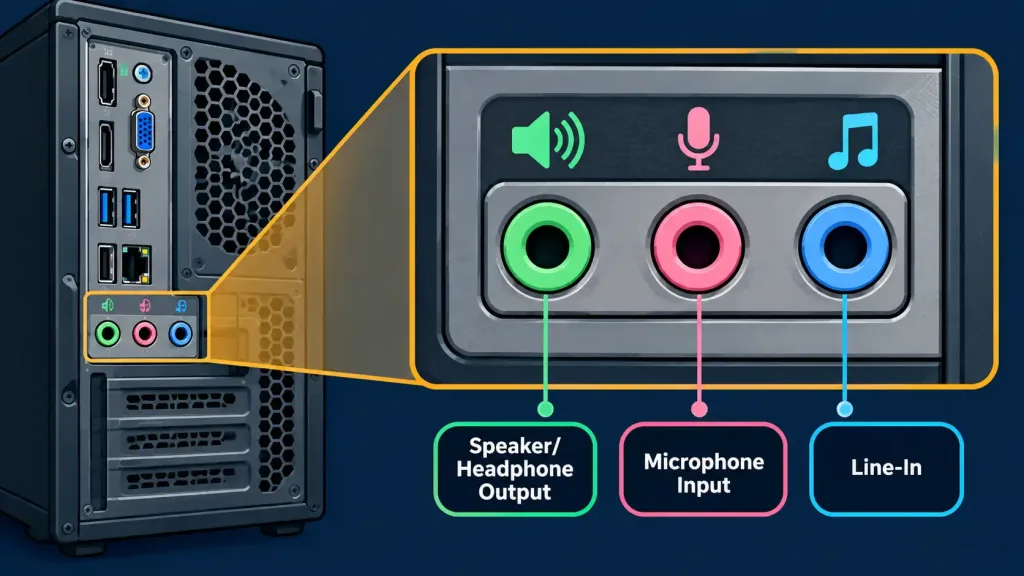
The 3.5mm audio jack is the small, round, analog connector found on headphones, external speakers, and microphones across decades of consumer electronics, still standard on most laptops, desktops, and many other devices despite USB and Bluetooth audio’s growing popularity. It’s frequently color-coded on desktop motherboards and sound cards — commonly green for output (speakers/headphones), pink for a microphone, and blue for a line-in input — a simple visual convention that helps avoid plugging a device into the wrong jack.
Beyond the basic 3.5mm jack, optical audio connectors (sometimes called TOSLINK) carry digital audio signals over a fiber-optic cable rather than an analog electrical signal, occasionally found on higher-end audio equipment, TVs, and gaming consoles where a cleaner digital signal path is preferred. And increasingly, USB audio and Bluetooth audio are displacing the analog 3.5mm jack entirely on many modern devices, particularly smartphones, which is worth recognizing as part of the same broader industry shift toward USB-C and wireless connections covered in the previous lesson.
A practical distinction worth understanding is why a device maker would choose analog over digital audio in the first place. The 3.5mm jack’s analog signal requires no processing power or licensing on either end, works with genuinely any headphones or speaker regardless of manufacturer, and never introduces the small delay (latency) that Bluetooth audio can add — a real consideration for anything involving precise audio timing, like video editing or competitive gaming.
Digital options like optical audio or USB audio, by contrast, can carry higher-fidelity multi-channel surround sound signals that a simple analog jack physically cannot represent, which is exactly why a home theater receiver almost always includes an optical or HDMI audio input alongside, or instead of, a basic analog connection.
Mobile Device Connectors
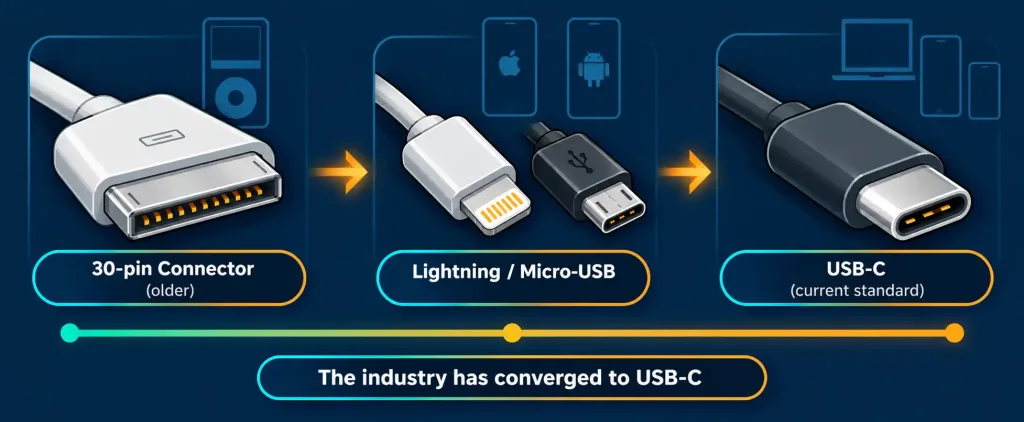
Mobile devices have followed their own, somewhat separate connector evolution. Apple’s Lightning connector is a small, reversible, proprietary connector used across many iPhone and iPad models for charging and data transfer for roughly a decade, notable for being reversible (like USB-C) well before USB-C reversibility became common on other devices. More recently, regulatory pressure and industry standardization have pushed Apple and most other mobile device manufacturers toward USB-C as a shared, universal connector across phones, tablets, and laptops alike, reducing the number of different cables a typical person needs to own and carry.
Android devices, for their part, moved through Micro-USB (mentioned briefly alongside other USB connector shapes in Lesson 2.4) before largely standardizing on USB-C years ahead of Apple’s own transition. The overall industry trend worth recognizing here is convergence: connector standards that were once fragmented across manufacturers and device categories are steadily consolidating around USB-C as the common denominator, precisely because a single universal connector benefits consumers, manufacturers, and repair technicians alike far more than a fragmented landscape of proprietary options ever did.
This convergence has real practical consequences worth noting. A household that once needed a separate charging cable for every family member’s phone, tablet, and laptop increasingly needs to stock only one cable type, and a repair technician troubleshooting a “won’t charge” complaint has one fewer variable to consider once a device’s connector is confirmed. Regulatory action has accelerated this shift directly — several governments have mandated USB-C as a common charging standard for consumer electronics sold within their markets specifically to reduce electronic waste and consumer cost from constantly replacing incompatible cables, a policy-driven push worth being aware of as background context even though the specific regulations themselves fall outside this exam’s scope.
Adapters and Converters: Bridging Incompatible Standards
Given how many distinct connector standards exist — and how often older equipment needs to coexist with newer equipment — adapters exist specifically to bridge that gap. An adapter allows one connector type to physically and electrically interface with a different, otherwise incompatible port: a USB-C to USB-A adapter lets an older Type-A cable or flash drive connect to a newer laptop with only Type-C ports, an HDMI-to-VGA adapter lets a modern laptop connect to an older projector that only accepts VGA input, and a 3.5mm-to-USB-C audio adapter lets wired headphones work with a phone that has removed its traditional headphone jack.
It’s worth distinguishing a simple passive adapter (which only changes the physical connector shape, with no electronics doing signal conversion) from an active adapter or converter (which genuinely translates one signal type into another, such as an HDMI-to-VGA adapter converting a digital signal into an analog one). This distinction matters practically: a passive adapter is cheap and simple but only works when the underlying signal type is already compatible on both ends, while an active converter is more expensive and sometimes introduces a small amount of latency or quality loss, but can bridge fundamentally different signal types that a passive adapter cannot.
A related, genuinely common troubleshooting scenario worth internalizing: when a connection that should physically fit doesn’t work, it’s worth asking whether the two ends actually speak the same underlying signal type, or whether a passive adapter is quietly being asked to do a job only an active converter can actually do. A DisplayPort-to-HDMI cable, for instance, generally works passively in one direction (DisplayPort output to HDMI input) but may not work the other way around without active circuitry, because the two standards’ underlying signals aren’t symmetric — exactly the kind of nuance that separates a quick, confident fix from a frustrating dead end.
Legacy Expansion and Storage Connectors
A handful of older expansion and storage connectors round out the broader connector landscape and occasionally still surface on aging hardware. eSATA (external SATA) extended the internal SATA storage interface, covered back in Lesson 2.3, out to an external port for connecting external hard drives at speeds closer to internal SATA than USB 2.0 could offer at the time — a niche now almost entirely replaced by USB 3.0 and newer external drive connections.
FireWire was an early high-speed data transfer standard, popular for connecting camcorders and external drives before USB’s speed caught up and surpassed it, and is now essentially obsolete on new equipment but still occasionally found on older audio/video production hardware. Recognizing these by name and rough purpose, without needing deep technical detail, is the expected depth for this exam.
A Worked Example: Identifying Connectors on a Cluttered Desk
A useful way to build confidence with this material is to practice sorting unfamiliar connectors by their physical characteristics rather than assuming you already recognize the device they belong to. Picture a drawer of old cables: a wide 8-pin clear plastic connector, a smaller 4-pin connector that looks similar but noticeably narrower, a small round connector with a purple plastic ring, a D-shaped connector with two staggered rows of pins, and a small reversible connector that looks like a flattened oval.
Working through this systematically: the wide 8-pin connector is RJ45, almost certainly an old Ethernet cable. The narrower 4-pin lookalike is RJ11, likely a phone cable from the same era. The purple-ringed round connector is PS/2, color-coded for a keyboard specifically (a green ring would indicate a mouse instead). The D-shaped connector with staggered pin rows is a serial port cable, possibly used for an old modem or an early networking console connection. The small reversible oval connector is most likely a Lightning cable, unless it’s noticeably wider and thinner, in which case it’s USB-C instead — a distinction worth double-checking by eye since the two can look similar in a quick glance but are not interchangeable.
This kind of methodical, characteristic-by-characteristic identification — width, pin count, shape, color coding — is a far more reliable exam strategy than trying to memorize a fixed image of every connector in isolation, and it’s exactly the skill a scenario or exhibit-style question is designed to test.
Recognition-Level Verification Concepts
- Recognize RJ45 (wider, 8-pin) as the standard Ethernet networking connector, and RJ11 (narrower, 4-6 pin) as the legacy telephone connector — similar in appearance but not interchangeable.
- Recognize PS/2 as a legacy round connector for keyboards/mice, still occasionally used on business hardware for early-boot access before USB initializes.
- Recognize a serial port (RS-232) as transmitting data one bit at a time, still used today for direct console access to networking equipment.
- Recognize a parallel port as transmitting multiple bits simultaneously, historically associated with printers.
- Recognize 3.5mm audio jack color coding: green for output, pink for microphone input, blue for line-in.
- Recognize Lightning as Apple’s proprietary mobile connector and the broader industry convergence toward USB-C across phones, tablets, and laptops.
- Recognize the difference between a passive adapter (shape conversion only) and an active converter (actual signal translation).
- Recognize eSATA and FireWire as largely obsolete external connection standards now replaced by USB.
- Recognize that a serial console connection is the standard way to configure networking equipment for the first time, before any network-based access is possible.
Common Exam Traps
- Confusing RJ45 and RJ11 based on rough visual similarity. Always check the pin count and relative width — RJ45 is wider with 8 pins; RJ11 is narrower with 4 or 6.
- Assuming legacy ports like PS/2, serial, and parallel have completely vanished. They remain genuinely present on some business and networking equipment, and the exam expects you to recognize them, not just know that USB replaced them.
- Mixing up the standard 3.5mm audio jack color coding. Green is output, pink is microphone input, blue is line-in — a scenario question describing a user plugging into the wrong colored jack is testing this directly.
- Assuming every adapter performs active signal conversion. A passive adapter only changes connector shape; it cannot bridge genuinely incompatible signal types the way an active converter can.
- Treating Lightning and USB-C as the same connector. They are physically different and not interchangeable without an adapter, despite both being reversible.
- Assuming a DisplayPort-to-HDMI cable works equally well in both directions. Passive adapter cables between these standards are often direction-specific due to how the underlying signals work.
Lesson 2.5.1 Practice Questions: Networking and Peripheral Connectors
Summary
RJ45 terminates Ethernet cabling for wired networking, while the visually similar but narrower RJ11 is used for analog telephone lines — the two are not interchangeable despite looking alike.
PS/2, serial (RS-232), and parallel ports are legacy peripheral interfaces mostly displaced by USB, though PS/2 and serial connections still appear on some business and networking equipment today.
The 3.5mm audio jack remains the standard analog audio connector, color-coded green for output, pink for microphone input, and blue for line-in, alongside newer options like optical, USB, and Bluetooth audio.
Lightning was Apple's proprietary mobile connector for roughly a decade, and the mobile device industry — Apple included — has since converged on USB-C as a shared, universal standard.
An adapter bridges incompatible connector types, with a passive adapter only changing physical shape and an active converter genuinely translating one signal type into another.
The next lesson continues this connector-focused pair by turning specifically to display ports and video technology — a natural continuation of the HDMI and DisplayPort basics introduced in Lesson 2.4.