Domain 2.0 | Infrastructure — 24% of exam
Learning Objectives
By the end of this lesson, you will be able to:
- Compare the major video connector standards — HDMI, DisplayPort, DVI, and VGA — and identify their key characteristics.
- Explain resolution and refresh rate, and describe how they relate to a display’s overall visual quality.
- Describe how USB-C can carry video signals through DisplayPort Alt Mode and Thunderbolt.
- Explain multi-monitor concepts, including extended and mirrored display modes.
- Apply a basic troubleshooting approach to common display connection problems.
Key Terms – Display Ports and Video Technology
| Term | Definition |
|---|---|
| Resolution | The number of individual pixels a display can show, expressed as width × height (e.g., 1920×1080). |
| Refresh rate | How many times per second a display redraws its image, measured in Hertz (Hz). |
| HDMI | A digital video and audio connector standard common on consumer electronics, TVs, and most modern monitors. |
| DisplayPort | A digital video connector standard common on PCs and monitors, often supporting higher resolutions and refresh rates than HDMI at a given generation. |
| DVI | An older digital-only video connector, largely superseded by HDMI and DisplayPort. |
| VGA | The oldest common video connector, transmitting an analog signal. |
| DisplayPort Alt Mode | A feature that lets a USB-C port carry a native DisplayPort video signal alongside or instead of USB data. |
| Thunderbolt | A high-bandwidth interface, using the USB-C connector, that can carry data, video, and power simultaneously. |
| Extended display | A multi-monitor mode where each display shows a different part of a larger combined desktop. |
| Mirrored display | A multi-monitor mode where every connected display shows an identical image. |
Explanation
Picking Up Where Lesson 2.4 Left Off
Lesson 2.4 introduced HDMI and DisplayPort at a basic level alongside USB. This lesson goes considerably deeper into video connectors specifically, because display technology is dense enough, and different enough from general peripheral connections, to deserve its own dedicated treatment — covering not just which connector looks like what, but the actual visual quality concepts (resolution, refresh rate) that determine what a given connector and cable are actually capable of delivering.
HDMI and DisplayPort: The Modern Standards
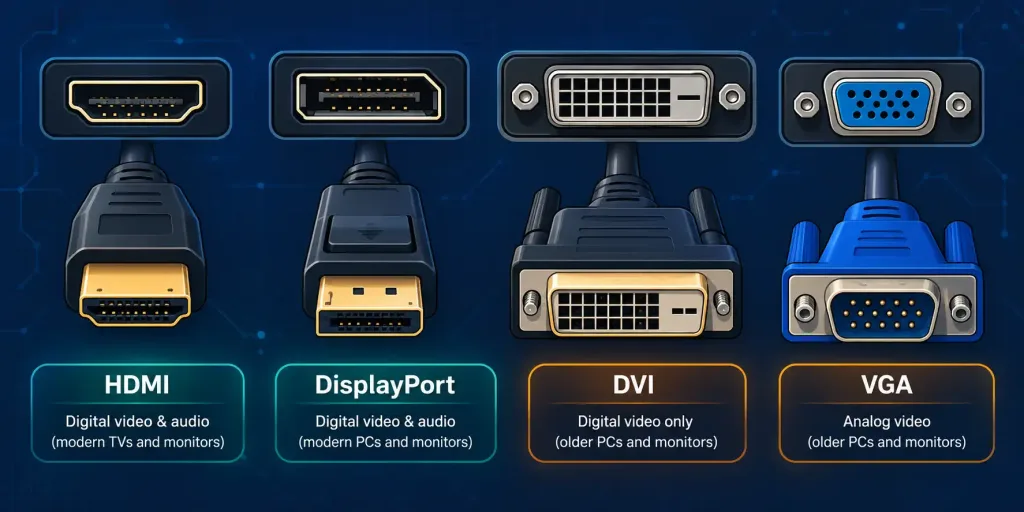
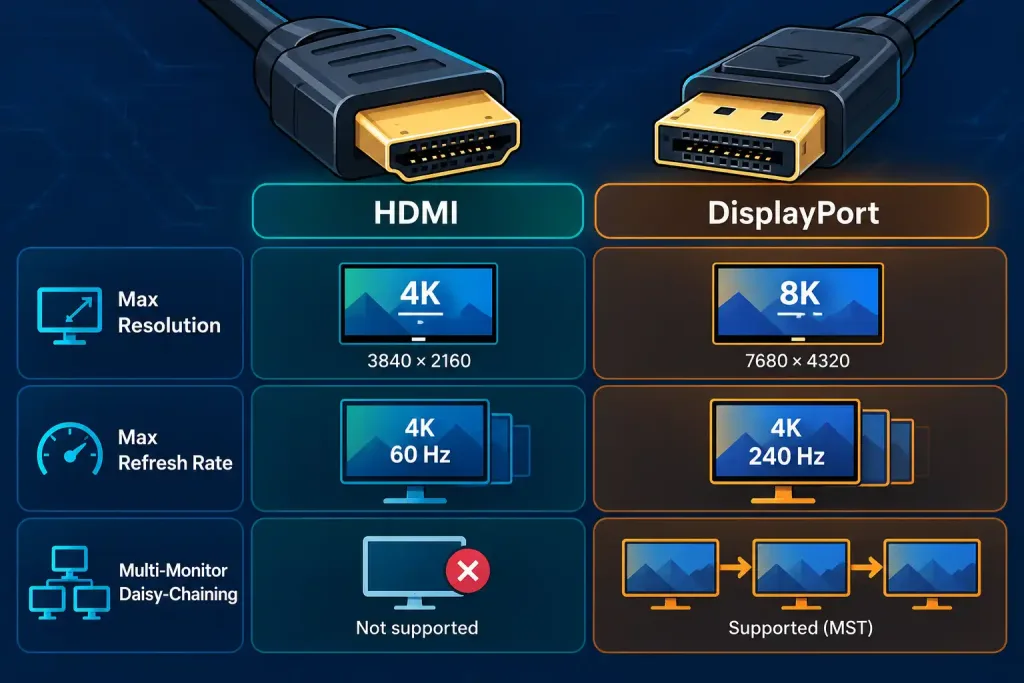
HDMI (High-Definition Multimedia Interface) carries digital video and audio over a single cable and connector, and its ubiquity across TVs, gaming consoles, streaming devices, laptops, and monitors makes it the closest thing to a universal video standard in consumer electronics today. HDMI has gone through multiple versions (1.4, 2.0, 2.1, and beyond), each supporting higher maximum resolutions and refresh rates than the last — a detail that matters practically, since an older HDMI cable or port can become the bottleneck limiting a modern high-resolution, high-refresh-rate display from reaching its full advertised capability, even when every other component in the chain could support it.
DisplayPort serves a similar core purpose — digital video and audio over one connector — but has historically pushed higher maximum resolutions and refresh rates than HDMI at a comparable generation, which is exactly why DisplayPort remains the preferred connector among PC gamers and professionals working with very high-refresh or multi-monitor setups. DisplayPort also supports a feature called Multi-Stream Transport (MST), which allows a single DisplayPort output on a computer to drive multiple separate monitors daisy-chained together — a capability HDMI does not natively offer in the same way.
Both standards use distinctly different connector shapes from each other and from USB, which makes physical identification straightforward once you know what to look for: HDMI’s connector is a wide, flat trapezoid shape, while DisplayPort’s connector is similarly sized but has one distinctly notched corner, a small but reliable visual cue for telling the two apart at a glance. HDMI also comes in smaller Mini HDMI and Micro HDMI variants, occasionally found on cameras, tablets, and compact devices where a full-size port wouldn’t physically fit, though the underlying signal and capability remain the same regardless of connector size — another example of the “connector shape doesn’t determine capability” pattern that keeps recurring across this domain.
DVI and VGA: The Legacy Standards
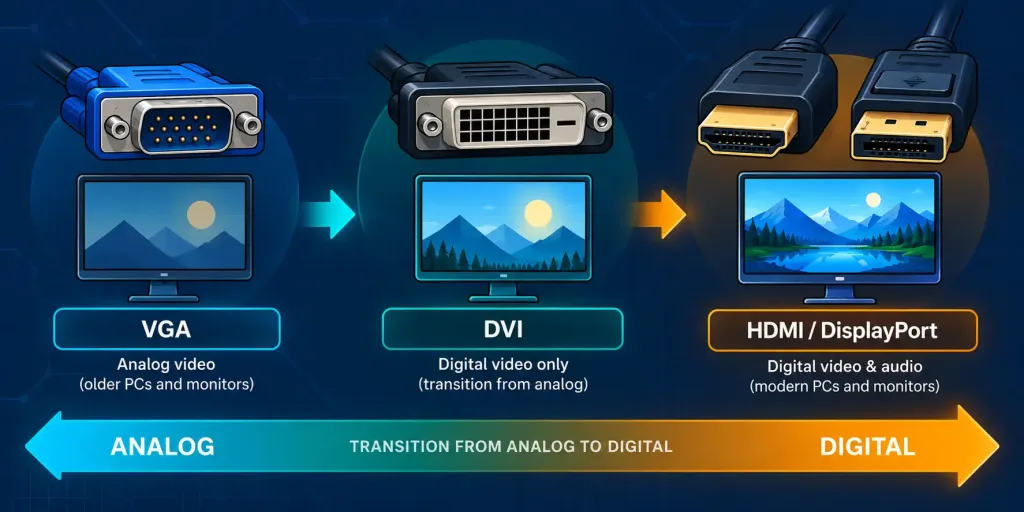
DVI (Digital Visual Interface) was an important transitional standard, carrying a digital video signal at a time when VGA’s analog signal was still the norm, but DVI has been almost entirely superseded by HDMI and DisplayPort on new equipment. DVI connectors come in a few different pin configurations (DVI-D for digital-only, DVI-I for digital and analog combined), which is more nuance than this exam typically expects — recognizing DVI’s rectangular connector with a distinctive pin grid, and knowing it sits between VGA and HDMI/DisplayPort chronologically and technically, is the expected depth here.
VGA (Video Graphics Array) is the oldest connector in common use, transmitting an entirely analog signal through a 15-pin, trapezoid-shaped connector, historically blue in color. Because VGA is analog, it’s more susceptible to signal degradation over longer cable runs and generally caps out at lower resolutions and refresh rates than any of the digital standards — which is exactly why VGA is now found almost exclusively on older projectors, legacy industrial equipment, and budget conference room hardware rather than on any current consumer device.
Resolution and Refresh Rate
Two numbers determine much of what a display actually looks like in practice, and both connect directly to which video connector and cable generation are capable of carrying them.
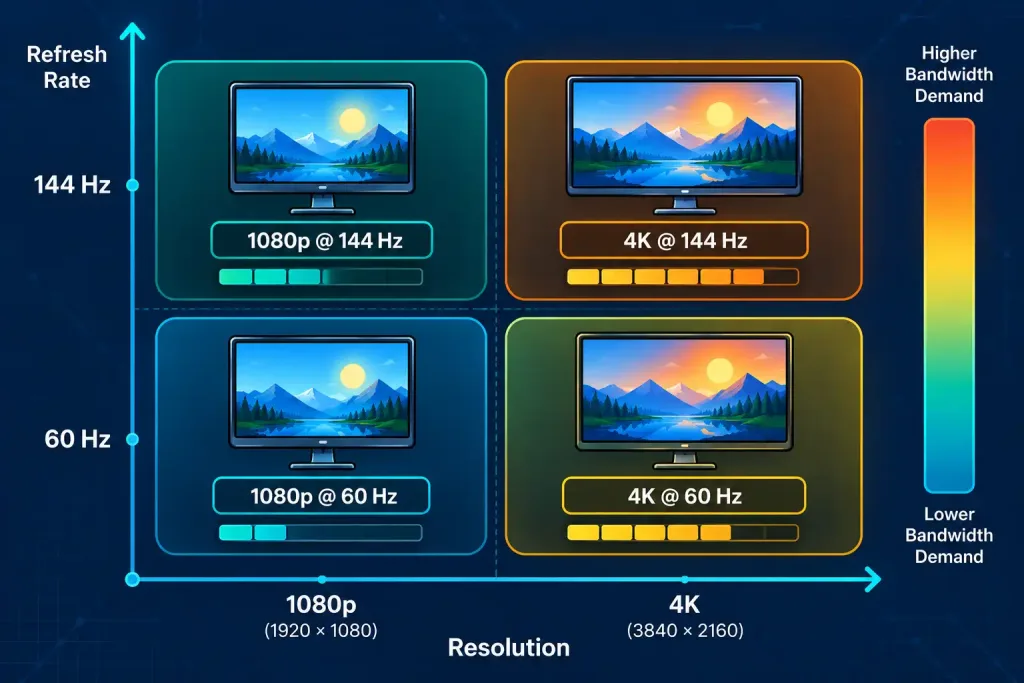
Resolution describes how many individual pixels make up the image, expressed as width × height — common examples include 1920×1080 (often called “1080p” or Full HD), 2560×1440 (“1440p” or Quad HD), and 3840×2160 (“4K” or Ultra HD). Higher resolution means more individual pixels packed into the same physical screen size, producing a sharper, more detailed image, but also demanding significantly more bandwidth from whatever cable and connector is carrying that signal — a relationship worth connecting back to the same GB/Gbps units of measure covered in Lesson 1.3, since higher resolution video is, fundamentally, more data that needs to move every single second.
Resolution is closely related to, but distinct from, aspect ratio — the proportional relationship between a display’s width and height, commonly expressed as 16:9 (standard widescreen) or, less commonly today, 21:9 (ultrawide) or 4:3 (older, nearly square displays). Two monitors can share the same aspect ratio while having very different resolutions — a 1920×1080 display and a 3840×2160 display are both 16:9, just with the 4K display packing four times as many total pixels into that same proportional shape, which is exactly why “4K” alone doesn’t fully describe a display without also knowing its aspect ratio and physical size.
Refresh rate, measured in Hertz (Hz), describes how many times per second a display redraws its entire image — a standard monitor refreshes 60 times per second (60Hz), while gaming-oriented monitors commonly reach 144Hz, 165Hz, or higher, producing noticeably smoother motion, particularly valuable for fast-paced gaming and video editing work. Resolution and refresh rate compound together from a bandwidth perspective: a 4K signal at 144Hz demands dramatically more bandwidth than either a 4K signal at 60Hz or a 1080p signal at 144Hz alone, which is precisely why an older HDMI or DisplayPort generation might handle one of these combinations perfectly well while falling short on the other.
It’s worth being precise about what refresh rate does and doesn’t guarantee. A higher refresh rate only produces visibly smoother motion if the source actually generates content fast enough to take advantage of it — a movie filmed and encoded at a standard rate looks identical on a 60Hz and a 144Hz display, while a video game capable of rendering many frames per second benefits directly and noticeably from a higher-refresh display. This is a genuinely common point of confusion worth clearing up: refresh rate describes the display’s own redraw capability, not the frame rate of whatever content is currently being shown on it, and the two need to be considered together to actually see a benefit.
USB-C Video: DisplayPort Alt Mode and Thunderbolt
Given how thoroughly USB-C has taken over as a general-purpose connector, it’s worth understanding specifically how video signals travel over what looks like an ordinary USB-C port. DisplayPort Alt Mode is a feature that allows a USB-C port to carry a native DisplayPort video signal directly, alongside or instead of standard USB data — this is exactly how many modern laptops output video to an external monitor through the same single port used for charging and data, without needing a separate dedicated video output.
Thunderbolt, also using the USB-C connector shape, goes further still, combining high-speed data transfer, DisplayPort-based video output, and power delivery simultaneously over a single cable — the same Thunderbolt standard mentioned briefly alongside USB4 back in Lesson 2.4. This is precisely why a single Thunderbolt cable can drive an external monitor, connect a high-speed external drive, and charge a laptop all at once — three jobs that would otherwise require three separate cables and ports.
The important exam-relevant caution here mirrors a pattern seen elsewhere in this domain: not every USB-C port supports video output. A USB-C port’s ability to carry a display signal depends entirely on whether the manufacturer built DisplayPort Alt Mode or Thunderbolt support behind that specific port — visually identical USB-C ports on the same laptop sometimes have genuinely different capabilities, so a “USB-C to HDMI” cable or adapter simply won’t produce any image if plugged into a USB-C port that lacks video output support in the first place.
A practical way to check before purchasing a cable or troubleshooting a “no signal” problem is to look for a small icon printed next to the port itself — many laptop manufacturers mark video-capable USB-C ports with a small monitor icon, a Thunderbolt lightning-bolt icon, or similar, specifically because the ports otherwise look completely identical. When no such marking exists, the manufacturer’s own documentation or specification sheet is the only reliable way to confirm which specific port, among several identical-looking USB-C connectors, actually carries a video signal.
Multi-Monitor Configurations
Connecting more than one display opens up two fundamentally different configuration modes worth distinguishing clearly. An extended display setup treats multiple monitors as one larger combined desktop, where a window or the mouse cursor can move seamlessly from one screen onto the next, effectively multiplying the total available workspace — the standard setup for most productivity-focused multi-monitor arrangements. A mirrored display setup, by contrast, shows the exact same image on every connected display simultaneously, most commonly used when presenting to an audience through a projector or a second screen where everyone needs to see identical content rather than a larger combined workspace.
Setting up either mode typically happens through the operating system’s display settings once the physical connections are in place, and the choice between them is purely about intended use — extended for more usable working space, mirrored for shared, identical viewing — rather than one configuration being technically superior to the other.
Basic Display Troubleshooting
A display that isn’t working correctly almost always traces back to a small, predictable set of causes, and working through them in order — following the same structured approach from Lesson 1.4’s troubleshooting methodology — resolves the vast majority of everyday display problems.
Start by confirming the physical connection: is the cable fully seated at both ends, and is the correct input source selected on the monitor or TV itself (a surprisingly common oversight, since many displays have multiple inputs and default to whichever one was last active). Next, if the display is connected but showing no image or an incorrect resolution, check whether the cable and connector generation actually support the resolution and refresh rate being requested — an older HDMI cable, for instance, may simply be incapable of carrying a 4K 144Hz signal even though everything else in the chain supports it.
If using USB-C, confirm the specific port actually supports video output at all, rather than assuming every USB-C port is identical. Finally, for a display that’s connected and detected but not configured the way the user wants, check the operating system’s display settings — resolution, refresh rate, and extended-versus-mirrored mode are all configured there, and a perfectly functional display set up with the wrong options can look exactly like a defective one.
A Worked Example: Diagnosing a “No Signal” Complaint
Bringing the troubleshooting layers together with a concrete scenario helps cement how this actually plays out in practice. Imagine a user reports their new 4K 144Hz monitor is only displaying a dim, low-resolution image, despite everything appearing to be plugged in correctly.
Working through the layers in order: the physical connection and input source check out fine — the correct HDMI input is selected and the cable is firmly seated. Moving to the next layer, closer inspection reveals the cable in use is an old HDMI cable salvaged from a previous, much older monitor — likely an early HDMI generation rated for a fraction of the bandwidth a 4K 144Hz signal actually requires. Swapping in a cable explicitly rated for the monitor’s full resolution and refresh rate resolves the issue immediately, confirming that the cable’s generation, not the monitor, laptop, or graphics hardware, was the actual bottleneck the entire time.
This exact pattern — a connection that appears complete and correct, but where cable or port generation quietly caps performance well below what every other component is capable of — is one of the most common real-world display issues, and precisely the kind of layered, generation-aware reasoning this exam’s scenario questions are built to test.
Recognition-Level Verification Concepts
- Recognize HDMI (wide trapezoid) and DisplayPort (trapezoid with a notched corner) as the dominant modern digital video connectors, with DisplayPort generally supporting higher resolutions/refresh rates and multi-monitor daisy-chaining via MST.
- Recognize DVI as an older digital-only standard and VGA as the oldest, analog-only standard, both largely superseded by HDMI/DisplayPort.
- Recognize that resolution (pixel count) and refresh rate (Hz) both drive bandwidth demand, and that a cable/connector generation can become the limiting factor for either.
- Recognize that DisplayPort Alt Mode and Thunderbolt let a USB-C port carry video, but that not every USB-C port supports this — it depends on what the manufacturer built in.
- Recognize the difference between an extended display (larger combined workspace) and a mirrored display (identical image on every screen).
- Recognize the layered display troubleshooting order: physical connection and input source, then cable/connector capability, then USB-C port capability, then OS display settings.
- Recognize that refresh rate only benefits content that can actually generate frames fast enough to use it — refresh rate and content frame rate are two related but separate concepts.
Common Exam Traps
- Assuming every USB-C port supports video output. Video support over USB-C depends on DisplayPort Alt Mode or Thunderbolt being built into that specific port — never assume based on connector shape alone.
- Confusing HDMI and DisplayPort connectors by shape. DisplayPort has a distinctly notched corner; HDMI does not — a small but reliable identifying detail.
- Assuming an older cable can carry any resolution/refresh rate combination. Cable and connector generation caps maximum bandwidth — a scenario describing a high-resolution, high-refresh display not reaching full performance is often pointing at an outdated cable, not a broken display.
- Confusing extended and mirrored display modes. Extended increases total workspace; mirrored duplicates the same image everywhere — these serve very different purposes and are not interchangeable.
- Overlooking the display’s input source setting. A display connected correctly but set to the wrong input source will show no image, which can look identical to an actual connection failure.
- Treating DVI and VGA as equivalent. DVI is digital; VGA is analog — this distinction affects both maximum quality and susceptibility to signal degradation over distance.
- Assuming a higher refresh rate monitor automatically looks smoother for any content. The source material must also be capable of producing frames fast enough to take advantage of the higher rate.
Lesson 2.5.2 Practice Questions: Display Ports and Video Technology
Summary
HDMI and DisplayPort are the dominant modern digital video connectors, distinguishable by DisplayPort's notched corner, with DisplayPort generally supporting higher resolutions, refresh rates, and multi-monitor daisy-chaining through MST.
DVI and VGA are legacy standards, with DVI being digital-only and VGA being the oldest, fully analog connector still occasionally found on older projectors and equipment.
Resolution (pixel count) and refresh rate (Hz) together determine a display's bandwidth demand, and an outdated cable or connector generation can become the limiting factor even when every other component supports higher performance.
DisplayPort Alt Mode and Thunderbolt let a USB-C port carry video alongside data and power, but this capability depends entirely on what the manufacturer built into that specific port.
An extended display setup expands total usable workspace across multiple monitors, while a mirrored display setup shows an identical image on every connected screen.
Display troubleshooting works best in layers: check the physical connection and input source first, then cable and connector capability, then USB-C port support, and finally the operating system's display settings.
With input/output interfaces now fully covered across both parts of this lesson, the next lesson turns to virtualization and cloud technologies — a significant shift from physical hardware to the software-defined infrastructure increasingly running alongside it.